1
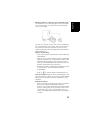
Using the USB data cable provided with your receiver, you
can exchange data between the receiver and your office
computer.
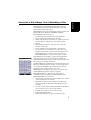
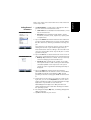
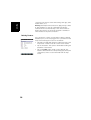
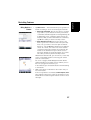
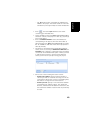
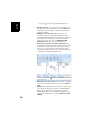
With Windows 7 or Vista running your computer, no particular
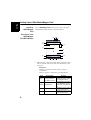
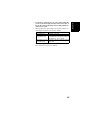
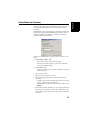
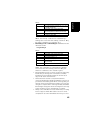
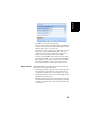
settings are required. With Windows XP (or older), use the
following settings in ActiveSync to make the connection
automatic at receiver power up:
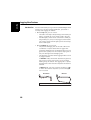
Use the procedure below to copy files from one unit to the
other:
• MobileMapper 100 or 120:
– Place the receiver on the docking station
– Connect the docking staon to your office computer
using the USB data cable.
• MobileMapper 10:
– Connect the receiver to your office computer using the
USB data cable.
• Turn on the receiver.
• Wait until the connection is active.
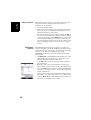
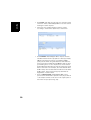
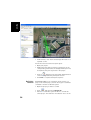
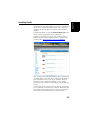
• Do the following, depending on the OS used in your
computer:
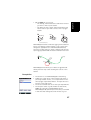
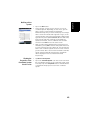
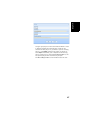
– (Vista) In the auto-run window that opens, choose the
option to explore the mobile device
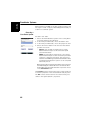
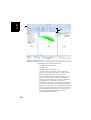
– (Windows XP or older) In the ActiveSync window, click
Explore.
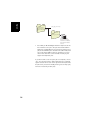
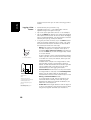
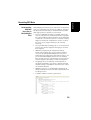
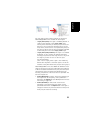
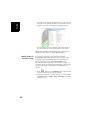
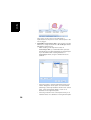
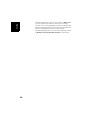
• From either of these windows, you can copy any file from
the receiver to any folder on your office computer, or the
other way around, using the usual copy, paste and browse
functions.
41
English
Upload/Download Functions