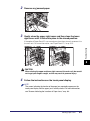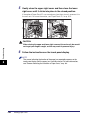
1
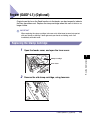
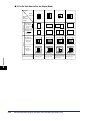
Duplexing Unit (Inside the Main Unit)
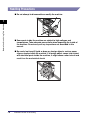
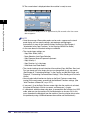
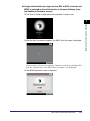
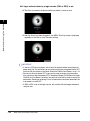
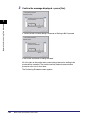
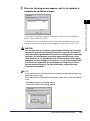
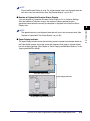
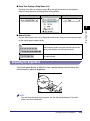
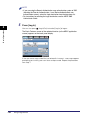
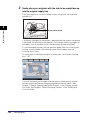
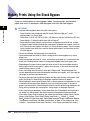
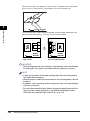
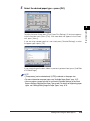
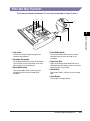
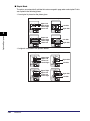
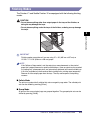
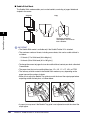
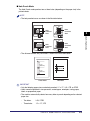
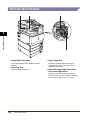
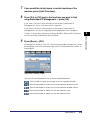
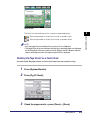
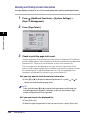
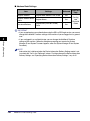
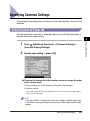
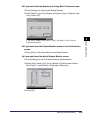
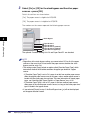
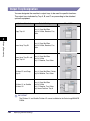
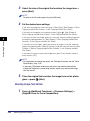
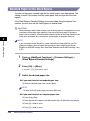
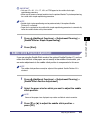
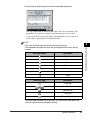
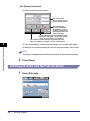
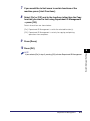
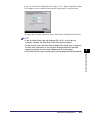
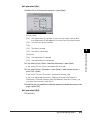
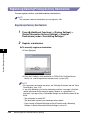
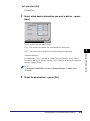
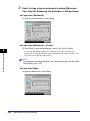
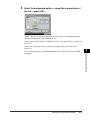
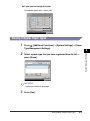
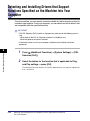
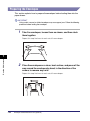
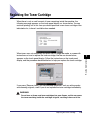
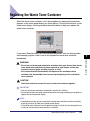
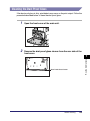
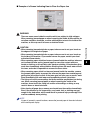
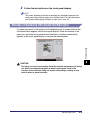
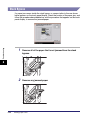
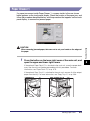
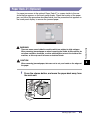
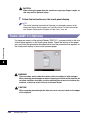
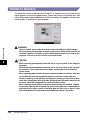
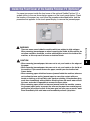
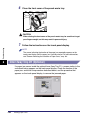
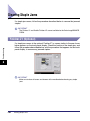
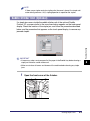
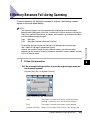
If a paper jam occurs inside the duplexing unit, a screen similar to the one shown
below appears on the touch panel display. Check the location of the paper jam, and
follow the procedure described below, and the procedure that appears on the touch
panel display, to remove the jammed paper.
Troubleshooting
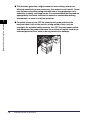
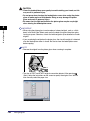
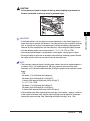
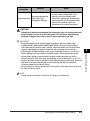
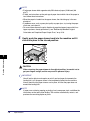
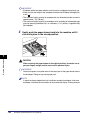
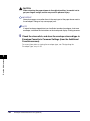
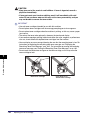
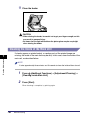
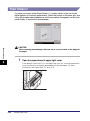
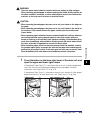
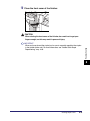
CAUTION
The fixing unit and its surroundings inside the machine may become hot during
use. When removing jammed paper or when inspecting the inside of the
machine, do not touch the fixing unit and its surroundings, as doing so may
result in burns or electrical shock.
8
1
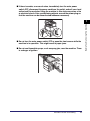
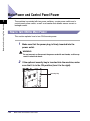
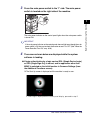
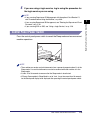
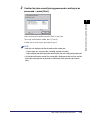
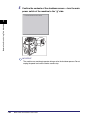
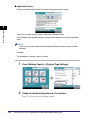
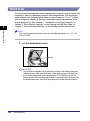
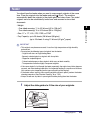
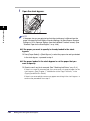
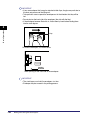
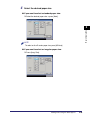
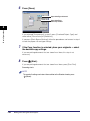
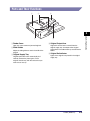
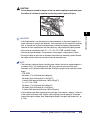
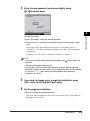
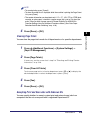
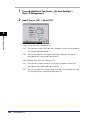
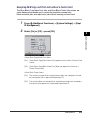
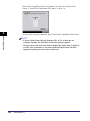
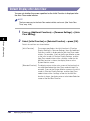
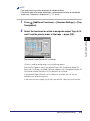
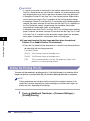
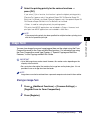
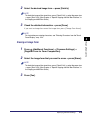
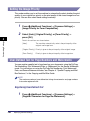
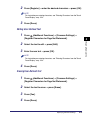
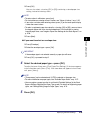
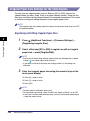
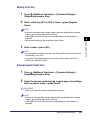
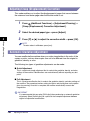
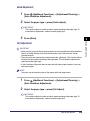
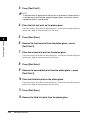
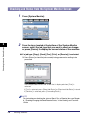
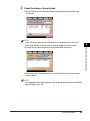
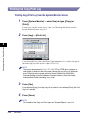
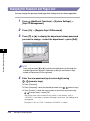
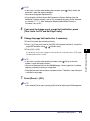
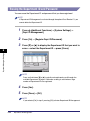
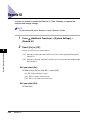
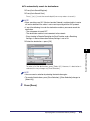
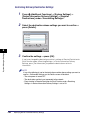
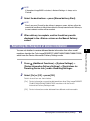
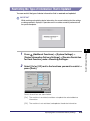
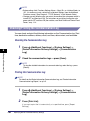
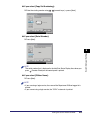
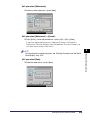
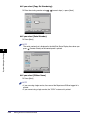
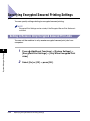
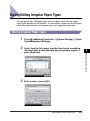
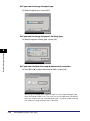
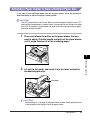
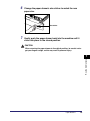
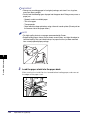
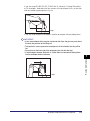
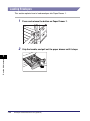
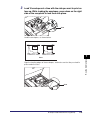
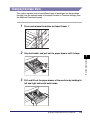
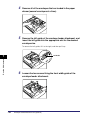
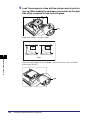
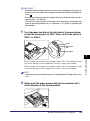
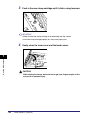
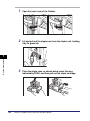
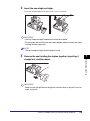
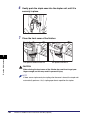
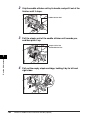
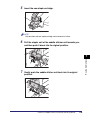
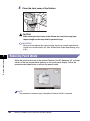
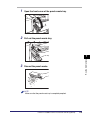
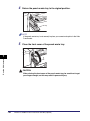
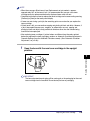
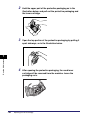
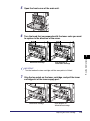
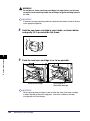
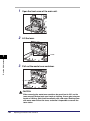
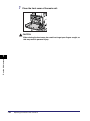
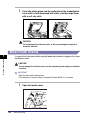
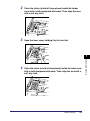
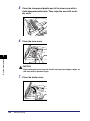
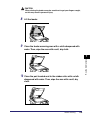
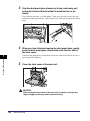
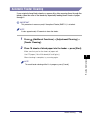
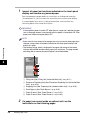
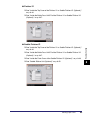
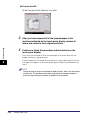
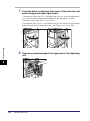
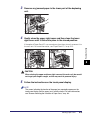
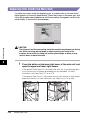
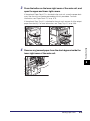
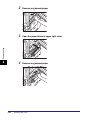
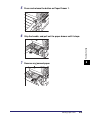
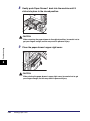
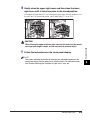
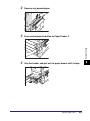
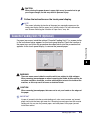
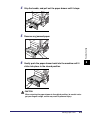
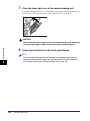
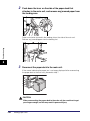
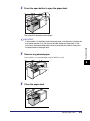
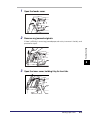
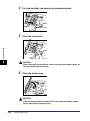
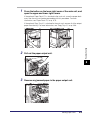
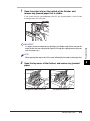
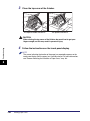
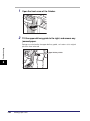
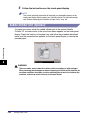
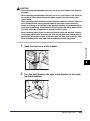
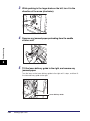
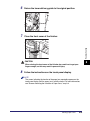
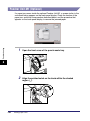
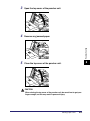
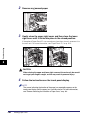
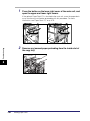
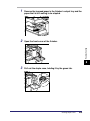
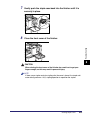
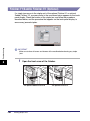
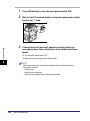
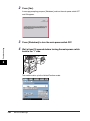
Press the button on the lower right cover of the main unit, and
open the upper and lower right covers.
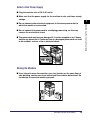
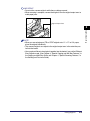
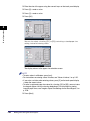
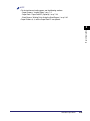
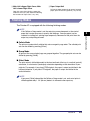
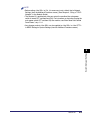
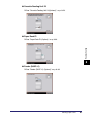
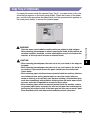
If the optional Paper Deck-Z1 is attached to the main unit, move the paper deck
away from the main unit before proceeding with this procedure. For more
information, see "Paper Deck-Z1," on p. 3-15.
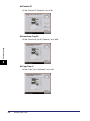
If the optional Copy Tray-J1 is attached to the main unit, remove all of the output
paper from the tray. For more information, see "Copy Tray-J1," on p. 3-36.
8-16
Clearing Paper Jams