1
Send from Folder
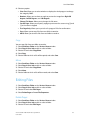
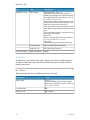
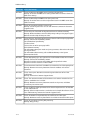
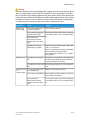
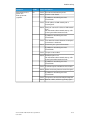
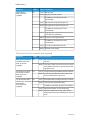
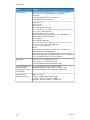
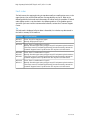
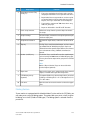
• Starting Number: Enter a value of the control number in the range from 1 to
9999. Use up and down arrows or the numeric keypad to enter a starting page
number.
• Stored Watermarks: Select the text to be printed on copies.
• User Account Number: Select this check box to print a user account number.
• Date & Time: Select this check box to print the serial number of the machine.
• Serial Number: Allows you to program text effects.
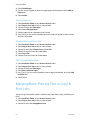
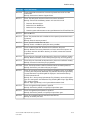
File Name
1.
2.
3.
4.
5.
Select Send from Folder on the Services Home window.
Select Copy & Print Jobs, and then select a folder.
Select a file and select an option.
Select File Name.
Enter a file name using the displayed keyboard.
Output
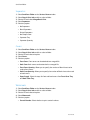
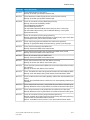
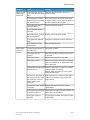
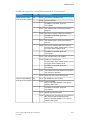
Use this option to program stapling/hole punching/Z fold settings before merging files.
1. Select Send from Folder on the Services Home window.
2. Select Copy & Print Jobs, and then select a folder.
3. Select a file and select an option.
4. Select Output.
5. Select any option.
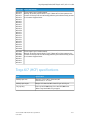
• Staple
• Hole Punch
• Z Fold Half Sheet
• Output Destination/Offset
Annotations
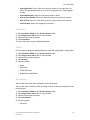
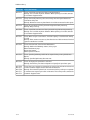
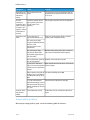
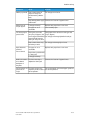
You can add a comment, date, and page numbers onto copies.
You can also select a comment, date, and page numbers, and their print positions from
preset formats.
1. Select Send from Folder on the Services Home window.
2. Select Copy & Print Jobs, and then select a folder.
3. Select a file and select an option.
4. Select Annotations.
5. Select any option.
• Comment
Xerox® D95/D110/D125/D136 Copier/Printer
User Guide
6-7