1
Updating from a previous release
Preparing the Console clients
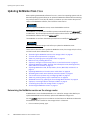
Review this section before you update the Console server for information about Console
clients and how to clear the java cache.
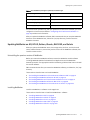
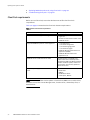
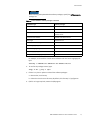
NetWorker 8.1.x does not support the following previously supported Console clients:
◆
◆
◆
◆
Apple OS-X for Intel
Linux ia64-bit
IBM system Z
IBM Power Linux
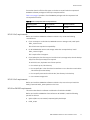
The EMC NetWorker Software Compatibility Guide on EMC Online Support provides more
information about supported Console server operating systems.
The Console server update process replaces the gconsole.jnlp file in the Java Web Start
cache on the Console server. As a result, after a Console server update, the Console client
fails to start the NMC GUI with an error message similar to the following:
Unable to launch NetWorker Management Console
To prevent this issue, on each host that you use as a Console client, clear the local java
cache. This enables the Console client to download the new gconsole.jnlp file from the
Console server.
The procedure is different for UNIX and Windows:
UNIX Console client
To clear the java cache on a UNIX Console client:
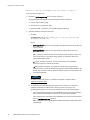
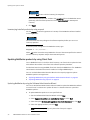
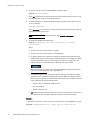
1. Run the Java Web Start program.
2. Move or delete the $HOME/.java directory:
cd $HOME
mv .java .java_orig
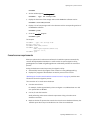
3. Run the javaws -viewer command to creates a new $HOME/.java directory and start
the Java Cache Viewer.
4. Reconfigure Java Web Start preferences if required and exit the Java Cache Viewer.
Windows Console client
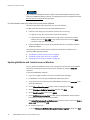
To clear the java cache on a Windows Console client:
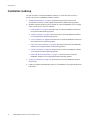
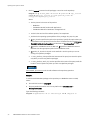
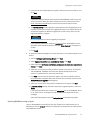
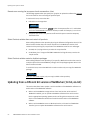
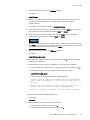
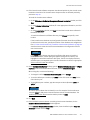
1. Open the Java Control Panel application.
2. On the General tab, in the Temporary Internet Files section, select View...
3. Delete the NetWorker Management Console entry, then click Close.
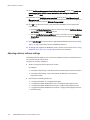
4. On the General tab, in the Temporary Internet Files section, select Settings.
5. 6. Select Delete files... and then click OK.
6. Close the Java Cache Viewer window andthe Java Control Panel window.
Preparing for a Console server update
35