1
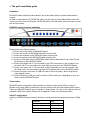
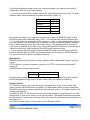
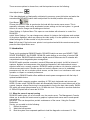
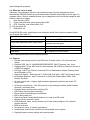
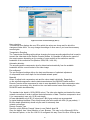
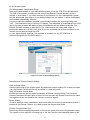
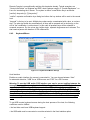
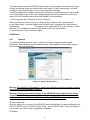
5.4 Using the DKVM-IP8 as a KVM Switch The power on state of the DKVM-IP8: When you power on KVM switch, it will ask you for the password, the default password value is eight zeros – “00000000”. Key in eight zeros and enter the same value at retype field. Note: Until you are familiar with the operation of the OSD, don’t change the password – i.e. keep default eight zeros (00000000) value. Otherwise, if you have changed the password and forget the password, you will need to send it back to your distributor to reset the password. The Push Buttons DKVM-IP8 IP-KVM Switch The Push Buttons ~ 1 : 8 Pressing the individual button to get PC port you want. PC Port LED Indication: There are two LED indicators for each port, a Green LED and an Orange LED located above each PC port selection button. When you select a PC port and the PC is shut down or the PC port is disconnected from the PC, the selected port LED will flash Green. When you select a PC port and the PC is powered on and connected, the selected port LED will be solid Green. For each port that has a PC that is connected and powered on but is not currently the selected port, the LED will be solid Orange. 7-Segment BANK LED Indication When you would like to view the next bank KVM switch, please press the “BANK“ push button cyclically until you reach the destination bank. The bank LED will be changed from bank 1 to the maximum daisy chain level and then press cycle back to bank 1. Bank 1 Reset Button ((“Bank Bank 2 Bank 3 Bank ” button) and (PC 8 “ MAX. BANK 8 ” button)): Press both the “Bank” button and any one of the “PC1~PC8” buttons of the master bank simultaneously to reset the KVM switch. This reset action will not only return the KVM switch back to its initial state, verify the password and also rescan all of the slave banks which connected to the master KVM Switch. If you add a new unit as a slave bank, use the reset button of master unit to automatically assign a new ID to it. You can view this new slave bank by going through the OSD menu. The PC ports of the unit are not reset by using the reset command. Keyboard Hot Key Commands: You can control the KVM switch by switching ports using simple key sequences. To send commands to the KVM switch, the <Scroll Lock> (<ScrLk>) key must be pressed twice within 2 seconds. You will hear a beep for confirmation and the keyboard is change to hot key mode. If you do not press a key in hot key mode within 2 seconds (i.e. pressing a key after pressing the <Scroll Lock> key twice), the keyboard will go back to the Operation System (OS) control state. 20