1
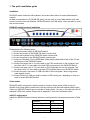
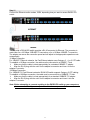
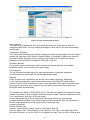
MAC address, manually, press the button “Refresh Devices”. The displayed MAC address is
the same MAC address printed on the white sticker placed on the back of the DKVM-IP8 switch.
If the DKVM-IP8 switch is connected via USB, it is classified as an USB device and an
appropriate drive letter is chosen for this device.
On the lower right corner of the window, there are two buttons: “Query Device” and “Setup
Device”. Press the “Query Device” button to display the preconfigured values of the network
configuration. The values are d isplayed in the text fields located above. If necessary, adj ust the
network settings to your needs. To save the changes enter an user name and an according
password. Then press the “ Setup Device “ button.
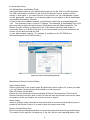
Authentication
To adjust the authentication settings, enter your login as a super user, and change your
password.
Super user login
Enter the login name of the super user. The initial value is “admin”. All of characters are lower
case.
Super user password
Enter the current password for the super user. This initial value is “admin”. All of characters are
lower case.
New super user password
Enter the new password for the super user.
New password (confirm)
Re-type the new password for the super user.
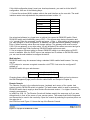
To close the window and accept the changes, press the “ OK ” button, otherwise press the
“ Cancel ” button.
4.1.2 Initial configuration via serial console
Using a serial terminal, the DKVM-IP8 switch has a serial line interface (host side). This
connector is compliant with the RS 232 serial line standard. The serial line has to be configured
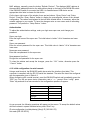
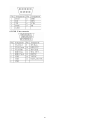
with the parameters given in Table 4-2.
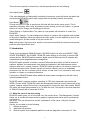
When configuring with a serial terminal, reset the DKVM-IP8 switch and immediately press the
“ESC” key. You will see some device information, and a “ => ” prompt. Enter “config”, press
“Enter” key and wait for a few seconds for the configuration questions to appear.
Parameter
Bits/second
Data bits
Parity
Stop bits
Flow Control
Value
115200
8
No
1
None
Table 4-2. Serial line parameters
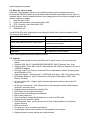
As you proceed, the following questions will appear on the screen. To accept the default values
which are shown in square brackets below, press “Enter” key.
IP auto configuration (non/dhcp/bootp) [dhcp]: IP [192.168.0.70]:
Net mask [255.255.255.0]:
13