1
Print
Print
Printing Overview
Topo USA 4.0 lets you perform the following functions:
•
Print your map view
•
Print your routes and/or route directions
•
Print and assemble large, multipage maps as large as 3 (pages) x 3 (pages)
•
Print up to 11" x 17" paper size for 2-D and 3-D maps
•
Save your map or route as a bitmap image
•
Save your route directions as a text file
Printing a Map
Topo USA 4.0 lets you print any map view displayed on your screen. You can print single page maps (up
to 11" x 17"), or multipage (2 x 2 or 3 x 3) maps which you can assemble into one large map manually.
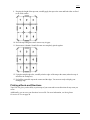
For more information, see Manually Assembling a Multipage Map on page 44.
You can display and store your multipage maps in the DeLorme ® MapPack holder, available separately
from DeLorme.
To Print a Map
Use the following steps to print a map.
1. Locate the area you want to print. For more information on locating an area on the map or
navigating the map, see Panning/Centering the Map on page 19, the Find Overview on page 32,
and other Find topics.
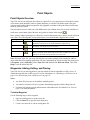
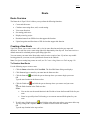
2. Click the Print tab. The Print dialog area displays.
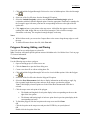
3. Click Map. The Map dialog area displays.
4. Under Map, select Left to print the map in the left (secondary) window or Right to print the map
in the right (primary) window.
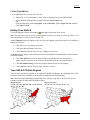
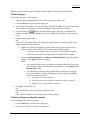
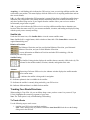
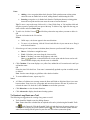
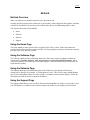
5. Under Layout, click the desired map layout option for your map. The print area displays on both
the Map and the Overview Map.
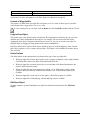
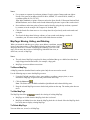
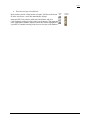
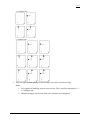
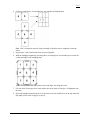
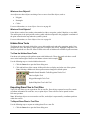
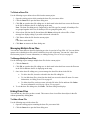
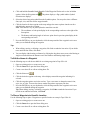
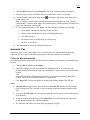
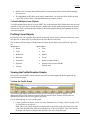
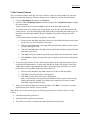
Note : If you do not want to print all the pages in a multipage map, on the Map Layout graphic
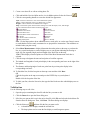
itself , click the page(s) you do not want to print. The page(s) appear(s) dimmed or gray.
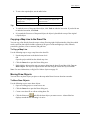
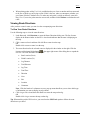
In the example below, page 4 will not print for the 2 x 2 map.
6. Verify this is the location and scale you want to print. If not, pan the map to the desired location
and zoom to the desired level. For more information, see Panning/Centering the Map on page 19
and Zooming In and Out on page 31.
Note : The print scale adjusts automatically as you change the zoom level.
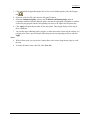
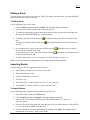
7. If you want to use other tabs and functions but not lose your current print area, print scale, or
other settings, under Print Area, select the Lock Print Settings check box. Selecting this check
41