1
Area Objects
To Draw a Rectangle
Use the following steps to draw a rectangle.
1. Open an existing project or create a new one.
2. Click the Draw tab to open the Draw dialog area.
3. Create a new draw file or edit an existing draw file.
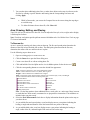
4. Click and hold the Polygon/Rectangle/Circle tool to view its hidden options. Select the Rectangle
tool
.
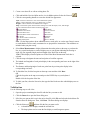
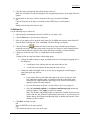
5. Select one of the five fill colors from the Rectangle Fill options.
6. Select Show Measurement to display information on the width, height, and area on the map as
you draw the rectangle.
Note : Labels display when end points are clicked if the Show Measurement check box is selected.
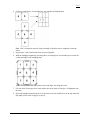
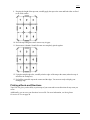
7. Click the location for the rectangle's upper-left corner on the map and drag away from the corner
to set the width, height, and area for the rectangle. Release as soon as the desired size is achieved.
8. The latitude and longitude of the upper-left corner point displays in the corresponding text boxes
to the right of the fill options.
9. The distance and bearing/angle of the final corner point from the first corner point displays in the
corresponding text boxes to the right of the fill options.
Tip: Obtain the area of the rectangle by adding a detailed MapNote using the right-click function.
To Edit a Rectangle
Use the following steps to edit a rectangle.
1. Open the project containing the draw file with the rectangle you want to edit.
2. Click the Draw tab to open the Draw dialog area.
3. If the rectangle you want to edit is not in the active draw file, click File and select the desired
draw file from the draw file dialog area. Then, click Done. The Draw dialog area displays..
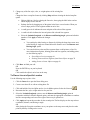
4. Click the Select tool
and then click the desired rectangle on the map. A dotted-line box
displays around the rectangle indicating that it is active and the corner points display as small,
magenta boxes.
5. Change the rectangle fill option.
OR
Click on one of the corner points of the rectangle and drag to change it's width, height, and area
on the map.
6. Click Done to finish your edit.
OR
Press the ENTER key on your keyboard to finish your edit.
OR
Click outside the object's active box on the map.
To Place a Rectangle at a Specific Location
Use the following steps to place a rectangle.
1. Click the Draw tab to open the Draw dialog area.
2. Create a new draw file or edit an existing draw file.
90