1
Route
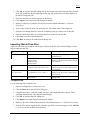
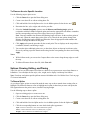
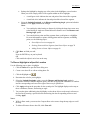
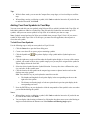
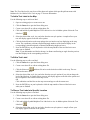
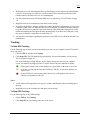
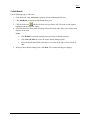
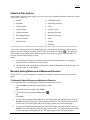
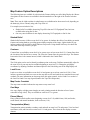
An Exit dialog box displays if more than one item has been updated. All updated files are listed and
are selected by default.
•
Click Save and Exit to save any changes for the selected files and close the program. Clear the
check box of any item you do not want saved prior to using this option.
•
Click Exit without Saving to close the program without saving any file changes.
•
Click Cancel to return to Topo USA. No files are saved.
Using Advanced Routing Options
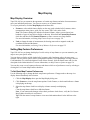
Once you have mastered basic routing, you can customize your routing preferences and create more
complex routes. Topo USA allows you to add, remove, and rearrange waypoints and vias to adjust your
route preferences. You can add comments to points within your route and even reverse your route.
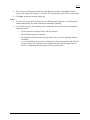
Notes :
• For more information on setting route preferences for each type of route including road speed and
road type, and adjusting route features as they appear on the map, see Setting Routing Preferences
on page 124.
•
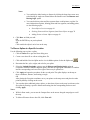
For information on editing roads on your map, see Editing Roads on page 125.
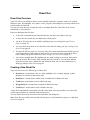
To Add, Remove, and Rearrange Route Points
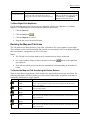
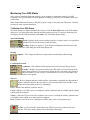
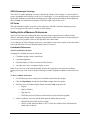
Use the following steps to add, remove, and rearrange route points, which include start, finish, vias, and waypoints.
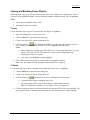
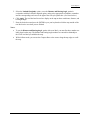
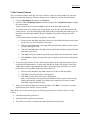
1. In the Route tab, click Advanced to open the Advanced Routing dialog area.
2. To edit an existing route, select it from the Name drop-down list. The summary for the route
displays below and the waypoints display in the list box to the right.
3. To set your routing preferences, click Route Prefs to display the options.
4. Under Route Features, select the route features you want to apply to your route and click Done .
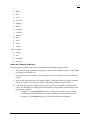
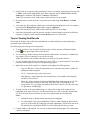
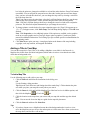
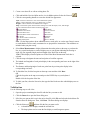
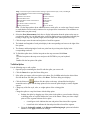
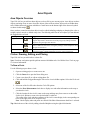
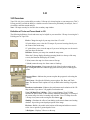
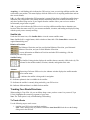
5. To change your start, click the Start tool
map.
6. To change your finish, click the Finish tool
the map.
and drag the start point to the new location on the
and drag the finish point to the new location on
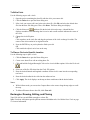
7. To add a stop or via, click the Stop tool
or the Via tool
and then click the desired spot on
the map.
If no items are selected in the list, the stop or via is added just before the finish. To insert a stop or
via at a particular spot in your route, select the item that will precede the stop or via and then
click the map. The stop or via is inserted after the selected item. Stops are included in the printed
route directions list; vias are not.
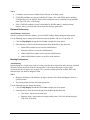
Tip: To move any of the route points on the map, click the tool for the type of point you want to
move (Start, Finish, Stop, or Via) and drag the symbol to the new spot on the map.
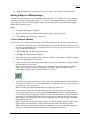
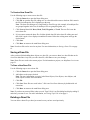
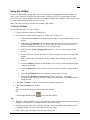
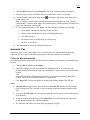
8. To rearrange stops or vias, click the desired item to select it and click the Move Up tool
the Move Down tool
or
to relocate it on the route.
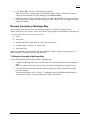
Note : To reverse the order of the selected route, click the Reverse Route tool
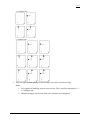
9. To delete a waypoint or via, select the desired item and click the Delete button
.
.
123