1
Conversion
References
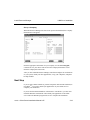
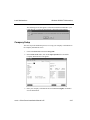
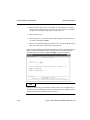
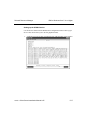
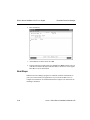
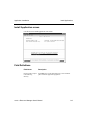
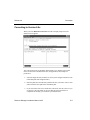
4. If you want the conversion process to pause when a problem occurs, enter Y;
if not, enter N. The system considers evidence of data not converting correctly
or file corruption a problem. Whether you enter Y or N, the system creates an
error log in the DATA subdirectory called CNVTLOG.
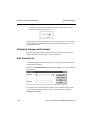
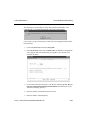
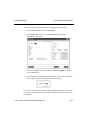
5. Enter RM at the bottom of the screen in the APPL column. Then enter the
present version number, and press Enter.
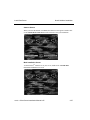
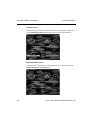
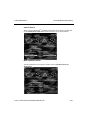
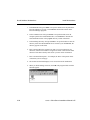
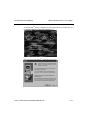
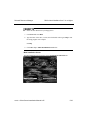
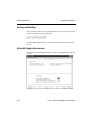
When you enter OSAS, the copyrights screen shows the version of Resource
Manager you have.
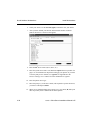
6. If data files already exist for Resource Manager in the intended destination
path, the following prompt appears: RM Data files exist. Do you want this
task to erase them? If you want to erase the existing files and convert the
files from the version in the source path, enter Y. If you enter N, you must
change your entries so that no conflict exists.
7. To convert, use the Proceed (PgDn) command.
8. The following prompt appears: Do you wish a printout of error log after
each application? If you want the error log to be produced after the files are
converted for each application, enter Y; if you want the log to be produced
after all the files are converted, enter N. If you are converting only Resource
Manager files, your answer to this prompt makes no difference.
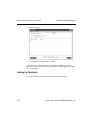
If a prompt appears when a problem occurs, enter Y if you want to stop the
conversion process or N if you want to let the conversion run its course.
9. When the process is finished, the files are converted. Select the output device
for the error log.
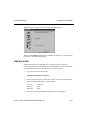
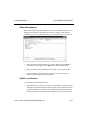
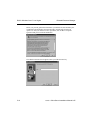
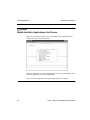
After conversion is finished and the error log is produced, the Main menu appears
with Resource Manager added appears.
E-6
Resource Manager Installation Manual 6.05