1
Visual Project ®
User`s manual
78
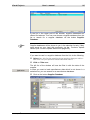
selected.
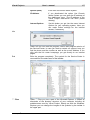
Edit product numbers
You can edit the product numbers in the positions later on. However,
the change is only effective if the changed product number is the
number of one of the products existing in the product master data.
After the change the data belonging to the product are taken over from
the product master data.
Free Position
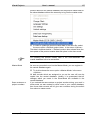
Click on the menu <Insert / Free Position> to paste an unrestricted
position into the offer. Use this function if you want to use a product in
this offer only. All product data must be manually entered.
Free text
Click on the menu <Insert / Free text> if you want to enter additional
text positions (explanations, important remarks) in your offer. You can
only fill in the columns “Position number”, „Designation“ and „Text“.
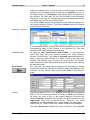
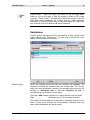
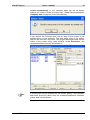
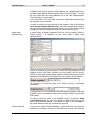
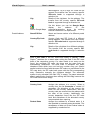
Highlighting positions
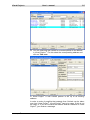
The first column in the table of the offer is shown in grey and
consecutively prenumbered. If you click on a field in the first column,
the entire accompanying row is highlighted with a black background.
You can highlight several rows by dragging with the left mouse button
depressed. In case you want to highlight all positions, click into the
grey field above the first position.
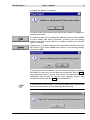
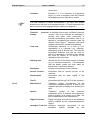
Deleting positions
To delete one or several offer positions, highlight them and select
under Edit the menu item Delete or press the Delete – key. After a
confirmatory question the positions are deleted.
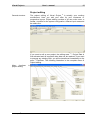
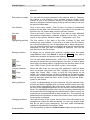
Cut
Paste
Copying Positions
Copy
Paste
You can also delete positions with <Edit / Cut>. The deleted positions
can then be pasted into any desired place in the offer. In order to paste
them before a starting position, highlight this first and then select in the
menu <Edit / Paste> or click the Insert -symbol in the toolbar.
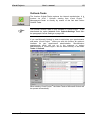
Within the offer sheet you can copy offer positions in order to repeat
them on another spot within the offer. Highlight the positions to be
copied first. Select <Edit / Copy> or click the Copy-symbol on the
toolbar. The copied positions can then be pasted into the desired place
of the offer. In order to paste them before a starting position, highlight
this first and then select the menu <Edit / Paste> or click the Insert symbol in the toolbar.
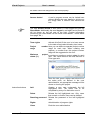
Moving positions
In order to retrospectively bring the positions into your desired order,
proceed as follows: Highlight one or several positions which you want
to move (black highlighting). Move the mouse cursor slowly above the
top limit of the highlighted positions until the mouse cursor becomes an
arrow. The highlighted positions then can be moved by depressing the
left mouse button and dragging to the desired place. When moving, the
positions are characterized with a black double line. The positions are
pasted before the positions on which the mouse cursor is when the left
mouse button is released.
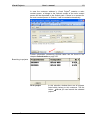
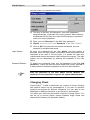
Changing positions
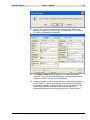
Click with the help of the mouse into the field of the offer sheet to be
changed and change the data as desired. You can only change fields
that do not have a grey background. The work sheet automatically
updates all calculations or calculation fields.
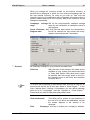
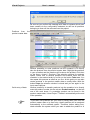
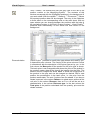
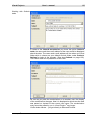
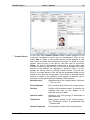
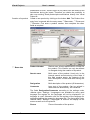
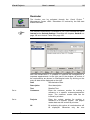
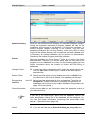
Product details
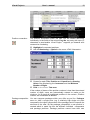
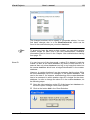
It is also possible to open the Product data window through the menu
Visual Project ®
Revision 2013.12