1
Chapter 3
Loops and Charts
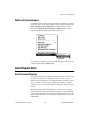
Mechanical Action of Boolean Switches
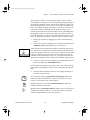
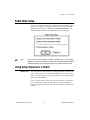
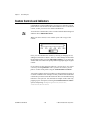
You may notice that each time you run the VI, you first must turn on
the vertical switch and then click on the run button, in the toolbar. With
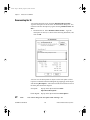
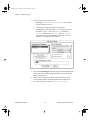
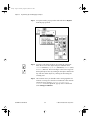
LabVIEW, you can modify the mechanical action of Boolean controls.
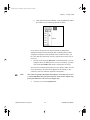
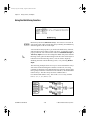
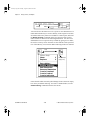
There are six possible choices for the mechanical action of a Boolean
control–Switch When Pressed, Switch When Released, Switch Until
Released, Latch When Pressed, Latch When Released, and Latch
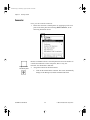
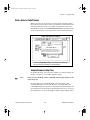
Until Released. LabVIEW contains an example that demonstrates these
behaviors called Mechanical Action of Booleans.vi located in
examples\general\controls\booleans.llb. As an example,
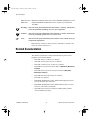
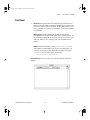
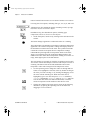
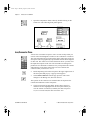
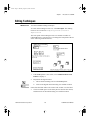
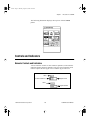
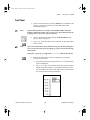
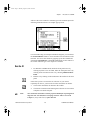
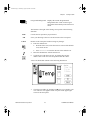
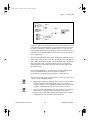
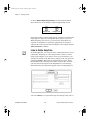
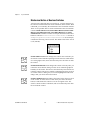
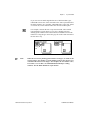
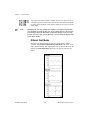
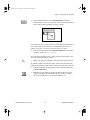
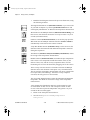
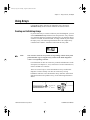
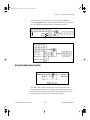
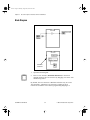
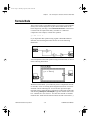
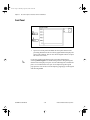
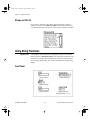
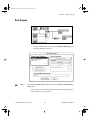
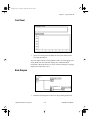
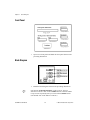
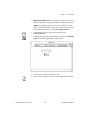
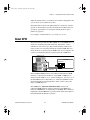
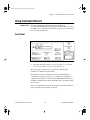
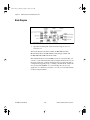
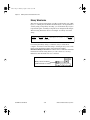
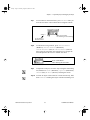
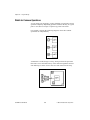
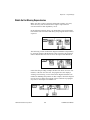
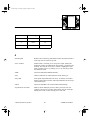
consider the following vertical switch. The default value of the switch
is off (FALSE).
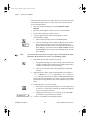
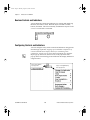
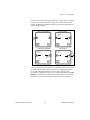
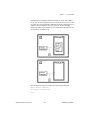
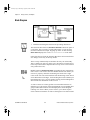
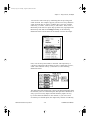
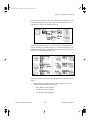
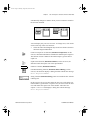
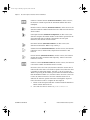
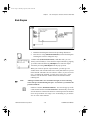
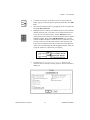
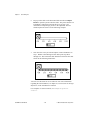
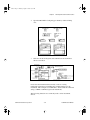
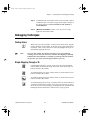
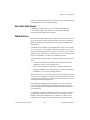
Switch When Pressed action changes the control value each time you
click on the control with the Operating tool. The action is similar to that
of a ceiling light switch, and is not affected by how often the VI reads
the control.
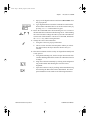
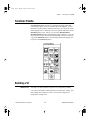
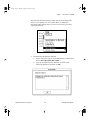
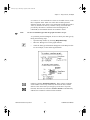
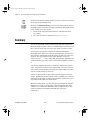
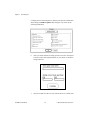
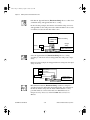
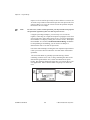
Switch When Released action changes the control value only after you
release the mouse button, during a mouse click, within the graphical
boundary of the control. The action is not affected by how often the VI
reads the control. This action is similar to what happens when you click
on a check mark in a dialog box; it becomes highlighted but does not
change until you release the mouse button.
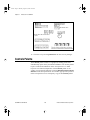
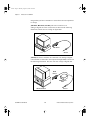
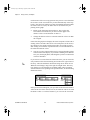
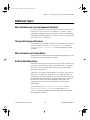
Switch Until Released action changes the control value when you click
on the control. It retains the new value until you release the mouse
button, at which time the control reverts to its original value. The
action is similar to that of a doorbell, and is not affected by how often
the VI reads the control.
LabVIEW Tutorial Manual
3-6
© National Instruments Corporation