1
01Intro Page 34 Thursday, August 24, 2000 10:04 AM
Chapter 1
Introduction to LabVIEW
3.
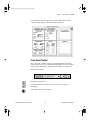
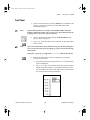
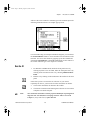
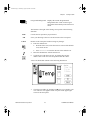
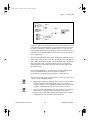
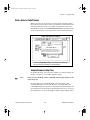
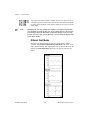
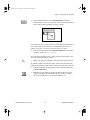
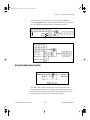
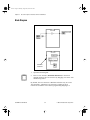
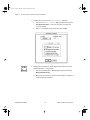
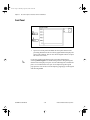
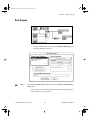
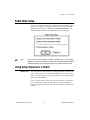
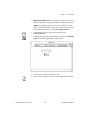
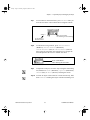
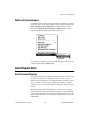
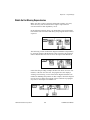
Show the description you created again by popping up on the
thermometer indicator and selecting Data Operations»
Description....
Saving and Loading VIs
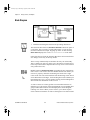
As with other applications, you can save your VI to a file in a regular
directory. With LabVIEW, you can also save multiple VIs in a single
file called a VI library. The tutorial.llb library is an example of a
VI library.
If you are using Windows 3.1, you should save your VIs into VI
libraries because you can use long file names (up to 255 characters)
with mixed cases.
Otherwise, you should not use VI libraries unless you need to transfer
your VIs to Windows 3.1. Saving VIs as individual files is more
effective because you can copy, rename, and delete files more easily
than if you are using a VI library. For a list of the advantages and
disadvantages of using VI libraries and individual files, see the Saving
VIs section in Chapter 2, Creating VIs, of the LabVIEW User Manual.
Even though you may not save your own VIs in VI libraries, you
should be familiar with how they work. For that reason, you should
save all VIs that you create during this tutorial into VI libraries to
become familiar with using these libraries.
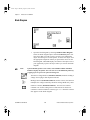
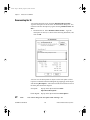
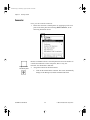
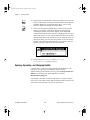
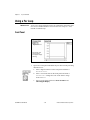
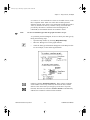
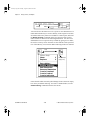
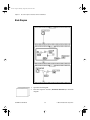
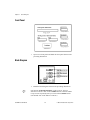
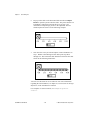
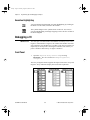
Save your VI in a VI library.
1.
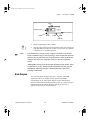
Select File»Save As.... If you are using UNIX, specify a location in
the file system where you have write privileges. For example, you
might select your home directory.
2.
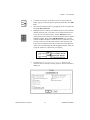
Do not save your files in the examples directory. Instead, create
your own directory and label it Tutorial VIs.
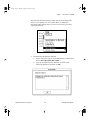
3.
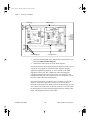
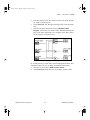
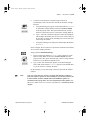
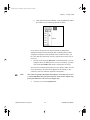
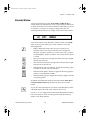
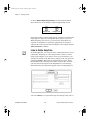
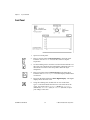
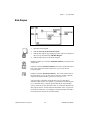
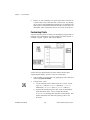
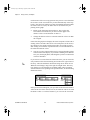
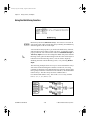
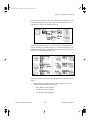
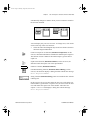
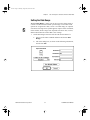
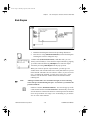
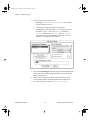
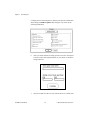
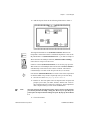
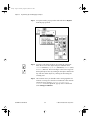
Create the VI library.
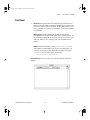
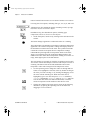
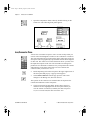
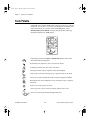
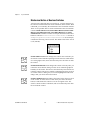
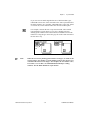
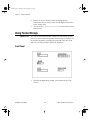
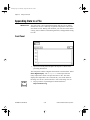
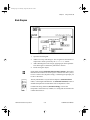
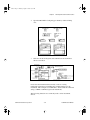
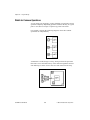
(Windows) Select New... or the New VI Library button to create the
VI Library.
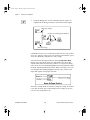
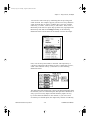
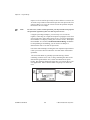
(Macintosh) If you use the native file dialog box, Edit»
Preferences...,select Use LLBs to access LabVIEW’s file dialog
box. To create the VI library, click on Save»New....
(UNIX) Select Save»New....
LabVIEW Tutorial Manual
1-34
© National Instruments Corporation