1
gnuplot 5.0
239
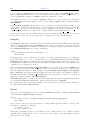
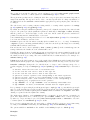
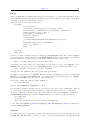
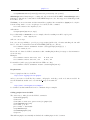
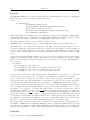
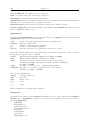
argument -persist (same as for gnuplot under x11; former Windows-only options /noend or -noend are
still accepted as well), will not close gnuplot. Contrary to gnuplot on other operating systems, gnuplot’s
interactive command line is accessible after the -persist option.
The plot window remains open when the gnuplot terminal is changed with a set term command. The plot
window can be closed with set term windows close.
gnuplot supports different methods to create printed output on Windows, see windows printing (p. 239).
The windows terminal supports data exchange with other programs via clipboard and EMF files, see graphmenu (p. 239). You can also use the terminal emf to create EMF files.
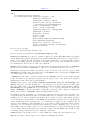
Graph-menu
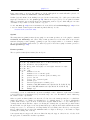
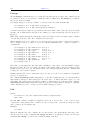
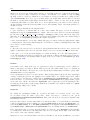
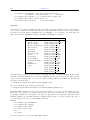
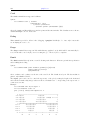
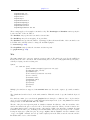
The gnuplot graph window has the following options on a pop-up menu accessed by pressing the right
mouse button(*) or selecting Options from the system menu:
Copy to Clipboard copies a bitmap and an enhanced Metafile picture.
Save as EMF... allows the user to save the current graph window as enhanced metafile
Print... prints the graphics windows using a Windows printer driver and allows selection of the printer and
scaling of the output. The output produced by Print is not as good as that from gnuplot’s own printer
drivers. See also windows printing (p. 239).
Bring to Top when checked brings the graph window to the top after every plot.
Color when checked enables color linestyles. When unchecked it forces monochrome linestyles.
Double buffer activates drawing into a memory buffer before copying the graph to the screen. This avoids
flickering e.g. during animation and rotation of 3d graphs. See mouse (p. 137) and scrolling (p. 139).
Oversampling doubles the size of the virtual canvas. It is scaled down again for drawing to the screen.
This gives smoother graphics but requires more memory and computing time. It requires double buffer.
Antialiasing selects smoothing of lines and edges. Note that this slows down drawing.
Fast rotation switches antialiasing temporarily off while rotating the graph with the mouse. This speeds
up drawing considerably at the expense of an additional redraw after releasing the mouse button.
Background... sets the window background color.
Choose Font... selects the font used in the graphics window.
Update wgnuplot.ini saves the current window locations, window sizes, text window font, text window font
size, graph window font, graph window font size, background color to the initialization file wgnuplot.ini.
(*) Note that this menu is only available by pressing the right mouse button with unset mouse.
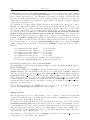
Printing
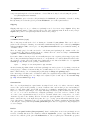
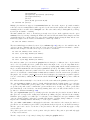
In order of preference, graphs may be printed in the following ways:
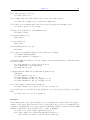
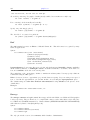
1. Use the gnuplot command set terminal to select a printer and set output to redirect output to a file.
2. Select the Print... command from the gnuplot graph window. An extra command screendump does
this from the text window.
3. If set output "PRN" is used, output will go to a temporary file. When you exit from gnuplot or
when you change the output with another set output command, a dialog box will appear for you to select a
printer port. If you choose OK, the output will be printed on the selected port, passing unmodified through
the print manager. It is possible to accidentally (or deliberately) send printer output meant for one printer
to an incompatible printer.
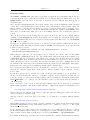
Text-menu
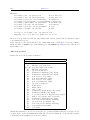
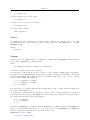
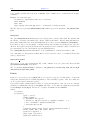
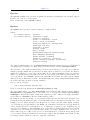
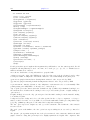
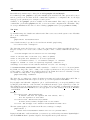
The gnuplot text window has the following options on a pop-up menu accessed by pressing the right mouse
button or selecting Options from the system menu: