1
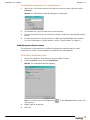
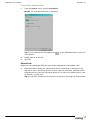
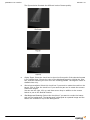
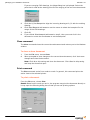
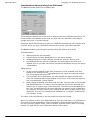
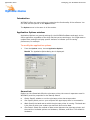
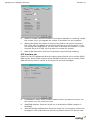
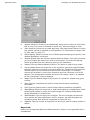
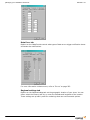
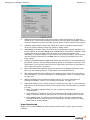
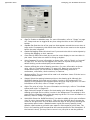
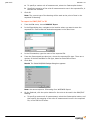
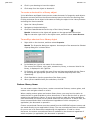
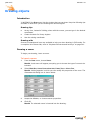
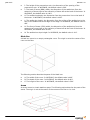
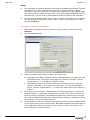
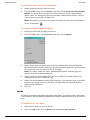
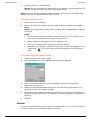
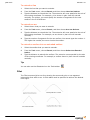
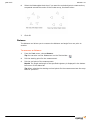
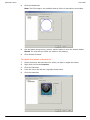
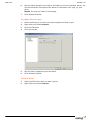
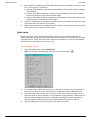
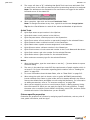
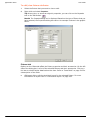
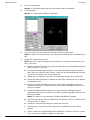
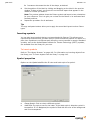
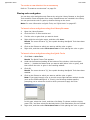
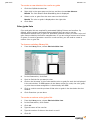
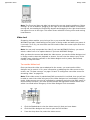
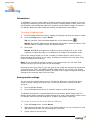
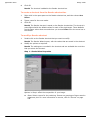
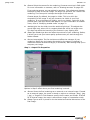
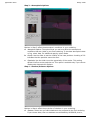
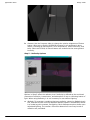
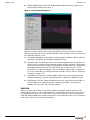
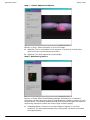
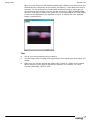
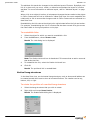
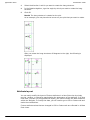
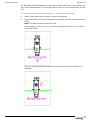
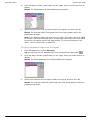
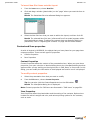
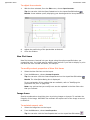
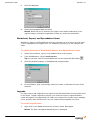
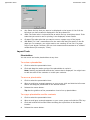
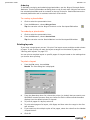
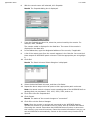
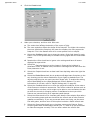
September 2005 CAD mode Drawing pipes For details, refer to “Drawing pipes” on page 133. Drawing masking Masking, specifically borders and legs, can be automatically attached to pipes using the border and legs tool. To draw borders and legs 1 Select the pipes for which you want to attach a border and legs. 2 From the Tools menu, choose Border and Legs. 3 Select the Border check box to add a border to the selected pipes, and then specify the height of the border. Note: This is the distance from the pipe to the bottom of the border. 4 Select the Legs check box to add legs to the selected pipes, and then specify the width and bottom elevation of the legs. Note: The width is the distance from the extremity of the pipe to the inside edge of the leg. The bottom elevation is the distance from the floor (z = 0) to the bottom of the legs. 5 Select the Group to pipe check box to group the border and legs to the pipe. When this option is selected all the components (border, legs, and pipe) are selected as one. Note: If, at a later time, you want to edit a border or leg individually, you must ungroup the objects. 6 Click OK. Result: Three surfaces are drawn and attached to the selected pipe. Drawing focus positions For details, refer to “Drawing focus positions” on page 179. Drawing screens Streaming video enables you to bring a live or pre-recorded video stream into WYSIWYG and play it back while you set looks in Design mode and while you precue in Live mode. To do so, you must first use CAD mode to draw the screen upon which the video will play. Once you draw the screen, you can leave it blank, assign a static image, or you can assign a video source to it using the Video Manager. You can select a video file or you can capture a live video stream from an external source, such as a web cam or a video capture device that is installed on your computer (provided that you have WYSIWYG Perform). For video files, you must select one of the following video file formats for playback: Motion Picture Experts Group (MPEG) Audio-Video Interleaved (AVI) Note: If you cannot view these file types, you may not have the proper decoder installed on your PC. Install the appropriate decoder, and then try viewing the file again. For help on installing the decoder, consult the developer of the video file type. For live video streams, your capture device must be using WDM drivers. WYSIWYG Reference Guide 133