1
WYSIWYG user interface
Release 14.0
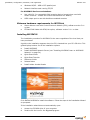
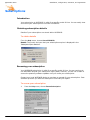
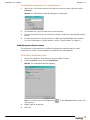
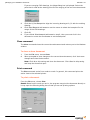
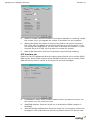
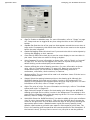
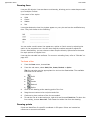
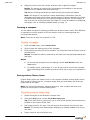
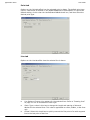
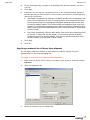
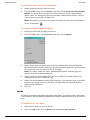
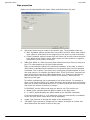
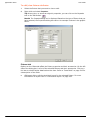
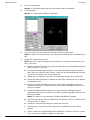
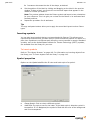
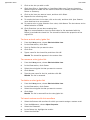
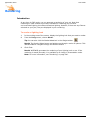
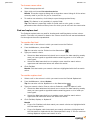
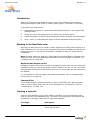
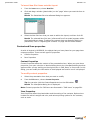
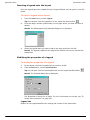
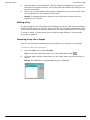
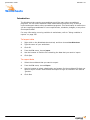
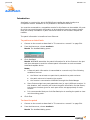
To modify the properties of a view shortcut
1
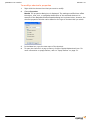
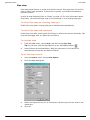
Right-click on the Views shortcut icon that you want to modify, and then select
Properties.
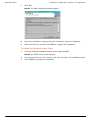
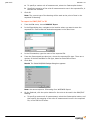
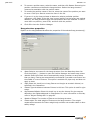
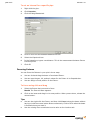
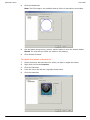
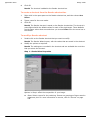
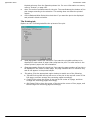
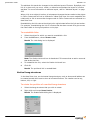
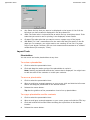
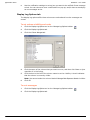
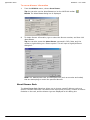
Result: The View Shortcut Properties dialog box is displayed.
2
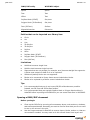
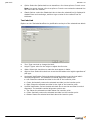
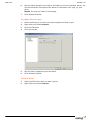
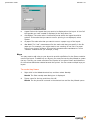
In the Name box, type the new name of the shortcut.
3
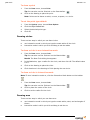
To open the shortcut in the current active window, enable the Current Window option
button.
4
To open the shortcut in a pop-up frame, enable the Pop-Up Window option button.
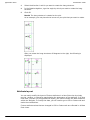
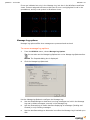
For more information on popup frames, refer to “Popup frames” on page 51.
Modifying wireframe views
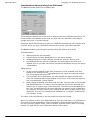
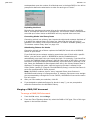
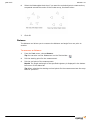
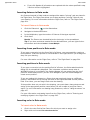
The properties of a wireframe view affect how objects are drawn and how much
information is visible. These settings are modified in the View Options.
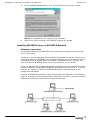
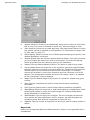
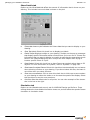
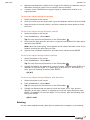
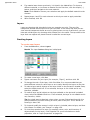
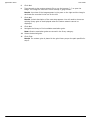
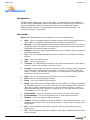
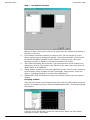
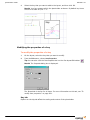
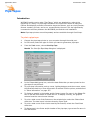
To modify a wireframe view
1
Ensure the wireframe view that you want to modify is active.
2
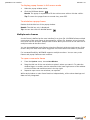
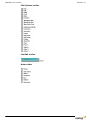
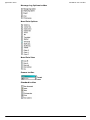
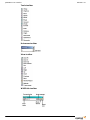
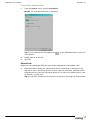
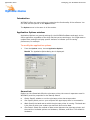
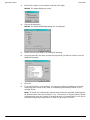
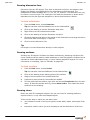
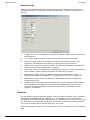
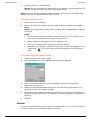
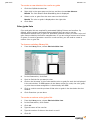
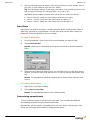
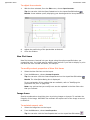
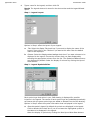
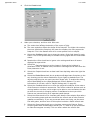
From the Options menu, choose View Options.
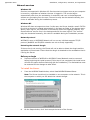
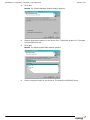
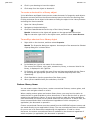
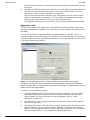
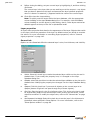
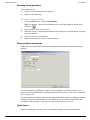
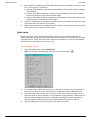
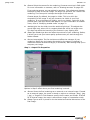
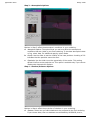
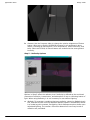
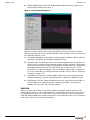
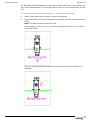
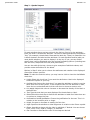
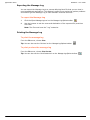
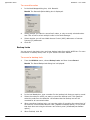
Result: The View Options window appears.
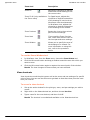
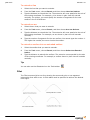
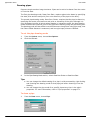
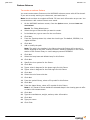
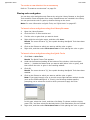
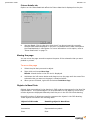
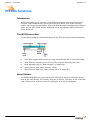
Tip: You can also use the View Options tool
view options.
68
3
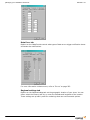
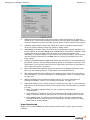
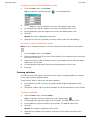
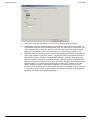
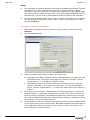
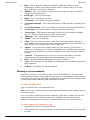
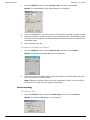
Modify options as desired.
4
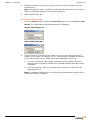
Click OK.
on the Standard toolbar to open the