1
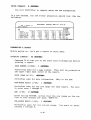
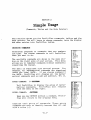
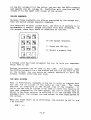
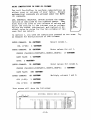
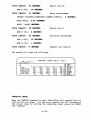
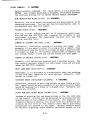
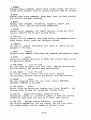
1 FORMAT:
Display format commands. Enter row & column titles, set row or
column print options, look at options and move rows or columns.
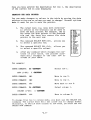
2 DATA:
Display data entry commands. Enter data, move the data pointer
fix, nullify and goto commands.
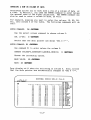
3 MATH:
Display math commands. Arithmetic, cumulate, negate, get,
ceiling, floor, and row and column summations.
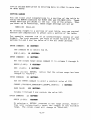
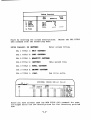
4 PRINT:
Display print commands. Set report options, titles and print
reports. Reports can be sent to disk files.
5 UTILITY:
Display utility commands. Save/load tables, re-dimension table
size, select drive, reset and redisplay screen.
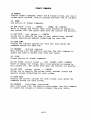
6 COMPUTE
Set mode to compute. Re-compute your table to update for any
changes in the data.
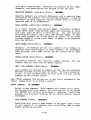
command
7 HELP
Explains each command. Describes the commands and explains usage.
verify
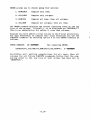
9 STOP
Clears the display and exits to CP/M. The current table is not
automatically saved.
rowl TO row2
10 ROW RANGE
Set row range on status line (top line). Impacts calculations,
printed reports, and general data manipulation.
coll TO col2
11 COL RANGE
Set column range on status line (top line). Impacts
calculations, printed reports and general data manipulation.
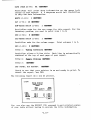
order
12 ORDER
Set the computing order for your table. Select ROW/ONLY,
COL/ONLY, ROW/COL or COL/ROW.
drive
13 SET DRIVE
Select drive for saving and loading your files. Normally, the
current drive is used for saving and loading files.
number-of-columns number-of-rows
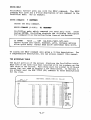
14 SET UP
Redimension tables to a different number of rows and columns.
Generally, each table can have up to about 1000 entries.
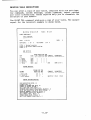
decimal-places row-width col-width
15 SET CRT
Set display parameters. You can control the row title area,
the column widths, and the number of decimal places.
-B.2-