1
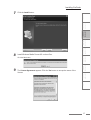
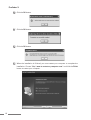
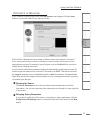
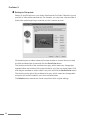
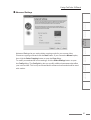
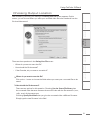
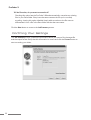
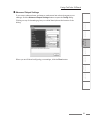
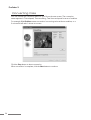
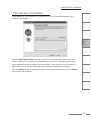
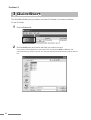
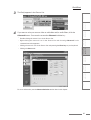
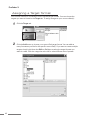
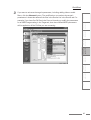
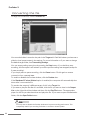
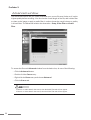
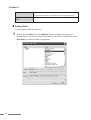
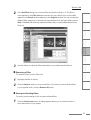
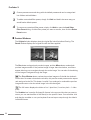
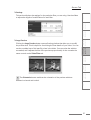
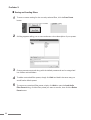
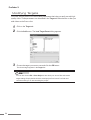
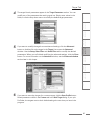
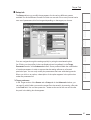
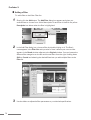
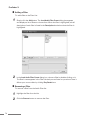
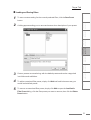
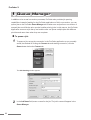
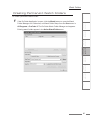
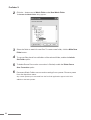
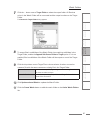
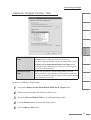
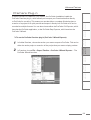
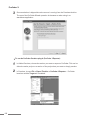
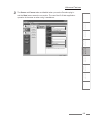
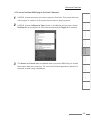
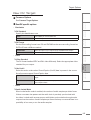
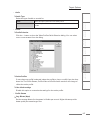
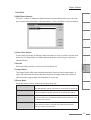
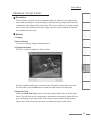
QuickStart 3 The file(s) appears in the Source List. s t n e t n o C CHAPTER 1 n o i t c u d o r t n I Using ProCoder CHAPTER 4 Helpful Hints CHAPTER 5 ProCoder Reference CHAPTER 6 Glossary CHAPTER 7 Clicking the Source tab. ProCoder 3 Clicking the source’s icon in the Source List and pressing the Enter key on your keyboard. CHAPTER 3 Right-clicking the source’s icon in the Source List and choosing Advanced in the contextual menu that appears. d r a z i W Double-clicking the source’s icon in the Source List. n o i t a l l a t s n I If you want to trim your source video or add video and/or audio filters, click the Advanced button. You can also access the Advanced window by: CHAPTER 2 4 Index For more information, see the Advanced window section later in this chapter. 41