1
ProCoder 3
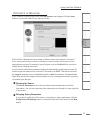
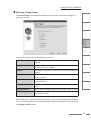
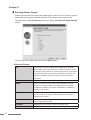
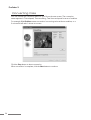
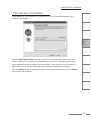
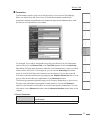
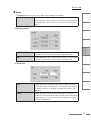
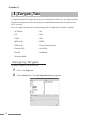
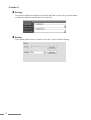
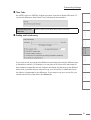
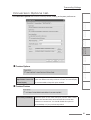
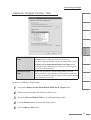
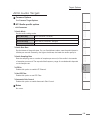
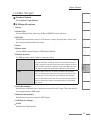
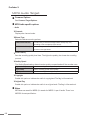
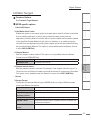
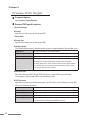
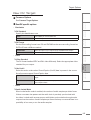
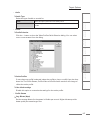
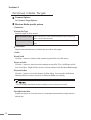
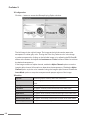
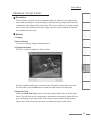
Add Letterbox/
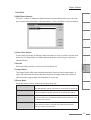
Scale & Crop slider
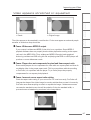
Adjust the slider to the desired percentages. 100% letterbox,
or sliding it to all the way to the left, leaves the source frame
completely visible, with letterbox bars added if necessary. If the
slider is at 0% letterbox, the image will fill the entire space without
letterboxing, but the sides will be chopped off. Leaving the letterbox
slider in the middle (50%) is a mixture of adding letterbox bars and
scaling the file to fit the space. If you know you can afford to cut off
a little of the video, then you should have the bar more toward the
middle. Experiment with these settings to determine which ones
are appropriate for your source files.
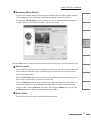
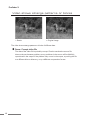
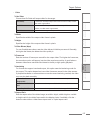
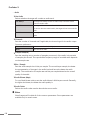
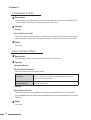
100% Letterbox
Scales the source image so the entire
image fits within the target frame, which
can result in unused areas which become
letterbox bars.
100% Scale & Crop
Scales the source image so the target
frame is completely filled, resulting in no
letterbox bars, but the possibility that part
of the source image that has “spilled over”
outside of the target frame has now been
removed and is no longer visible.
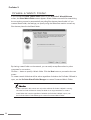
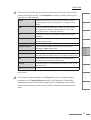
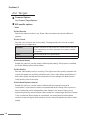
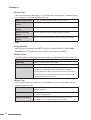
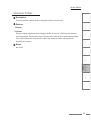
Allow anamorphic
scaling
This option enables anamorphic scaling.
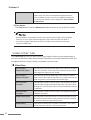
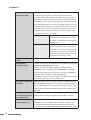
Enable MPEG-1
compliant scaling
ProCoder normally converts full-D1 sources to MPEG1 SIF using the
Scaling and Letterboxing slider setting.
However, the MPEG specification states to convert a full-D1
(720x480/576) source to MPEG1 SIF (352x240/288), crop 8 pixels
from the left and right sides of the source to create a 704x480/576
frame then scale it to 50% for a 352x240/288 frame.
Check this box to have ProCoder comply to the MPEG specification
when converting full-D1 sources to MPEG1 SIF.
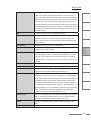
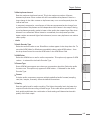
Crop when scaling D1 to Enable this option when converting a NTSC D1 720x486 source to
DV (NTSC)
NTSC DV 720x480. ProCoder will crop 4 lines from the top and 2
lines from the bottom of the source frame during conversion. This
results in faster processing and higher quality since scaling is not
performed.
92
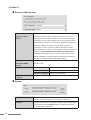
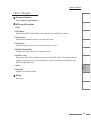
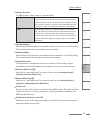
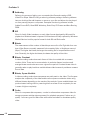
Crop/Adjust when
converting between VBI
containing formats
This option enables to convert videos which have VBI(Vertical
Blanking Interval) where the original size information is stored.
Discard field when
scaling height by 1/2
When using full-size interlaced source files, this option discards one
of the fields if you are scaling the file to half-size. In some cases,
this eliminates the need for applying deinterlacing filters to your
source file since discarding a field effectively deinterlaces the video.