1
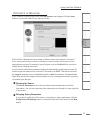
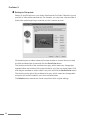
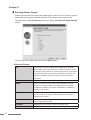
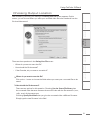
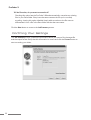
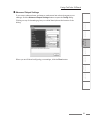
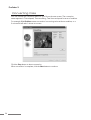
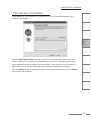
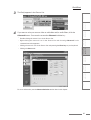
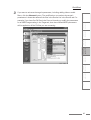
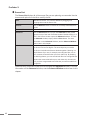
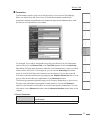
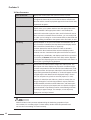
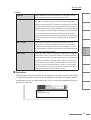
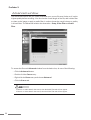
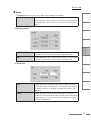
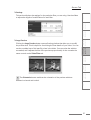
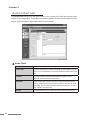
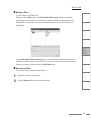
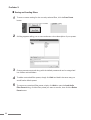
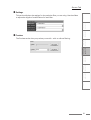
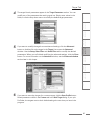
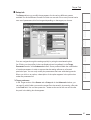
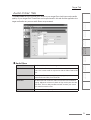
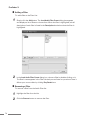
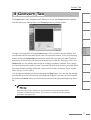
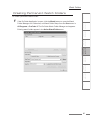
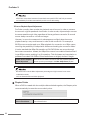
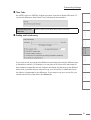
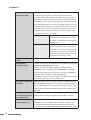
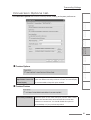
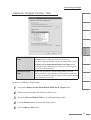
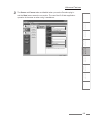
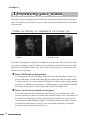
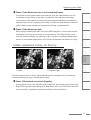
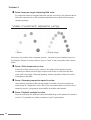
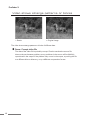
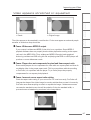
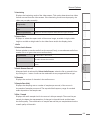
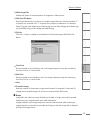
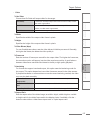
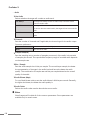
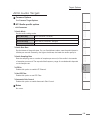
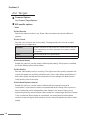
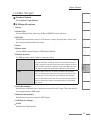
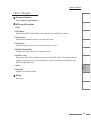
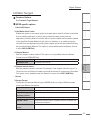
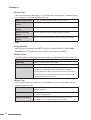
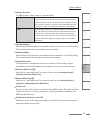
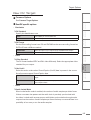
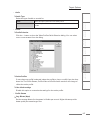
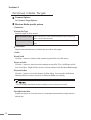
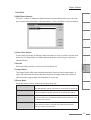
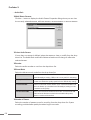
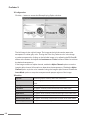
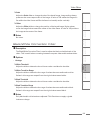
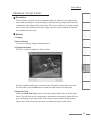
Video Filters Relative Crop Filter n o i t a l l a t s n I d r a z i W Helpful Hints CHAPTER 5 ProCoder Reference CHAPTER 6 Glossary CHAPTER 7 Index Drag the handles to define the new video frame. Grayed-out areas will be removed from the video. Click the Full button to reset the video frame to the full frame. CHAPTER 4 Click the ... button to display the Crop window. Using ProCoder Cropping Rectangle ProCoder 3 The current cropping setting is displayed here. CHAPTER 3 Current Setting n o i t c u d o r t n I Cropping CHAPTER 2 Options CHAPTER 1 The Crop Filter is used to remove unwanted sections of video from the edgse of the frame when encoding for computer display. Captured analog footage often has noise or distortion at the edges of the video frame. This noise or distortion is usually unseen as it occurs in the overscan area of the image, a portion which is displayed “beyond” the viewable television area. s t n e t n o C Description Scale after Crop Enable the Scale after Crop option to scale the cropped video frame to fill the video frame. This will remove the cropped region and stretch the remaining video to fill the gap, maintaining proper aspect ratio. There may be areas of black remaining if the aspect ratio of the remaining video does not match the original video frame. 187