1
C. FUNCTIONS
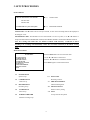
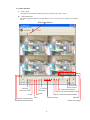
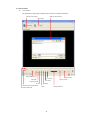
C-1 HDD Select Button
Once the application detects one or more HDDs, it automatically selects the first HDD. You can
select any valid HDD [the HDDs with YAViewer4_Eng marked].
C-2 Valid Stream Region Indication
Once a HDD is selected, the application detects the valid stream region where valid video streams
reside. The valid stream region is marked as green within the Valid Stream Region Indicator.
C-3 Slider Bar Zooming Button
If the Valid Stream Region is relatively small, you may have difficulty navigating within it. In this
case, you can enlarge (magnify) the Valid Stream Region by clicking Slider Bar Zooming Button.
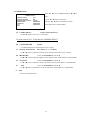
C-4 Playback
Once a HDD is selected, the application screen automatically displays recorder video footage from
the beginning.
C-5 Channel Selection
The default screen display channel setting is ALL CHANNEL, which shows all four channels
(assuming 4 channel streams from four cameras exist) at the same time. If want to see only one
channel at a time select the desired channel button, accordingly.
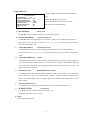
C-6 Capture Current Stream Button (BMP)
To capture a BMP. image, press the Capture Current Screen button. This will capture the current
screen and save it as BMP file to the user designated folder location in the setup settings.
C-7 Capture Current Stream Button (MYS)
To capture video streams, press Capture Current Stream button. This will record the stream you
select to a .MYS file (Vineyard Technologies Format file) to the user designated folder location in
the setup settings. (note: only the YAViewer application software and its .MYS player mode is
capable of playing the .MYS video file.)
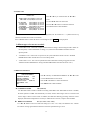
C-8 Play Capture Stream Button
MYS Player mode.
C-9 Direct Access
The Direct Access function enables you to go directly to a specific video frame location by entering
a specific location number in the Direct Access box and pressing “GO”.
19