1
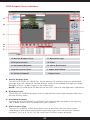
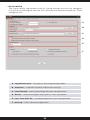
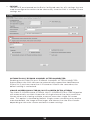
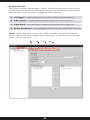
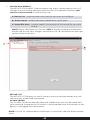
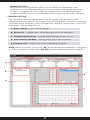
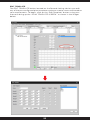
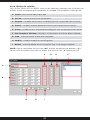
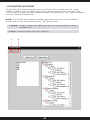
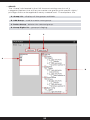
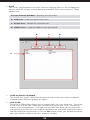
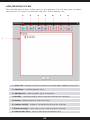
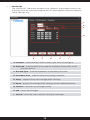
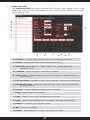
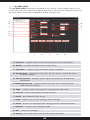
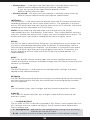
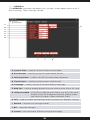
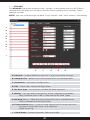
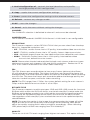
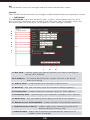
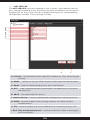
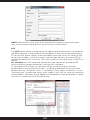
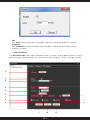
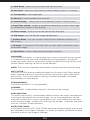
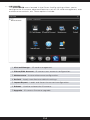
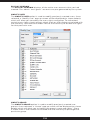
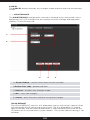
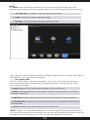
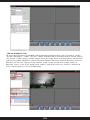
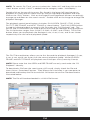
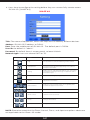
• • • DEVICE LIST
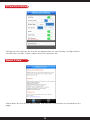
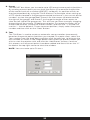
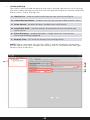
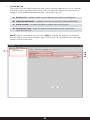
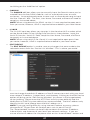
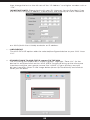
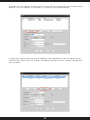
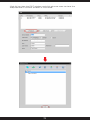
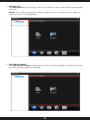
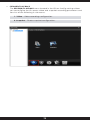
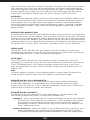
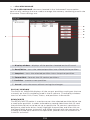
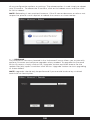
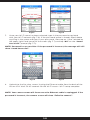
The DEVICE LIST window displays all the devices found whenever the “IP
Search” option is initiated.
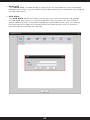
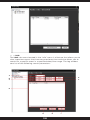
• • • IP SEARCH
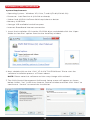
The IP SEARCH option is your primary tool used to add cameras to the CMS
from within your network. Clicking on the IP Search button will display all the
IP address found within your network making it easier for you to locate your
camera and add to the CMS.
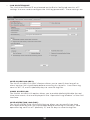
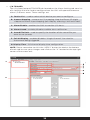
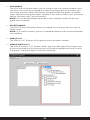
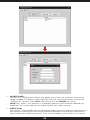
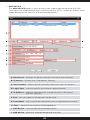
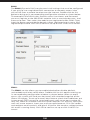
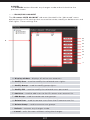
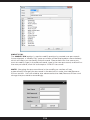
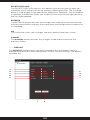
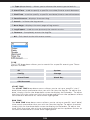
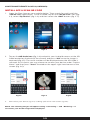
• • • DEVICE NAME
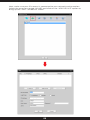
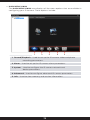
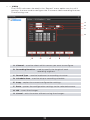
The DEVICE NAME edit box allows you to give your IP camera a name that is
visible though out the CMS. If left alone the CMS will automatically use the
cameras IP address as the name.
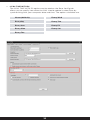
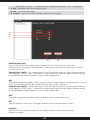
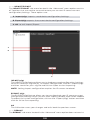
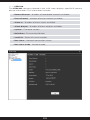
• • • LOGIN TYPE
The LOGIN TYPE feature allows you to select the IP camera connection type.
These options include:
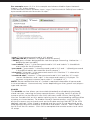
• IP Address: Connectivity based on IP address configuration.
• Domain: Connectivity based on a Domain setup such as DDNS domain name.
• Cloud: Connectivity based on Cloud or Serial ID type of connection. The serial
ID can be found under IPCam Config/Info/Version of the CMS software.
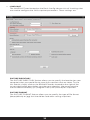
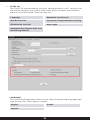
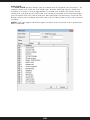
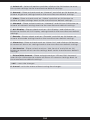
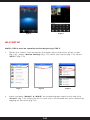
• • • IP ADDRESS
The IP ADDRESS edit box allows you to manually input the IP address that you
have assigned for the IP camera when installing the CMS software on a device
outside your network since using the “IP SEARCH” feature will be unable to
locate your camera outside your network.
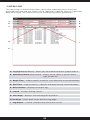
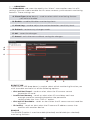
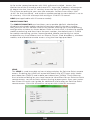
• • • PORT
The PORT edit box lets you specify the port number for the IP camera to be
accessible over the internet. To edit or change the port number simply move
the mouse cursor over the edit box located to the right of the “Port” caption.
We strongly recommend that you leave this media port to the default of 34567.
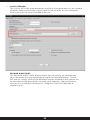
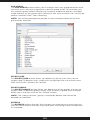
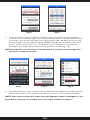
• • • USER NAME
The USER NAME input box allows you to enter the user name of the account
for that particular profile of the CMS software for the selected IP address. User
name can be changed or created under the IPCam/CMS Account section of the
“IPCam Config” of the CMS software.
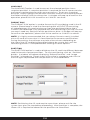
NOTE: The default username and password associated with the IP camera is
“admin” and “blank” (no password).
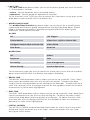
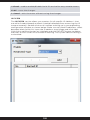
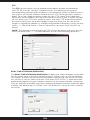
• • • PASSWORD
The PASSWORD input box allows you to enter the password of the user name
account you had created. The “admin” system default password is no password
(blank).
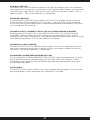
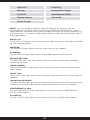
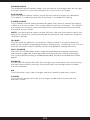
• • • ZONE
The ZONE edit box lets you specify the zone that the IP camera will belong to.
NOTE: The zone will automatically be chosen based on the zone selected prior
66