1
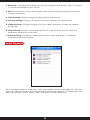
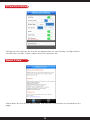
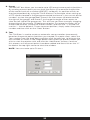
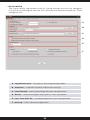
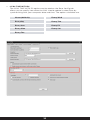
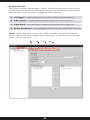
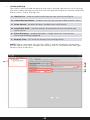
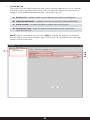
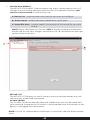
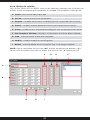
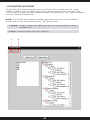
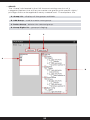
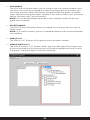
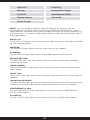
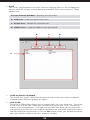
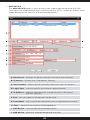
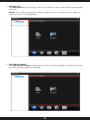
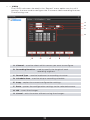
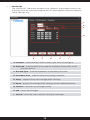
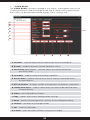
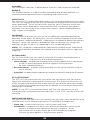
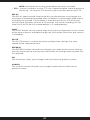
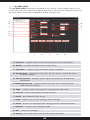
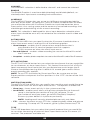
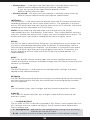
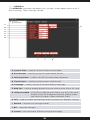
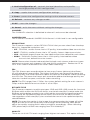
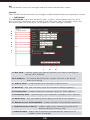
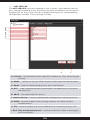
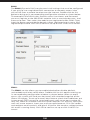
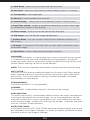
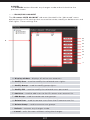
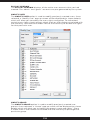
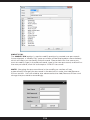
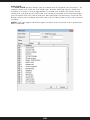
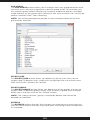
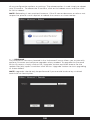
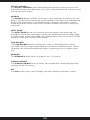
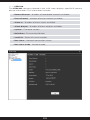
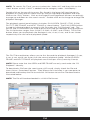
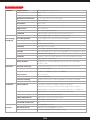
A. Select all – Select all options and then click on the OK button to reset
the system settings to the manufacturer default settings.
B. General – Place a check mark on “General” and click on OK button to
restore all general settings back to the manufacturer default settings.
C. Video - Place a check mark on “Video” and click on OK button to
restore all video settings back to the manufacturer default settings.
D. Network – Place a check mark on “Network” and click on OK button to
restore all network settings back to the manufacturer default settings.
E. GUI Display - Place a check mark on “GUI Display” and click on OK
button to restore all GUI Display settings back to the manufacturer default
settings.
F. Encode – Place a check mark on “Encode” and click on OK button to
restore all encode settings back to the manufacturer default settings.
G. Alarm Set – Place a check mark on “Alarm Set” and click on OK button
to restore all alarm set settings back to the manufacturer default settings.
H. Net Service – Place a check mark on “Net Service” and click on OK
button to restore all net service settings back to the manufacturer default
settings.
I. IPCam/CMS Account - Place a check mark on “IPCam/CMS Account”
and click on OK button to restore all IPcam-SD account settings back to
the manufacturer default settings.
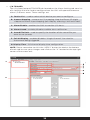
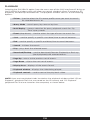
J. OK – saves the changes.
K. Cancel – exits the menu without saving the changes.
124