1
Text Entry
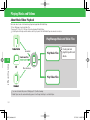
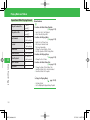
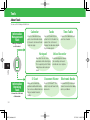
About Text Entry
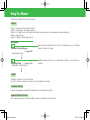
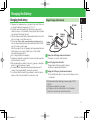
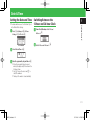
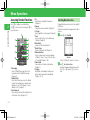
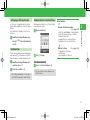
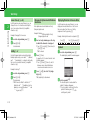
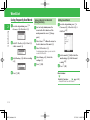
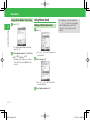
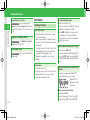
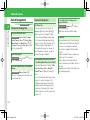
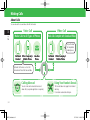
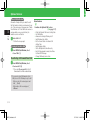
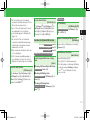
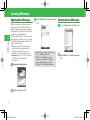
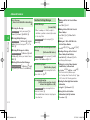
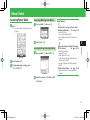
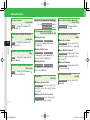
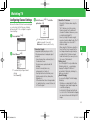
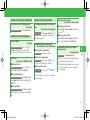
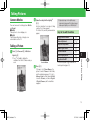
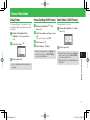
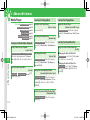
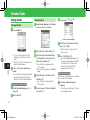
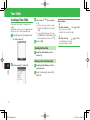
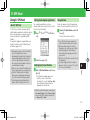
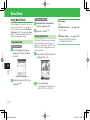
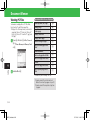
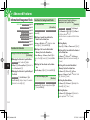
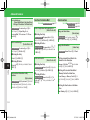
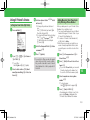
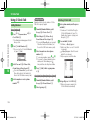
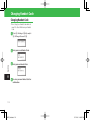
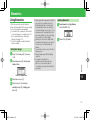
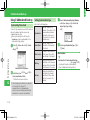
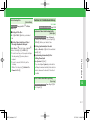
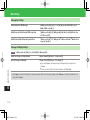
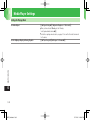
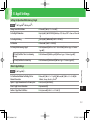
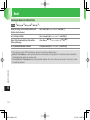
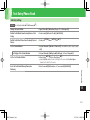
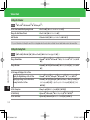
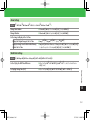
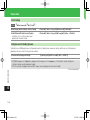
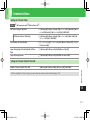
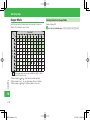
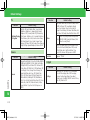
Switching Text Input Modes
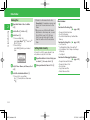
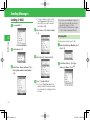
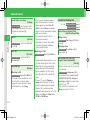
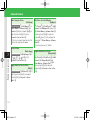
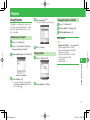
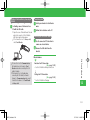
q In a text entry window, press H
• Unavailable text input modes are not
displayed.
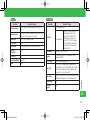
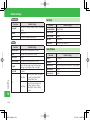
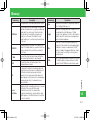
• For text entry key assignments, see page 14-9.
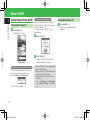
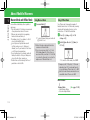
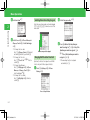
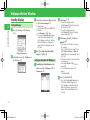
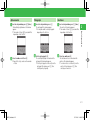
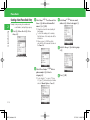
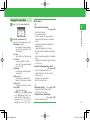
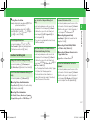
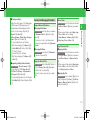
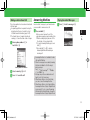
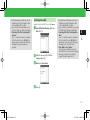
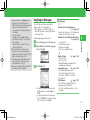
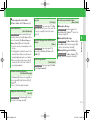
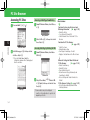
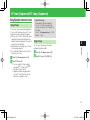
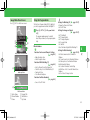
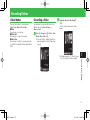
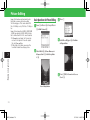
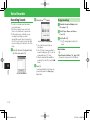
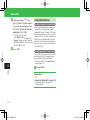
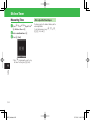
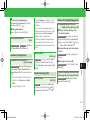
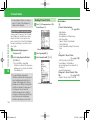
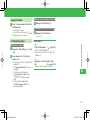
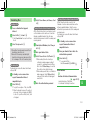
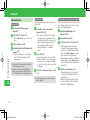
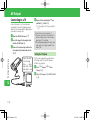
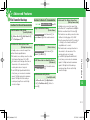
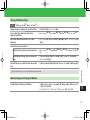
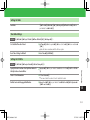
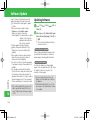
Example: Entering 須々木
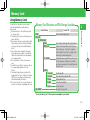
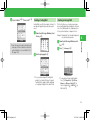
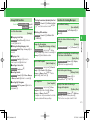
q In a text entry window, enter すずき
• Press 3 (three times)➡C➡
3 (three times)➡*➡2 (twice)
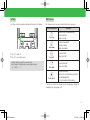
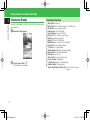
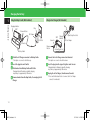
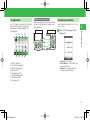
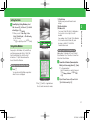
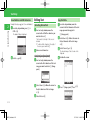
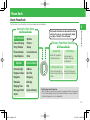
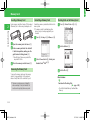
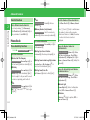
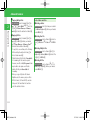
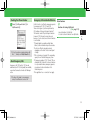
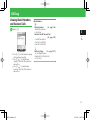
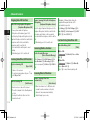
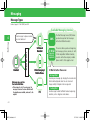
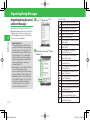
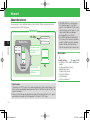
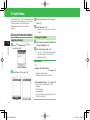
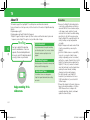
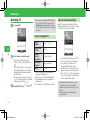
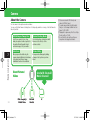
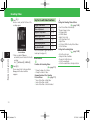
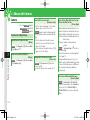
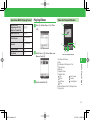
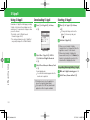
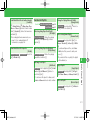
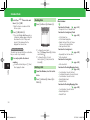
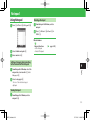
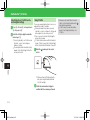
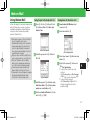
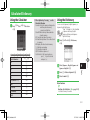
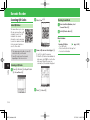
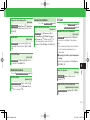
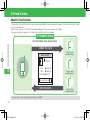
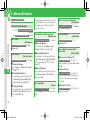
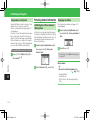
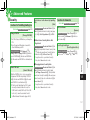
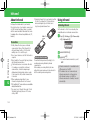
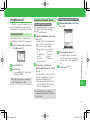
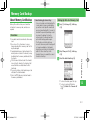
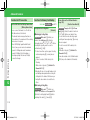
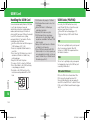
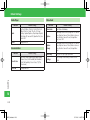
About Text Entry Window
②
The text input mode is switched.
①
③
w Select a text input mode➡[
2
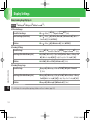
Basic Operations
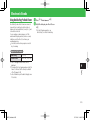
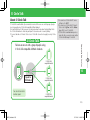
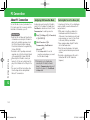
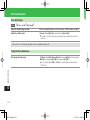
There are four kinds of input methods: Standard
mode, Beeper mode, T9 mode and Multi-tap
mode. Unless otherwise noted, text entry
operations are described using Standard mode.
For details on inputting text in Beeper mode, see
page 14-10.
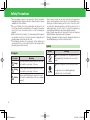
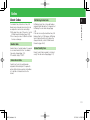
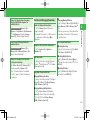
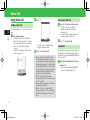
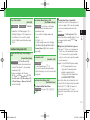
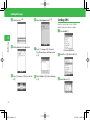
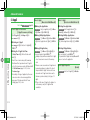
Entering Characters
④
①Number of characters entered/Maximum
number of characters allowed is displayed. The
maximum number of characters allowed varies
depending on the function.
②Indicates the current input mode.
③Selects the range of text.
By pressing [ when a text range is selected,
you can perform operations such as copying or
saving the selected text to the Word List.
④By pressing K, you can perform operations
such as editing text and arranging message
text.
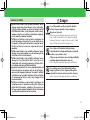
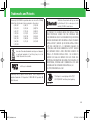
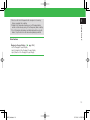
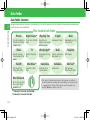
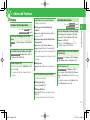
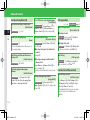
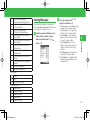
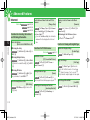
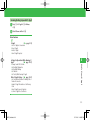
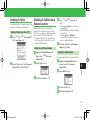
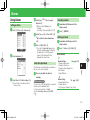
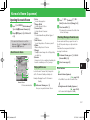
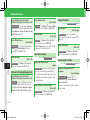
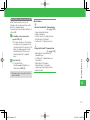
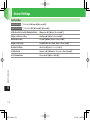
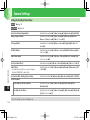
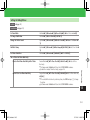
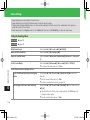
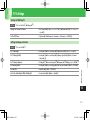
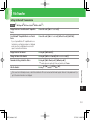
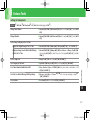
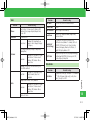
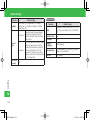
Text Input Mode Icons
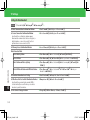
: Kanji (hiragana)
: Single-bye katakana
: Double-byte alphanumerics (upper case)
: Double-byte alphanumerics (lower case)
: Single-byte alphanumerics (upper case)
: Single-byte alphanumerics (lower case)
: Double-byte numbers
: Single-byte numbers
URL: Enter e-mail address and URL extensions
from the address library.
Pict: Enter pictographs.
(^-^): Enter emoticons.
My Pict: Enter pictographs in My Pictograms folder.
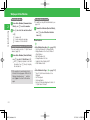
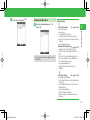
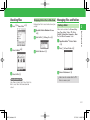
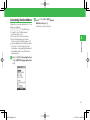
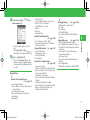
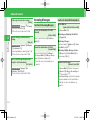
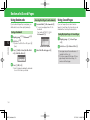
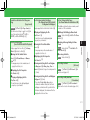
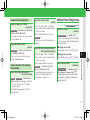
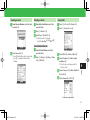
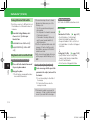
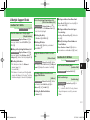
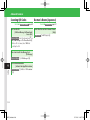
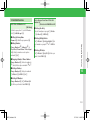
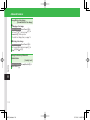
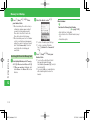
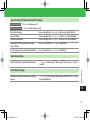
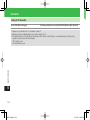
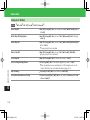
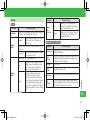
w Press B
• To exit the suggestion list and enter
characters after すずき , press L.
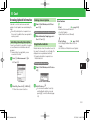
e
Use E to select 須々木 ➡[
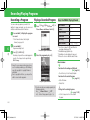
須々木 is determined.
• To finish text entry, press [ after
determining entered text.
2-9
920T_Web.indb 2-9
07.12.26 11:47:59 PM