1
iEmcee User Guide Addendum
2.6 – Signing Ceremony Login
There are several ways to log in to a Signing Ceremony.
2.6.1 – Silent (Automatic) Login
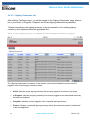
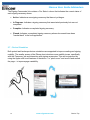
Once you have registered with an eSign Emcee server, silent (automatic) login will be enabled.
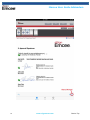
Clicking the Ceremony tab on your mobile device will perform a silent login and present the
‘Signing Ceremonies’ list page. Clicking the Start Link in your email invitation to esign will do
the same.
NOTES:
1. The result of registration is receiving an eSign Emcee identity in the form of cryptographic keys and
corresponding digital certificate. This certificate (which represents the device to you from eSign Emcee's
perspective) is not only used to sign documents, but can also be used to log you into your eSign Emcee
account. Since the certificate can identify you, no username or password is required. The certificate
identifies you (like the username does) and authenticates you (like the password does).
2.
With an eSign Emcee identity available, the iEmcee App will always automatically attempt to log in to the
configured (or default) eSign Emcee server and present your list of pending signing ceremonies. If you
are using the demo site, more signing ceremonies can be created with any browser and these will be
available to be signed. If you add new signing ceremonies while those pending are being displayed,
simply refresh the page to update the Signing Ceremonies list.
2.6.2 – Session Reset
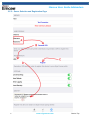
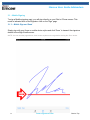
You can also perform a silent login by going to your Settings tab and then clicking the Reset
Ceremony Session button during an active signing ceremony session. This function will
terminate any active login session and perform a silent certificate login, returning you to the
‘Signing Ceremonies' list page.
2.6.3 – Manual Login
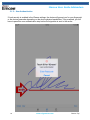
There may be situations where manual login is needed. For example, it is possible for your
signing ceremony session to “timeout” requiring you to log in again manually.
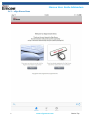
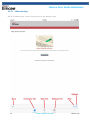
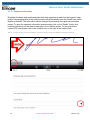
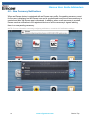
Should a session timeout occur, you will be brought to the eSign Emcee Presenter ‘Welcome’
page. There, click the Ceremony tab (see example next page).
9
www.esignemcee.com
Back to Top