1
Chapter 14: Configurable Manager
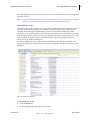
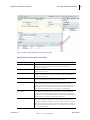
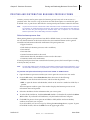
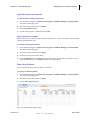
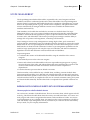
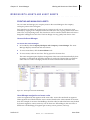
Working With Configurable Managers
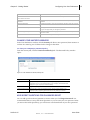
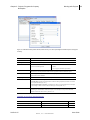
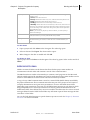
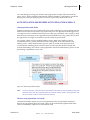
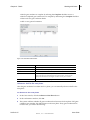
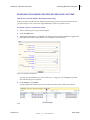
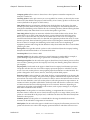
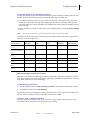
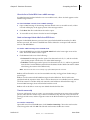
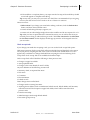
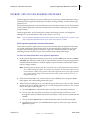
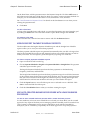
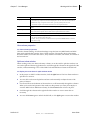
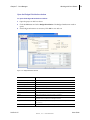
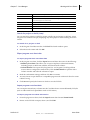
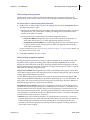
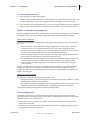
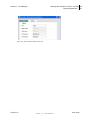
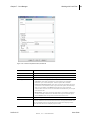
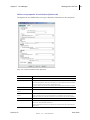
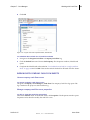
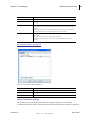
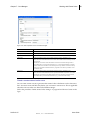
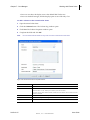
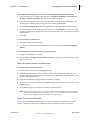
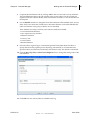
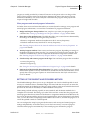
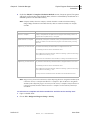
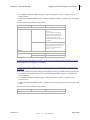
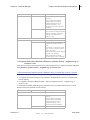
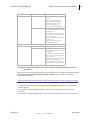
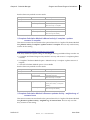
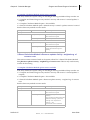
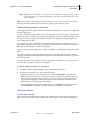
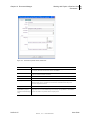
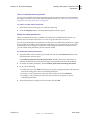
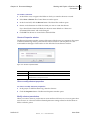
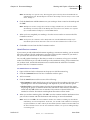
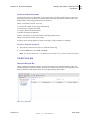
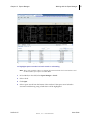
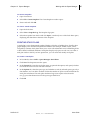
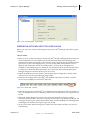
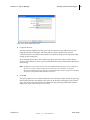
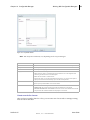
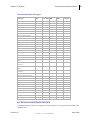
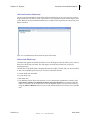
In this field:
Do this:
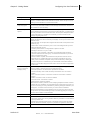
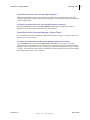
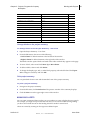
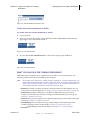
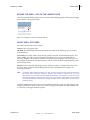
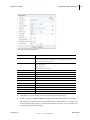
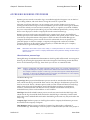
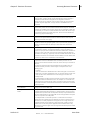
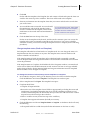
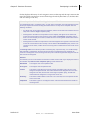
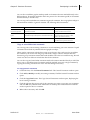
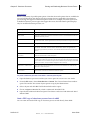
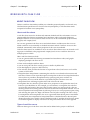
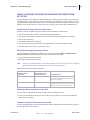
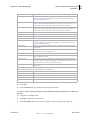
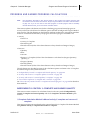
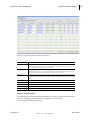
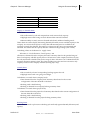
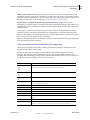
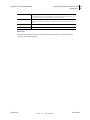
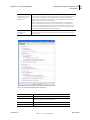
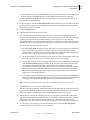
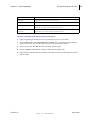
Total
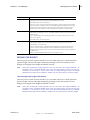
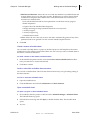
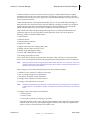
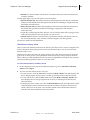
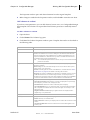
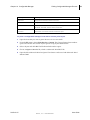
Specifies what displays in the bottom summary row for each column:
• Blank: Summary row remains blank.
• Sum of All Rows: Summary row displays the sum total of all row values for this
column.
• Use Formula Definition: Formula entered in the Formula field applies to the
summary row.
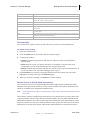
Column Position After
Determines the position of the column on the sheet.
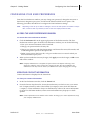
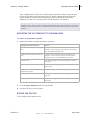
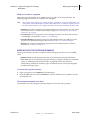
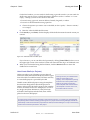
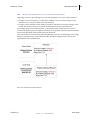
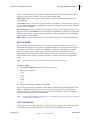
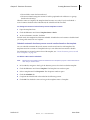
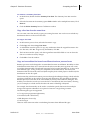
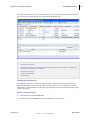
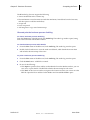
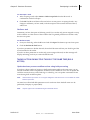
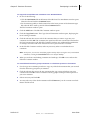
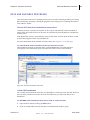
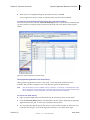
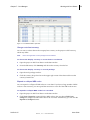
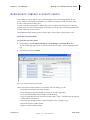
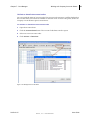
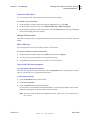
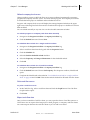
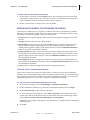
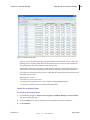
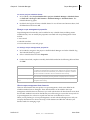
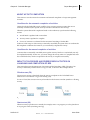
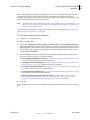
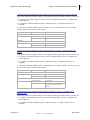
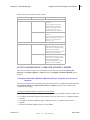
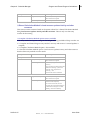
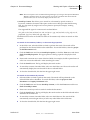
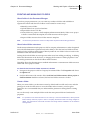
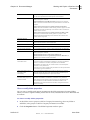
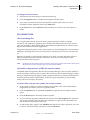
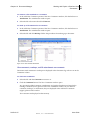
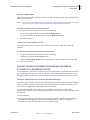
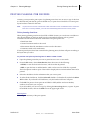
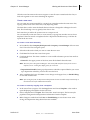
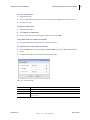
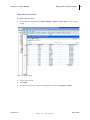
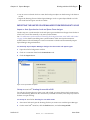
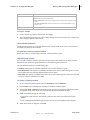
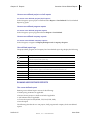
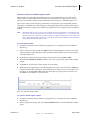
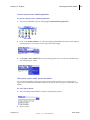
To copy a column
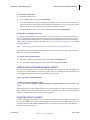
1
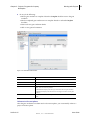
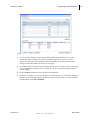
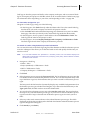
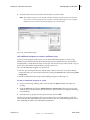
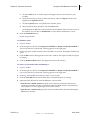
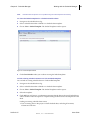
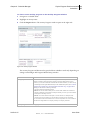
In the Column log, select a column and click Copy.
2
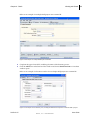
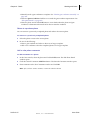
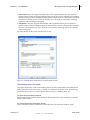
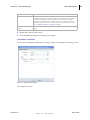
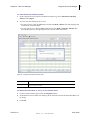
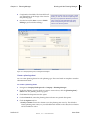
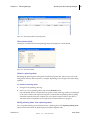
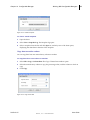
The Column Properties window opens. Make changes as necessary for the new column. You must change at least the data source.
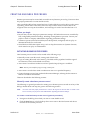
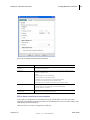
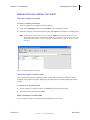
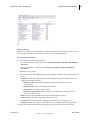
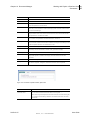
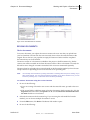
View column properties
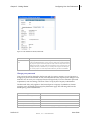
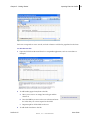
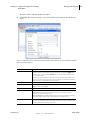
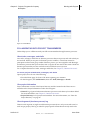
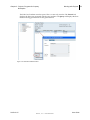
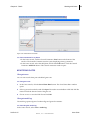
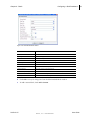
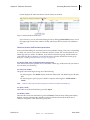
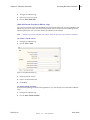
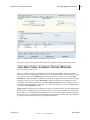
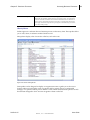
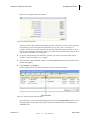
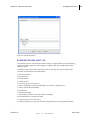
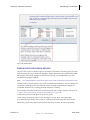
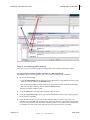
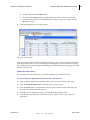
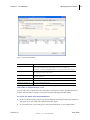
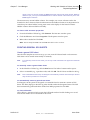
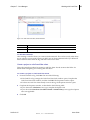
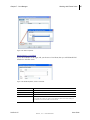
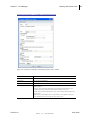
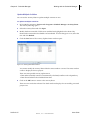
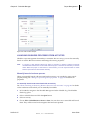
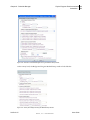
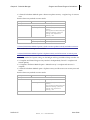
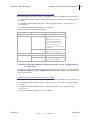
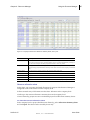
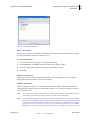
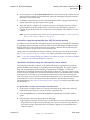
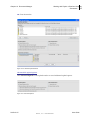
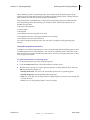
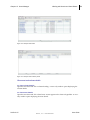
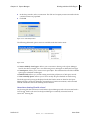
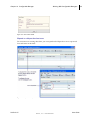
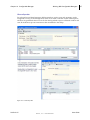
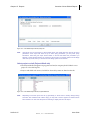
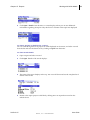
The Properties window for a column maintains the column name, data source, entry method, and other properties for that column.
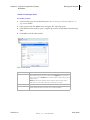
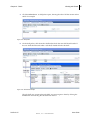
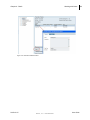
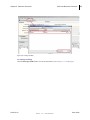
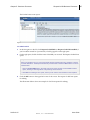
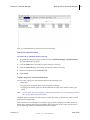
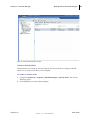
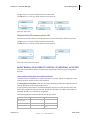
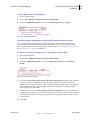
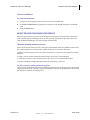
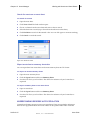
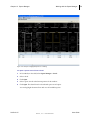
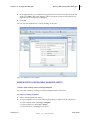
To open the column properties window
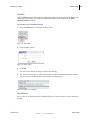
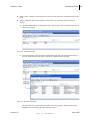
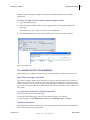
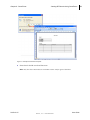
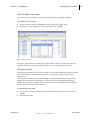
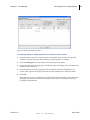
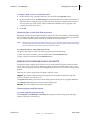
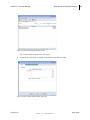
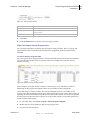
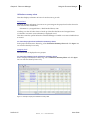
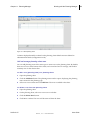
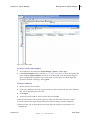
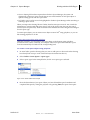
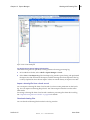
In the sheet, click on a column link. The View Column window opens.
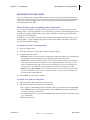
Add a formula column
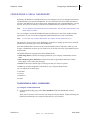
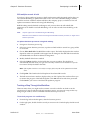
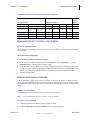
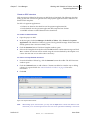
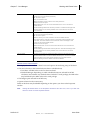
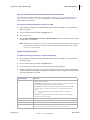
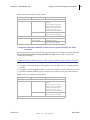
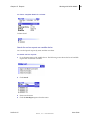
You can add a formula column to the sheet for data sources that are based on either the data definitions SYS Numeric Logical Datasource or SYS Date Logical Datasource.
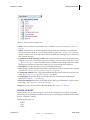
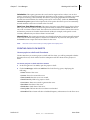
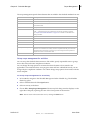
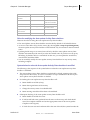
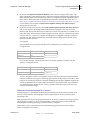
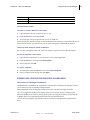
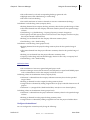
You can define formulas for the following types:
• Numeric: This option is available if the data source is SYS Numeric Logical. • Data Difference: This option is available if the data source is SYS Numeric Logical. It is used for formulas that calculate the difference between two dates.
• Date Add: This option is available if the data source is SYS Date Logical. It can be used to add values to a date to calculate a new date.
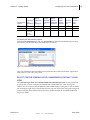
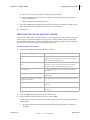
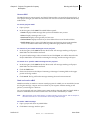
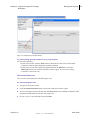
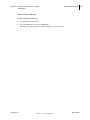
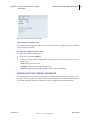
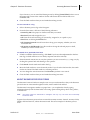
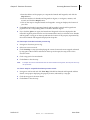
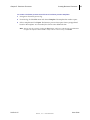
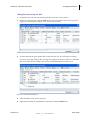
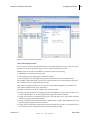
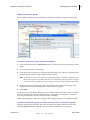
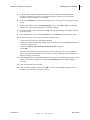
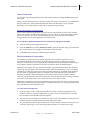
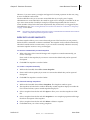
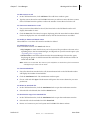
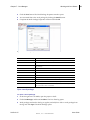
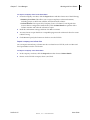
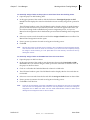
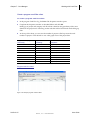
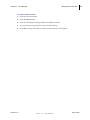
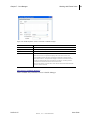
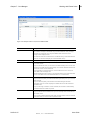
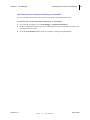
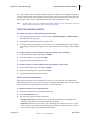
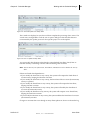
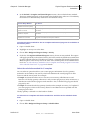
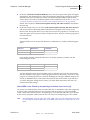
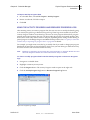
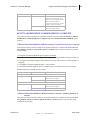
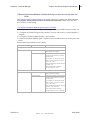
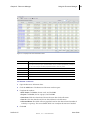
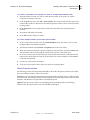
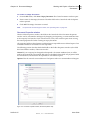
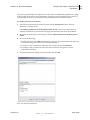
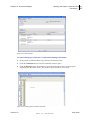
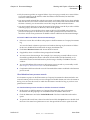
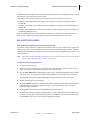
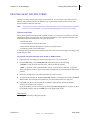
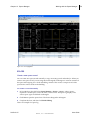
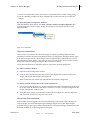
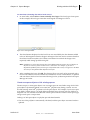
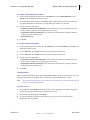
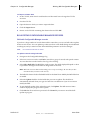
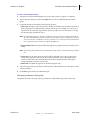
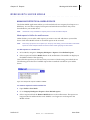
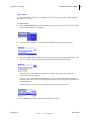
To create a numeric formula
1
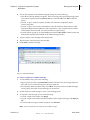
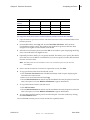
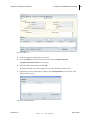
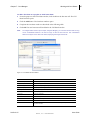
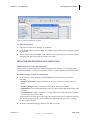
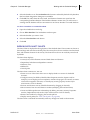
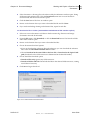
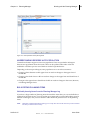
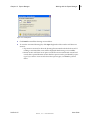
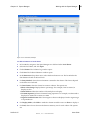
In the column Properties window, choose Formula and select Numeric. 2
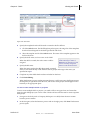
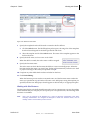
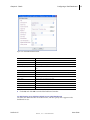
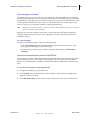
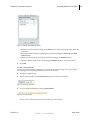
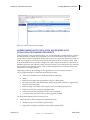
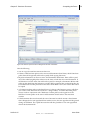
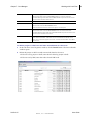
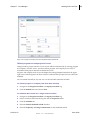
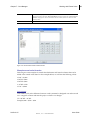
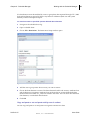
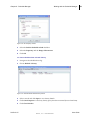
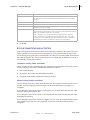
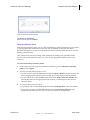
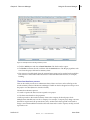
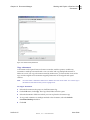
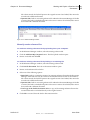
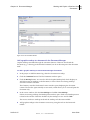
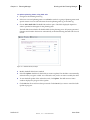
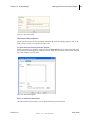
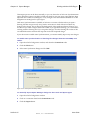
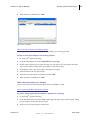
Click Create. The Create Formula window for numeric formulas opens. 3
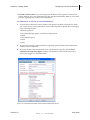
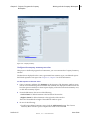
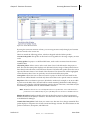
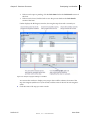
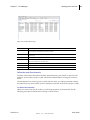
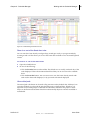
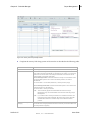
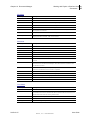
Select either Item or Sheet from the data type drop‐down list. Item lists data elements that are defined on the form. Sheet lists columns that are already defined on sheet. 4
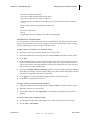
Build a formula by doing the following:
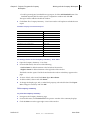
• To include a data source in the formula, select the data source from the list and click Select.
• Click a mathematical modifier (plus, minus, and so on) and numbers on the keypad.
5
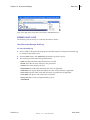
When the formula is complete, click OK.
Unifier 9.2.2
User Guide
Skire, Inc. Confidential
614