1
CommPAK I/O8
Wireless On/Off Control USER MANUAL
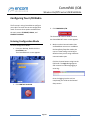
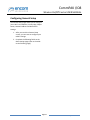
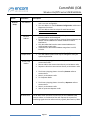
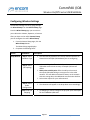
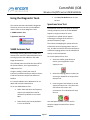
3. After you finish configuring the radio’s
Wireless Settings you have a few
options available to you:
• If you are configuring a new
radio, then click on the I/O
configuration button.
• If you are editing an existing
radio configuration and would
like to save your new
configuration to a file (to share
with other radios on your
network), click Save to File,
then click Program Radio to
upload the new configuration
to the radio.
• If you would like to send your
new configuration to the radio,
click Program Radio. NOTE:
This does not save the new
configuration to a file; to do
that you must first click Save to
File.
Configuring the I/O Mapping
Setup
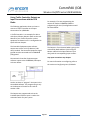
The I/O Mapping Setup can be access by either
going though the Wizard Setup or directly by
accessing it through the General Setup.
I/O Setup Tabs
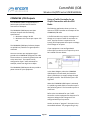
The three I/O Setup tabs are used in
conjunction with either an ENCOM WEB I/O
radio or another COMMPAK I/O8 radio. The
tabs are as follows:
¾ I/O Mapping
¾ Scheduler
¾ Encom Protocol
Configuring the I/O for WEB I/O Use
For more information on the ENCOM WEB I/O
radios go to:
www.encomwireless.com
To configure the COMMPAK I/O8 with WEB I/O
use:
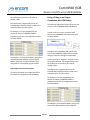
1. From the I/O Setup page, click the I/O
Mapping Tab. The Enable I/O Mapping
is to remain unchecked.
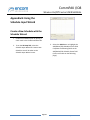
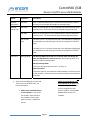
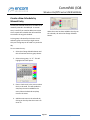
2. From the Scheduler Tab go through the
following steps below:
Page 15
© 2009 Encom Wireless Data Solutions. All Rights Reserved