1
USO RESTRITO
iTX Output Server 2
Channel Configuration Guide
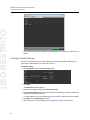
Configuring a Subtitle Stream
To configure a stream:
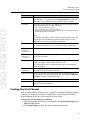
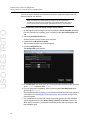
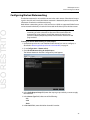
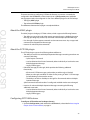
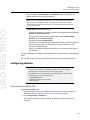
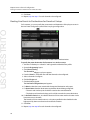
1 On the Subtitles tab, expand the Stream section.
2 Select a stream from the Stream drop-down list.
3 Check the Dummies check box if empty Teletext data is to be sent to keep the stream
active.
a Enter the page and magazine where the dummy data to be transmitted is stored.
b Select, from the Language drop-down list, the character set to be used for dummy
data.
4 Expand the Insertion Frames section, if the video lines the subtitles are to be sent on
needs to be changed. The video lines were specified when the stream was created.
5 Click Save to store your changes and automatically reboot the Output Server 2 service.
Alternatively, wait until you have finished making changes in other areas of the
Configuration panel, then click Save.
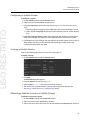
Creating a Subtitle Service
Each closed subtitle page requires its own service e.g. page 888.
To create a service:
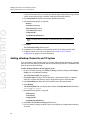
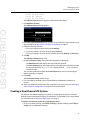
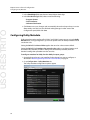
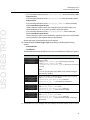
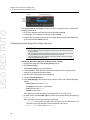
1 On the Subtitles tab, expand the Service section.
2 Click Add.
An Add Service window appears.
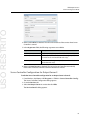
3 Enter the Name for the service (e.g. p888).
4 Select a Type of Teletext (closed) from the drop-down list.
5 The service can now be allocated to a stream and configured as required. See
Allocating a Subtitle Service to a Subtitle Stream below.
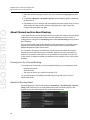
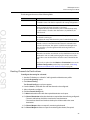
Allocating a Subtitle Service to a Subtitle Stream
To allocate a service to a stream:
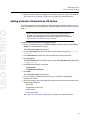
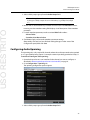
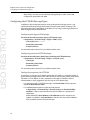
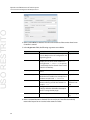
1 On the Subtitles tab, expand the Services section.
2 Select a service from the Service drop-down list.
3 Select a stream to which the service is to be allocated from the Stream drop-down list.
45