1
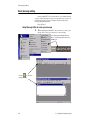
Basic message editing
Using modes to change the look of a message
Modes are special effects that change the way a message appears
on a sign. For example, the Rotate mode moves a message from right to
left across a sign. In this example, we will create a message that displays
employee birthdays.
NOTE:
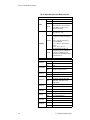
Some modes are not available on some signs. For a list of
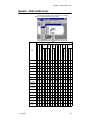
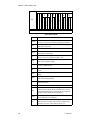
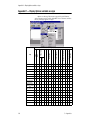
what modes are available, see “Appendix B — Modes
available on signs” on page 129.
Example 1: How to display employee birthdays.
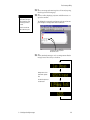
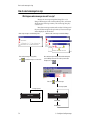
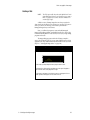
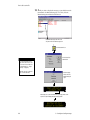
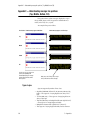
In this example, the Hold and Rotate modes are used to display employee birthdays.
This setup has a variety of uses, such as announcements and anniversaries.
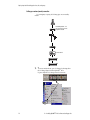
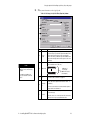
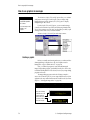
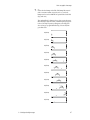
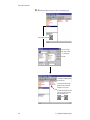
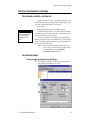
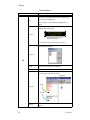
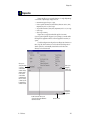
In the Hold mode, the
top line remains fixed
while the names go
by.
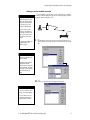
In the Rotate mode,
the names move from
right to left on the
bottom line.
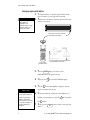
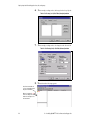
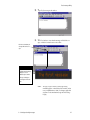
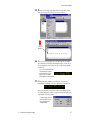
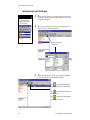
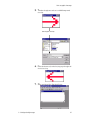
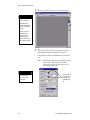
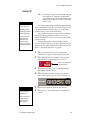
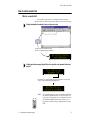
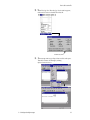
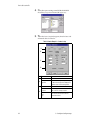
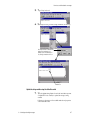
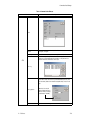
6. To create Example 1, close the previous message but don’t save it.
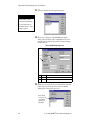
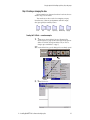
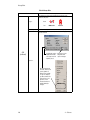
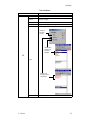
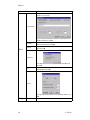
Next, open a new message. Then select Modes>Hold:
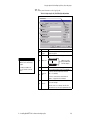
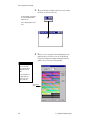
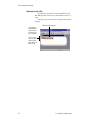
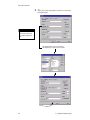
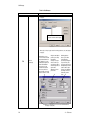
HINT
Place the cursor over an
icon and press the right
mouse button to see a
short description of the
icon at the bottom of the
Message Editor window.
For example:
Right mouse button
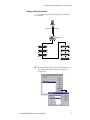
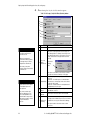
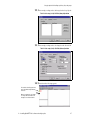
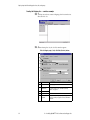
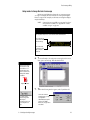
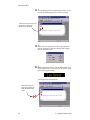
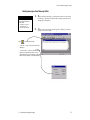
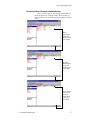
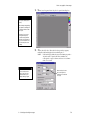
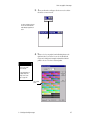
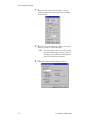
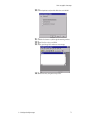
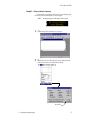
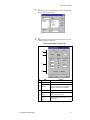
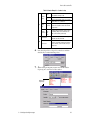
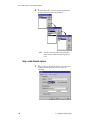
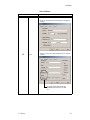
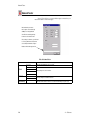
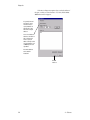
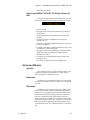
7. When the following window appears, select Top and then OK:
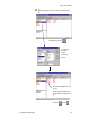
You can also switch
between using pictures
and using text
descriptions for the icons
by selecting Edit >Icon
Type.
3 — Creating and sending messages
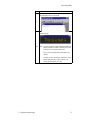
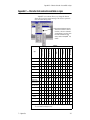
Line Position is where a
message appears on a sign.
See “Appendix E —
Understanding message line
positions (Top, Middle,
Bottom, Fill)” on page 134 for
more details.
43