1
Chapter 9: VPN
1.
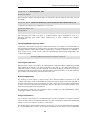
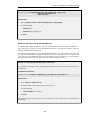
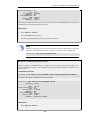
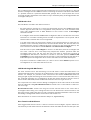
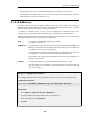
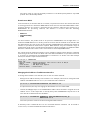
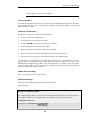
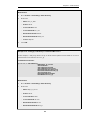
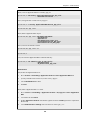
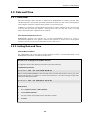
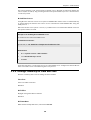
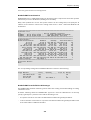
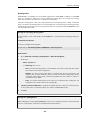
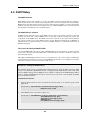
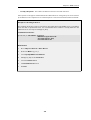
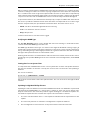
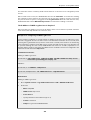
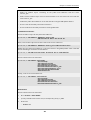
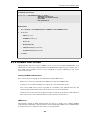
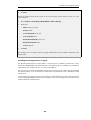
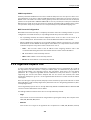
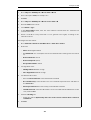
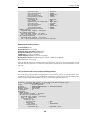
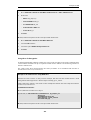
Go to: Objects > VPN Objects > ID List > Add > ID List
2.
Enter a descriptive name, for example sales
3.
Click OK
4.
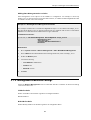
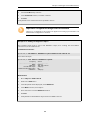
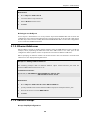
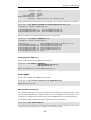
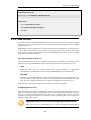
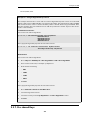
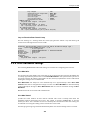
Go to: Objects > VPN Objects > ID List > Sales > Add > ID
5.
Enter the name for the client
6.
Select Email as Type
7.
In the Email address field, enter the email address selected when the certificate was
created on the client
8.
Create a new ID for every client that is to be granted access rights, according to the
instructions above
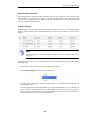
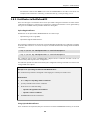
C. Configure the IPsec tunnel:
1.
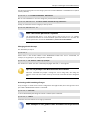
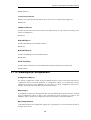
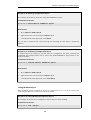
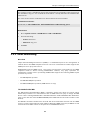
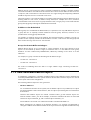
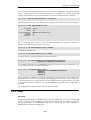
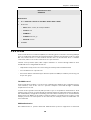
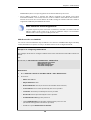
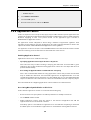
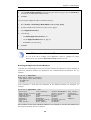
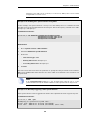
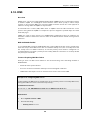
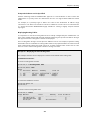
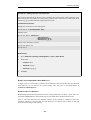
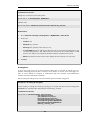
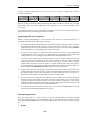
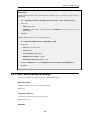
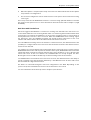
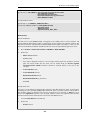
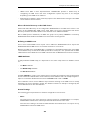
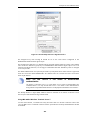
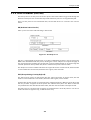
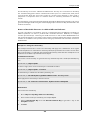
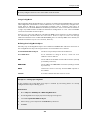
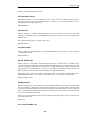
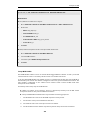
Go to: Network > Interfaces and VPN > IPsec > Add > IPsec Tunnel
2.
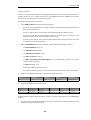
Now enter:
3.
4.
5.
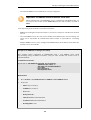
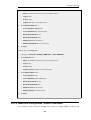
•
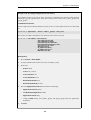
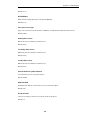
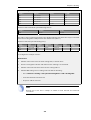
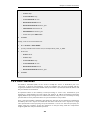
Name: RoamingIPsecTunnel
•
Local Network: 10.0.1.0/24 (This is the local network that the roaming users will connect
to)
•
Remote Network: all-nets
•
Remote Endpoint: (None)
•
Encapsulation Mode: Tunnel
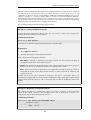
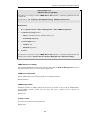
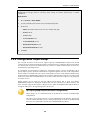
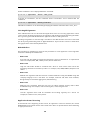
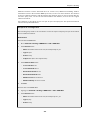
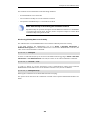
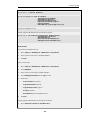
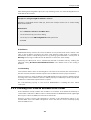
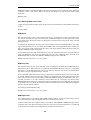
For Algorithms enter:
•
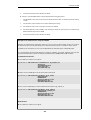
IKE Algorithms: Medium or High
•
IPsec Algorithms: Medium or High
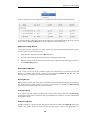
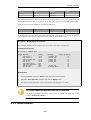
For Authentication enter:
•
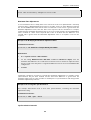
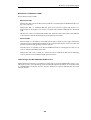
Choose X.509 Certificates as the authentication method
•
Root Certificate(s): Select the CA server root certificate imported earlier and add it to
the Selected list
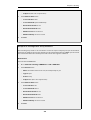
•
Gateway Certificate: Choose the newly created firewall certificate
•
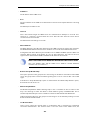
Identification List: Select the ID List that is to be associated with the VPN Tunnel. In this
case, it will be sales
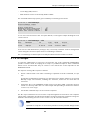
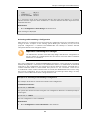
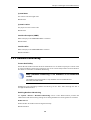
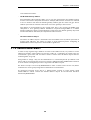
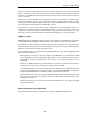
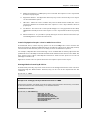
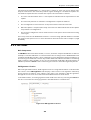
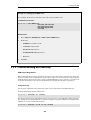
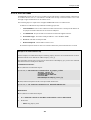
Under the Routing tab:
•
6.
Enable the option: Dynamically add route to the remote network when a tunnel is
established
Click OK
531