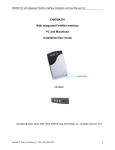
1
Quick Play Last Captured Clip
• Connect the FireWire cable (4-pin end) to the camcorder’s DV
port.
• Connect the FireWire cable (6-pin end) to the CitiDISK DV.
• Set the camera to “VCR” mode.
• Toggle the middle “QPlay” button to play the last captured clip
and this light will turn solid ORANGE when playing. Once the
last captured clip ends, the light will automatically turn off.
Play All Captured Clips
Jump Forward
Jump Backward
Choosing Favorable DV Video File Format
Note: This paragraph for choosing the video file format is for the
FW1256B (no middle “orange” light), FW1256C and
FW1256H when DV recording is selected, not suitable for
earlier released DV FW1256A models.
Operate the following steps only when the external power adapter is
plugged into the unit, and DO NOT turn off the unit before the
sequence is completed.
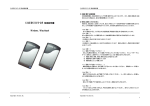
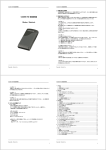
• Look at the front panel of the CitiDISK DV.
• Turn on the power of the CitiDISK DV. Wait until both lights start
to blink.
Press and hold RED button for over 5 seconds. Current stored file
format follows patterns illustrated below. “Raw DV” is set as the
default for the first time use.
• Connect the FireWire cable (4-pin end) to camcorder’s DV port.
• Connect the FireWire cable (6-pin end) to the CitiDISK DV.
• Set the camera to “VCR” mode.
• Press and hold the middle ORANGE button for over 3 seconds
and the ORANGE light will start to blink.
The last captured clip always plays to the end first, jumping
forward to the beginning clip of the “Media” folder, and play it
to the end of clip. And so on.
Or jump backward to previous clips and play to the end of the
clip and so on by toggling the “RED” button “ON” to switch
“PlayAll” mode from jump-forward to jump-backward direction.
The “RED” light blinks if “jump-backward” direction is selected.
• Toggle the middle ORANGE button once to abort playing
current clip and jump forward if the “RED” light is off
(backward if ” RED” light is blinking).
• Press and hold the middle ORANGE button for over 3 seconds
Raw DV
(Clipxxyy.dv)
Windows AVI2
(Clipxxyy.avi)
QuickTime MOV
(Clipxxyy.mov)
User Defined **
** Refer to the user manual’s “How to customize User Defined file
format” section; the manufacturer sets it to “Canopus AVI2”.
• Choose next file format by toggling the RED button.
• Once the file format is determined, stop toggling and wait for
10 seconds. Both buttons will go off and stay off for 3 seconds.
• The CitiDISK DV will start writing the new file format
information into internal memory. Both lights will blink rapidly
for approximate 10 seconds during the writing process.
• Once the file format is completed, both lights will blink
normally to indicate the writing process is successful. User
MUST turn off the power before programming a new format
again.
• The CitiDISK DV is now ready to capture video using the
programmed file format.
P8
Shining Technology CitiDISK DV Quick Usage Guide v7.1
P9
Shining Technology CitiDISK DV Quick Usage Guide v7.1