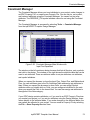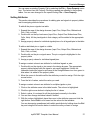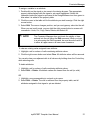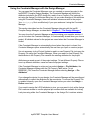
1
Creating a New Project
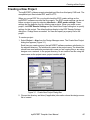
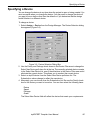
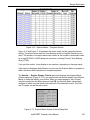
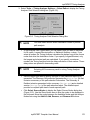
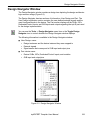
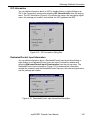
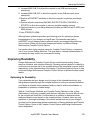
3. Choose a project type. The choices are EDIF and PLA. When you change this
field, the List File Extension value changes. You can also select *.* in the List File
Extension field to select a file with an alternate extension.
If you select a PLA project, a Case Sensitive check box appears in the Create
New Project dialog box. Turn on this option to indicate the PLA design being read
in is case sensitive.
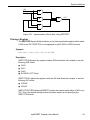
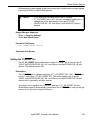
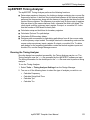
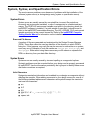
If you chose an EDIF file type, the EDIF Reader Settings button appears (as
shown in Figure 3-1).
4. Choose a design file from the File Name list. The Project Name field changes to
show this file name. Your design and project can have different names, but it is
recommended that you keep the default.
5. Choose the project directory. This directory is where you want to store your
projects.
6. Click Select Device if you want to select a device other than the default shown.
Refer to “Specifying a Device” on page 90 for information on selecting a device.
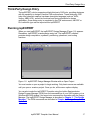
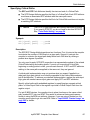
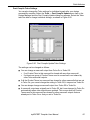
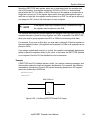
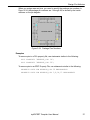
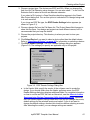
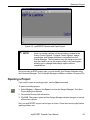
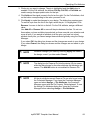
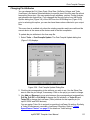
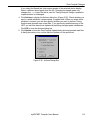
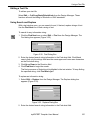
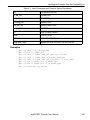
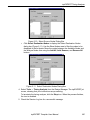
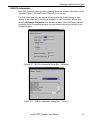
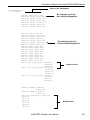
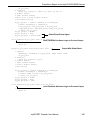
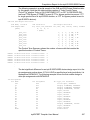
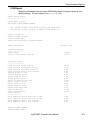
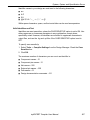
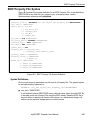
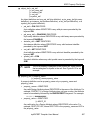
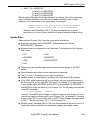
7. Click EDIF Reader Settings. The EDIF Reader Settings dialog box appears
(Figure 3-2). The settings you specify are applicable only to this project.
Figure 3-2. EDIF Reader Settings Dialog Box
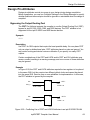
a. In the Vendor field, specify the vendor of the software used to create the
design. If you choose Altera from the Vendor pull-down menu, the EDIF
Reader Settings dialog box displays additional fields. For complete information
on how to use the an EDIF file from an Altera tool, see the Altera to Lattice
Semiconductor Design Conversion Utility Application Notes. Whenever
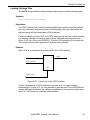
the Load Vendor-specific settings check box is on and you change the vendor,
default settings for the selected vendor are loaded. If you do not want to
change the default settings, deselect this check box before selecting a vendor.
After selecting the vendor, you can change settings as needed.
ispEXPERT Compiler User Manual
81