1
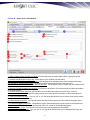
ii – Time Date Information Sub-Tab
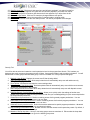
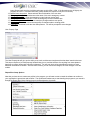
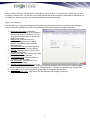
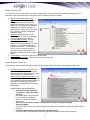
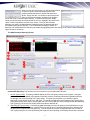
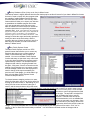
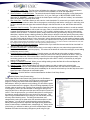
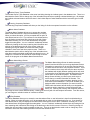
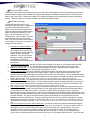
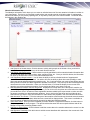
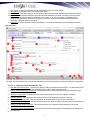
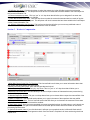
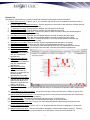
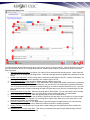
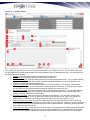
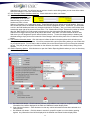
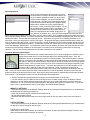
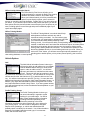
56. Person search field. Enter a name for a contact you wish to run a data search on as needed. Names to search
should be entered in this format “lastname/firstname”. Do not enter names to search in the traditional “firstname
lastsname” format, (correct = Doe/John, incorrect = John Doe). You can also just search for last name or just
first name. Once you have entered the name, hit the enter <ENTER> key on your keyboard to initiate the
search.
57. Vehicle Plate search field. Enter a license plate you wish to run a data search for as needed. You can enter
complete or partial license plate information as you desire. Results containing the combination of the search
information entered will come back in the listing, (i.e., search on “abc”, will bring back plates “abc123”, “12abc3”,
“123abc”, etc.).
58. Vehicle VIN/Decal search field. Enter either a vehicle VIN or decal number to run your search on here. You
can enter complete VIN/decal or partial information as you desire. As with the license plate search, results
containing the combination of the search information entered will come back in the listing.
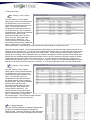
59. Contact/Vehicle Results listing. The results of your search will populate the listing in this area here. Depending
on if you are searching for people or vehicles, the column headers will differ from “Name” and “Birth Date” for
contacts to “Plate” and “VIN/Decal #” for vehicles. If your search brings back multiple results, you will have the
option to scroll up and down to locate the desired entry. Also, clicking on one of the results will bring up and
reporting history for that contact or vehicle in the area to the right (#57) and will change as you click on other
results.
60. Report History listing. This listing will display any and all history for any of the data brought back in your search
and display information about reports that contact or vehicle has been a part of. You will be able to see partial
report information including contact types, incident types, dates, etc.
Section B – Active Calls Tab
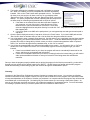
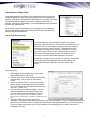
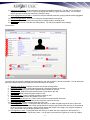
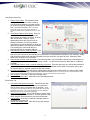
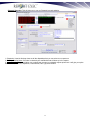
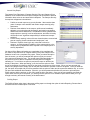
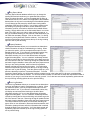
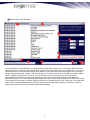
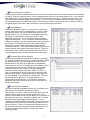
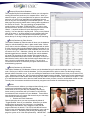
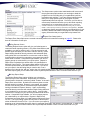
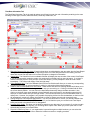
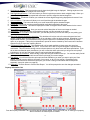
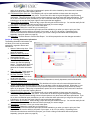
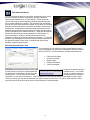
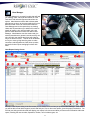
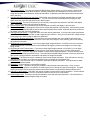
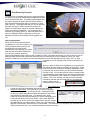
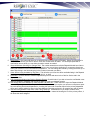
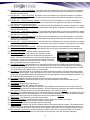
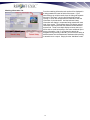
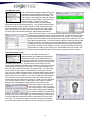
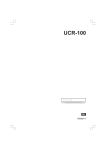
The Active Calls tab is a separate tab that mirrors the
Active Call Listing found directly in the upper right section
of the Calls for Service tab. This is just a larger display
that will allow you to view more calls and scroll through a
listing that fills the entire tab as opposed to the quick view
option condensed down in the smaller display area on the
Calls for Service screen. This will help you manage and
maintain your calls easily and more proficiently than you
could from the quick view option. That view is primarily
designed to be a quick reference tool as opposed to an
overall call managing tool, as the Active Calls tab is
geared to be. As with the quick view, calls will be listed in
priority order to help you manage and handle calls that
are more severe in importance, requiring more immediate
attention. Different column information will help you
identify calls by listing information for a call including units
dispatched, times, call types, locations, and dates.
118