1
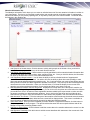
Narrative Information Tab
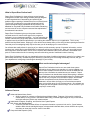
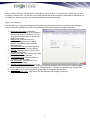
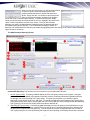
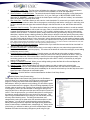
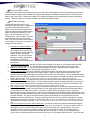
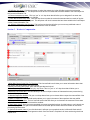
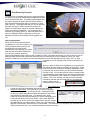
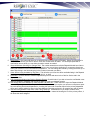
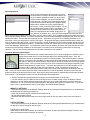
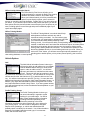
The Narrative Information Tab is where you can enter an unlimited amount of free text narrative information in relation to
your Case Report. From here, you‟ll be able to easily add a main narrative and an unlimited number of supplemental
narratives be either you, the primary reporting user, or any backup users part of the case as needed. Let‟s break down
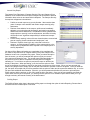
the features in the narrative tab:
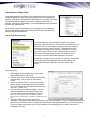
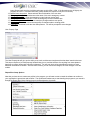
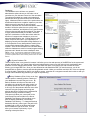
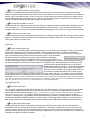
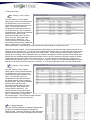
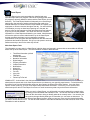
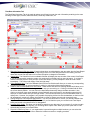
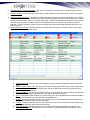
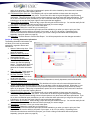
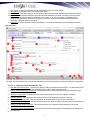
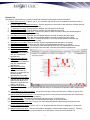
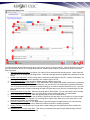
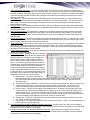
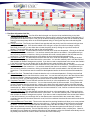
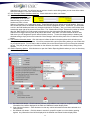
1. Add Synopsis to Header button. Click this button to quickly add synopsis to the header. Once you click this
button, the word synopsis will show up in the main narrative text box.
2. Add Header Information button. Click this button to quickly add default uniform narrative header information that
will include the report type, case number, dates, reporting officer, etc. Once you click this button, the information
will show up wherever the cursor is in the main narrative text box.
3. Add Supplement Narrative button. You will have the ability to add an unlimited number of supplemental
narratives to a Case Report as needed. You admin will have the ability to allow other uses the ability to read
other user reports and add supplement narratives only. So, if a primary officer can create a Case Report and any
backup officers involved can add a supplement narrative to that report. They will only be able to add supplement
narratives and no other information. When you click this button, it will clear the display for the current main
narrative or previous supplement narrative you are viewing and allow you to start a new one.
4. Main/Supplement Narrative selection drop down. Displayed in this drop down will be the specific narrative you
are currently adding, editing or viewing. From here, you can click on the drop down arrow and select the narrative
you would like to view, if at least one more supplement has been added by the report creator or other user with
the proper permissions to add supplement narratives. As you click on the drop down and scroll through and
select the one you want to view, the information for that narrative will populate in the main narrative text screen.
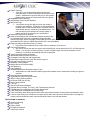
5. Main Narrative Text Screen. This is the main part of the narrative screen that shows the actual text and contents
of the narrative. Any auto headers added and text entered will be displayed here. This screen is scrollable as
more information is added and information can easily be added and edited as needed.
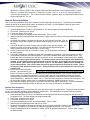
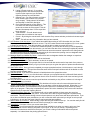
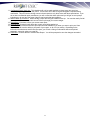
6. Spell Check button. Once you have completed your main narrative or supplement narrative, click this button to
run it through our spell check program. This spell check has the same feel as most spell checkers and will be
familiar to most word processing software users.
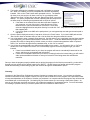
7. Add Date to Report button. Click this button to add the current date to the narrative wherever the cursor is on the
screen.
8. Add Signature Timestamp. Click this button to add the current date/time with username to the current end of the
report.
71