1
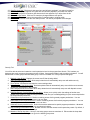
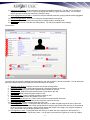
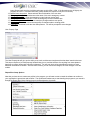
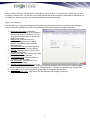
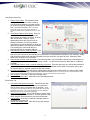
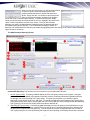
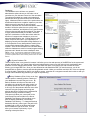
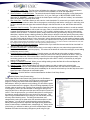
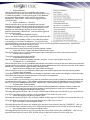
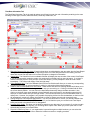
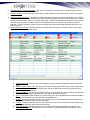
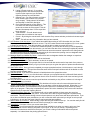
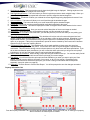
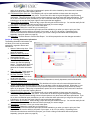
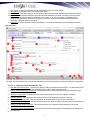
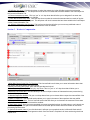
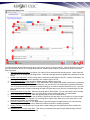
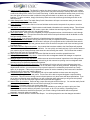
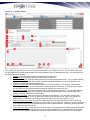
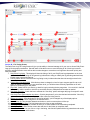
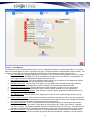
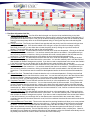
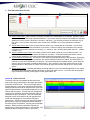
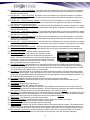
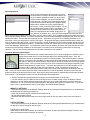
11. Confidential Report check box. This checkbox will only be made available to those users who are given
confidential report rights in their user profile. Those users will be able to tag and designate a report as being
confidential. This will limit the viewing access to these reports to only those users with those permissions. If you
do not have confidential report permissions, you will not see this check option and you will get an error prompt
indicating you do not have the proper rights to read reports that are tagged so.
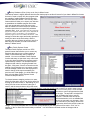
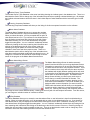
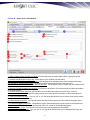
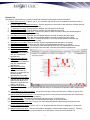
12. Needs Follow Up check box. Users can tag a report as having the need for follow up. You can then easily find all
your reports or other user reports that need follow up through your case manager.
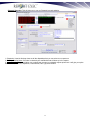
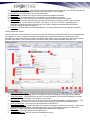
13. Save button. Click here to save your current case report.
14. Delete Button Clicking this will delete the current record being worked on.
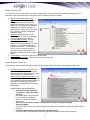
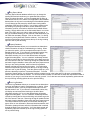
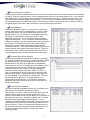
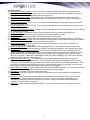
15. Print button. You will have extensive print options made available to you when you want to print your Case
Report. You will have the ability to print parts of your report, or all of it in its entirety. Depending on the
information that has been entered into the report, you will see a listing of information that can be printed
separately, (see print options on page 53).
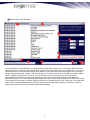
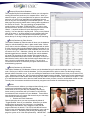
16. Exit button. Click this button to exit the Case Report. You will be prompted to save the changes as needed.
89