1
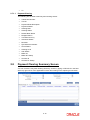
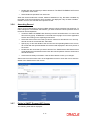
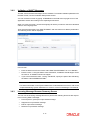
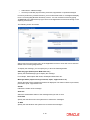
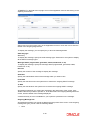
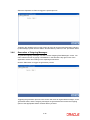
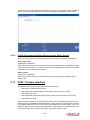
You can perform Edit, Delete, Amend, Authorize operations by selecting the operation from the Action list. You can also search a record by using a combination of % and alphanumeric value. For example: You can search the record for Template ID by using the combination of % and alphanumeric value as follows:- 5.9.3.2 Search by G%:- System will fetch all the records whose Template ID starts from Alphabet ‘G’. For example: GLTEMP etc. Search by %1:- System will fetch all the records whose Template ID ends with the by numeric value’ 1’. For example: GL1 etc. Editing GL Template You can modify the details of a GL Template that you have already entered into the system, provided it has not been subsequently authorized. You can perform this operation as follows: 5.9.3.3 Invoke the GL Template Summary screen from the Browser. Select the status of the record that you want to retrieve for modification in the Authorized field. You can only modify records that are unauthorized. Accordingly, choose the unauthorized option. Specify any or all of the details in the corresponding fields to retrieve the record that is to be modified. Click ‘Search’ button. All unauthorized records with the specified details are retrieved and displayed in the lower portion of the screen. Double click the record that you want to modify in the list of displayed records. The GL Template Detail screen is displayed. Select Unlock Operation from the Action list to modify the record. Modify the necessary information. Click Save to save your changes. The GL Template Detail screen is closed and the changes made are reflected in the GL Template Summary screen. Viewing GL Template To view a record that you have previously input, you must retrieve the same in the GL Template Summary screen as follows: 5.9.3.4 Invoke the GL Template Summary screen from the Browser. Select the status of the record that you want to retrieve for viewing in the Authorization Status field. You can also view all records that are either unauthorized or authorized only, by choosing the Unauthorized/ Authorized option. Specify any or all of the details of the record in the corresponding fields on the screen. Click ‘Search’ button. All records with the specified fields are retrieved and displayed in the lower portion of the screen. Double click the record that you want to view in the list of displayed records. The GL Template Detail screen is displayed in View mode. Deleting GL Template You can delete only unauthorized records in the system. To delete a record that you have previously entered: Invoke the GL Template Summary screen from the Browser. Select the status of the record that you want to retrieve for deletion. 5-34