1
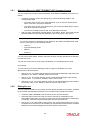
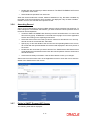
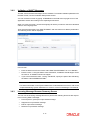
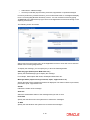
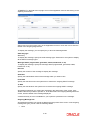
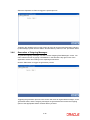
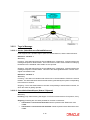
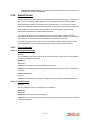
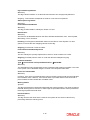
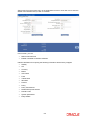
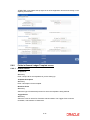
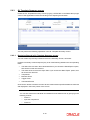
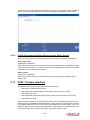
3.5.1 Retrieving Record in SWIFT ELEMENT UDF Summary Screens You can retrieve a previously entered transaction in the SWIFT ELEMENT UDF screen, as follows: Invoke the summary screen and specify any or all of the following details in the corresponding fields: – The status of the record in the Authorized field. If you choose the “Blank Space” option, then all the records are retrieved. – The status of the record in the Open field. If you choose the “Blank Space” option, then all the records are retrieved. – The code of message for the record, in the Message Code field. After you have specified the required details, click ‘Search’ button. All records with the specified details are retrieved and displayed in the lower portion of the screen. Note You can also retrieve the individual record detail from the SWIFT ELEMENT UDF detail screen by doing query in the following manner:– Press F7. – Input the Message Code – Medium – Press F8. You can perform Edit, Delete, Amend, Authorize, Reverse, Confirm operations by selecting from the Action list. You can also search the record by using combination of % and alphanumeric value. For example You can search the record for Message Code by using the combination of % and alphanumeric value as follows:- 3.5.2 Search by A%: The system will fetch all the records whose Message Code starts from Alphabet ‘A’. Ex: AGC17, AGVO6, AGC74 and so forth. Search by %7: The system will fetch all the records whose Message Code ends by numeric value’ 7’. Ex: AGC17, GSD267, AGC77 and so forth. Search by %17%: The system will fetch all the records whose Message Code contains the numeric value 17. Ex: GSD217, GSD172, AGC17 and so forth. Editing Record You can modify the details of a record that you have already entered into the system, provided it has not been subsequently authorized. You can perform this operation as follows: Invoke the SWIFT ELEMENT UDF Summary screen from the Browser. Select the status of the record that you want to retrieve for modification in the Authorization Status field. You can only modify records of records that are unauthorized. Accordingly, choose the Unauthorized option from the drop down list. Specify any or all of the details of the record in the corresponding fields on the screen to retrieve the record that is to be modified. All unauthorized records with the specified details are retrieved and displayed in the lower portion of the screen. 3-9