1
2
Setting Up Your Environment
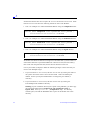
Optional: Add Exemplar’s bin\win32 directory to your path. This command may be
used for running LeonardoSpectrum from a DOS command prompt or a batch
file.
path=c:\exemplar\leospec\bin\win32;%PATH%
Note – The examples in this section are for setting the environment variables using the
set and path commands in a command window. Under normal circumstances, the
Installation program handles the setting of these environment variables for you. To set
or modify them manually, on Windows NT, use the System dialog in the Control Panel
on your PC (see following instructions); on Windows 95/98, add or modify the set
and path commands as shown above in your autoexec.bat file. Refer to the
documentation that accompanies your operating system or contact your system
administrator for further details.
Steps for Setting Environment Variables on Windows NT
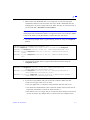
1. Bring up the System Properties dialog:
Start->Settings->Control Panel->Systems and click on the Environment folder.
2. If you want these changes to apply to all users of the system, modify the System
Environment Variables according to the following instructions. If you want these
changes to apply only to the current user, modify the User Environment Variables:
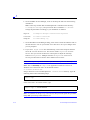
• Select the variable from the appropriate list (System or User) if it already exists,
or select another variable from that list and change the Variable name to the
one you are setting (EXEMPLAR, Path or LM_LICENSE_FILE).
• Enter the value of the variable in the Value field. If you are setting the Path
environment variable, you do not need to enter %PATH%; also, if you are
modifying the User Environment Path, you do not need to repeat the System
Environment Path setting. This variable is automatically concatenated and
includes both the System and the User values.
• Click on the Set button to add your new setting to the appropriate listbox
(System or User).
3. Click on the OK button to apply your changes.
Windows PC Installation
2-3