1
Section 3: Moving Map
Choose the Default Map Color
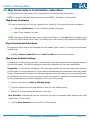
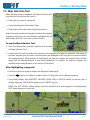
While several options for terrain shading and weather are available in the easily-accessible Map Options
softkeys, there are two basic color options that are set up in the Moving Map Set Menu.
Background Color- The backdrop for any screen that does not show topography. It forms the default
background for the radar and METAR screens.
Ÿ Turn Background Color ON to display an even olive green background color for the map. This
creates a neutral background that displays all of the text and features clearly.
Ÿ Turn Background Color OFF to display a black background for the map. Pilots may prefer this
option over the colored background for flying at night.
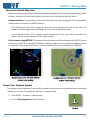
Color Airports Using METARS- This setting colors the airport symbols of airports with METAR reports
according to VFR, IFR and Marginal VFR flight conditions when there is an operating weather receiver
on board & in data range. See Section 7, Hazard Avoidance, for more information on METARs.
Choose Your Airplane Symbol
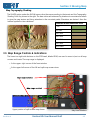
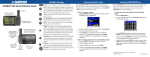
The airplane symbol represents your aircraft’s present position and can be customized as a conventional
airplane or a canard. To change the symbol to a canard profile:
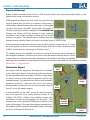
2. Press MORE > Set Menu > Moving Map.
3. Scroll to Plane Symbol and select Canard.
Revision A1
Horizon HXr User Manual Draft
3-3