1
Electronic Annual Work Plan and Budget (e-AWPB) User Manual - 2012
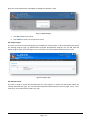
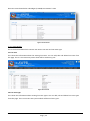
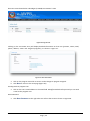
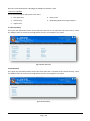
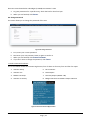
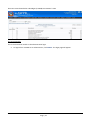
Figure 34: Sub-Activity
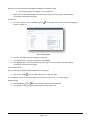
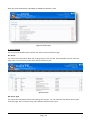
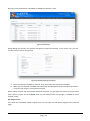
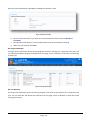
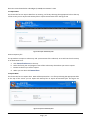
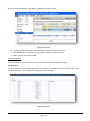
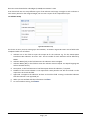
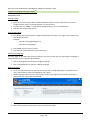
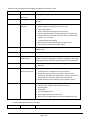
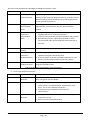
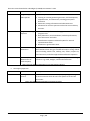
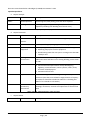
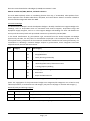
When adding new records, you will have the option to select Procurement. If you choose ‘Yes’, you will
see the screen as shown in Figure 35.
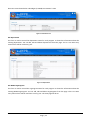
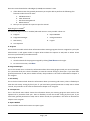
Figure 35: Add Sub-Activity (Procurement)
a. Enter the value for the field as required. Enter the proper date format and numbers.
b. When you are finished, click ADD. The sub-activity data along with the procurement data will be
saved and you will get a confirmation message.
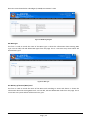
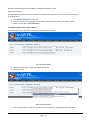
When editing records and Procurement had been selected, you will again be shown the Procurement
form, similar to Figure 35. Click UPDATE when you are satisfied with your changes, or CANCEL to return
without saving.
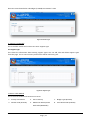
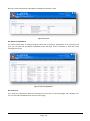
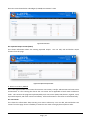
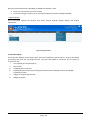
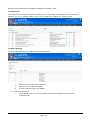
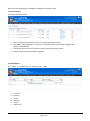
G2: Program User
This shows the information about program users. You can add, edit and delete program users from this
page.
Page | 33