Download iCEcube2 User Guide

Transcript
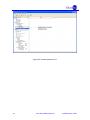
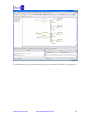
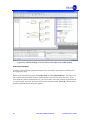
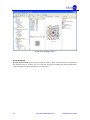
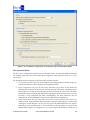
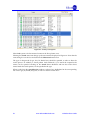
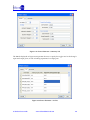
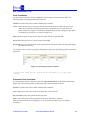
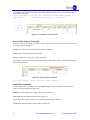
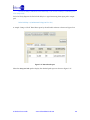
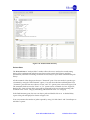
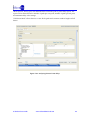
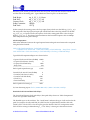
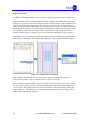
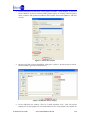
Figure 5-19: Detailed Path Summary of the selected path.
By Paths
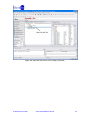
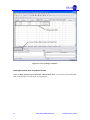
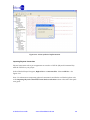
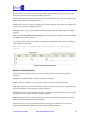
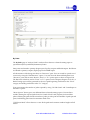
The By Paths page in “Analyze Paths” window allows the user to limit the timing report to
specific Start (Source) and End (Destination) Points.
Start points are limited to primary design inputs, flip-flop outputs and RAM outputs. End Points
are limited to primary outputs, flip-flop inputs and RAM inputs.
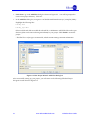
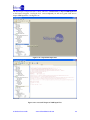
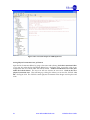
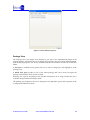
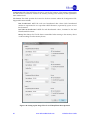
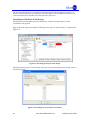
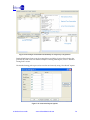
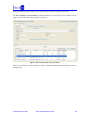
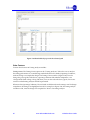
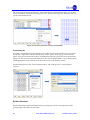
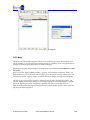
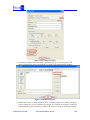
All the instances of the design are shown in “Resources” pane. User can search for specific set of
resources by using the “Find Resource” option. User can select the Start and End points from
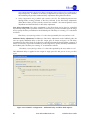
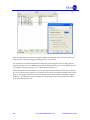
“Resource” pane and can move them to “From” to “To” options pane as shown in Figure 5-20.
The Resources which are used in “From” or “To” options can be a Register, Register in IO, IO, or
RAM. Timing report will be generated for the set of paths beginning with nodes in the “From”
category and ending with nodes in the “To” category.
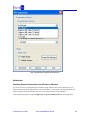
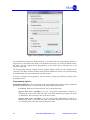
User can customize the number of paths reported by using “No Path Limit” and “Limit Report to
100 Paths” options.
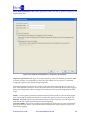
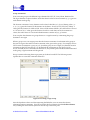
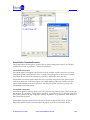
“More Options” button gives user different filters to limit the timing reports. Various filters
include, filtering the reported paths based on Launch Clock, Latch (Capture) clock and their
phases, filtering the paths based on number of paths per start point and number of paths per end
point, and filtering paths based on maximum slack value.
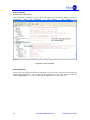
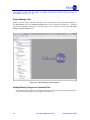
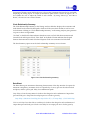
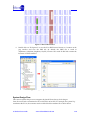
“Full Screen Mode” allows the user to view all the paths and customize window lengths in Full
Screen.
83
www.SiliconBlueTech.com
iCEcube2 User Guide