1
3.
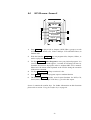
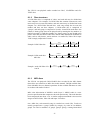
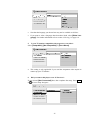
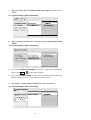
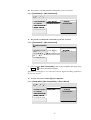
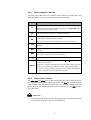
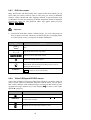
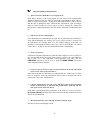
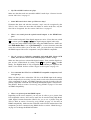
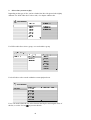
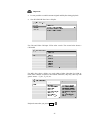
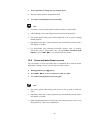
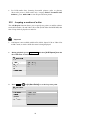
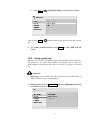
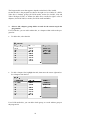
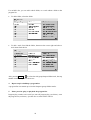
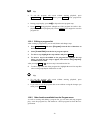
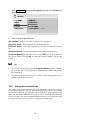
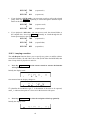
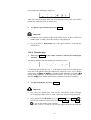
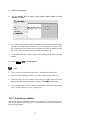
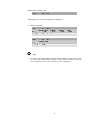
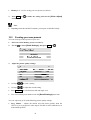
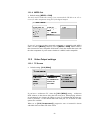
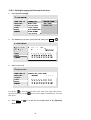
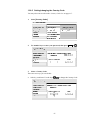
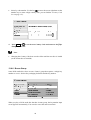
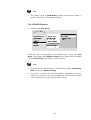
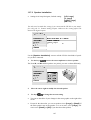
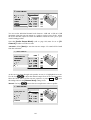
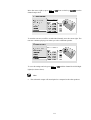
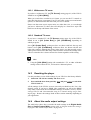
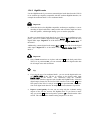
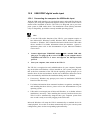
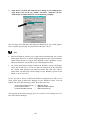
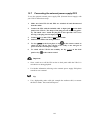
Open up the "Sounds and Audio Devices" dialog of your Windows Settings menu. Click on the tag "Audio" and select "Audionet VIP G2"
from the list of standard devices (see the following example):
Audionet VIP G2
Now all music and sound files, that Microsoft Windows or your sound application is capable of processing, are played back with your VIP G2.
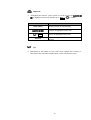
Note
·
Microsoft Windows converts every input format automatically into a stereo
PCM signal with 44.1 or 48 kHz sampling frequency and 16 bits resolution.
Which audio formats are played back depends on the capabilities of your
Microsoft Windows system and/or your sound application only!
·
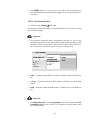
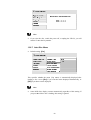
All volume and balance settings of Microsoft Windows or your sound application will be still active. In case you hear no sound at all or the sound has
low volume while playing back sound and music files with your VIP G2,
please make sure that your volume settings of your Windows system are not
muted or set to a low level.
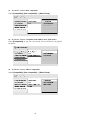
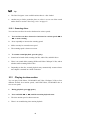
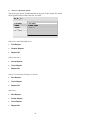
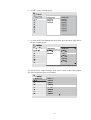
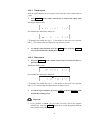
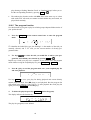
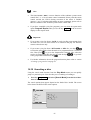
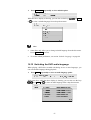
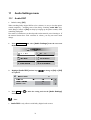
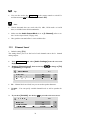
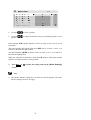
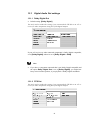
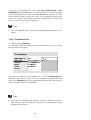
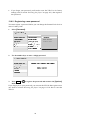
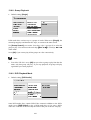
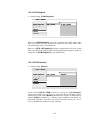
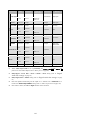
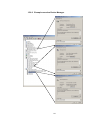
In case you like to check, if Microsoft Windows recognized your VIP G2 correctly, please open up the Device Manager of your Windows system. You will
find the VIP G2 in the following 3 places in the list of devices::
Sound, video and game controller →
Human Interface Devices
→
Universal Serial Bus controllers →
USB Audio Device
USB Human Interface Device
USB Composite Device
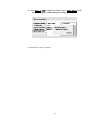
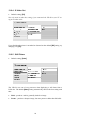
The diagram on the following page gives an overview of an example list of entries in the Device Manager:
140