1
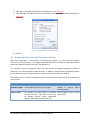
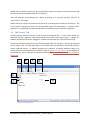
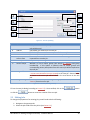
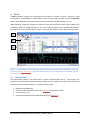
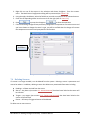
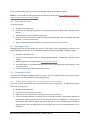
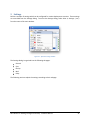
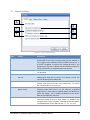
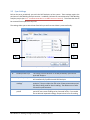
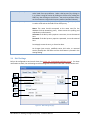
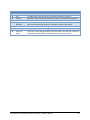
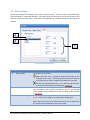
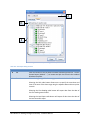
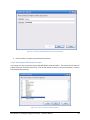
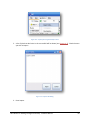
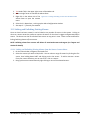
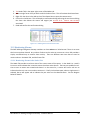
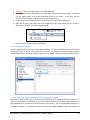
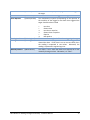
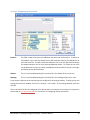
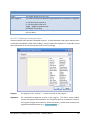
Enter a name for the group in the New Group dialog and press OK to create the group.
NOTE: It is also possible to add a group with an initial set of sensors (see 8.5.1 - ADDING AND REMOVING
SENSORS USING THE SENSOR CONTEXT-MENU).
8.3 Renaming Groups
To rename a group:
1. Navigate to the Nodes tab
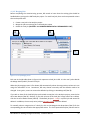
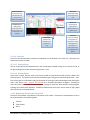
2. Ensure you are browsing by group by selecting Viewing Options → Browse By → Group from the
toolbar
3. Select the group to be renamed by clicking on it
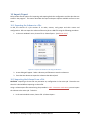
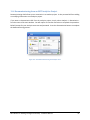
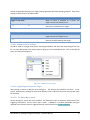
4. Either click a second time on the group to begin renaming or right-click on the group and select
Rename… from the context-menu
5. Type in a new name and press ENTER on the keyboard to save or ESC to cancel
8.4 Deleting Groups
Deleting groups does not also delete the sensors in the group, but the membership of sensors in the
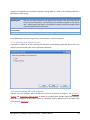
group is deleted permanently. It is not possible to delete the special group (All). To delete a group:
1. Navigate to the Nodes tab
2. Ensure you are browsing by group by selecting Viewing Options → Browse By → Group from the
toolbar
3. Select the groups to be removed (see 8.1 - BROWSING GROUPS)
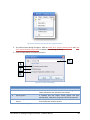
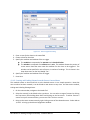
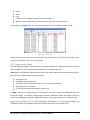
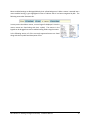
4. Press SHIFT+DEL on the keyboard or right-click on one of the groups and click on Delete… from
the context-menu
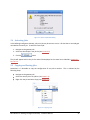
5. Confirm the prompt to delete the groups or cancel
8.5 Grouping Sensors
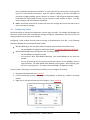
There are two methods for adding sensors to a group. The first method can be done using the sensor
context-menu. The second method is using drag-and-drop.
8.5.1 Adding and Removing Sensors Using the Sensor Context-Menu
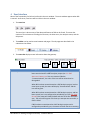
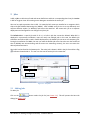
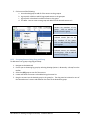
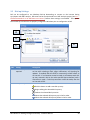
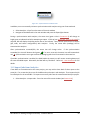
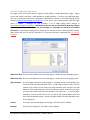
The sensor context-menu allows you to add and remove sensors from groups. To add/remove sensors
to/from an existing group:
1.
2.
3.
4.
Navigate to the Nodes tab
Use the sensor list to select the sensors
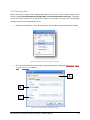
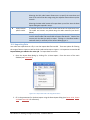
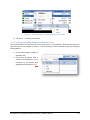
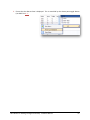
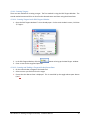
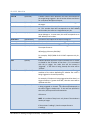
Right-click on one of the sensors to bring up the sensor context-menu
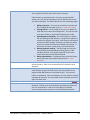
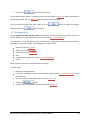
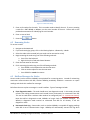
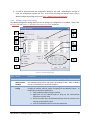
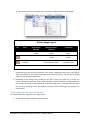
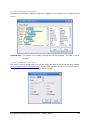
Under the Groups submenu, all groups for the active job are listed. Groups with checkmarks
beside them indicate groups that all of the selected sensors are members of. Groups with a
bullet beside them indicate groups that some (but not all) of the selected sensors belong to.
Groups without any icon beside them indicate groups that none of the selected sensors are a
member of.
RS-1095 Rev 2: Building Intelligence Gateway - Software Manual
39