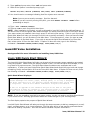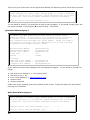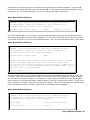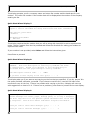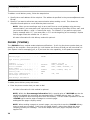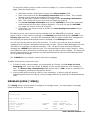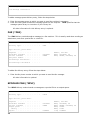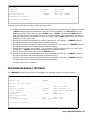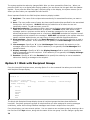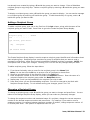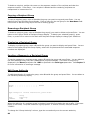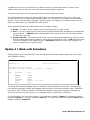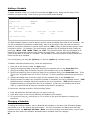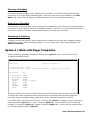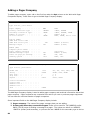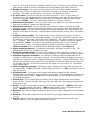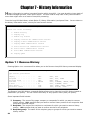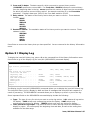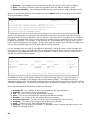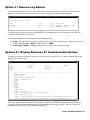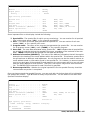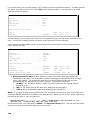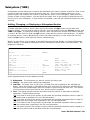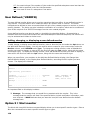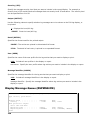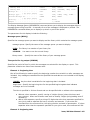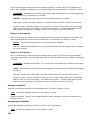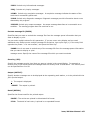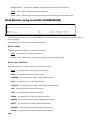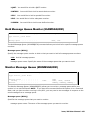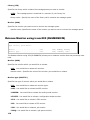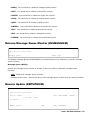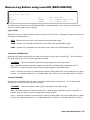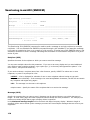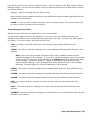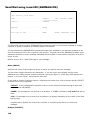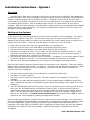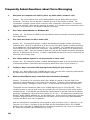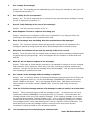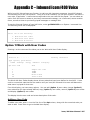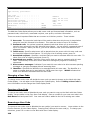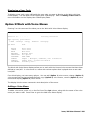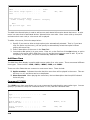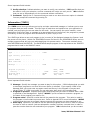
1
User and Administration Guide Version 4.4 We pride ourselves in producing good stuff. If you have any questions, problems, or suggestions regarding this product, please contact us at: 4500 S. 129th E. Ave., Ste. 190 Tulsa, OK 74134 (877) 369-6922 (918) 587-1536 fax 3824 S. Boulevard St., Ste. 200 Edmond, OK 73013-5781 (800) 311-0757 (405) 359-7490 fax www.pbsnow.com [email protected] Copyright Pinnacle Business Systems, INC 2014 Last Updated: 9/18/2014 icom/400 User Manual- 1 Table of Contents NEW ICOM/400 4.X FEATURES ..........................................................................................6 CHAPTER 1 - PRODUCT HIGHLIGHTS AND TECHNICAL OVERVIEW ..................................11 A QUICK LOOK AT ICOM/400................................................................................................ 11 Providing Cost Effective & Time Savings Benefits .................................................................... 11 A TECHNICAL OVERVIEW OF ICOM/400 .................................................................................... 13 Systems Management ......................................................................................................... 13 Monitors............................................................................................................................ 13 Actions ............................................................................................................................. 13 Schedules ......................................................................................................................... 14 Delivery ............................................................................................................................ 14 Send Message using icom/400 ............................................................................................. 15 Work with Monitors ............................................................................................................ 15 Message Queue Monitor ...................................................................................................... 16 Work with Actions .............................................................................................................. 17 Add Action......................................................................................................................... 17 Change Command List ........................................................................................................ 18 Work with Schedules .......................................................................................................... 18 Automatic Delivery of Messages ........................................................................................... 19 Work with Recipients .......................................................................................................... 19 Create Recipient Group ....................................................................................................... 21 Add Pager Company ........................................................................................................... 21 Work with Escalation Tables ................................................................................................ 23 Tracking and Reporting ....................................................................................................... 24 Work with Activity .............................................................................................................. 24 Networking ........................................................................................................................ 24 Work with History Menu ...................................................................................................... 24 Work with History............................................................................................................... 24 Display Escalation Information ............................................................................................. 25 Display ICM Log Information ................................................................................................ 26 Display QHST Log Entry ...................................................................................................... 26 Service ............................................................................................................................. 27 Product Warranty and Support ............................................................................................. 27 Remote Customer Support .................................................................................................. 28 Quick Start Wizard ............................................................................................................. 28 CHAPTER 2 - ICOM/400 INSTALLATION ..........................................................................29 ICOM/400 REQUIREMENTS ................................................................................................... 29 E-MAIL/SNPP REQUIREMENTS .............................................................................................. 29 PAGING REQUIREMENTS ...................................................................................................... 29 FAXING REQUIREMENTS ...................................................................................................... 30 ICOM/400 INSTALLATION .................................................................................................... 30 First Installation — CD ........................................................................................................ 30 First Installation — Tape ..................................................................................................... 30 Upgrade ............................................................................................................................ 30 Internet Download Installation ............................................................................................. 30 icom/400 Voice Installation ................................................................................................. 31 ICOM/400 QUICK START WIZARD .......................................................................................... 31 ADVANCED SET-UP ............................................................................................................ 46 Modem Configuration .......................................................................................................... 46 Line Description Information ................................................................................................ 46 Pager Companies ............................................................................................................... 46 E-mail ............................................................................................................................... 47 Recipients ......................................................................................................................... 47 2 Actions ............................................................................................................................. 47 Monitor Configuration ......................................................................................................... 47 Testing ............................................................................................................................. 47 Autostart ........................................................................................................................... 48 Removing icom/400............................................................................................................ 48 MODEM CONFIGURATION ..................................................................................................... 48 ICOM/400 MAIN MENU ....................................................................................................... 51 Options ............................................................................................................................. 52 CHAPTER 3 - SENDING A MESSAGE USING ICOM/400 .....................................................55 CHAPTER 4 - WORK WITH HISTORY ................................................................................58 CHAPTER 5 - WORK WITH ACTIVITY ...............................................................................62 CHAPTER 6 - RECIPIENT INFORMATION .........................................................................66 Option Option Option Option Option Option Option Option 1=Work with Recipients ............................................................................................ 66 2 = Work with Recipient Groups ................................................................................ 78 3 = Work with Schedules .......................................................................................... 81 4 = Work with Pager Companies ................................................................................ 83 5 = Work with Escalation Tables ................................................................................ 86 6 = Work with Pre-Defined Messages ......................................................................... 88 9 = Work with IP Entries ........................................................................................... 90 11 = Work with Remote Systems ............................................................................... 91 CHAPTER 7 - HISTORY INFORMATION ............................................................................94 Option 1 = Remove History ................................................................................................. 94 Option 2 = Display Log ....................................................................................................... 95 Option 3 = Remove Log Entries ........................................................................................... 97 Options 5 = Display Resource #1 Communication Entries ........................................................ 97 Options 6 = Display E-mail Communications Entries ............................................................... 98 Options 7 = Display SNPP Communications Entries ................................................................. 98 Options 9, 10 and 11 = Print Communications Entries (TAP, Email & SNPP) ............................... 99 Option 20 = Display QHST................................................................................................... 99 CHAPTER 8 - SYSTEM MONITORS ..................................................................................102 Option 1 = Work with monitors .......................................................................................... 103 INDIVIDUAL MONITORS ..................................................................................................... 105 ASP (*ASP) ..................................................................................................................... 105 Audit Journal (*AUDJRN) ................................................................................................... 106 Configuration Status (*CFGSTS) ........................................................................................ 110 CPU Monitor (*CPU) ......................................................................................................... 111 IFS Monitor (*IFS) ........................................................................................................... 112 Job Monitor (*JOB) ........................................................................................................... 113 Job Queue (*JOBQ) .......................................................................................................... 115 Message Queue (*MSGQ) .................................................................................................. 116 Network File (*NETF) ........................................................................................................ 120 Object Size (*OBJSIZ) ...................................................................................................... 121 Output Queue (*OUTQ)..................................................................................................... 122 QHST (*QHST) ................................................................................................................ 123 Remote Device (*RMTDEV) ............................................................................................... 125 Spooled File (*SPLF) ......................................................................................................... 125 Subsystem (*SBS) ........................................................................................................... 129 User Defined (*USRDFN) ................................................................................................... 130 Option 2 = Start monitor................................................................................................... 130 Option 3 = End monitor .................................................................................................... 131 Option 4 = Work with monitor types ................................................................................... 131 Option 5 = Work with monitor subsystem ........................................................................... 132 icom/400 User Manual- 3 Option Option Option Option Option Option 6 = Work with schedules ......................................................................................... 132 7 = Work with Actions ............................................................................................ 132 8 = Send program message .................................................................................... 135 12 = Add monitor entries based on message queue ................................................... 136 13 = Add monitor entries based on QHST ................................................................. 137 16 = Work with address information ......................................................................... 139 CHAPTER 9 - SYSTEM CONTROLS ...................................................................................140 Option Option Option Option Option Option Option Option Option Option 1 = Change System Attributes ................................................................................. 140 2 = Work with Function Authorities .......................................................................... 145 3 = Reset icom/400 ............................................................................................... 150 4 = Work with Page Queues .................................................................................... 150 5 = Work with Spooled Files .................................................................................... 151 6 = Work with icom/400 e-mail ............................................................................... 155 8 = Start icom/400 subsystem ................................................................................ 156 9 = End icom/400 subsystem .................................................................................. 156 11 = Remote update .............................................................................................. 156 60 = Work with product security .............................................................................. 156 CHAPTER 10 - ICOM/400 COMMANDS ...........................................................................157 Display icom/400 Log Entries (DSPLOGICM) ........................................................................ 158 Display Message Queue (DSPMSGICM) ............................................................................... 160 Display QHST (DSPQHSTICM) ............................................................................................ 164 End Message Queue Monitor (ENDMSGQICM) ...................................................................... 167 Hold Monitor using icom/400 (HLDMONICM) ........................................................................ 168 Hold Message Queue Monitor (HLDMSGQICM) ...................................................................... 169 Monitor Message Queue (MONMSGQICM) ............................................................................ 169 Release Monitor using icom/400 (RLSMONICM) .................................................................... 170 Release Message Queue Monitor (RLSMSGQICM) ................................................................. 171 Remote Update (RMTUPDICM) ........................................................................................... 171 Remove icom/400 Activity (RMVATVICM) ............................................................................ 173 Remove icom/400 History (RMVHSTICM) ............................................................................ 175 Remove Log Entries using icom/400 (RMVLOGEICM) ............................................................ 177 Send using icom/400 (SNDICM) ......................................................................................... 178 Send Mail using icom/400 (SNDMAILICM) ........................................................................... 180 Send Message using icom/400 (SNDMSGICM)...................................................................... 184 Send Spooled File (SNDSPLFICM) ....................................................................................... 184 Work with Actions using icom/400 (WRKACTICM) ................................................................. 184 Work with icom/400 Activity (WRKATVICM) ......................................................................... 184 Work with Pager Companies using icom/400 (WRKCMPICM) .................................................. 184 Work with Console (WRKCONICM) ...................................................................................... 185 Work with Escalation Tables using icom/400 (WRKESCICM) ................................................... 185 Work with Recipient Groups using icom/400 (WRKGRPICM) ................................................... 186 Work with History (WRKHSTICM) ....................................................................................... 186 Work with icom/400 E-mail (WRKMAILICM) ......................................................................... 186 Work with Monitors using icom/400 (WRKMONICM) .............................................................. 188 Work with Pre-defined Messages using icom/400 (WRKMSGICM) ........................................... 190 Work with Page Queues using icom/400 (WRKPAGQICM) ...................................................... 191 Work with Recipients (WRKRCPICM) ................................................................................... 191 Work with Schedules using icom/400 (WRKSCDICM) ............................................................ 192 Work with Spooled Files (WRKSPLFICM) .............................................................................. 192 CHAPTER 11 - AUTOMATED CUSTOMER SUPPORT .........................................................195 Troubleshooting ............................................................................................................... 195 AS/Manager Customer Support Menu ................................................................................. 195 PTF Retrieval ................................................................................................................... 196 Sign-on to AS/Manager Support System ............................................................................. 197 AS/Manager Communication .............................................................................................. 197 4 APPENDIX A - PRODUCT WARRANTY AND SUPPORT .....................................................199 Product Support Worldwide ............................................................................................... 199 When You Have A Question ............................................................................................... 199 Product Warranty and Maintenance .................................................................................... 199 APPENDIX B – ICOM/400 VOICE ...................................................................................201 PC Requirements .............................................................................................................. 201 Installation Instructions - PC ............................................................................................. 201 Reinstallation ................................................................................................................... 202 Installation Instructions – System i .................................................................................... 203 Frequently Asked Questions about Voice Messaging .............................................................. 204 APPENDIX C – INBOUND ICOM/400 VOICE ...................................................................207 Option 1=Work with User Codes ........................................................................................ 207 Option 2=Work with Voice Menus ....................................................................................... 209 Option 3 – Work with IP Entries ......................................................................................... 213 Frequently Asked Questions about Inbound Voice ................................................................. 213 APPENDIX D – PHONE RIDER MODEM ...........................................................................215 PhoneRider Installation under Windows 98 .......................................................................... 215 PhoneRider Installation under Windows 2000 ....................................................................... 222 PhoneRider Installation under Windows NT 4.0 .................................................................... 229 APPENDIX E - *INFO EXIT PROGRAM REFERENCE .........................................................239 Sample programs ............................................................................................................. 240 FREQUENTLY ASKED QUESTIONS ..................................................................................241 TECHNICAL ASSISTANCE WORKSHEET .................................................................................... 245 ICOM/400 SET-UP WORKSHEET .......................................................................................... 246 INDEX ...........................................................................................................................247 icom/400 User Manual- 5 New icom/400 4.x Features Note: For a list of all new features by a specific release, please start on page 9. For all new version 4.4 new features and fixes, see bottom of page 10. Audit Journal Monitor – A user has the ability to monitor the system audit journal for potential system security violations and sensitive objects. To use this feature – Go to the work with monitors screen (WRKMONICM) to add or change an audit journal (*AUDJRN) monitor. Console monitor – The user will have the ability to manage messages coming from any remote system(s) on one central system. For example: the user will be able to view and answer messages from all remote systems on one central system. Once answered on the central system, it will update the remote system(s) messages. Other options may include: deleting messages, etc. To use this feature – There are various options to use this feature. Setting up a console (*CONSOLE) delivery type is in your recipient setup screens (WRKRCPICM). This is where you will tell ICOM what system will get the message. To display and reply to messages on the central system, there is an option 11 on the main ICM menu or you can use the WRKCONICM command. See Remote systems below - Using this feature means you have to have systems setup to where the messages will go. You can do this in the recipient screen for *CONSOLE delivery type as well. You will notice you can prompt and work with remote systems using the F4 and F9 function keys. There is also a menu option 11 to work with remote systems on the recipient menu (GO ICMRCP). Remote Systems – This is closely related to console monitoring. Added the ease of use for users to be able to select a menu option to create and manage their own remote systems used to send messages with the console delivery type. Also added this feature to the recipient setup screens for console delivery type. This way they can select and manage remote systems from the setup screens. To use this feature – See above description and use of feature about console monitoring. Networked systems using ICOM/400 – The user could from one system, update other remote systems that would sync and update the same files. This will be a huge feature that will save a lot of time for users who need the same information for recipients, pager companies, groups, tables, etc., on all their systems and not have to keep copying it over or typing in data all the time themselves for each individual system. We would not update the history records, however, those need to be unique to each systems daily operations. To use this feature – Use the RMTUPDICM command or icom/400 menu option to update icom files on remote systems. Also see Chapter 10 “Commands” page 158 - for more about the RMTUPDICM command. IFS monitor – New monitor that will send messages and/or run a command when the monitor detects a file in an IFS folder. To use this feature – Go to the work with monitors screen (WRKMONICM) to add or change a IFS (*IFS) monitor. Enhancement to the remote device (*RMTDEV) monitor - You can now get either a bad or good response back from the server and run the action according to what response you want back. To use this feature – Go to the work with monitors screen (WRKMONICM) to add or change a remote device (*RMTDEV) monitor. Look at the test parm. 6 Hold feature for Message queue(*MSGQ) and QHST(*QHST) monitor entries – The user will be able to hold any specific entry or entries instead of the old way of having to hold the whole monitor with all the entries included (which will still be an option as well). This will save on setup and performance time of having to have extra monitors, along with added convenience. To use this feature – Go to the work with monitors screen (WRKMONICM) to add or change a message queue (*MSGQ) or QHST (*QHST) monitor. After a monitor is created, look at option 6 to hold and release the monitor entry. User field added to the spooled file (*SPLF) monitor – The spooled file monitor (*SPLF) now has the ability to filter for a user name. To use this feature – Go to the work with monitors screen (WRKMONICM) to add or change a spooled file (*SPLF) monitor. Once the monitor is added, look at the user parm in the setup. Email subject line added to send email and spooled file commands – Users can add own subject text now w/out having to use the @@ signs(old way of doing it). To use this feature – Find the subject parm on the SNDMAILICM and SNDSPLFICM command. Subject line added to actions and message queue monitor entries – Add email subjects to the monitor and actions now. Makes it a little more flexible. To use this feature – Go to the work with actions screen (WRKACTICM) to add or change an action to use subject text. Look at the subject parm on the add or change action screen. Actions are connected to monitors to run if a certain criteria is met in the monitor. Also when you create message queue monitor entries in a message queue monitor(WRKMONICM), add subject text if you prefer it there rather than the action. Multiple email addresses on the send commands - This will be good for any user who needs to send to a list of multiple email addresses on the fly. This will be more convenient than the email bundling feature(see below for the email bundling section bullet) if the email addresses change all the time. To use this feature – Use the SNDMSGICM or SNDMAILICM commands. Find the email address parm. Multiple email server addresses - Added the ability to specify another email server SMTP address so if your first server is having problems and ICOM gets errors from the specific IP address, it will try and resort to the secondary email server. To use this feature – Go to your system attributes screen (GO ICMSYSCTL/Option 1). Scroll down to your email screen and look at the “Secondary SMTP host server address” parm. See the help text for more. Number of retries icom tries to send an email message – Users can set a system attribute to try to resend an email that fails up to 9 times. To use this feature – This is found in your system attributes screen (GO ICMSYSCTL/Option 1). Look for the “Number of retries” in the email section of the system attributes. Extended the attachment file name to 30 characters – It used to be just 8, now users can extend that to 30 using the attachment name parm in the SNDSPLFICM command or *SPLF monitor address information (WRKMONICM). To use this feature – Using the spooled file monitor (*SPLF) action screen after creating a spooled file monitor in your work with monitors screen (WRKMONICM), to update the Address information in the top section of the screen. You can type an already created address information name, or F4 to pick one from a list box. You can also press F9 in the list box to work with address information and create one. Also, there is an option to create address information on the system monitors menu (GO ICMMON) option 16. Once in the add address information screen, find the “Attachment name” parm. Also, you can use the SNDSPLFICM command to use the “Attachment name” parm. Quick Start – Add remote systems and console delivery type by using the Quick Start Wizard. This is good for first time users and a quick way to add new recipients and delivery types to the ICOM system. icom/400 User Manual- 7 To use this feature – After an install of the product will prompt the Quick Start Wizard, or on the main menu (GO ICM), use option 20. Send email attachment files as PDF – Able to send normal spooled files from the System i to email addresses as a PDF file. The file then can be read and printed from the Adobe Acrobat Reader. To use this feature – Use either the SNDMSGICM, SNDMAILICM or SNDSPLFICM commands as an attachment type of PDF. Email bundling – We can now allow multiple email addresses on a message – Can now send an email message and/or file to more than just one email address (old way) at a time. This will basically bundle up all email addresses in a specified ICOM recipient to send at one time. It will also display all the email addresses it sent to in the header information on the email recipient. To use this feature – In the recipient setup (WRKRCPICM) screen, you will see in the top information the email bundling parm. Set it to *YES and then create multiple email addresses in the specific recipient name. Split information to the Spooled file monitor(*SPLF) – The existing spooled file monitor now has the ability to send out specific pages of a spooled file in which the user can pick what page of a file will be emailed and to what email addresses instead of just sending the whole page to only one email address. Made the spooled file monitor to use some of what the SNDSPLFICM command already does. Unlike the command, the monitor is automated. Note: you can still automate the SNDSPLFICM command if you are needing some more of its features such as “selection text”. Just use the command in your action command list. Also, the attach name was changed to use up to a 30 character file name if desired. To use this feature – Using the spooled file monitor (*SPLF) action screen after creating a spooled file monitor in your work with monitors screen (WRKMONICM), to update the Address information in the top section of the screen. You can type a already created address information name, or F4 to pick one from a list box. You can also press F9 in the list box to work with address information and create one. Also, there is an option to create address information on the system monitors menu (GO ICMMON) - option 16. Job status – Added monitoring a job status to the existing job monitor. It will monitor a status of a job (if it has a message waiting or in a loop, etc.), then send out a message and/or run a command. To use this feature – Go to the work with monitors screen (WRKMONICM) to add or change a job (*JOB) monitor. Look at the parm about job status. Notify administrator if email errors out – If an email errors out from server problems or some other error problem, ICOM can send out another type of notification or take another action (run a command) to help remedy the problem. To use this feature – Go to your system attributes screen (GO ICMSYSCTL/Option 1). Scroll down to your email screen and look at the “On error action” parm. See the help text for more. Allow omits in the Job and CPU monitors – If you wanted to use multiple, specific job names for the JOB or CPU monitor you had to create a monitor for each job or use *ALL for the job name. That created a timeconsuming setup problem. So now you can just use *ALL for the job and/or subsystem name and just omit the jobs on a list that you don’t want ICOM to monitor. To use this feature – Go to the work with monitors screen (WRKMONICM) to add or change a job (*JOB) or cpu (*CPU) monitor. Once in the add or change monitor screen, look at the F7 function key to add omits. 8 Some of the icom/400 4.1 PTF fixes include – Added message to monitor type MONTYP screen to let users know when the monitors are held. Updated Quick Start email screens to help user better understand how to setup icom/400 email attributes. Fixed email bundling in the recipient setup screen. User could not save new value. Fixed spooled file monitor problem - Using the F5 function key would not function properly. Fixed monitor types screen F8 problem - Using the F8 function key to add sequences to monitors would produce an error. Fixed *MSGQ and *QHST monitor sequence error problem - When trying to add a new sequence number, error would state that sequence was already added. Fixed WRKMAILICM command - Messages coming from Black Berries did not display correctly. Fixed multiple help text problems. Some of the icom/400 4.1 new features include – Some of the icom/400 4.2 PTF fixes include – icom/400 now allows the user to be able to reply to system messages from a Black Berry device. Added email priority feature to recipient email screens. You can now send emails with a priority status of high, low or normal. Extended subsystem (*SBS) monitor job limit from 99 to 999. Added user data column for the WRKSPLFICM command. Note: Look for F11 function key to display more data in 4.2 release! Added a way for a user to set up skipping the pinging process of email servers. This way if you have your server set to not be able to ping to for security purposes, icom/400 can be setup through a simple process to skip that part of the SMTP or POP3 process to connect to your server. Added a way for users through special circumstances to logon to their email server through SMTP. If you need to logon using BASE64 logon information or have other special SMTP needs, icom/400, through a simple setup, will allow those procedures to be done. Fixed multiple email problem - icom was sending duplicate email addresses in the TO: header address information line. Fixed product code to be able to convert and run on IBM i5/OS V6R1. Fixed QHST monitor and QHST entries screen to be able to use a system date format value of *DMY and *YMD as well as *MDY. Fixed QHST entries problem with using an option 13 to display QHST entries. Fixed QHST monitor problem if the date and time of ther QHST system entry was blank and the monitor would not start. Fixed a way to turn of the bookmarks for a PDF file. Some of the icom/400 4.2 new features include – SNPP protocol is now an option where you can send a message to a SNPP pager. This is using TCP/IP and is great for those wanting to get away from using a modem. Changed the way the pager company is used. You can now use either TAP, SNPP or both in the same record. Advantages are if one fails, icom will try the next connection type. Added an "On error action" to the new pager company screen. This gives the user a way to send a failed connection type message if both TAP and SNPP fail. icom/400 User Manual- 9 Added a new option to the subsystem monitor to just check to see if a subsystem is not active (*SBS). Added a priority email type to the action setup screen to send out a message as a *HIGH, *LOW or *NORMAL priority. Added *MSG type to the subject parm in an action. This gives you a way to tell the email going out that the message will be used as the subject line as well. Some of the icom/400 4.3 new features include – Audit journal monitoring. Values can be setup to monitor your system's audit journal for security violations or monitoring sensitive objects. For example, if a system value has changed or user profile has been added or changed. Added the ability for the user to add attributes to message ID's. This is related to the console monitor. The user is able to add special characteristics to an incoming message ID such as color coding and/or blinking attributes. Added the ability to retain spooled file information to the SNDSPLFICM command and also the spooled file monitor(*SPLF). That way if a spooled file was removed from your system, you would still be able to resend the file with the information retained in icom/400. This is under the condition if the last activity entry associated with the spooled file has not been removed. Extended the CPU monitor CPU% limit from 99 to 150 Also, extended the system CPU% from 99 to 150. Various fixes from previous version. Important note: The ZICOM400 subsystem has been moved to start in QGPL now instead of ICOM400 library. Please update any user programs or commands to use this change. Some of the icom/400 4.4 new features and fixes include – Added the ability to send HTML tags in the message text. Added the ability to embed attachments to the SNDMAILICM command so user can use their own file for messages longer than 999 characters. This feature was also added for the purpose of HTML tag messages that are large as well. User can attach a text file with created message data. Added the ability for the CPU monitor to monitor job CPU % totals in a specific subsystem. Note: A specific data area will need to be created to use this feature. *See procedures below. Also see Chapter 8 – “System Monitors” for more information on the CPU monitor. Added the ability to the Job monitor to monitor the number of job threads in a specific subsystem. Added an option to add recipients to multiple groups on the Work with recipients screen. Also added an option to remove a recipient from multiple groups from the Work with recipients screen. Added information and the ability to add a message queue monitor to the Quick Start Wizard. Added an email check feature to all commands and the recipient setup’s email parameter. If your email address has any invalid characters in it when trying to send a message and/or a file attachment, an error will occur. This feature uses the standard valid character rules. Fixed the subject parm on the action to not literally send an *NONE for the email subject. Added transferring whatever the subject data is from the action to escalation recipients. *To create the data area needed for *JOBTOT: CRTDTAARA DTAARA(ICOM400/ICMGEN) TYPE(*CHAR) LEN(100). Put a number (up to 4 digits) in the 9-12 position that you want to be notified if the jobs total % number is greater than or equal to. Make sure you right adjust the number if it is less than 4. 10 Chapter 1 - Product Highlights and Technical Overview A Quick Look at icom/400 Providing Cost Effective & Time Savings Benefits It’s Dynamic… It’s Flexible… Message & Delivery Types E-mail Alphanumeric or digital pagers Digital Phones Workstations Fax Spooled files Network message Messaging Individual, group & “on call” recipients Escalation of pages until acknowledgement is received Multi-user & multi-line interface for dispatching Standalone paging system Customized delivery delays Multiple paging companies simultaneously “We send over 3,000 pages to over 300 people a month” explained Jim Hartley of Arapahoe County Sheriff’s Office. “Thanks to Pinnacle’s software, it’s an invisible system, it runs error free. We often recommend it to other agencies.” It’s Responsive… It’s Powerful… Actions Remote command issuance Default message replies Forward messages Run or cancel jobs & execute commands Time stamp acknowledgements Send a customized message Reset failed communications lines Execute up to 999 commands for each event Systems Management Monitor configuration status including controllers, lines & devices Monitor remote devices via TCP/IP connections Monitor arrival of network files Monitor program failures Monitor program errors Monitor hardware errors icom/400 User Manual- 11 It’s Convenient… It’s Smart… Monitors Job queues Job run time Message queues QHST Output queues Object & library size CPU capacity Remote devices Network files Spooled files IFS objects Subsystem jobs Statistics Tracks actions over time Logs messages sent & errors Logs message activity Logs communications data Lists total and prints messages by recipient, delivery types, groups & date Total history by message ID from QHST “It was easy to install and was working within fifteen minutes of installation. There’s no maintenance to it. You just let icom/400 do its thing,... You don’t have to worry about it. We love it!” Gene Ewert, Colbalt Boats It’s Consistent… It’s Guaranteed… Integration Central site can manage all messages Integrated multi-level security Integrated with IBM’s BRMS/400 & Advanced Job Scheduler or any scheduler SAA/CUA compliant. Service 30 day FREE TRIAL 15 months FREE maintenance 90 day MONEY BACK guarantee No additional charges for upgrades while under maintenance 24 hour support line Receive PTFs electronically It’s the Right Choice… PINNACLE, Inc. Pinnacle is a leading-edge provider of software for the IBM System i Pinnacle products are focused primarily on System i system management operations & ebusiness applications for both System i & Windows NT networks. Formed in 1988, the firm developed a variety of software products that have become mainstay operating solutions for over 5,000 System i users worldwide. Designated as an official IBM Software Supplier in 1992, Pinnacle has adopted the IBM Malcolm Baldridge standards to maintain the highest level of quality throughout the software development process. 12 A Technical Overview of icom/400 Systems Management icom/400 helps you manage your system by monitoring its status and notifying you of any problems or potential problems. icom/400 will monitor: Your configuration status including your controllers, lines and devices The presence of remote devices via TCP/IP connections The arrival of network files As well as common events like: Power failures Program errors Hardware errors And any of the other 24,000 messages that your System i will post to QHST or a message queue. Monitors icom/400 can also be configured to run other user specified monitors for items like: Job queues (number of jobs waiting, etc.) Maximum job length (maximum run time) Job existence Object and library size Number of spooled files in an output queue Specified message queues QHST Remote devices Network files Spooled Files Jobs running in a subsystem CPU capacity You can filter for important messages and exclude messages that you do not want to monitor. icom/400 can skip message queue entries if a match is found and can monitor for more than just message type and ID — it can look for a string of data like a line name, controller, program, code number or any other string. icom/400 gives you the flexibility to start and stop monitors for the whole system or for individual queues. Message filters can be copied from one monitor to another to simplify set-up. Actions icom/400 allows you to respond to messages with pre-determined Actions. Actions can include items such as: Remote command issuance Default message replies Forwarding of messages icom/400 User Manual- 13 Activation of jobs or commands with or without passed parameters Canceling jobs Sending customized network messages, and Resetting failed communication lines. icom/400 will execute up to 999 different commands in response to each message and allows you to customize message text and reply options for non-technical staff. So if you have a two-step response to a message, icom/400 can execute it for you. Schedules icom/400 has the most sophisticated scheduling options available. Users can define their own monitors and schedules which alert them to important business meetings or any other time management issues they specify. Schedules can also be assigned to monitors and recipients. Delivery icom/400 is the industry’s leading monitoring and messaging system to deliver your notifications via several methods: e-mail, pagers, telephones, faxes, spooled files, workstations, and network messages. Some of the icom/400 delivery features include: 1. Can be used as standalone paging system 2. Supports alphanumeric and numeric pagers 3. Supports multiple paging companies simultaneously 4. Supports digital and analog phones 5. Multi-user/multi-line interface for dispatching 6. Customized delivery delays 7. Divide long messages into shorter ones for paging 8. Escalation of pages until acknowledgement is received 9. Select recipient based on “On-call” list 10. Restrict pages to a certain timeframe for each user 11. Nicknames for recipients 12. Create short names for pre-defined messages or saved messages 13. Retry sending the message if pager company is busy 14. Restricts which pagers a user can send pages to 15. Able to select multiple people to page based on different criteria 16. Able to send first or second level message text 17. Can bundle pages and send several at once 18. Will send all pages for one company in one call 19. A timer on batch so pages don’t wait too long 20. Supports secondary outbound line if first is busy 21. Supports multiple outbound phone lines simultaneously 22. Send a message from an interactive Command Line or Menu 23. Send a message from a Batch program 24. Send a message based on a message in a message queue 25. Send a message to a Group Distribution list 26. Specifies queue name for message queue monitoring 27. Specifies minimum message severity for message queue monitoring 28. Specifies job name that sent the message for message queue monitoring 29. Specifies user id that sent the message or is associated for message queue monitoring 30. Specifies the program name that sent the message 31. Specifies the specific message ID received 14 Send Message using icom/400 This command, SNDMSGICM, has many uses. For example, not only can you send a pager message to your employees reminding them of that 2:00 meeting that they must attend, you can also send them e-mail messages or message queue messages. You can send the message now or you can specify when you would like to send the message by designating a time in the schedule time field. You can send messages to one recipient, or to only those recipients who are on schedule to be paged. Another important feature of this command is the ability to use SNDMSGICM with a job scheduler, or within a CL program. icom/400 can send a message to your users when a job has finished, or at a time that you specify. This is useful when you have a message that you send at a certain time every day or week. You don’t have to keep keying in the message everytime, but can have your job scheduler work with icom/400 to do the job for you. Work with Monitors Work with Monitors 3/23/03 Position to Type options, press Enter. 1=Add 2=Change 3=Copy 7=Work with activity Opt Monitor BYMSGQ BYOUTQ LANCECFG LBSCFG LBSMSGQ MYMSGQ NEW RRR SAMPLE 16:52:42 . . . . . . . Type *MSGQ *SPLF *CFGSTS *CFGSTS *MSGQ *MSGQ *MSGQ *SPLF *JOB 4=Remove 5=Display 8=Check now 6=Hold/Release Schedule ---- Wake-up ---Date Time Act Text *ALLDAYS *ALLDAYS SAMPLE *ALLDAYS *ALLDAYS *ALLDAYS *ALLDAYS *ALLDAYS SAMPLE *WAIT *WAIT *HELD *WAIT *HELD *HELD *HELD *WAIT *HELD 0:00:00 0:00:00 0:00:00 0:00:00 0:00:00 0:00:00 0:00:00 0:00:00 0:00:00 N N N N N N N N N *NONE *NONE Monitor PAGEMGR line f test 3 controllers mon *NONE Monitor QSYSOPR messag *NONE the text Monitor SAMPLEJOB if r More... The Work with Monitors display shows all entries for a monitor which you selected and defined to icom/400. Monitor entries are parameters which include the name of the monitor, the type of monitor, the name of the schedule you want the monitor to follow, the scheduled times you want the monitor to be activated and a text description of the monitor. You can set up an unlimited number of monitors with varying specifications. The appropriate monitor must be active to monitor and send messages from the monitors. icom/400 User Manual- 15 Message Queue Monitor Change Message Queue Monitor Monitor . . . . . . . . . . . . . : BYMSGQ Message queue . . . Library . . . . . Inactivity interval Text . . . . . . . BYMSGQ BYLIB 15 *NONE Position . . . . . . . . . . . . . . . . . . . . . . . . . . . . . . . . Type options, press Enter. 1=Add 2=Change 3=Copy 4=Remove Opt Seq 1 2 5=Display Name Name, *LIBL Seconds (1-999) to . . . . . 7=Change compare data Msg ID MsgType Sev Job name Schedule Action Skip *ALL *ALL *ALL *REPLY *ALLDAYS *ALLDAYS BYTEST *NONE *NEXT *NO *END *NO *ALL *ALL Frc I/E *INC *EXC An example of a monitor is a message queue monitor. Message queue entries are the parameters for a monitor which include such things as the job characteristics and Actions that will be applied to messages at the message queue. Messages are sent to the message queue via jobs you run or a scheduled job run by a job scheduler. If the message meets the specifications of the message queue monitor entry, the Action is performed. You can set up an unlimited number of entries with varying specifications. You will need to specify: The name of the monitor The name of the message queue for the monitor The name of the library of the message queue The amount of time that you would like for icom/400 to pause between scanning the message queue for new messages The text which describes the monitor, and The sequence number of the message queue entry. You will also need to specify: 16 Filtering information such as the severity limit, Job name, user ID, program name, message type, and message ID The schedule assigned to the entry The Action assigned to the entry Whether icom/400 should continue processing the next sequence in the list of message queue monitor entries, discontinue after the current sequence number, or skip to a specific sequence number. Whether a message meeting the message queue monitor entry specifications should be excluded or included as a candidate for initiating an Action. Work with Actions Work with Actions Position to . . . . . . Starting characters Type options, press Enter. 1=Add 2=Change 3=Copy 4=Remove Opt Action BYTEST CHECKJOB LANCE LBSNETF LBSTEST LBSTEST2 LBSTEST3 NETMSG REPLYTEST SAMPLE 5=Display 7=Change command list Rcp Type Recipient Reply Cmd Text *RCP *RCP *RCP *RCP *RCP *RCP *RCP *RCP *RCP *RCP BYEMAIL *NONE *NONE *NONE *NONE *NONE *NONE NETMSG LANCE SAMPLE *NONE *NONE *NONE *NONE *NONE *NONE *NONE *2WAY *NONE *NONE *NO *YES *YES *YES *YES *YES *YES *NO *NO *NO *NONE *NONE *NONE *NONE *NONE *NONE *NONE *NONE *NONE Sample action The Work with Actions display shows all entries for Actions which are defined to icom/400. Actions are primarily used in conjunction with a monitor. It is the vehicle used to send out messages, run commands or answer messages that a monitor will pick up on. See monitors – Chap. 8 Action entries are parameters which include such items as the name of the Action, the type of recipient, the name of the recipient you want the Action to affect, the message reply, whether a command needs to be executed and a text description of the Action. You can set up an unlimited number of Actions with varying specifications. Add Action Add Action Type choices, press Enter. Action . . . . . . . . . . . . . . Send type . . . . . . . . . . . . . Recipient/Group . . . . . . . . . . Selected recipients . . . . . . . . Message detail . . . . . . . . . . Pre-defined message ID . . . . . . Escalation table . . . . . . . . . Message reply . . . . . . . . . . . Use recipient pre/post information. Delivery type . . . . . . . . . . . *RCP *ALL *JOBINF *NONE *RCP *2WAY *NO *RCP Name *RCP, *GRP Name, *ALL, *NONE, F4 ... *ALL, *ONCALL *NONE, *JOBINF, *SECLVL.. Name, *NONE, F4 for list Name, *NONE, *RCP, F4 ... Reply, *2WAY, *DFTRPY... *NO, *YES *RCP, *EMAIL, F4 for list The Add Action display allows you to add an Action and specify the parameters for the Action you want to add. When adding an Action, you will be asked to specify: The name of the Action icom/400 User Manual- 17 Whether the Action is to notify a single recipient or a group of recipients The name of the recipient or group that the Action will notify Whether all recipients or only on-call recipients will be notified by this Action The level of message detail that you want to send for the specified Action You will also want to note: The reply to be issued in response to an inquiry message Whether to use the recipient pre/post information for this Action The delivery method for the selected Action, and A time range that the Action is to be delayed. If you want to enable the delay range, you must specify a begin and end time. Change Command List Change Command List Action . . . . . . . . . . . . : Text . . . . . . . . . . . . . : CHECKJOB *NONE Type choices, press Enter. Seq 10 Command CALL ICOMTOOLS/CHKJOB PARM('QTCPIP' 'QSYSWRK') The Change Command List display shows the current stored commands for the Action that you have selected. You can enter up to 999 commands for each Action. Each command line is assigned a sequence number. Commands can be added, changed or removed from the Change Command List display. Note: On full screen edit displays, you must press Enter to save your changes, and Enter again to exit the display. You will need to specify: The sequence number from 1 to 9999 in front of each entry The command that you want to associate with this Action. Work with Schedules Work with Schedules Position to . . . . . . Type options, press Enter. 1=Add 2=Change 3=Copy Opt 18 Starting characters 4=Remove Schedule Text HMMMMM LATEST LBSSCHED SAMPLE TEST *NONE *NONE *NONE Sample - off hours test 5=Display The Work with Schedules display shows all schedules that are defined. Schedules are user-defined groupings of dates that suggest when icom/400 processing should be used. Schedules have many uses, including specifying a recipient's availability and on-call schedules, scheduling a monitor to monitor your job events, or for Message Queue and QHST entry scheduling. The Work with Schedules display allows you to add, change, copy, remove or display schedules that you want to use for icom/400 processing. The schedule name is user-defined. You can use a schedule to specifically include dates, such as all the days of the year that you want to utilize for notification purposes or special values such as *FRI (Friday) to specify days that you want icom/400 to utilize. For example, you could specify a schedule for Monday through Friday by specifying *MON, *TUE, *WED, *THU, and *FRI. This schedule would allow the messages to be issued to the appropriate recipient each Monday through Friday. You can also specify dates like 4/22/03 as dates to include in a schedule. You can add an unlimited number of specific dates and times to make up a schedule. Automatic Delivery of Messages You can customize icom/400 for your staff message delivery needs. Each recipient of a message can be specified with delivery types, schedules, escalation tables, and individual group affiliations. Work with Recipients Work with Recipients Position to . . . . . . Starting characters Type options, press Enter. 1=Add 2=Change 3=Copy 4=Remove 5=Display 6=Add to groups 7=Send message 8=Remove from groups 9=Edit authority Opt Recipient BELLMAN BELLMAN2 BELLSOUTH BOMB BYEMAIL BYMSGQ BYMSGQ2 CANDICE DEONNA DEONNA2 Escalation Text *NONE *NONE *NONE *NONE *NONE *NONE *NONE *NONE *NONE *NONE *NONE *NONE *NONE *NONE [email protected] *NONE *NONE *NONE *NONE *NONE To activate a recipient: Specify the name of the recipient. (Recipients are people or locations to whom you have assigned delivery types and numbers so they can receive messages.) The recipient name is user-defined. The name of the escalation table for this recipient The text that describes the recipient The sequence number for the recipient entry The type of delivery method(s) for the recipient. These include: *PAGER icom/400 User Manual- 19 *EMAIL *PHONE *MSGQ *FAX *SPLF *NETMSG *CONSOLE *IFS You will also need to: Specify the schedule for which recipient will be available (this is the schedule from which the recipient will be available to receive messages). Specify the schedule for which the recipient will be on-call. (This is the schedule during which the recipient is on-call). Messages sent to on-call recipients would go to recipients that are oncall during the specified time period, and The exact address or number which is defined for the recipient delivery entry For paging, you must: Specify the destination pager number Specify the pager company name of the pager. (For a list of pager companies, place the cursor on the Pager Company field and press F4), and Specify the type of pager for the recipient (either alpha or digital). Specify any pre- or post message information. For e-mail, you will need to: Specify the e-mail address of the recipient, and Specify any pre- or post- message information. For telephones, you will need to: Specify the phone number that is to be dialed Specify any pre- or post- message information. For message queues, you will need to: Specify the message queue and library to which the recipient’s messages are sent. Specify any pre- or post- message information For faxes, you will need to: Specify the fax phone number that is to be dialed. Specify any pre- or post- message information. For spooled files, you will need to: Specify Specify Specify Specify Specify Specify the output queue and library. the number of copies you want to produce. the form type. the user ID and address. if you want to hold or save the spooled file. any pre- or post- message information. For network messages, you will need to: 20 Specify the message queue and library. Specify the remote location name of the system where the message queue resides. Specify if you will allow replies to the message queue. For console messages, you will need to: Specify the remote location to send messages. Specify if you want to allow a reply to be sent back to the network message. For IFS messages, you will need to: Specify a path name within the IFS that will be used to contain the spooled file. Specify if you want to replace the file in the IFS if it exists. Create Recipient Group Create Recipient Group Recipient group . . . . Text . . . . . . . . . TECHSUP Type choices, press Enter. Seq 10 20 30 Recipient JULIA GEORGE BYEMAIL Recipient Groups consist of a group of recipients that you want to send a message to as a group, rather than having to send each member of the group an individual message. To activate a recipient group, first: Specify the name of the recipient group that you want to create. (Recipient Groups are logical groupings of people to which you may want to send the same message. You can have an unlimited number of recipient groups.) The description of the recipient group The sequence numbers of the entries. The lowest number indicates the entry that is to be processed first and the highest number indicates the entry is to be processed last, and The names of the recipients for the group NOTE: Before pager notification can begin, company information must be defined. Use the Work with Pager Companies to define these parameters. icom/400 User Manual- 21 Add Pager Company Add Pager Company Type choices, press Enter. Pager company . . . . . . Primary connection type . Secondary connection type Number of retries . . . . On error action . . . . . . . . . . . . . . . . . . . . NAME *MODEM *NONE 3 *NONE Name *SNPP, *MODEM *SNPP, *MODEM, *NONE Number (1-9) Name, *NONE, F4 for list TCP/IP (SNPP) SNPP Host server name . . . . . . . SNPP Host server port . . . . . . . Message length . . . . . . . . . . 444 200 Number (1-65535) Number (1-999) Modem (TAP) Computer phone number . . . Pager company password . . Maximum message length . . Limit one page per message Sending system . . . . . . 240 *NO *LCL Characters Number (1-999) *NO, *YES Name, *LCL . . . . . . . . . . . . . . . . . . . . . . . . . . . . . . Add Pager Company Type choices, press Enter. Modem rate Parity . . Data bits . Stop bits . Duplex . . Contact Contact Address Address Text . . . . . . . . . . . . . . . . . . . . . . . . . . . . . . . . . . . . . . . . . . . . . . . . . . . . . . . . . . . . . 1200 *EVEN 7 1 *FULL Information name . . . line 1 . . line 2 . . . . . . . . . . . . . . . . . . . . . . . . . . . . . . . . . . . . . . . . *NONE 300, 600, 1200, 2400, 9600 *EVEN, *ODD, *NONE 7, 8 1, 2 *FULL, *HALF To add technical information about a pager company from which you rent or purchase pager equipment, go to the Work with Pager Companies Display. You will need to specify: The name of the pager company The primary connection type – Either *MODEM or *SNPP The secondary connection type (optional) – Either *MODEM, *SNPP or *NONE The number of times that icom/400 will retry the pager company. (icom/400 will continue retrying until a connection is made or the number of retires is exceeded. Specify a number from 1 to 9 retries). The name of the on error action that will run if specified for connection type errors. (optional) The SNPP host server name The SNPP host server port number (Defaults to 444) The SNPP message length (Defaults to 200) 22 The phone number of the computer that icom/400 will dial to establish communications with the pager company. (You can enter characters required to dial the computer phone number such as a 9 for an outside line. If a pause is required, you can use the "," character. Each comma will cause a one second delay.) Note: You should not use dialing characters here if you are using two resources (have two lines). The dialing characters should be entered for each line in the Telephone prefix field in the Change System Attributes display. The password required by the pager company, if any. (The password can be up to 10 characters in length.) The maximum message length for the pager company. (The message length specified can be from 1 to 999 characters.) Which system in the network sends messages for this company. (Messages can be entered from any terminal on your network. The messages are routed to the sending system by icom/400.) The name of the contact from the pager company (optional) The address for this pager company (also optional) You will also need to specify: The line speed that you want to use for pager equipment for this company. (i.e. — 1200 bytes per seconds, 300 bps, 600, etc.) The type of parity that you want to use for pager equipment for this company (Even, Odd, or None) The number of data bits that you want to use for pager equipment for this company (7 or 8) The number of stop bits that you want to use for pager equipment for this company (1 or 2) Whether or not the pager equipment for this company supports full (2 way communication) or half (one way communication) duplex. Work with Escalation Tables Work with Escalation Tables Position to . . . . . . Type options, press Enter. 1=Create 2=Change 3=Copy Opt Table Starting characters 4=Remove 5=Display 6=Work with recipients Text BYTEST MONDAYS TEST WEEKENDS An escalation table is a group of recipients to whom a message will escalate with the passage of time. An escalation table takes effect after the recipient to whom the message was sent originally does not respond before the number of minutes specified in the Delay field for the first recipient in the escalation table. Recipients in each table are ordered in the sequence that you want them to receive the message. A delay time is assigned between recipients to allow a recipient in the escalation table to respond to the message. Once a recipient responds to the message by acknowledging the message in the Work with History display, the escalation process ends. You can use special values to end the message when it has gone through the entire group once or to repeat the message until it is responded to by one of the recipients in the table. icom/400 User Manual- 23 Tracking and Reporting icom/400 offers extensive tracking of the activity and history of icom/400 processing. icom/400 will also total history by message ID from QHST. Work with Activity Work with Activity is an important feature of icom/400. It allows you to work with activity that has occurred as a result of monitor initiated messages, as well as those generated by the user. You can keep track of activity generated by any monitor that you specify. In the Work with Activity command display, you can specify activity for certain monitors, or all monitors; all monitor types, or only one type, such as a message queue monitor or a configuration status monitor; you can set date limits on the activity you want to work with, or you can work with all available activity. You may print this activity to a spool file, or view it right there on the screen. The Work with Activity display shows all the activity that you specified in the WRKATVICM command. With this activity, you can view individual messages and the message detail of those messages. This display will show you the time and date the message was sent, as well as the text of the message itself. From this screen, you can acknowledge a message if it has been escalated, or you can remove messages. Networking icom/400 allows you to send messages to other System i’s in your network. You can send a network message from one system to a message queue in another system. Work with History Menu The History Information menu allows you to review, analyze, print and dispose of information stored in the icom/400 history file. Work with History Work with History 3/23/03 17:03:32 Position to Date . . . . . Type options, press Enter. 3=Hold 4=Remove 5=Display 6=Release 8=Display escalation 9=Acknowledge Opt 24 Entry Date 3/15/03 3/17/03 3/17/03 3/17/03 3/18/03 3/18/03 3/18/03 Entry Time 11:13:29 14:00:17 15:56:35 16:00:11 10:58:07 15:19:07 15:22:26 Delivery Type *EMAIL *EMAIL *NETMSG *NETMSG *PAGER *EMAIL *EMAIL Recipient *NONE *NONE LANCENET LANCENET TESTR BYEMAIL BYEMAIL Escalation Status None None None None None None None 7=Resend message Entry Status Sent Sent Sent Sent Sent Sent Sent Message Sierra Pacifi *NONE MBABKY 021804 MBABKY 021804 test from Lan CPF0907 Serio 022052/BRIAN/ 3/23/03 3/23/03 3/23/03 9:54:03 10:33:51 10:34:15 *FAX *EMAIL *EMAIL SAMPLE *NONE BYEMAIL None None None Sent Sent Sent test from sndmsgic *NONE The Work with History using ICM display shows all messages that you requested as a result of processing the Work with History using ICM (WRKHSTICM) command or as a result of selecting a menu option to work with history. The display can contain all messages, regardless of status or can be conditioned to only include selected messages, a date range of messages and so on. The time and date of the entry, along with its current status and contents are shown. Display Escalation Information Display Escalation Information Message ID Sent from Job . . User . Number Escalation Entry Opt Date 8 3/10/03 8 3/10/03 8 3/10/03 number . . . . . . . . . table . . : 1028440 . . . . Entry Time 10:28:44 10:33:35 10:38:43 . . . . . . . . : QPADEV0007 : LANCE : 020023 : *NONE Delivery Type *NETMSG *EMAIL *PAGER Escalation status Acknowledged by . Table passes . . . Entries generated Entries processed Escalation Recipient Status LANCE Escalated JULIA Escalated LANCE Acknowledged Entry Status Error Error Error . . . . . . . . . . : None : : 1 : 1 : 0 Message MBABKY 020023 MBABKY 020023 MBABKY 020023 The Display Escalation Information display shows escalation detail about a message that you have selected. This display includes: The The The The The The The The The The internal number generated by icom/400 to track this message job name that sent the message user name that sent the message number of the job that sent the message name of the escalation table used with this message escalation status of the message user ID of the person who acknowledged the message number of passes through the specified escalation table number of entries generated so far within this escalation process total number of entries that have been processed so far. icom/400 User Manual- 25 Display ICM Log Information 3/23/03 17:07:40 3/23/03 Display ICM Log Information Position to . . . . -------------------------------- 3/23/03 ---------------------------------Monitor TSTJOB type *JOB held. Sending spooled file QPUOPRTF number 0002 for job 019891/BRIAN/QPADEV0017. ATTACH sent to [email protected]. 1 type *EMAIL sent, 0 spooled file pages not sent. Recipient SAMPLE changed. User message initiated by LANCE at 3/23/03 09:49:07. Recipient SAMPLE notified by delivery type *FAX. Error creating line description ICOM4005. Fax error Value ' ' for parameter RSRCNAME not a valid name. Error found on CRTLINASC command. Value ' ' for parameter RSRCNAME not a valid name. Error found on CRTLINASC command. Sending message to recipient SAMPLE. The Display ICM Log Information display is a result of processing the Display Log using ICM (DSPLOGICM) command. Based on parameters requested in the command, the display lists text messages associated with icom/400 processing. You can specify a severity level for the messages to be included in the display. Messages with severity levels equal to or greater than the selected severity level will be included in the display. For example, if you specified 30, all messages with a severity of 30 or higher would be selected for the display. If the display does not contain the information needed, you can run the command additional times with different parameter values specified. For any message that you want to see additional information, press Help or F1 and you are taken to the Additional ICM Log Information display where you can review the entire message plus any additional information that is available. Display QHST Log Entry Display QHST Log Entry 3/23/03 17:08:35 Position to message ID . . Type options, press Enter. 5=Display Opt 26 Message ID CPA0702 CPA4067 CPCA08C CPC1125 CPC1134 CPC1236 CPC1602 CPC2191 CPC2601 CPC2605 CPC2606 Count 4 2 14 1 2 5 2 1 1 18 1 Message ******* received by procedure . (C D I R) Save file ********** in ********** already contains data. **************** file system mounted. Job ******/**********/********** was ended by user ****** Shared pool ********** changed. Job //******* submitted for job schedule entry ********** Subsystem description ********** in library ********** ch Object ********** in ********** type ******** deleted. Line description ********** created. Vary on completed for device **********. Vary off completed for device **********. The Display QHST Log Entry display is a result of processing the Display QHST using ICM (DSPQHSTICM) command. Based on parameters requested in the command, the display lists text messages associated with processing. For example, if you specified 30, all messages with a severity of 30 or higher would be selected for the display. If the display does not contain the information needed, you can run the command additional times with different parameter values specified. Service icom/400 represents the first word in service and support for System i monitoring and messaging. icom/400: Requires no special hardware or communications equipment Is SAA/CUA compliant Has multi-level security Has integrated security features Can be integrated with IBM BRMS Can be integrated with IBM Job Scheduler or any scheduler Has a central site that can manage all messages With icom/400, you get: 15 months FREE maintenance 90 Day money back guarantee No additional charges for upgrades with current maintenance program 24 hour support line PTFs received electronically Product Warranty and Support Product Support Worldwide Pinnacle support offers you a wide range of choices and access to experienced, responsive technical support personnel. icom/400 comes with cursor-sensitive on-line help text as well as comprehensive user documentation. Displays are easy to understand and use. When You Have A Question Check the on-line help text. Consult the icom/400 documentation and other printed information included with icom/400. Review electronic options using Automated Customer Support (ACS). This is accessed by option 30 from the Main Menu and will allow you to: Display answers to commonly asked questions using the Q&A database Send a message to Technical Support Page a Technical Support person in emergency situations. Or call our Technical Support staff at (918) 587-1500 icom/400 User Manual- 27 Remote Customer Support Automated Customer Support (ACS) is designed to permit remote user access to the Pinnacle customer support System i. This product is offered at no charge to customers who are under a software maintenance license agreement. ACS is automatically installed at icom/400 installation time. It provides menu screens to assist you in defining ACS connectivity to the Pinnacle customer support machine and in ordering any necessary enhancements or corrections (PTFs) to Pinnacle software products. ACS allows you to: Order PTFs for any AS/Manager product Send a message to technical support Page a technical support representative for emergencies Ask questions or search for answers on Q&A database. Quick Start Wizard icom/400 offers a comprehensive set-up feature called Quick Start Wizard. icom/400 Quick Start Wizard will take you through the steps necessary to deliver messages via e-mail, pager, fax, message queue, or to ring a telephone. With Quick Start Wizard, you can configure your e-mail server, asynchronous modem, line resource description, and pager company. You can add recipients and the delivery types for each recipient (such as e-mail, pager, message queue and telephone notification.) You can also send a message to test the various delivery types. 28 Chapter 2 - icom/400 Installation I com/400 will automatically install for a user with *ALLOBJ authority, such as QSECOFR. You will need the following items for a successful installation. icom/400 Requirements An IBM System i running one of the following versions of i5/OS: V5R1 or higher Upgrade version: icom/400 i5/OS 2.0 – 4.2 V5R1 or higher 3.0 – 4.2 V5R1 or higher 3.1 – 4.2 V5R1 or higher 37 MB DASD E-mail/SNPP Requirements A TCP/IP connection Your ISP’s mail host server/SNPP address and port number The E-mail addresses of all the recipients Phone numbers to all SNPP recipients Paging Requirements A free V.24 communications port. NOTE: We suggest that you have a dedicated communications line (this is preferred, not required.) An asynchronous modem. The modem speed will be determined by your paging company (2400 Baud is standard). Most synchronous modems can be set to asynchronous mode. If you plan to share a modem for both synchronous and asynchronous modes, you will be required to reset the modem between uses. NOTE: See modem configuration at the end of this chapter for further explanation. Digital or alphanumeric pagers and paging service from a local provider. If you have more than one paging service, you will need information on each of them. If you do not have a paging service, you can choose from several in your local area. Consult the yellow pages or call one of these national services: PageNet: 1-800-724-3638; MobilComm: 1-800-879-7585; AT&T: 1800-724-7784. The name, contact name, computer modem phone number, computer password (if any), modem rate and settings for each paging company you will be using. The pager id (usually the pager number) for each recipient. icom/400 User Manual- 29 Faxing Requirements Operating system requirements: i5/OS v3r7 or higher Software-standard class 2 or 2.0 asynchronous modem A free V.24 communications port. NOTE: We suggest that you have a dedicated communications line (this is preferred, not required. icom/400 Installation First Installation — CD 1. Load CD into the CD-ROM drive 2. Enter the following command: LODRUN DEV(*OPT) 3. The CD-ROM product installation menu is displayed. To install icom/400, please enter a 1 beside icom/400. 4. The product information will automatically be installed. 5. Use the command GO ICM to access the icom/400 Main Menu. First Installation — Tape 1. Load tape in the appropriate drive 2. At the command line type: RSTLIB SAVLIB(MBAINST) DEV(device name) 3. Execute the install command: MBAINST/MBAINST PRODUCT(ICM) ACTION(*INSTALL) DEV(device name) 4. Use the command GO ICM to access the icom/400 Main Menu. Upgrade 1. Back-up your current icom/400 system (library ICOM400). 2. Follow steps for the proper media format above. 3. NOTE: If you are upgrading to a new system, you will need to restore the old product library on the new system before proceeding with step 1. Internet Download Installation 1. At the System i command prompt, type: CRTLIB ICMTRIAL, then: CRTSAVF ICMTRIAL/ICMPACK 2. Go to the Pinnacle website at http://www.pbsnow.com/icom400.htm. Click on link to download your 30-day free trial at the bottom of the page. If you are a new trial, you will be asked to register before download. Follow the instructions for download. 3. After downloading, open a DOS session on the PC and at the prompt type: cd/[name of directory where you downloaded the file] 4. Then type: FTP [name of your System i or its TCP/IP address] 5. Type your System i user profile and press enter. Type your password and press Enter. 6. Type: bin 7. Type: put ICMPACK.SAV ICMTRIAL/ICMPACK.SAVF 30 8. Type: quit and press enter, then: exit and press enter 9. Back at the System i command prompt, type: RSTOBJ OBJ(*ALL) SAVLIB (ICMTRIAL) DEV(*SAVF) SAVF (ICMTRIAL/ICMPACK) 10. You should receive a message indicating that five objects were restored. Note: You may see a security message. Don’t be alarmed. Note: If you are currently running icom/400, you must ENDSBS ZICOM400 *IMMED before proceeding to step 11. 11. Type: CALL ICMTRIAL/ICMINST 12. Type GO ICM to reach icom/400’s Main Menu. NOTE: After installation is finished, you will be directed to icom/400’s Quick Start Wizard feature. If you do not wish to use the Quick Start wizard because you had a previous version of icom/400 with all your setup values pre-installed, then simply press F3 and exit w/out saving. If this is your first install, Quick Start Wizard will take you through icom/400 set-up quickly and easily. Once you have finished Quick Start Wizard, you will be taken to the Main Menu. From that point on, when you type GO ICM, you will be taken to the Main Menu. If you wish to access the Quick Start Wizard at any time after that, select option 20 from the Main Menu. If Option 20 does not exist, type in the following command: CRTDTAARA DTAARA(ICOM400/ICMQS) TYPE(*CHAR) Len(1) icom/400 Voice Installation See Appendix B for more information on installing icom/400 Voice. icom/400 Quick Start Wizard The icom/400 Quick Start Wizard will take you through all the necessary steps needed to get started using the program. Please follow the steps provided. Press F3 to exit the Quick Start Wizard, or F12 to go back to a previous screen. The Quick Start Wizard includes many examples and is selfexplanatory. If, after you have finished the Quick Start Wizard and would like to go back and change something, simply choose Option 20 from the icom/400 Main Menu. If Option 20 does not exit, Enter the following command: CRTDTAARA DTAARA(ICOM400/ICMQS) TYPE(*CHAR) Len(1) Quick Start Wizard display 1: ICOM/400 Quick Start Wizard will take you through the steps necessary to deliver messages via e-mail, pager, message queue, or to ring a telephone. The first step will be to set specific system attributes that can be used by recipients. Then we will define individual recipient information. If this is an upgrade of the software and you do not want to use Quick Start Wizard to make any changes to your existing setup or you would like to just exit now then press F3. Otherwise, press enter to continue. NOTE: If you are upgrading icom/400 to a newer version, you do not need to run Quick Start Wizard if you choose not to. Running Quick Start Wizard will make changes to your existing setup. The first display explains the purpose of Quick Start Wizard: icom/400 Quick Start Wizard will take you through the steps necessary to deliver messages via e-mail, pager, message queue, or to ring a telephone. The first step will be to set specific system attributes that can be used by recipients. Then we will define individual recipient information. icom/400 User Manual- 31 If this is not your first time to run the Quick Start Wizard, the following screen will be the first screen. ICOM/400 Quick Start Wizard will take you through the steps necessary to Deliver messages via e-mail, pager, message queue, or to ring a telephone. The first step will be to set specific system attributes that can be used by recipients. Then we will define individual recipient information. Would you like to send e-mail messages (y/n)? . . . . Y You are asked to specify if you would like to send e-mail messages. If you would, simply type a Y in the space provided. If not, type an N to skip this step. Press Enter. Quick Start Wizard display 2: ICOM/400 will send messages to an e-mail address. To accomplish this, you must define your SMTP (Simple Mail Transfer Protocol) server's TCP/IP address to ICOM/400. If your System i is in a network that is connected to the Internet, you will receive the best performance by specifying your ISP's (Internet Service Provider) mail server address. Should your System i be protected by a firewall, your mail administrator will be able to provide the appropiate TCP/IP address and port number. SMTP host server address POP3 Host server address ICOM/400 e-mail address Account name . . . . . . Password . . . . . . . . . . . . . . . . . . For example: SMTP host server address : POP3 host server address : ICOM/400 e-mail address : smtp.webzone.net pop3.webzone.net [email protected] icom icom400 mail.pbsnow.com pop3.pbsnow.com [email protected] If you choose to send e-mail messages, the next display will appear. You are asked to provide five things: Mail host server address (i.e. mail.pbsnow.com) Mail host port (i.e. 25) Error e-mail address (i.e. [email protected]) Account name Account password Please refer to the example given at the bottom of the screen. Press Enter when you are finished entering the information. Quick Start Wizard display 3: ICOM/400 Quick Start Wizard will take you through the steps necessary to deliver messages via e-mail, pager, message queue, or to ring a telephone. The first step will be to set specific system attributes that can be used by recipients. Then we will define individual recipient information. Would you like to send e-mail messages (y/n)? . . . : Y Would you like to send fax messages (y/n)? Y 32 . . . . This display is the same as the first, but asks if you would like to send fax messages. If you would, enter a Y in the space provided; otherwise enter an N. If you choose to send fax messages, you will be taken to the Line Resource display. If not, you will skip this step. Press Enter. Quick Start Wizard display 4: ICOM/400 automatically creates an asynchronous line description named ICOM4005. This line description is used only by ICOM/400 and needs no configuration. Should it be deleted, it will automatically be re-created when the next fax is sent by ICOM/400. Line description resource name . . . CMN01 Name, F4 for list The fourth display asks you to specify a Line Description Resource Name for the asynchronous line description provided by icom/400 upon installation. If you cannot provide a name, place your cursor on the field and press F4 for a list of pre-defined names. Once you have selected a name, press Enter. Quick Start Wizard display 5: ICOM/400 automatically creates an asynchronous line description named ICOM4005. This line description is used only by ICOM/400 and needs no configuration. Should it be deleted, it will automatically be re-created when the next fax is sent by ICOM/400. Line description resource name . . : CMN01 Depending upon your phone system, it may be necessary to use a telephone prefix. An example would be to dial a 9 to access an outside line, or, possibly a code used for tracking or billing purposes. Commas can be used when a pause is required before dialing the telephone number. Each comma will cause a one second delay. Telephone prefix . . . . . . . . . . 9, The next display asks you to provide a telephone pre-fix for the telephone line you will be using with icom/400. A pre-fix is something that needs to be placed in front of the telephone number that you will dial with your System i modem. For example, in order to get an outside line to use the modem, many times a 9 (or something similar) needs to placed in front of the telephone number. If this is the case, specify the character, along with a comma for a pause. Each comma equals a one second delay before a telephone number is dialed. Press Enter to proceed to the next display. Quick Start Wizard display 6: ICOM/400 automatically creates an asynchronous line description named ICOM4005. This line description is used only by ICOM/400 and needs no configuration. Should it be deleted, it will automatically be re-created when the next fax is sent by ICOM/400. Company name . . . . . . . . . . . . Pinnacle Business Systems Return fax number. . . . . . . . . . 5871578 icom/400 User Manual- 33 Baud rate. . . . . . . . . . . . . . 9600 2400, 4800, 7200... This display prompts you for a company name and return fax number and the baud rate for your modem. The return fax number is the number that will be displayed as the number of the company sending the fax. Quick Start Wizard display 7: ICOM/400 requires that you set your modem to asynchronous mode. Enter an option 1 next to the modem for setup instructions and other information. Type options, press Enter. 1=Select Opt Manufacturer/Model IBM 7852 This display requires that the modem that you will be using with icom/400 be set to asynchronous mode. Select a modem from the list provided and follow the directions for setting your modem to asynchronous mode. If your modem is not provided, select Other and follow the instructions given. Press Enter to proceed. Quick Start Wizard display 8: ICOM/400 automatically creates an asynchronous line description named ICOM4005. This line description is used only by ICOM/400 and needs no configuration. Should it be deleted, it will automatically be re-created when the next pager message is sent by ICOM/400. Line description resource name . . : CMN01 Do you want to test varying on the line (y/n)? . . . Y This display asks you if you want to test varying on the line that you specified. If you do, place a Y in the space provided; otherwise, put an N. If you choose to test the line, icom/400 will take a few moments to vary on the line. If there is a problem with varying on the line, a display will come up with suggestions on how to fix it. If there are no problems, press Enter to proceed to the next display. Quick Start Wizard display 9: ICOM/400 Quick Start Wizard will take you through the steps necessary to deliver messages via e-mail, pager, message queue, or to ring a telephone. The first step will be to set specific system attributes that can be used by recipients. Then we will define individual recipient information. Would you like to send e-mail messages (y/n)? . . . : Y Would you like to send fax messages (y/n)? Y 34 . . . . Would you like to send pager messages (y/n)? . . . . Y The next display is the same as the first. However, this display asks if you would like to send pager messages. If you would, enter a Y in the space provided; otherwise enter an N. If you want to send pager messages, you will be taken to the Line Resource display. If you do not, you will skip this step. Press Enter. Quick Start Wizard display 10: ICOM/400 automatically creates an asynchronous line description named ICOM400. This line description is used only by ICOM/400 and needs no configuration. Should it be deleted, it will automatically be re-created when the next pager message is sent by ICOM/400. Line description resource name . . . CMN01 Name, F4 for list This display asks you to specify a Line Description Resource Name for the asynchronous line description provided by icom/400 upon installation. If you cannot provide a name, place your cursor on the field and press F4 for a list of pre-defined names. Once you have selected a name, press Enter. Quick Start Wizard display 11: ICOM/400 automatically creates an asynchronous line description named ICOM400. This line description is used only by ICOM/400 and needs no configuration. Should it be deleted, it will automatically be re-created when the next pager message is sent by ICOM/400. Line description resource name . . : CMN01 Depending upon your phone system, it may be necessary to use a telephone prefix. An example would be to dial a 9 to access an outside line, or, possibly a code used for tracking or billing purposes. Commas can be used when a pause is required before dialing the telephone number. Each comma will cause a one second delay. Telephone prefix . . . . . . . . . . The next display asks you to provide a telephone pre-fix for the telephone line you will be using with icom/400. A pre-fix is something that needs to be placed in front of the telephone number that you will dial with your System i modem. For example, in order to get an outside line to use the modem, many times a 9 (or something similar) needs to be placed in front of the telephone number. If this is the case, specify the character, along with a comma for a pause. Each comma equals a one second delay before a telephone number is dialed. Press Enter to proceed to the next display. Quick Start Wizard display 12: ICOM/400 requires that you set your modem to asynchronous mode. Enter an option 1 next to the modem for setup instructions and other information. Type options, press Enter. icom/400 User Manual- 35 1=Select Opt Manufacturer/Model Boca modem IBM 5853 IBM 7852 IBM 7855 Microcom 28000 US Robotics Sportster This display requires that the modem that you will be using with icom/400 be set to asynchronous mode. Select a modem from the list provided and follow the directions for setting your modem to asynchronous mode. If your modem is not provided, select Other and follow the instructions given. Press Enter when finished. Quick Start Wizard display 13: ICOM/400 automatically creates an asynchronous line description named ICOM400. This line description is used only by ICOM/400 and needs no configuration. Should it be deleted, it will automatically be re-created when the next pager message is sent by ICOM/400. Line description resource name . . : CMN01 Do you want to test varying on the line (y/n)? . . . Y This display asks you if you want to test varying on the line that you specified. If you do, place a Y in the space provided; otherwise, put an N. If you choose to test the line, icom/400 will take a few moments to vary on the line. If there is a problem with varying on the line, a display will come up with suggestions on how to fix it. If there are no problems, press Enter to proceed to the next display. Quick Start Wizard display 14: ICOM/400 typically does not communicate directly with a pager or a digital phone that receives pages, but rather with a paging company or service. We electronically transmit the recipient ID and message to the paging company or service, who, in turn, transmits the message to the specified recipient ID. Many of the communication configuration settings are specified by the paging company or service. ICOM/400 has many paging companies and their respective configurations stored for your convenience. Pager company . . . . . . . . . . . *NONE Name, F4 for list This display explains that icom/400 does not typically communicate directly with a pager, but uses a pager company. You are asked to provide a pager company. Type the name of the pager company and press Enter. If you do not know the name of the pager company you will use, place the cursor on the Pager company field and press F4. A list of several pager companies will appear. If the pager company you are using is on the list, simply place a 1 by the company and press Enter. All the settings are pre-configured so that no extra configuration is necessary. If your pager company is not on the list, place a 1 beside Add new company and press Enter. You will be taken to the Add Pager Company display where you will be prompted to provide certain information about your pager company. 36 Quick Start Wizard display 15: ICOM/400 Quick Start Wizard will take you through the steps necessary to deliver messages via e-mail, pager, message queue, ring a telephone or fax. The first step will be to set specific system attributes that can be used by recipients. Then we will define individual recipient information. Would you like to send e-mail messages (y/n)? . . . : Y Would you like to send fax messages (y/n)? Y Would you like to send pager messages (y/n)? . . . . . . . : Y Would you like to add recipients (y/n)? . . . . . . . Y This display inquires if you would like to add recipients to icom/400. If you would, place a Y in the space provided. If you do not, place an N. If you do want to add recipients, you will be taken to the next display; otherwise, you will skip this step. Press Enter. Quick Start Wizard display 16: A recipient is a person, group of persons or a device to whom you want to deliver a pager message, System i message, e-mail message, ring a telephone or fax. Recipients can have multiple delivery methods, i.e. pager, e-mail, etc. Enter the recipient name . . . . . . Leave blank when done. This display explains that a recipient is a person, group of persons, or a device to which you send a message (be it by pager, e-mail, or message queue) or ring a telephone (analog phone). A recipient can have more than one delivery method. You are asked to provide a recipient name. After specifying the various delivery methods, you can add as many recipients as you need. Press Enter to proceed to the next display. Quick Start Wizard display 17: A recipient is a person, group of persons or a device to whom you want to deliver a pager message, System i message, e-mail message, ring a telephone or fax. Recipients can have multiple delivery methods, i.e. pager, e-mail, etc. Enter the recipient name . . . . . : JULIA If this delivery method is not needed, leave blank and press Enter to continue. E-mail address . . . . . . . . . . . This display asks you to provide an e-mail address (i.e. [email protected]) for the recipient you are adding. If you do not want the recipient to receive e-mail messages or do not have an internet connection, simply leave this field blank. Press Enter. icom/400 User Manual- 37 Quick Start Wizard display 18: A recipient is a person, group of persons or a device to whom you want to deliver a pager message, System i message, e-mail message, ring a telephone or fax. Recipients can have multiple delivery methods, i.e. pager, e-mail, etc. Enter the recipient name . . . . . : JULIA If this delivery method is not needed, leave blank and press Enter to continue. Fax telephone number . . . . . . . . This display asks to provide a fax telephone number for your recipient. This will be the fax number to which icom/400 notifications are sent. If you do not wish to set up a fax delivery method for this recipient, leave the field blank. Quick Start Wizard display 19: A recipient is a person, group of persons or a device to whom you want to deliver a pager message, System i message, e-mail message, ring a telephone or fax. Recipients can have multiple delivery methods, i.e. pager, e-mail, etc. Enter the recipient name . . . . . : JULIA A Pager ID is required for paging and is assigned to the recipient by the paging company. Typically it is a seven digit number, usually a phone number that can be used to send a numeric page from a touch tone phone to alpha-numeric or digital pagers. However, some paging companies do use five digit pager ids with alpha-numeric pagers. If this delivery method is not needed, leave blank and press Enter to continue. Pager ID . . . . . . . . . . . . . . Pager type . . . . . . . . . . . . . Digital) A (A for Alpha, D for This display asks you to provide a Pager ID for the recipient you are adding. Typically, the ID is a seven digit number (i.e. telephone number) which will indicate which pager is to receive the pager message. If you do not want the recipient to receive pager messages, simply leave this field blank. Press Enter. Quick Start Wizard display 20: A recipient is a person, group of persons or a device to whom you want to deliver a pager message, System i message, e-mail message, ring a telephone or fax. Recipients can have multiple delivery methods, i.e. pager, e-mail, etc. Enter the recipient name . . . . . : JULIA A telephone number is required for each recipient you want to utilize the telephone notification. Typically this is a seven digit number. However, it may be a '1' followed by the area code then the seven digit number. If this delivery method is not needed, leave blank and press Enter to continue. 38 Telephone number . . . . . . . . . . This display asks you to provide a telephone number for the recipient you are adding. icom/400 will ring a telephone as a notification. If you do not want the recipient to receive telephone notifications, simply leave this field blank. Press Enter. Quick Start Wizard display 21: A recipient is a person, group of persons or a device to whom you want to deliver a pager message, System i message, e-mail message, ring a telephone or fax. Recipients can have multiple delivery methods, i.e. pager, e-mail, etc. Enter the recipient name . . JULIA If this delivery method is not needed, leave blank and press Enter to continue. Message queue . . . . . . . . . . . Library . . . . . . . . . . . . . This display asks you to provide a message queue and library for the recipient you are adding. This allows you to send a message to a specific message queue. If you do not want the recipient to receive message queue messages, simply leave this field blank. Quick Start Wizard display 22: A recipient is a person, group of persons or a device to whom you want to deliver a pager message, System i message, e-mail message, ring a telephone or fax. Recipients can have multiple delivery methods, i.e. pager, e-mail, etc. Enter the recipient name . . JULIA If this delivery method is not needed, leave blank and press Enter to continue. Output queue . . . . . . . . . . . . Library . . . . . . . . . . . . . This display asks you to provide an output queue and library for the recipient you are adding. This allows you to send a spooled file to a specific output queue. If you do not want the recipient to receive spooled files, simply leave this field blank. You can now add additional recipients and delivery methods. When you are finished, simply leave the Recipient field blank and press Enter. icom/400 User Manual- 39 Quick Start Wizard display 23: A recipient is a person, group of persons or a device to whom you want to deliver a pager message, System i message, e-mail message, ring a telephone or fax. Recipients can have multiple delivery methods, i.e. pager, e-mail, etc. Enter the recipient name . . JULIA A remote system message queue and library name are needed below if you would like to send a message to a remote system message queue. If this delivery method is not needed, then leave blank and press Enter to continue. Message queue . . . Library . . . . . Remote location name IP address . . . . . . . . . . . . . . . . . . . . . . . . . . . . . . . . . . . . . This display asks you to provide a remote message queue and library for the recipient you are adding. This allows you to send a message to a specific message queue on a remote system. If you do not want the recipient to receive remote messages, simply leave this field blank. Quick Start Wizard display 24: A recipient is a person, group of persons or a device to whom you want to deliver a pager message, System i message, e-mail message, ring a telephone or fax. Recipients can have multiple delivery methods, i.e. pager, e-mail, etc. Enter the recipient name . . JULIA A remote location name used for the console type is needed below if you would like to send a message to a remote system. Using the console method is a way to send messages from multiple systems to one central system to display, reply and acknowledge messages. If this delivery method is not needed, then leave blank and press Enter to continue. Remote location name . . . . . . Allow Reply . . . . . . . . . . IP address . . . . . . . . . . . . . . *YES *NO This display asks you to provide a remote message queue, library and IP address for the recipient you are adding. This allows you to send a message to a specific message queue on a central remote system using the console delivery type and method. If you do not want the recipient to receive remote messages, simply leave this field blank. You can now add additional recipients and delivery methods. When you are finished, simply leave the Recipient field blank and press Enter. 40 Quick Start Wizard display 25: ICOM/400 Quick Start Wizard will take you through the steps necessary to deliver messages via e-mail, pager, message queue, or to ring a telephone. The first step will be to set specific system attributes that can be used by recipients. Then we will define individual recipient information. Would you like to send e-mail messages (y/n)? . . . : Y Would you like to send fax messages (y/n)? Y Would you like to send pager messages (y/n)? . . . . . . . : Y Would you like to add recipients (y/n)? . . . . . . : Y Would you like to send a test message (y/n)? Y . . . . You are now asked if you would like to send a test message. If you do, place a Y in the space provided; otherwise put an N. If you choose to send a test message, you will be asked to provide additional information. If you choose not to send a test message, you are finished setting up icom/400 and are taken to Quick Start Wizard display #27. Quick Start Wizard display 26: Enter recipient name for test . . . Name, F4 for list To send a test message, you must enter a recipient in the space provided. For a list, place your cursor on the field and press Enter. Quick Start Wizard display 27: ICOM/400 Quick Start Wizard will take you through the process to test each delivery method for the recipient you selected. Enter 'y' for each method that you want to test. Test net message delivery (y/n)? . . . . . . . . . Y You are now asked which delivery method you would like to utilize in testing icom/400. You will only be prompted for those methods set-up for the recipient to which you are sending the test message. After you have specified which delivery methods to use, icom/400 will send the test message(s) and you are taken to the final Quick Start Wizard Display. icom/400 User Manual- 41 Quick Start Wizard display 28: Congratulations! You have now completed the initial setup of ICOM/400. Any recipients that you may have set up can now be sent messages. To check the status of the test messages, select option 2 from the Main Menu or Enter command WRKHSTICM. To assist in problem solving, select option 5 (History Information) from the Main Menu to see the ICOM/400 log. Press Enter to continue Quick Start Wizard. Congratulations! You have now completed the initial setup of icom/400. Any recipients that you may have set up can now be sent messages. To check the status of the test messages (if any were sent), select option 2 from the Main Menu or Enter command WRKHSTICM. To assist in problem solving, select option 5 (History Information) from the Main Menu to see the icom/400 log. Press Enter to continue Quick Start Wizard and setting up a message queue monitor. Quick Start Wizard display 29: Besides messaging, the system monitors are among the most important features of ICOM/400. Their versatility allows you to monitor many functions of your iSeries or AS/400, giving you more control over your system, as well as the peace of mind that your system is being monitored efficiently 24 hours a day, seven days a week, 365 days a year. With ICOM/400, you know that if anything were to go wrong with your system, you would be notified immediately of the situation. Among the many types of monitors are Job, Message Queue, CPU, Object size, Configuration Status and many more. In this section, Quick Start Wizard will give you information about one of the more popular monitors and help you get started. Would you like learn more about the message queue monitor (y/n)? . . . . Y This screen starts giving information about message queue monitoring and will give you an opportunity at the last screen to use the information to set up a actual monitor. Press enter if you would like to continue and learn more about message queue monitoring or take a ‘N’ and press enter if you would like to exit the Quick Start Wizard. 42 Quick Start Wizard display 30: The Message Queue Monitor allows you to monitor specific message queues. Your iSeries system will send messages to message queues via a job you run or a scheduled job run by a job scheduler. You can set up specific sequences of criteria in the monitor to meet certain specifications for each message ID monitored for. Once this criteria is met, you can send out messages to a single recipient or a group of recipients along with the ability to use a command list as well. The monitor criteria can also be filtered by: Message ID, Message type Job name, User name, Program name and Severity. You can be as flexible as you like to recieve the specific messages you want. You can get to the Work with Monitors screen by doing a WRKMONICM command or using the menu system. To use the menus, go to the ICM menu and do an option 6 for System Monitors, then an option 1 for Work with Monitors to get started. Continue (y/n)? . . . . . . Y This screen gives you more information about message queue monitoring and will give you an opportunity at the last screen to use the information to set up a actual monitor. Press enter if you would like to continue and learn more about message queue monitoring or take a ‘N’ and press enter if you would like to exit the Quick Start Wizard. Quick Start Wizard display 31: In this section, we will give basic procedures on how to create a message queue monitor. At the end of these procedures, you will be asked if you would like to continue to the Work with Monitors screen to actually create a monitor. Please use these procedures to help you get started if you decide to create a monitor. 1) Once you are in the Work with Monitors screen, type in a 1 on the OPT parm to create a monitor along with a monitor name and *MSGQ for your monitor type. 2) On the Add message queue monitor screen, type in the name of the message queue and library you would like to monitor. Note: QSYSOPR is your system message queue that monitors your critical messages. This is your most popular message queue for monitoring messages in ICOM/400. Continue with procedures (y/n)? . . . . . . Y This screen gives you information about setting up a message queue monitoring and will give you an opportunity at the last screen to use the information to set up a actual monitor. Press enter if you would like to continue and learn more about message queue monitoring or take a ‘N’ and press enter if you would like to exit the Quick Start Wizard. icom/400 User Manual- 43 Quick Start Wizard display 32: At this point, the intial monitor is created and you are back at the Work with Monitors screen. Next, you will need to create the sequences of criteria that will tell your monitor what you want to monitor for. 1) Find your monitor you created in the list of monitors and do an option to change your monitor. 2) On the Change Message Queue Monitor screen, you will need to add message ID sequences as your criteria. For an example, you could add an entry for all inquiry type of messages that need a response. You would put an *INQ in the message type parm. 3) Another important parm you will need to add is your action. An action is what you want to do after your criteria is met. On the next screen we will talk about adding an action. Continue with procedures (y/n)? . . . . . . Y This screen gives you additional information about setting up a message queue monitoring and will give you an opportunity at the last screen to use the information to set up a actual monitor. Press enter if you would like to continue and learn more about message queue monitoring or take a ‘N’ and press enter if you would like to exit the Quick Start Wizard. Quick Start Wizard display 33: In this section we will discuss the purpose of an Action. An Action is the method used that is associated with your monitor to send out messages to a recipient or group of recipients, reply to messages, and/or run a command list. Within an Action, you have the ability to use the job message or create your own, among other handy features. To create an Action: 1) The easiest way to get to the Work with Actions sceen is to do an F4 on the Action parm of the Add Message Queue Monitor setup screen the F9 to Work with Actions. This will take you to the Work with Actions screen. You can also use the WRKACTICM command. 2) Once on the Work with Actions screen, do a option 1 on the OPT parm to add and Action and give it a name. 3) This will take you to the Add Action screen where you can add recipients that you have created in previous screens in Quick Start. Once everything is added to your Action, make sure you press enter all the way back to your Work with Monitor screen. Once everything is finished with your monitor, to start your monitor, just run this command - WRKMONICM *START. That will start all monitors that are not held. Continue with procedures (y/n)? . . . . Y This screen gives you information about setting up an action and will give you an opportunity at the last screen to use the information to set up a actual monitor. Press enter if you would like to continue and learn more about message queue monitoring or take a ‘N’ and press enter if you would like to exit the Quick Start Wizard. 44 Quick Start Wizard display 34: There is a lot more you can do with the monitor and action setup than was discussed in the previous screens. What we hoped to accomplish is to give you some basic information to get you started with creating a monitor. If more information about creating a message queue or any of our additional monitors is needed, please refer to our ICOM/400 users guide on our website - www.icom400.com/common/manuals.asp or contact support at [email protected]. Would you like to create a Message Queue Monitor (y/n)? . . . . Y This screen gives you will give you an opportunity to set up an actual monitor. Press enter if you would like to continue to create a message queue monitor or take a ‘N’ and press enter if you would like to exit the Quick Start Wizard. At any time while in the monitor setup you would like to exit, press F3 to get back to the Quick Start Wizard. Quick Start Wizard display 34: Thank you for using the ICOM/400 Quick Start Wizard! Everything that has been created within this wizard has now been added to the product and ready to be used. Press ENTER to EXIT Quick Start Wizard. When you are finished with the monitoring setup, you will receive this screen. If you have setup any monitors or recipients, you can now monitor and send messages through icom/400! Press enter to exit Quick Start Wizard. icom/400 User Manual- 45 Advanced Set-up icom/400 can be set-up through the Quick Start Wizard (Main Menu, Option 20). However, if after going through Quick Start Wizard, you would like to set-up some of the more advanced features of icom/400 or change any information specified in Quick Start Wizard, follow the steps outlined below. Modem Configuration An asynchronous modem must be attached to your system in order to use icom/400. To configure you modem to asynchronous mode, please follow the instructions at the end of this chapter. icom/400 is capable of support a variety of asynchronous modems and is limited only by the requirements of your System i. Some types of modems require a more complex configuration than others and therefore more initial set-up time. You must use a PC application (such as Terminal or HyperTerminal) that will allows you to issue a string of AT commands. Here are a few modem configurations: IBM 5853 Modem To configure the IBM 5853 modem for use with icom/400, all of the front panel buttons must be in the released position. The "A/S" button switches between Asynchronous (OUT) and Synchronous (IN) operating modes and must be in Asynchronous (OUT) position. See the end of this chapter for an illustration of the settings. IBM 7855-10 Modem To configure the IBM 7855-10 modem for use with icom/400, the modem must be configured in an asynchronous operating mode. The IBM 7855-10 can be configured via the four directional buttons on the front of the modem. See the end of this chapter for an illustration of the settings. Other asynchronous modems See the Modem configuration at the end of this chapter. Line Description Information Line description information can be inputted from the Change System Attributes display (from the Main Menu, take Option 7 System Controls, and then Option 1 System Attributes). This display allows you to change the icom/400 defaults or the line resource description that you set up with Quick Start Wizard. Change a default value here affects your entire system. Resources 1 and 2 allow you to specify multiple lines that can be used for communications. Also, from the Change System Attributes display, input any necessary pre– and post-modem instructions. These will be defined by your paging service. Pager Companies There are two General Set-up worksheets at the end of this manual. Use the first worksheet to enter the specified information about each pager company or service that you use. You will then input this information on the Add Pager Company display (From the Main Menu, take Option 4 Recipient Information, and then Option 4 Work with pager companies.) 46 E-mail The second General Set-up worksheet at the end of the manual is for e-mail information. After you have completed the worksheet for each Internet Service Provide that provides you with internet service, go to the Change System Attributes display and input the required information. Recipients From the pager company and e-mail worksheets, please enter each recipient and recipient ID for each recipient that is to be paged on the Add Recipient display (from the Work with recipients display). Each recipient can have multiple delivery types, such as pager, e-mail, message queue, telephone notification, spooled file, fax, and network message. Please refer to the Add Recipient portion of Chapter 6 of this manual for more information on setting up recipients. Actions Actions are procedures or responses that result from monitor processing. For example, specific Actions are to be taken when certain messages are encountered, including commands, replies, or forwarding to any recipient via a delivery type(s). Actions are defined on the Work with Actions display under the System monitors menu. Monitor Configuration Configuration of the monitors is very flexible and highly dependent on your particular needs. For an in-depth explanation of the various monitors, refer to Chapter 8 – System Monitors. For an effective set-up, you will need to know what you want to monitor for, when you want the monitor to be active, and what Action you want to be initiated in response to monitoring. The default schedule for all monitors is *ALLDAYS. You may define a different schedule for a monitor if you want anything other than the default. There are several different monitors included in icom/400. Monitoring options include CPU capacity, message queues, QHST, job queues, output queues, job length, job existence, configuration status, arrival of network files, remote devices, spooled files, and a user-defined monitor to monitor for any Action you specify and/or one that is not accounted for by an existing monitor type. Monitors are defined on the Work with Monitors display under the System Monitors menu. Testing 1. 2. 3. 4. Test icom/400’s message and delivery setup by sending a message Type GO ICM at a command line to access icom/400’s Main Menu. Select option 1 to Send a message or type SNDMSGICM on a command line Specify the message you want to send, the name of the recipient, and press Enter. Then specify the delivery type and hit Enter to send the test message. 5. For special sending options, see Chapter 3 of this manual NOTE: If you experience any difficulties in sending or receiving messages, perform the following steps: 1. Recheck the modem settings. 2. Recheck the e-mail, fax, pager company or recipient information. icom/400 User Manual- 47 3. Look in the resource communication entries file. (See chapter 11 on displaying resource communication entries) 4. Sign on to ACS (Main Menu option 30) and check the Q & A database. 5. Check the support forum at www.icom400.com. 6. Contact your Technical Support Representative at Pinnacle (918) 587-1500. Autostart All icom/400 activity is routed through and controlled by an autostart job called ICOMDQM which runs in the ZICOM400 subsystem. This subsystem (and job) should be active at all times since paging, escalation, scheduling, queuing, and automatic history purging are performed by this job. The following command is processed during a new install of icom/400 to add an autostart job entry to Qbatch. This will cause the ZICOM400 subsystem to start after an IPL. ADDAJE SBSD(QBATCH) Job(ICOMDQM) JOBD(ICOM400/ICOMDQM) Each time a message is generated, a held message is released, or a held queue is released, or if a paging company is changed, this subsystem and job is automatically started by icom/400. However, if you are using the scheduling facilities provided in icom/400, it is advisable to implement this startup procedure. To automatically start the icom/400 Monitors after an IPL: Put a *YES the for Autostart monitors parameter in your Change System Attributes screen (see Chapter 9, “System Controls”) Removing icom/400 To remove the icom/400 and/or the customer support products from your System i, enter the following commands: MBAINST/MBAINST PRODUCT(ACS) ACTION(*REMOVE) RMVINST(*NO) MBAINST/MBAINST PRODUCT(ICM) ACTION(*REMOVE) RMVINST(*YES) (Enter) NOTE: If you have Job/Manager or any other Pinnacle product on you System i, you may choose not to remove the Automated Customer Support product from your system. If this is the case, skip the first command string. NOTE: No users can be using icom/400 while this command is executing. Modem Configuration icom/400 is capable of supporting a variety of asynchronous modems and is limited only by the requirements of the System i. However, some types of modems require a more complex configuration than others and therefore require more initial setup time. IBM 5853 Modem To configure the IBM 5853 modem for use with icom/400, all of the front panel buttons must be in the released position. The "A/S" button switches between Asynchronous (OUT) and Synchronous (IN) operating modes and must be in Asynchronous (OUT) position. For synchronous operation (i.e. for IBM Electronic Customer Support or for Pinnacle's AS/Manager Customer Support) this button must be pushed in. The following is an illustration of this modem. 48 IBM 7855-10 Modem To configure the IBM 7855-10 modem for use with icom/400, the modem must be configured in a asynchronous operating mode. The IBM 7855-10 can be configured either via AT commands issued from a display station or via the four directional buttons on the front of the modem. Configuring the IBM 7855-10 Model for Synchronous Operation Since utilizing the hardware buttons on the front panel does not require physical disconnection from the System i, this method will be presented here as follows: Configuring the IBM 7855-10 Model for Synchronous Operation ACTION 1. 2. 3. 4. 5. 6. 7. Power off the modem. Power the modem back on. Press and together, then release. Press Press Press Press until display shows FRONT PANEL DISPLAY (none) Wait for TST light to go out. Exit Enter View Only First Setup (may vary) Synchronous icom/400 User Manual- 49 8. 9. 10. 11. 12. 13. 14. 15. 16. 17. Press Press Press until display shows Press Press until display shows Press Press Press Press Press First Setup Synchronous Get Profile Profile . . . NVM0 Profile . . . V.25BIS First Setup Exit Enter Remain Unlocked Save Profile 0 SYNC Int. 9600 a Configuring the IBM 7855-10 Model for Asynchronous Operation Since utilizing the hardware buttons on the front panel does not require physical disconnection from the System i, this method will be presented here as follows: Configuring the IBM 7855-10 Model for Asynchronous Operation ACTION 1. 2. 3. 4. 5. 6. 7. 8. 9. 10. 11. 12. 13. 14. 15. 16. 17. FRONT PANEL DISPLAY Power off the modem. (none) Power the modem back on. Wait for TST light to go out. Press and together, then release Exit Enter Press View Only Press First Setup Press (may vary) Press until display shows Asynchronous AT Press First Setup Press Asynchronous AT Press until display shows Get Profile Press Profile . . . NVM0 Press until display shows Profile . . . . . . . AT Press First Setup Press Exit Enter Press Remain Unlocked Press Save Profile 0 Press ASYN8N A 9600 a Configuring an IBM 7852 Options Modem for Asynchronous Operation There are two possible ways to use the 7852 modem. You can use it in asynchronous or synchronous mode. To use it in asynchronous mode: Locate the dip switches on the right side of the modem. Flip the #12 dip switch to the down position. To use it in synchronous mode (putting the modem in temporary synchronous mode): 50 Make sure the #12 dip switch is in the up position. icom/400 software will create a line description for you automatically each time you send a message. This is helpful if you need to keep the 7852 Options modem in synchronous mode at all times (I.e., connecting to IBM.) NOTE: Your system must be an System i O/S release of V3R7M0 or higher to use the temporary asynchronous mode. Configuring a Hayes/Compatible Modem for Asynchronous Operation If your IBM ECS modem is not available or if you would like to configure a second resource on your System i for use by icom/400 (see Chapter 9, "System Controls) then you may want to dedicate a modem to this purpose. Since the factory default settings for most asynchronous modems are not compatible with System i requirements, external configuration is usually required. This may be accomplished by connecting the modem either to a display station or a PC running some type of terminal program. Due to the wide variety of asynchronous modems on the market, it is impossible to list a configuration string for each one. Possible setup strings for common modems: Hayes Smartmodem 1200/2400: AT E0 Q0 V1 &C1 &D2 &Q0 &W0 Hayes Smartmodem 9600: AT E0 Q0 V1 &C1 &D2 &Q0 S37=6 S46=0 &W0 Hayes Optima: AT E0 Q0 V1 &C1 &D2 &S1 &Q0 &W0 100% Hayes compatible (all other asynchronous modems): AT E0 Q0 V1 &C1 &D2 &S1 &Q0 &W0 NOTE: AT (attention) command must be in upper case. Other commands may be in upper or lower case (Space are optional between commands) icom/400 Main Menu ICM ICOM/400 Main Menu Select one of the following: 1. 2. 3. 4. 5. 6. 7. Send a message Work with history Work with activity Recipient information History information System monitors System controls 10. Console Messages 20. Quick start Wizard 30. Remote customer support icom/400 User Manual- 51 Options Option 1. Send a message (SNDMSGICM): Select this option to send messages using icom/400. You are taken to the Send Message using ICM command where you can enter the message and its associated parameters. Option 2. Work with history (WRKHSTICM): Select this option to work with history that has been processed or is waiting to be processed. You are taken to the Work with History using ICM command where you can specify the parameters that you want to work with. Option 3. Work with activity (WRKATVICM): Select this option to remove, display and acknowledge messages and other activity within icom/400. Use this option to view details of each activity. Option 4. Recipient information (go ICMRCP): Select this option to Work with recipient information. When you press enter, you will go to the Recipient Information menu. Here you may choose from six different options to Work with recipients, groups, pager companies, schedules, escalation tables and pre-defined messages. Option 5. History information (go ICMHIST): Select this option to Work with History information. When you press enter, you will go to the History Information menu. Here you may choose from eight different options. For instance you can: Remove history Display the log Remove log entries Display Resource communication entries Print Resource communication entries Option 6. System monitors (go ICMMON): Select this option to Work with System Monitors. When you press enter, you will go to the System Monitors menu. Here you may choose from eleven different options. For instance, you can display, name, schedule, adjust, start and end system monitors. You may also Work with Actions, Work with Monitor Subsystem, or Send a Program Message. Option 7. System controls (go ICMSYSCTL): Select this option to Work with System Controls. When you press enter, you will go to the System Controls menu. Here you may choose from the following four options: Change the system attributes Work with function authorities Reset icom/400 Work with page queues Option 10. Console messages (GO ICMCON): Select this option to display the work with console messages menu screen (ICMCON). This menu screen will have 2 options to work with console messages (Opt 1) or Work with console message id’s (Opt 2). Option 1 (WRKCONICM) will take you to the work with console messages display screen where you can work with remote system messages. Option 2 will take you to the work with console message id’s screen where you can setup attributes for message incoming id’s. Below is an example of the ICMCON menu and options: 52 ICMCON Console Menu Select one of the following: 1. Work with console 2. Work with console message id's Bottom Selection or command ===> F3=Exit F4=Prompt F9=Retrieve F10=Commands F12=Cancel Option 1. Work with Console (WRKCONICM): This option will take you to the work with console messages display screen where you can work with remote system messages. From that screen you can display and reply, remove and acknowledge messages. For more about setting up console messages, see chapter 6 (Recipient information) about setting up a *CONSOLE delivery type. See chapter 10 for more about the WRKCONICM command. Option 2. Work with Console Message id’s: This option will take you to the work with console message id’s screen where you can setup attributes for incoming console message id’s. Below is an example of a Work with Message id’s screen. The example below shows that a CPA4036 message ID will show up in the console screen as the color blue. Other colors can be – Pink, red and white. Blinking message ID text is also another option you can use. Work with Console Message ID's Position to . . . . . . Starting characters Type options, press Enter. 1=Add 2=Change 4=Remove Opt Message ID CPA4036 F3=Exit Blink N F5=Refresh 5=Display Color BLUE F12=Cancel icom/400 User Manual- 53 Option 20. Quick Start Wizard: Select this option to go to icom/400 Quick Start Wizard. From here, you can add or change entries that you originally specified. Option 30. Remote customer support (go ASM): Select this option to perform tasks related to remote customer support. For example you can: 54 Order PTFs for any Pinnacle product. Send a message to technical support. Page a technical support representative. Ask questions or search for answers on the Pinnacle Q&A database. Configure communications for support. Chapter 3 - Sending a Message Using icom/400 T he Send Message using ICM (SNDMSGICM) command display is used to send a message to a single recipient, a group of recipients, multiple groups of recipients or just those recipients that are on-call. You can schedule the SNDMSGICM command through a job scheduler if you want the message to be sent at a particular time or as a result of a job running. A typical use of the SNDMSGICM command within a job scheduler would be to send a message indicating the successful or unsuccessful completion of a job or series of jobs. New for version 4.4 – Send HTML tags in your message. To reach the Send Message using ICM command display you may either type ==> SNDMSGICM on a command line or from the icom/400 Main Menu, select Option 1 – Send a Message. Send Message using ICOM/400 (SNDMSGICM) Type choices, press Enter. Name . . . . . . . . . . . . . . *SELECT *ALL, *SELECT, *NONE... + for more values Message . . . . . . . . . . . . *NONE _____________________________________ _______________________________________________________________________________ _______________________________________________________________________________ ____________________________________________________________________________ _______________________________________________________________________________ _____________________________________________________________________________ File type to File . . . . Library . Member . . . Spooled file send . . . . . . . . . . . . . . . . . . . . . . . . . . . . . . . . . . . . . . . . . . . . . . . *NONE *LIBL *FIRST *NONE, *TEXTFILE, *SPLF Name Name, *LIBL, *CURLIB Name, *FIRST Name To send a message using icom/400, you must follow the steps below: 1. Specify the name of the person or group to whom you want the message to be sent. If you do not know the name, leave *SELECT in the Name field. Specifying *ALL will send the message to all defined recipients. (Recipients are defined on the Work with Recipients display). If you specify *NONE, the message will not be sent to a recipient. 2. Enter the message that you want to send. Messages of up to 999 character in length can be entered. *NONE specifies that you do not want to send a message. You may also enter a phone number in the Message field if you are using *PHONE as the delivery type. NOTE: New for version 4.4 - If you would like to send a message that is more than 999 charaters long, please see the SNDMAILICM command in this user’s guide. icom/400 User Manual- 55 NOTE: When you want to send a message using e-mail, a default subject will automatically be applied to the message. If you wish to change the subject, enter a new subject within the first 32 characters of the message in the Message field, @@, and then the body of the message. An example would be: 'Subject: Meeting @@ Sales meeting at 2pm', where "Subject: Meeting" is the new subject and "Sales meeting at 2pm" is the message. Otherwise, a default subject of "icom/400 Notification" will be applied. For a better way to use a subject for email, please see the SNDMAILICM, SNDSPLFICM command and also working with actions which will give you a way to use a subject parameter when sending email and attachments. NOTE: If you want to insert a new line into your message body, simply type &NL, and all text after &NL will be moved to the next line. 3. If you want to attach a file to the message, specify if you are want to send a spooled file (*SPLF) or a text file (*TEXTFILE). You will be prompted for more information, based on the file type that you choose to send. 4. Specify if you are sending the message to a recipient or group of recipients. 5. Specify a scheduled date and time to send the message. *CURRENT means that you want to send the message immediately. 6. If you are sending a pager message, specify if you want to place the message on a page queue. 7. Specify how you want to send this message. You can send it via e-mail (*EMAIL), message queue (*MSGQ), pager (*PAGER), telephone (*PHONE), fax machine (*FAX), spooled file (*SPLF), console (*CONSOLE), network message (*NETMSG) or IFS (*IFS). Specifying *RCP will send the message via the delivery methods defined for the specific recipient(s) you entered in the Name field. NOTE: Choosing specific delivery type(s) will override the delivery type pre-defined for the recipient, only if the delivery type you specify is defined for that recipient. If the delivery type is not defined for that recipient, you will receive an error message. 8. Specify if you want to escalate the message. *RCP specifies that you want to use the escalation table defined for the recipient you have chosen. For more information on escalation tables, see Chapter 6 – Work with Recipients. 9. Specify if you want to check for a reply when sending an e-mail or pager message. This is only available if you have two-way communications available. 10. Specify if you want to use recipient pre/post information for the recipient(s). 11. Specify if you want to want all recipients entered in the Name field to receive the message or only recipients that are on-call to receive the message. 12. Specify what action you want to take if the message must wrap around on the screen. NOTE: This applies only to fax and e-mail messages. If *NOWRAP is specified, the message text will be cut off if it is longer than 80 characters. 13. Enter the appropriate information on delivery types, if needed. These include e-mail addresses, phone numbers, message queues, output queues, pager numbers, and fax numbers. A delivery type is necessary if *NONE is specified in the Recipient parameter. When you have finished entering all the pertinent information, press Enter to send the message. NOTE: Entering SNDMSGICM on a command line and pressing Enter without prompting, or leaving *SELECT in the Recipient parameter, will take you to the Select Recipients display. Enter a 1 beside the recipient you want to receive the message. Press enter to confirm the send of the message. The message is sent and you are returned to the previous display. The recipient defaults are used when sending the message. To send a message with your own specifications, either select Options 1 (Send a message) from the ICOM/400 Main Menu, or enter SNDMSGICM on a command line and press F4 to prompt the command. To send a voice message using icom/400, you must follow the steps below: 56 1. From the PC where you are sending your voice message, you must have the icom/400 Voice software installed and running. For more information on installing this software, refer to Chapter 2. You can start the software by going to the Start menu, then Programs, then ICOM400 Voice. 2. Make sure that you have an IP entry set up for the recipient to which you are sending the voice message. For more information on IP entries, see “Chapter 6: Work with IP Entries.” 3. Specify the name of the person or group to whom you want the voice message to be sent. If you do not know the name, leave *SELECT in the Name field. Specifying *ALL will send the message to all defined recipients. (Recipients are defined on the Work with Recipients display). If you specify *NONE, the message will not be sent to a recipient. 4. Enter the message that you want to send. Messages of up to 999 character in length can be entered. Specify if you are sending the message to a recipient or group of recipients. 5. Specify a scheduled date and time to send the message. *CURRENT means that you want to send the message immediately. 6. For delivery type, specify *PHONE, or *RCP if you select a recipient who already has *PHONE specified as a delivery type entry. If you do not have a recipient with a *PHONE delivery entry set up, then you must specify *NONE in the Recipient field and enter a phone number in the Phone number field. 7. Specify if you want to escalate the message. *RCP specifies that you want to use the escalation table defined for the recipient you have chosen. For more information on escalation tables, see Chapter 6 – Work with Recipients. 8. Specify if you want to want all recipients entered in the Name field to receive the message or only recipients that are on-call to receive the message. When you have finished entering all the pertinent information, press Enter to send the message. Using icom/400 to Send a Message: An Example You were recently contacted by the manager of the building where your business resides. She stated that the power for the building would be out temporarily the following Monday at 10pm for needed maintenance procedures. Since this will affect your System i operations, you must let your users know about the situation. You decide to send a page and e-mail to your users that will be on-call Monday morning of the day that the power is scheduled to go out. Since this is Friday, you want to schedule the messages for Monday morning. You take Option 1 (Send a message) from the icom/400 Main Menu to go to the SNDMSGICM command display. In the Name field, you enter *ALL. In the Message parameter, you enter the message you want to send: “ATTENTION: Building manager announced that power will be going out at 10pm on Monday. Please run all necessary backup and maintenance jobs before that time.” You specify that you want the message sent on the date of the power outage and the time to be 8am (08:00:00). In Delivery type, you specify *EMAIL and *PAGER (assuming that all of your employees have these delivery types set-up. If they do not, you will receive an error.) In the Selected recipients, you enter *ONCALL because you want only those recipients who are on-call at the time the message is sent to receive it. Once you have made any other specifications that you deem necessary, you press Enter to send the message. icom/400 User Manual- 57 Chapter 4 - Work with History H istory Information is an important aspect of icom/400 functioning. It is imperative to be able to determine what messages icom/400 has sent, what messages have been acknowledged, or what messages still need to be acknowledged. If you sent a message and your user has not received it, you are able to go into the history information and determine the cause of the delay. To reach the Work with History display, choose Option 2 (Work with History) from the icom/400 Main Menu. You are taken to the Work with History command display, where you can restrict what history information you display. Work with ICOM/400 History (WRKHSTICM) Type choices, press Enter. Company . . . . . . . . . . . . Recipient . . . . . . . . . . . Recipient Group . . . . . . . . From date . . . . . . . . . . . To date . . . . . . . . . . . . Entry status . . . . . . . . . . Escalation status . . . . . . . Job name . . . . . . . . . . . . User . . . . . . . . . . . . . . Message text . . . . . . . . . . Delivery type . . . . . . . . . + for more values Sequence option . . . . . . . . Entries to be displayed first . Output . . . . . . . . . . . . . *ALL *ALL *ALL *BEGIN *END *ALL *ALL *ALL *ALL *ALL *ALL Name, Name, Name, Date, Date, *ALL, *ALL, Name, Name, generic*, *ALL generic*, *ALL, *NONE generic*, *ALL *CURRENT, *BEGIN, nnnnn *CURRENT, *END, nnnnn *SENT, *PEND, *ERROR... *ESCING, *ACKD... generic*, *CURRENT... generic*, *CURRENT... *DATE *LAST * *DATE, *RCP, *GRP *FIRST, *LAST *, *PRINT *ALL, *EMAIL, *FAX... The Work with History (WRKHSTICM) command display allows you to specify various options that you like to perform on messages in icom/400’s history file. Choosing to use all the defaults allows you to display all of icom/400’s activity. For example, you may specify messages sent to a specific pager company or a specific pager recipient. You may specify a specific date range of messages to display or messages sent by a certain user. Output can be displayed or printed to a spooled file. Some important parameters of the WRKHSTICM command display are defined below. If you need an in-depth definition of a parameter, refer to the online help for WRKHSTICM. 58 Company: You can specify if you want to display messages sent using all pager companies (*ALL) or those sent using a particular company. Recipient: Specify the name of the recipient to whom the messages were sent. You may display messages sent to all recipients (*ALL) or to a specific recipient. Recipient group: Specify the name of the recipient group to which the messages were sent. From date and To date: You can specify a date range of history to display. You can specify either specific dates or a certain number of days. *BEGIN specifies the earliest activity date in the history file, and *END specifies the latest date in the history file. Entry status: You may specify the status of the entries that you would like to display. Examples of statuses include *SENT, *PEND, *ERROR, *HELD, *SCHED, and *READY. Escalation status: Specifies the escalation status of the messages that you want to include in the display or report. These include *ESCING, *ACKD, *ESCD, *EXPD, or *NONE. Delivery type: Specify the delivery type for the activity that you want to display or report. These include messages sent by e-mail (*EMAIL), message queue (*MSGQ), pager (*PAGER), phone (*PHONE), fax (*FAX), spooled file (*SPLF), console (*CONSOLE) or network message (*NETMSG). When you have defined your specifications, press Enter to go to the Work with History display. Work with History 3/15/03 17:21:41 Position to Date . . . . . Type options, press Enter. 3=Hold 4=Remove 5=Display 6=Release 8=Display escalation 9=Acknowledge Opt Entry Date 3/10/03 3/11/03 3/11/03 3/11/03 3/15/03 3/15/03 3/15/03 3/15/03 3/15/03 3/15/03 Entry Time 10:54:11 9:25:17 9:36:48 15:18:11 10:48:26 10:57:39 10:58:38 11:04:57 11:12:14 11:13:29 Delivery Type *EMAIL *EMAIL *EMAIL *EMAIL *EMAIL *EMAIL *EMAIL *EMAIL *EMAIL *EMAIL Recipient BELLSOUTH STEVEN *NONE BYEMAIL *NONE *NONE *NONE *NONE *NONE *NONE Escalation Status None None None None None None None None None None 7=Resend message Entry Status Sent Sent Sent Sent Sent Error Error Error Error Sent Message testing 2 way testing hello test@@did you Sierra Pacifi Sierra Pacifi Sierra Pacifi Sierra Pacifi Sierra Pacifi Sierra Pacifi The Work with History display shows all messages that you requested as a result of processing the Work with History using ICM (WRKHSTICM) command. The display can contain all messages, regardless of status or can be conditioned to only include selected messages, a date range of messages and so on. The time and date of the entry, along with its current status and contents, are shown. In addition, delivery type, recipients, and escalation status are displayed. From this display, you have many options. If a message is in Ready or Pending status, Option 3 allows you to Hold a message. Type 4 by the messages that you want to remove. You will be asked to confirm the removal of your selected messages. Option 5 allows you to display the information about messages you select. If a message is Held, you can release it by typing a 6 by it. If a message is in Sent status, typing a 7 beside the message will resend it. NOTE: If you wish to change anything about the message before re-sending, you may press F4 (Prompt) after you type 7 on the command line. This will prompt the SNDMSGICM command. If the message has been escalated, you can display the escalation pattern by typing an 8 beside the message. You can acknowledge a message by typing a 9 beside the message. The message is either acknowledged or a message is displayed indicating that the message is not eligible for acknowledgement. Option 5 allows you to display specific information about a message. You can view on what date a message was entered and sent, as well as the time it was entered and sent. You can view the recipient and/or recipient group of the message, the delivery type, the entry status, error message ID and where the message was sent from (i.e., the job that sent the message, user and number of the job). You can also view the escalation status, who acknowledged the message if it has an escalation status of Ackd, the text of the message, and if applicable, the file sent with the message. icom/400 User Manual- 59 Display Information Date entered / sent . . . . Time entered / sent . . . . Recipient / Recipient group Delivery type . . . . . . . Delivery information . . . Entry status . . . . . . . Error message ID . . . . . Sent from Job . . . . . . . . . . . User . . . . . . . . . Number . . . . . . . . Escalation status / table . Acknowledged by . . . . . . Reply . . . . . . . . . . . Message . . . . . . . . . . . . . . . . . : : : : : : : 3/15/03 3/15/03 10:48:26 10:48:26 *NONE *NONE *EMAIL [email protected] Sent ICM3046 . . . . . . . : : : : : : : QPADEV0017 LANCE 021241 None *NONE *NONE Sierra Pacific Power Company - EFT file Some important fields on the Display Information display include the following: Entry status: The status of the message history entry. Valid statuses include: Sent: The message was successfully sent. Pending: The message is queued to be sent. A message that is pending is normally waiting for a pager queue depth or time requirement to be completed. Error: There was an error when sending the message. Held: The message has been held. Scheduled: The message has been scheduled for transmission at a later time. Ready: The message is ready for transmission and is awaiting communication resources to become available. Error message ID: The error message identifier. This will be a completion message ID if the message was successfully sent. Escalation status: The escalation status of the message. Valid statuses include: Escalating: The message has been sent, but now acknowledged and the escalation time specified in the Delay prompt in the escalation table has not been exceeded Ackd: The message has been acknowledged and the escalation process has ended. Escalated: The message has been escalated. It was sent as part of an escalation table but was not acknowledged before the time specified in the Delay prompt expired. The escalation process is still active. Expired: The message has expired. This is similar to Escalated, but here the escalation process is no longer active. None: There is no escalation associated with this message. File sent: If there was a file attached to the message, the name and information about the file are displayed. The file can be a spooled file or a text file. If the file was a text file, the text file name, library and member associated with the file are displayed. If the file was a spooled file, the spooled file name, job, user, job number and spooled file number associated with the file are displayed. Option 8 from the Work with History display takes you to the Display Escalation Information display. Here, you can see the escalation detail associated with a particular message. 60 Display Escalation Information Message ID Sent from Job . . User . Number Escalation Entry Opt Date 8 3/05/03 8 3/05/03 018828 8 3/05/03 8 3/05/03 8 3/05/03 8 3/05/03 number . . . . . . . . . table . . : 1204120 . . . . . . . . . . . . : QZRCSRVS : QUSER : 018828 : TEST Entry Time 12:04:12 12:04:15 Delivery Type *EMAIL *NETMSG Recipient JULIA JULIA 12:04:25 12:04:26 12:04:28 14:49:38 *EMAIL *MSGQ *SPLF *PAGER LANCE LANCE LANCE LANCE Escalation status Acknowledged by . Table passes . . . Entries generated Entries processed Escalation Status Expired Expired Expired Expired Expired Expired . . . . . . . . . . : Expired : : 2 : 6 : 5 Entry Status Sent Error Message test@@test MBABKY Sent Sent Sent Sent test@@test test@@test test@@test test@@test Some important fields on the Display Escalation Information display include: Page ID number: The internal number generated by icom/400 to track this message Escalation table: The name of the escalation table that was used to escalate this message Table passes: The number of passes through the specified escalation stable Entries generated: The number of entries generated so far within this escalation process Entries processed: The total number of entries that have been processed so far icom/400 User Manual- 61 Chapter 5 - Work with Activity M onitor activity is another important feature of icom/400. It allows you to work with activity that has occurred as a result of monitor-initiated messages, as well as those generated by users. You can keep track of activity generated by any monitor that you specify. There are several different types of monitors for use with icom/400. A list of those monitors is displayed below: ASP (*ASP): This monitor allows you to monitor for Auxiliary Storage Pools that exceed the specified percentage. Audit Journal (*AUDJRN): This monitor allows you to monitor for potential security violations and sensitive objects in your system audit journal. Configuration status (*CFGSTS): This monitor allows you to monitor the status of your lines, devices and controllers. CPU (*CPU): This monitor allows you to monitor for jobs that exceed CPU processing capacity, as well as monitors total system CPU capacity. IFS (*IFS): This monitor allows you to monitor for the existence of objects in an IFS file folder. . Job (*JOB): This monitor allows you to monitor the length and existence of individual jobs. Job queue (*JOBQ): This monitor allows you to monitor the number of jobs in your job queue, as well lets you know if a job is not active. Message queue (*MSGQ): This monitor allows you to monitor a specified message queue. Network file (*NETF): This monitor allows you to monitor for the presence of network files. Object size (*OBJSIZ): This monitor allows you to monitor the size of an object. Output queue (*OUTQ): This monitor allows you to monitor the number of spooled files. QHST (*QHST): This monitor allows you to monitor the system history log to catch messages that are not available in a message queue. Remote device (*RMTDEV): This monitor allows you to monitor for the presence of remote devices to see if you have a network failure. Spooled file (*SPLF): This monitor allows you to monitor for specific spooled files within an output queue. Subsystem (*SBS): This monitor allows you to monitor the number of jobs running in a subsystem User-defined (*USRDFN): This monitor allows you to monitor operations that have been defined by users. These are the monitors listed under Monitor type. Other entries may include one of following: User message (*USRMSG): The activity was initiated by the SNDMSGICM command. Send spooled file (*SNDSPLF): The activity was initiated by the SNDSPLFICM command. To reach the Work with Activity display, select Option 3 (Work with activity) from the icom/400 Main Menu. You are taken to the Work with Activity (WRKATVICM) command display, where you can restrict the activity that you display or report. 62 Work with Activity (WRKATVICM) Type choices, press Enter. Monitor . . . . . . . . . . . . + for more values Monitor type . . . . . . . . . . + for more values Time period for output: Start time and date: Beginning time . . . . . . . . Beginning date . . . . . . . . End time and date: Ending time . . . . . . . . . Ending date . . . . . . . . . Sequence option . . . . . . . . Entries to be displayed first . Output . . . . . . . . . . . . . *ALL Name, *ALL *ALL *ALL, *CFGSTS, *CPU... *AVAIL *BEGIN Time, *AVAIL Date, *CURRENT, *BEGIN, nnnnn *AVAIL *END *DATE *LAST * Time, *AVAIL Date, *CURRENT, *END, nnnnn *DATE, *MONTYP *FIRST, *LAST *, *PRINT The Work with Activity command display allows you to specify the activity with which you want to work. For example, you can specify activity for certain monitors, or all monitors. You can work with all monitor types, or only one type, such as a message queue monitor or configuration status monitor. You can set date limits on the activity you want to display or report, or you can work with all available activity on the system. Some important parameters of the WRKATVICM command are defined below. If you require more information, refer to the online help for WRKATVICM. Monitor: The name of the monitor that you want to display or report. You can work with activity for all monitors (*ALL) or enter a specific monitor. Monitor type: The type of monitor whose activity you want to display or report. You can work with all types of monitor activity or select a specific monitor type. Time period for output: The period of time for which the activities are select for display or report. You may select a beginning time and date, as well as an ending time and date. Sequence option: You may specify the sequence in which you want to display or report icom/400 activity. *DATE displays or reports activity in date sequence. *MONTYP displays or reports activity in monitor-type sequence. Entries to be displayed first: Specify the order in which you want activity to be displayed. *LAST shows last activity entry first. *FIRST shows first activity entry first. Once you are satisfied with your specifications, press Enter display or print your activity. If you choose to display your activity, you will be taken to the Work with Activity display. Work with Activity Position to . . . . . . . Type options, press Enter. 4=Remove 5=Display 8=Detail Opt Type *USRMSG *USRMSG *USRMSG *USRMSG *USRMSG *USRMSG *SNDSPLF *SNDSPLF Date 3/11/03 3/11/03 3/15/03 3/15/03 3/15/03 3/15/03 3/15/03 3/15/03 Time 9:36:47 15:18:10 10:48:24 10:57:38 10:58:37 11:04:56 14:46:59 15:13:39 9=Acknowledge Activity information Sent by STEVEN Sent by QUSER Sent by LANCE Sent by LANCE Sent by LANCE Sent by LANCE Spooled file QPJOBLOG sent by STEVEN Spooled file QSYSPRT sent by JULIA icom/400 User Manual- 63 The Work with Activity display shows all activity that you specified in the WRKATVICM command. This display can contain all activity, regardless of status or can be conditioned to only include selected activity, a date range of activity, and so on. The time and date of the message, its current status and contents are shown and any entry that you want more information about can be displayed using Option 5 (Display) or Option 8 (Detail). From this display, you can remove activity (4=Remove), display activity (5=Display), view more detailed information about activity (8=Detail) or acknowledge a message if it has been escalated (9=Acknowledge). Some important fields include: Type: The type of monitor that generated the activity. *USRMSG indicates that the activity was initiated by the use of the SNDMSGICM command. *SNDSPLF indicates that the activity was initiated by the use of the SNDSPLFICM command. Activity information: Information about the activity, such as originator of a user-defined message, or the message text Selecting Option 5 allows you to display the detail of a specific activity message. Display Activity Monitor . . . . . . Monitor type . . . . Date . . . . . . . . Time . . . . . . . . Activity information BRIAN . . . . . . . . . . . . . . . . . . . . . . . . . . . . . . . . . . . . . . . . . . . . . : : : : : *NONE *SNDSPLF 3/10/08 13:46:23 Spooled file QPJOBLOG sent by Acknowledged recipient Acknowledged by user . Acknowledge date . . . Acknowledge time . . . . . . . . . . . . . . . . . . . . . . . . . . . . . . . . . . . : *NONE : *NONE : *NONE : 0:00:00 Some important fields include: Type: The type of monitor that generated the activity. Acknowledged recipient: If the message was escalated, the recipient of the acknowledgement. *NONE specifies that the activity has not been acknowledged or does not need acknowledgement. Acknowledged by user: The ID of the person who acknowledged the activity message. *NONE specifies that the message was not acknowledged by a recipient or was not set to escalate. Acknowledged date and time: The time and date that the message was acknowledged. 0:00:00 specifies that the message has not been acknowledged or does not need acknowledgement. Option 8 allows you to display the detail of the activity message. 3/15/03 17:34:35 Display Activity Detail -------------------------------- 3/10/03 ---------------------------------Sending spooled file QPJOBLOG number 0001 for job 018584/BRIAN/DOICM20. ATTACH sent to [email protected]. 1 type *EMAIL sent, 0 spooled file pages not sent. 64 The Display Activity Detail display lists text associated with the detail of an activity message. For any message that you want to see additional information, place cursor on that line and press Help or F1 to go to the Additional Activity Detail display where you can review the entire message, plus any additional information that is available. icom/400 User Manual- 65 Chapter 6 - Recipient Information R ecipient information is an integral part of icom/400. In order to be able to send any kind of message, you must have a person or group to which it will be sent. This chapter includes information on setting up and sending messages to recipients and recipient groups, as well as defining schedules and configuring pager companies. You will also learn how to set-up and use escalation tables and create pre-defined messages. ICMRCP Recipient Information Select one of the following: 1. 2. 3. 4. 5. 6. Work Work Work Work Work Work with with with with with with recipients recipient groups schedules pager companies escalation tables pre-defined messages 9. Work with IP entries 11. Work with remote systems From the icom/400 Main Menu, select Option 4 (Recipient Information) and press Enter. You are taken to the Recipient Information menu, where you have several choices. Option 1=Work with Recipients Entering Option 1 on a command line takes you to the Work with Recipients display. Work with Recipients Position to . . . . . . Starting characters Type options, press Enter. 1=Add 2=Change 3=Copy 4=Remove 5=Display 6=Add to groups 7=Send message 8=Remove from groups 9=Edit authority Opt Recipient BELLMAN BELLMAN2 BELLSOUTH BOMB BYEMAIL BYMSGQ BYMSGQ2 CANDICE DEONNA DEONNA2 Escalation Text *NONE *NONE *NONE *NONE *NONE *NONE *NONE *NONE *NONE *NONE *NONE *NONE *NONE *NONE [email protected] *NONE *NONE *NONE *NONE *NONE The Work with Recipients display shows all recipients that have been defined to icom/400. Recipients are individuals or locations that are configured to receive messages from icom/400. 66 From this display, you have many options. You can add (Option 1) recipients, change (Option 2) recipients that you have already defined, copy (Option 3) recipients, remove (Option 4) recipients and display (Option 5) recipients, along with adding and removing a recipient to and from a group (Option 6 & Option 7). You can also send a message to a selected recipient (Option 7) or edit the authority of a particular recipient (Option 9). The display lists the name of the recipient, the escalation table associated with the recipient, and a text description of the recipient. If the recipient is not a member of an escalation table, the Escalation field will have a value of *NONE. You may also view the delivery types of each recipient by pressing F6. Each delivery type is listed, as well as ‘Y’ to indicate that the recipient has this delivery type set-up, or ‘N’ to indicate that this delivery type is not set-up for the recipient. The possible delivery types include: *PAGER *PHONE *EMAIL *MSGQ *FAX *SPLF *NETMSG *CONSOLE *IFS Adding a Recipient To add a recipient, enter a 1 on the first line of the Opt column, along with the name of the recipient you want to add. Press Enter to go to the Add Recipient display. Add Recipient Recipient . . . . . . . Escalation table . . . Bundle email addresses Text . . . . . . . . . . . . . . . . . . . . . . . . . . . . . : . . . RECP1 *NONE *NO *NONE Name, *NONE, F4 for list *NO, *YES Position to Type options, press Enter. 1=Add 2=Change 3=Copy 4=Remove Opt Seq Delivery Available Schedule . . . . . 5=Display On-Call Schedule Delivery information The Add Recipient display is used to add a recipient identifier and related information about that recipient. Recipients are people or locations to whom you have assigned delivery types and numbers so that they can receive messages. To add a recipient, follow the steps below: 1. If you want the recipient to be associated with an escalation table, enter the name of the table in the Escalation table field. *NONE specifies that there is no escalation table associated with the recipient. Press F4 to select from a list of existing escalation tables. From the Select Table display, you may work with escalation tables by pressing F9. NOTE: In order for your new recipient to be included on the escalation table, you must add him/her to the table. (See Escalation Tables for instructions on adding a recipient to an escalation table). icom/400 User Manual- 67 2. If you want the recipient to bundle all email addresses created in the specific recipient name or to send each email address individually. Bundling, or *YES, in the Bundle email addresses field will put all multiple email addresses bundled in the header information section of your email. Non bundling, or *NO, will only send one email at a time. 3. If necessary, enter a description of the recipient in the Text field. 4. You need to add delivery type(s) for your recipient. Enter a 1 on the first line of the Opt column, a sequence number for the delivery type (from 1 to 99) and the delivery type you want to add. If you do not specify a delivery type, icom/400 automatically defaults to *PAGER. Add Recipient Delivery Entry The Add Recipient Delivery Entry is used to add a delivery entry for a recipient. There are several different delivery types. These include: *PAGER, *PHONE, *EMAIL, *MSGQ, *FAX, *SPLF, *NETMSG, *CONSOLE and *IFS. There are several important fields that are common to all delivery entries. These include: Sequence: If you have not done so, you must assign a sequence number to the delivery entry. No two sequence entry numbers can be the same. Available schedule: Specify the schedule during which you want the recipient to be available for the delivery entry. *ALLDAYS means that the recipient is always available. For more information, see Schedules. On-call schedule: Specify the schedule during which the recipient will be on-call for the delivery entry. The messages sent to the on-call recipient would go to recipient on-call during the specified time period. Recipients can be permanently assigned an on-call status (*ALLDAYS) or can be permanently excluded from an on-call status (*NONE). Pre-message information: Specify the information that you want to precede a message for the delivery entry. This information can be text, variables, or a combination of the two. Post-message information: Specify the information that you want to follow a message for the delivery entry. This information can be text, variables, or a combination of the two. The following variables can be used for pre- or post- information: &QJOB – Qualified job that originated the page in the format JOBNBR/USER/JOB &JOB &USER &JOBNBR &SYSID &DATE &TIME &MSGNBR PAGER (*PAGER) The *PAGER delivery method sends a message to an alpha or numeric pager. You must specify a pager ID for the recipient, as well as the pager company that will be used to send the message and the type of the pager. If your pager company is BellSouth and the pager itself supports two-way communication, specify to allow two-way communication. 68 Add Recipient Delivery Entry Delivery type . . . . . . . . . . : *PAGER Type choices, press Enter. Sequence . . . . . . . . Available schedule . . . On-call schedule . . . . Pager ID . . . . . . . . SNPP pager ID . . . . . . Pager company . . . . . . Pager type . . . . . . . Allow 2-way communication Pre-message information . . . . . . . . . . . . . . . . . . . . . . . . . . . . . . . . . . . . . . . . . . . . . . Post-message information . . . . . *ALLDAYS *NONE Number, 001-999 Name, *ALLDAYS, F4 Name, *NONE, *ALLDAYS, F4 A *NO Name, F4 for list A=Alpha, D=Digital *NO, *YES To add a pager delivery entry, follow the steps below: 1. Specify a pager ID for the recipient. This specifies the destination pager number. NOTE: This could be a pager phone number or a PIN number. 2. Specify a SNPP ID for the recipient. This specifies the destination SNPP pager number. NOTE: This could be a 7 or 10 digit pager phone number. Check with provider for correct number. 3. Enter the pager company that is associated with the pager ID. For a list of pager companies, place your cursor on the Pager company field and press F4. You may also press F9 to Work with Pager Companies. 4. Enter the type of pager. A specifies that the pager is an alpha pager, capable of both alpha and numeric characters. D specifies that the pager is a digital pager, capable of only numeric characters. 5. If your pager company supports two-way paging, specify if you want to allow two-way communication for this recipient. NOTE: The recipient’s pager equipment must be able to receive and send messages in order to be able to support two-way communication. NOTE: If you want to dial a numeric pager directly, rather than going through the pager company, use the *PHONE delivery method (see below for more information.) EMAIL (*EMAIL) The *EMAIL delivery method sends a message to an e-mail address. You must specify the e-mail address for the recipient, as well as if you want to allow two-way communication for this recipient. Add Recipient Delivery Entry Delivery type . . . . . . . . . . : *EMAIL Type choices, press Enter. Sequence . . . . . Available schedule On-call schedule . E-mail address . . . . . . . . . . . . . . . . . . . . . . . . . . . . . . . . . . Allow 2-way communication . . . . . Priority . . . . . . . . . . . . . Pre-message information . . . . . . *ALLDAYS *NONE Number, 001-999 Name, *ALLDAYS, F4 Name, *NONE, *ALLDAYS, F4 *NO *NORMAL *NO, *YES *LOW, *NORMAL, *HIGH icom/400 User Manual- 69 Post-message information . . . . . To add an e-mail delivery entry, follow the steps below: 1. Specify the e-mail address of the recipient. The address is specified in the [email protected] format. 2. Specify if you want to allow two-way communication when sending e-mail. This allows the recipient to send replies to e-mail that they have received. NOTE: When you are sending a reply to an e-mail from an e-mail package using two-way communication, you must place your reply at the very beginning of the body of the e-mail, and you must also place << and >> around your reply. For instance, if you want to reply to an inquiry message with a “C,” you must place <<C>> at the beginning of the message. Replies form a pager must also contain the << and >>. All other information for this delivery method is optional. PHONE (*PHONE) The *PHONE delivery method sends telephone notifications. It will ring the phone number that you specify for the recipient. Once you pick up, it will issue a set of tones so that you will know that it is your System i that is messaging you, or if you have the voice capability, it will speak the message. Add Recipient Delivery Entry Delivery type . . . . . . . . . . : *PHONE Type choices, press Enter. Sequence . . . . . . . . . . Available schedule . . . . . On-call schedule . . . . . . Phone number . . . . . . . . IP entry for voice messaging Security code . . . . . . . . Allow 2-way communication . . Pre-message information . . . Post-message information . . . . . . . . . . . . . . . . . . . . . . . . *ALLDAYS *NONE *ICMDFT *NONE *NO Number, 001-999 Name, *ALLDAYS, F4 Name, *NONE, *ALLDAYS, F4 Name, *ICMDFT, *ANY, F4 *NO, *YES . . . . . To add a phone delivery entry with tones: 1. Enter the phone number that you want to dial. All other information for this method is optional. NOTE: Within the Pre-message information field, a special value of *NOTONE can also be specified to disable the tones that are associated with a *PHONE delivery type (i.e. When ringing a telephone and receiving tones from the modem). This will make it possible to use the *PHONE type to send a pager message to a numeric pager and bypass the pager company setup. NOTE: When sending a page to a numeric pager, you may wish to use the *PHONE delivery entry to send your message. It will ring your pager directly, rather than dialing the pager company to send your message. This is also helpful when your pager company does not support TAP. 70 To set up this delivery entry to send a numeric message (i.e., a phone number) to a numeric pager, follow the steps below: 1. Specify the number of the numeric pager in the Phone number field. 2. Place a few commas in the Pre-message information field to pause. This is usually necessary when sending a message to a numeric pager. 3. You can also enter a number to send to the pager in the Pre-message information field. This number will be sent every time you page this recipient. 4. In the Post-message information field, specify *NOTONE to turn off the tones that would normally be sent when ringing a telephone. If you do not specify *NOTONE, your pager will receive a series of 1s and 3s. 5. If necessary, you may also wish to put # in the Post-message information field to hang up the call. This delivery entry can be used to send a message using the SNDMSGICM command. Enter a phone number or other numeric message in the Message parameter and specify *PHONE in the Delivery type parameter. icom/400 will automatically dial the pager number that is assigned to the recipient you specify and send the numeric message in the Message parameter. You can also use this delivery entry with an Action. To do this, you must set up a pre-defined message with the numeric information that you want to send. (See Pre-defined Messages for more information on creating a pre-defined message). Then, set up an Action with the pre-defined message and *PHONE as the delivery type. You may associate this Action with a monitor. When the condition for which the monitor is monitoring is met, the Action will be initiated. The Action will dial the pager number for the recipient you have specified and will send the information specified for the pre-defined message. The *PHONE delivery method is used to send voice messages. To add a phone delivery entry with voice: 1. In order to send a voice message, you must specify an IP entry in the IP entry for voice messaging field. An IP entry is the IP address of a PC through which the voice message is sent. The Allow 2-way communication field must be set to *YES in order to respond to the voice message by pressing the appropriate number. 2. You may also specify a security code for voice messaging. A security code will prevent unauthorized persons from hearing a voice message without first entering the specified security code. MESSAGE QUEUE (*MSGQ) The *MSGQ delivery method sends a message to a message queue. You must specify a message queue and library for the recipient. Add Recipient Delivery Entry Delivery type . . . . . . . . . . : *MSGQ Type choices, press Enter. Sequence . . . . . . . . . . . . . Available schedule . . . . . . . . On-call schedule . . . . . . . . . Message queue. . . . . . . . . . . Library . . . . . . . . . . . . . *ALLDAYS *NONE *LIBL Number, 001-999 Name, *ALLDAYS, F4 Name, *NONE, *ALLDAYS, F4 Name Name, *LIBL icom/400 User Manual- 71 Pre-message information . . . . . . Post-message information . . . . . To add a message queue delivery entry, follow the steps below: 1. Enter the message queue to which you want to send the recipient’s messages. 2. Enter the library that contains the message queue for the recipient. *LIBL specifies that the message queue library is a member of your library list. All other information for this delivery entry is optional. FAX (*FAX) The *FAX delivery method sends a message to a fax machine. This is usually used when sending an attachment, such as a spooled file or a text file. Add Recipient Delivery Entry Delivery type . . . . . . . . . . : *FAX Type choices, press Enter. Sequence . . . . . . . Available schedule . . On-call schedule . . . Fax phone number. . . . Pre-message information . . . . . Post-message information . . . . . . . . . . . . . . . . . . . . . . . . . *ALLDAYS *NONE Number, 001-999 Name, *ALLDAYS, F4 Name, *NONE, *ALLDAYS, F4 . . . . . To add a fax delivery entry, follow the steps below: 1. Enter the fax phone number to which you want to send the fax message. All other information is optional. SPOOLED FILE (*SPLF) The *SPLF delivery method sends a message as a spooled file to an output queue. Add Recipient Delivery Entry Delivery type . . . . . . . . . . : *SPLF Type choices, press Enter. Sequence . . . . . Available schedule On-call schedule . Output queue . . . Library . . . . . Copies . . . . . . 72 . . . . . . . . . . . . . . . . . . . . . . . . . . . . . . . . . . . . . . . . . . . . . . . . *ALLDAYS *NONE *ICMDFT Number, 001-999 Name, *ALLDAYS, F4 Name, *NONE, *ALLDAYS, F4 Name, *USER Name, *LIBL 1-99, *ICMDFT Form type . . . . . . . User ID: User ID . . . . . . . Address . . . . . . . Hold spooled file . . . Save spooled file . . . Pre-message information . . . . . . *ICMDFT Name, *ICMDFT . . . . . *NONE *LCL *ICMDFT *ICMDFT Name, Name, *YES, *YES, Post-message information . . . . . . . . . . . . . . . . . . . . . . . . . *NONE *LCL *NO, *ICMDFT *NO, *ICMDFT . . . . . To add a spooled file delivery entry, follow the steps below: 1. Specify the output queue and library that contains the spooled output that you want to monitor. *USER indicates that the spooled file is sent to the user specified in the User ID field at the address specified. This is the only time *USER is valid. NOTE: Specifying *USER indicates that you want to send a message to a user on a remote system. You must specify the user id and remote address of the system on which the user resides. *LIBL specifies that the library is a member of your library list. 2. Specify the number of copies that you want to produce for the recipient. *ICMDFT refers to the value specified in the Change System Attributes display. 3. Specify the form type to use for reports that you produce for the recipient. *ICMDFT refers to the value specified in the Change System Attributes display 4. Specify the user ID for the recipient. This is the user ID of the recipient who is to receive the spooled files. *NONE specifies that the spooled file is created locally. 5. Specify the address of the user ID in the Address field. 6. Specify if you want to hold the spooled file when produced by icom/400. *ICMDFT refers to the value specified in the Change System Attributes display. 7. Specify if you want to save the spooled file when produced by icom/400. *ICMDFT refers to the value specified in the Change System Attributes display. All other information is optional. NETWORK MESSAGE (*NETMSG) The *NETMSG delivery method sends a message to a message queue on a remote system. Add Recipient Delivery Entry Delivery type . . . . . . . . . . : *NETMSG Type choices, press Enter. Sequence . . . . . . . Available schedule . . On-call schedule . . . Message queue . . . . . Library . . . . . . . Remote location name . Allow reply . . . . . . Pre-message information Post-message information . . . . . . . . . . . . . . . . . . . . . . . . . . . . . . . . . . . . . . . . . . . . . . . . *ALLDAYS *NONE *LIBL Number, 001-999 Name, *ALLDAYS, F4 Name, *NONE, *ALLDAYS, F4 Name Name, *LIBL *NO *NO, *YES &SYSID &QJOB &DATE &TIME . . . . . icom/400 User Manual- 73 To add a network message delivery entry, follow the steps below: 1. Specify the message queue and library on the remote system to which you want the messages sent. *LIBL indicates that the library is a member of you library list. 2. Specify the remote location name of the system to which you are sending the message queue messages. You may either specify the system name or the network identifier and location name. This last value is specified in the nnnnnnnn.cccccccc format, where nnnnnnnn is the network identifier and cccccccc is the location name. 3. Specify if you want to allow replies to a message sent to this message queue. All other information is optional. This delivery type allows you to communicate with a remote system on your network. It is important that you obtain the correct remote location name of the system to which you are sending a network message. icom/400 must be installed on the remote system in order to send a message. CONSOLE(*CONSOLE) The *CONSOLE delivery method sends a message to be managed by a central remote system. Messages can be sent to one localized system from multiple systems. Add Recipient Delivery Entry Delivery type . . . . . . . . . . : *CONSOLE Type choices, press Enter. Sequence . . . . . . . Available schedule . . On-call schedule . . . Remote location name . Allow reply . . . . . . Pre-message information Post-message information . . . . . . . . . . . . . . . . . . . . . . . . . . . . . . . . . . . . Number, 001-999 Name, *ALLDAYS, F4 Name, *NONE, *ALLDAYS, F4 Name, F4 for list *NO *NO, *YES &SYSID &QJOB &DATE &TIME *ALLDAYS *NONE . . . . . To add a console delivery entry, follow the steps below: 1. Specify the sequence number. 2. Specify the remote location name of the system to which you are sending the message queue messages. You may either type in name or use F4 to show a list of user defined remote location names. After prompted, use the F9 key to take you to the work with remote system screen where you can add, change, remove and display remote system entries. Note: These remote entries are needed on all systems that use the console feature to work properly. For more on adding a remote system for the main central system that manages the messages, see this chapter under subheading - “Option 11 = Work with Remote Systems” on page 83. 3. Specify if you want to allow replies to a message sent to this message queue. All other information is optional. 74 This delivery type allows you to communicate with a remote system on your network. It is important that you obtain the correct remote location name of the system to which you are sending a network message. icom/400 must be installed on the remote system in order to send a message. IFS(*IFS) The *IFS delivery method sends a spooled file to the path specified in the recipient setup to be contained within the IFS (Integrated File Systems). Add Recipient Delivery Entry Delivery type . . . . . . . . . . : *IFS Type choices, press Enter. Sequence . . . . . Available schedule On-call schedule . Path . . . . . . . Replace file . . . . . . . . . . . . . . . . . . . . . . . . . . . . . . . . . . . . . . . . . . *ALLDAYS *NONE Number, 001-999 Name, *ALLDAYS, F4 Name, *NONE, *ALLDAYS, F4 Name, F4 for list *YES *NO, *YES To add a IFS delivery entry, follow the steps below: 1. Specify the sequence number. 2. Specify a path name within the IFS (Integrated File Systems) that will be used to contain the spooled file when sending spooled files to this recipient. Replacement variables (see below) can be used to make the file and the path unique. Proceed all Replacement variables with an & (ampersand). Example: Path entered: /usr/&USER/Sales Reports/&SPLF number &SPLFNBR for job &JOB on &CRTDATE at &CRTTIME File created: /usr/JSMITH/Sales Reports/SLSRPT number 000001 for job WEEKLYSLS on 080910 at 234619.PDF Replacement variables and their description: SPLF - The name of the spooled file. SPLFNBR - The number of the spooled file. JOB - The name of the job that created the spooled file. USER - The name of the user that created the spooled file. NBR - The number of the job that created the spooled file. PGM - The name of the program that created the spooled file. OUTQ - The name of the output queue where the spooled file was created. The library is not included. USRDTA - The 10 character user data field for the spooled file. CRTDATE - The date the spooled file was created. CRTTIME - The time the spooled file was created. icom/400 User Manual- 75 3. Specify if you want to replace the file in the IFS if it exists. Default is *YES. All other information is optional. This delivery type allows you to communicate with a remote system on your network. It is important that you obtain the correct remote location name of the system to which you are sending a network message. icom/400 must be installed on the remote system in order to send a message. Changing a Recipient To change a recipient, enter a 2 beside the recipient you want to change on the Work with Recipients display. You are taken to the Change Recipient display. Refer to Adding a Recipient for more information on the Change Recipient display fields. Copying a Recipient To copy a recipient, enter a 3 beside the recipient you want to copy on the Work with Recipients display. You are taken to the Copy Recipient display. Enter a name for your new recipient in the New Name field and press Enter. Your new recipient is added to the list of existing recipients. Removing a Recipient To remove a recipient, enter a 4 beside the recipient(s) you want to remove. You are taken to the Confirm Remove of Recipient display. Pressing Enter removes the recipient(s). To change your selections, press F12 to return to the Work with Recipients display. Displaying a Recipient To display a recipient, enter a 5 beside the recipient you want to display on the Work with Recipients display. You are taken to the Display Recipient display. Refer to Adding a Recipient for more information on the Display Recipient display fields. Adding a recipient to a group To add a recipient to a group or multiple groups, enter a 6 beside the recipient you want to add to a group(s) on the Work with Recipients display. A list window will display with the names of all created groups from within icom/400. You can pick one or more groups to add a single recipient to Sending a Message to a Recipient To send a message to a recipient from the Work with Recipients display, enter a 7 beside the recipient to which you want to send the message. You are taken to the Send Message using icom/400 (SNDMSGICM) display. The name of the selected recipient is displayed in the Name field. Refer to Chapter 3 for more information on sending a message. 76 Removing a recipient from a group To remove a recipient to a group or multiple groups, enter a 8 beside the recipient you want to remove from a group(s) on the Work with Recipients display. A list window will display with the names of all created groups from within icom/400. You can pick one or more groups to remove a recipient from. Edit Recipient Authority To edit the authority of a recipient, enter a 9 beside the recipient whose authority you want to change. You are taken to the Edit Recipient Authority display. Edit Recipient Authority Recipient . . . . . . . . . . : Text . . . . . . . . . . . . . : JULIA *NONE Type changes to current authorities, press Enter. User *PUBLIC Recipient Authority USER DEF Send Message X List History X Display History Escalate X The Edit Recipient Authority display shows a list of the current users authorized to functions associated with a recipient and the authority levels that each user has been assigned. You can add users to the list, remove users from the list, and change the authority level of users. When the authority of a recipient is checked, icom/400 first checks the user profile. If the user profile is not found, icom/400 checks for a group profile. If neither is found, icom/400 checks *PUBLIC. You can specify authority levels in one of two ways: 1. Assign one of the predefined system values for recipient authority level (*USE, *ALL, *CHANGE or *EXCLUDE). 2. Assign user-defined authority levels. User defined authority levels are created by placing or removing X's from the columns. Whichever technique you use, the system determines the recipient authority values or specific authorities based on the information you have typed. If you type both recipient authority values and specific authorities for a user, the specific authorities are used. To change the authority level of a user, type over the appropriate columns in the user's row. Except for the "Recipient Authority" column, you give the user the named authority by typing an "X" in the column and remove the authority by typing a blank (spacebar) in the column. To change the "Recipient Authority" column, type the new authority over the current authority. To add users to the list, press the F6 key (Add new users) to get another display, similar to this display, where you can type the new users and the desired authority levels. To remove users from the list, type blanks into all of the authorities columns (including the Recipient Authority column) that are shown. icom/400 User Manual- 77 The system applies the authority changes ONLY after you have pressed the Enter key. When you press the Enter key on a display after keying updates, you are shown the list again with the updates applied. If you press the Enter key again, without typing on the display, the system returns you to where you were when you requested the edit function. Some important fields for the Edit Recipient Authority display include: Recipient: The name of the recipient whose authority for associated functions you want to edit. User: The user profile name of users who have specific authorities specified for the associated functions for this recipient. *PUBLIC defines the authorities of all users who are not specifically named. To add new users, press F6. Recipient authority: The authority that a user has to functions associated with a recipient. *ALL allows all associated functions for a recipient. *CHANGE allows read access of the messages sent to a recipient and the ability to escalate messages for the recipient. *USE allows read access of messages sent to a recipient. *EXCLUDE excludes the recipient from all associated functions related to the messages. USER DEF is displayed by the system when the specific recipient authorities do not map to any of the pre-defined recipient authorities. Send message: Specify an ‘X’ in the Send Message field to specify the authority to send a message to the recipient. If this authority is not granted, the Send Message field should be blank. List messages: Specify an ‘X’ in the List Messages field to specify the authority to list messages sent to the recipient. If this is authority is not granted, the List Messages field should be blank. Display message: Specify an ‘X’ in the Display Message field to specify the authority to display messages sent to the recipient. If this authority is not granted, the Display Message field should be blank. Escalate: Specify an ‘X’ in the Escalate field to specify the authority to use an escalation table when sending a message to the recipient. Option 2 = Work with Recipient Groups From the icom/400 Recipient menu, entering Option 2 on the command line takes you to the Work with Recipient Groups display. Work with Recipient Groups Position to . . . . . . Type options, press Enter. 1=Create 2=Change 3=Copy 9=Edit authority Opt Group Starting characters 4=Delete 5=Display 7=Send message Text GROUP1 GROUP2 TEST WEST ZZZ The Work with Recipient Groups display shows all recipient groups that have been defined to icom/400. Recipient groups are groups of recipients that you have assigned to receive messages collectively, rather than having individual messages sent to each recipient from icom/400. From this display, you have several options. You can create a new recipient group by entering a 1 on the first line of the Opt column, along with the name of the new group. You can change a group that 78 has already been created by typing a 2 beside the group you want to change. Enter a 3 beside a recipient group to copy the group. Delete a recipient group by entering a 4 beside the group you want to delete. To display a recipient group, enter a 5 beside the group you want to display. You can send a message to a recipient group by entering a 7 beside the group. To edit the authority of a group, enter a 9 beside the group you want to edit. Adding a Recipient Group To add a recipient group, type a 1 on the first line of the Opt column, along with the name of the recipient group you want to add. Press Enter to go to the Create Recipient Group display. Create Recipient Group Recipient group . . . . Text . . . . . . . . . GROUPA Type choices, press Enter. Seq Recipient (No entries found) The Create Recipient Group display is used to create a recipient group identifier and information about that recipient group. Recipient groups consists of a group of recipients that you want to send a message to collectively, rather than having to send each individual recipient a message. NOTE: You must press Enter to save your changes. Pressing F3 or F12 will lose any changes that you make. To add a recipient group, follow the steps below: 1. If you haven’t already, enter a name for the recipient group in the Name field. Note: You can also use the F4 key to prompt a list of recipients to choose from. 2. Specify a text description of the recipient group in the Text field. 3. Enter a sequence number on the first line under the Sequence column. Enter the name of a recipient to add to the recipient group under the Recipient column. 4. Repeat step 3 until you have added all the recipients you wish to add. 5. Press Enter when you are finished adding recipients. You will be returned to the Work with Recipient Groups display. To exit without saving your changes, press F3 or F12. Changing a Recipient Group To change a recipient group, enter 2 beside the group you want to change and press Enter. You are taken to the Change Recipient Group display, where you can make any necessary changes. To change the sequence number and associated name of a recipient, change the current sequence number to the desired sequence number and press Enter. For instance, if you want to move a sequence number 10 to appear between sequence numbers 30 and 40, change sequence number 10 to 35 and press Enter. The system re-sequences them for you. icom/400 User Manual- 79 To delete a recipient, position the cursor on the sequence number of the recipient and clear the sequence number. Press Enter. Your recipient is deleted and the remaining recipients are resequenced in increments of 10. Copying a Recipient Group To copy a recipient group, enter a 3 beside the group you want to copy and press Enter. You are taken to the Copy Recipient Group display. Enter a name for the new group in the New Name field. Press Enter to add the new group to the list of existing groups. Removing a Recipient Group To delete a recipient group, enter a 4 beside the group(s) you want to delete and press Enter. You are taken to the Confirm Delete of Recipient Groups display. To delete your selected group(s), press Enter, or press F12 to return to the Work with Recipient Groups display to change your selections. Displaying a Recipient Group To display a recipient group, enter a 5 beside the group you want to display and press Enter. You are taken to the Display Recipient Group display, where the recipients and their associated sequence numbers are displayed. Sending a Message to a Recipient Group To send a message to a recipient group, enter a 7 beside the group and press Enter. You are taken to the Send Message using icom/400 (SNDMSGICM) command display. The name of the group is displayed in the Name parameter and *GRP is specified in the Send type parameter. See Chapter 3 for more information on sending a message. Edit Group Authority To edit the authority of a particular group, enter 9 beside the group and press Enter. You are taken to the Edit Group Authority display. Edit Group Authority Group . . . . . . . . . . . . : Text . . . . . . . . . . . . . : GROUP1 Type changes to current authorities, press Enter. User *PUBLIC Group Authority *USE When the authority of a recipient group is checked, icom/400 first checks the user profile. If the user profile is not found, icom/400 checks for a group profile. If neither is found, icom/400 checks *PUBLIC. To change the "Group Authority" column, type the new authority over the current authority. 80 To add users to the list, press the F6 key (Add new users) to get another display, similar to this display, where you can type the new users and the desired group authority. To remove users from the list, type blanks into the Group Authority column. The system applies the authority changes ONLY after you have pressed the Enter key. When you press the Enter key on a display after keying updates, you are shown the list again with the updates applied. If you press the Enter key again, without typing on the display, the system returns you to where you were when you requested the edit function. Some important fields for the Edit Group Authority display include: Group: The name of the recipient group whose authority you want to edit User: The user profile name of users who have specific authorities specified for the associated recipient group. *PUBLIC defines the authorities of all users who are not specifically named. To add users, press F6. Group authority: The authority that a user has to functions associated with a recipient group. Several system-defined group authority levels may be assigned to users. *USE allows the user to send a message to the recipient group. *EXCLUDE excludes the user from being able to send a message to the recipient group. Option 3 = Work with Schedules Entering Option 3 on a command line from the Recipient Information display takes you to the Work with Schedules display. Work with Schedules Position to . . . . . . Type options, press Enter. 1=Add 2=Change 3=Copy Opt Starting characters 4=Remove Schedule Text HMMMMM LATEST LBSSCHED SAMPLE TEST *NONE *NONE *NONE Sample - off hours test 5=Display The Work with Schedules display shows all schedules that are defined to icom/400. Schedules are user-defined groupings of dates that suggest when icom/400 processing should be used. Schedules have many uses, including specifying a recipient’s availability and on-call schedules, scheduling a monitor to monitor your job events, or for message queue or QHST entry scheduling. From this display, you have many options. You may add a schedule (Option 1), change an existing schedule (Option 2), or copy a schedule (Option 3). You may also remove a schedule (Option 4) or display a schedule (Option 5). icom/400 User Manual- 81 Adding a Schedule To add a schedule, enter a 1 on the first line under the Opt column, along with the name of the schedule you want to add. Press Enter to go to the Add Schedule display. Add Schedule Schedule name . . . . . Text . . . . . . . . . WEEKDAYS *NONE Position to . . . . . Type options, press Enter. 1=Add 4=Remove Opt From Date To Date From Time 0:00 To Time 0:00 Inc/Exc (No entries found) The Add Schedule display is used to add the special values and dates that make up the schedule. You can use a schedule to specifically include dates, such as all the days of the year that you want to utilize for notification purposes or special values such as *FRI (Friday) to specify days that you want icom/400 to utilize. For example, you could specify a schedule for all Mondays through Fridays by specifying *MON, *TUE, *WED, *THU, and *FRI. This schedule would allow the messages to be issued to the appropriate recipient each Monday through Friday. You can also specify dates like 04/22/03 as dates to include in a schedule. You can add an unlimited number of specific dates and times to make up a schedule. From this display, you may add (Option 1) or remove (Option 4) a schedule entry. To add an individual schedule entry, follow the steps below: 1. 2. 3. 4. Enter a 1 in the first line under the Opt column. Specify the beginning date of the date range for this schedule entry in the From date field. Specify the ending date of the date range for this schedule entry in the To date field. Specify the beginning time of the time range for this schedule entry in the From time field. If the “From time” is greater than the “To time,” then the “To time” specified is assumed to be the next day. 5. Specify the ending time of the time range for this schedule entry in the To time field. 6. Specify whether the date entry should be excluded or included in the list of schedule entries. *INC specifies that the schedule should be included in the list of schedules. *EXC specifies that the schedules should be excluded from the list of schedules. If there are no schedule entries with *INC, it is assumed that all days are included except specific exceptions. To remove an individual schedule, follow the steps below: 1. Enter a 4 beside the schedule entry(s) you want to remove. 2. Press Enter to go to the Confirm Remove of Schedule Entries display. 3. To remove the entry(s), press Enter or F12 to return to the previous display to change your selections. Changing a Schedule To change an existing schedule, enter a 2 beside the schedule on the Work with Schedules display. Press Enter to go to the Change Schedule display. For more information on adding and removing schedule entries, see Adding a Schedule. Note: You cannot change a schedule entry, so you must delete the entry within the schedule and add another schedule with your changes. 82 Copying a Schedule To copy an existing schedule, enter a 3 beside the schedule on the Work with Schedules display. Press Enter to go to the Copy Schedule display. Enter the name of the new schedule in the New Name field. Press Enter to copy the schedule and add it to the list of existing schedules. Removing a Schedule To remove an existing schedule, enter a 4 beside the schedule(s) on the Work with Schedules display. Press Enter to go the Confirm Remove of Schedules display. Press Enter to remove the schedule(s), or press F12 to return to the Work with Schedules display to change your selections. Displaying a Schedule To display an existing schedule, enter a 5 beside the schedule on the Work with Schedules display. Press Enter to go the Display Schedule display. For more information on the fields displayed, see Adding a Schedule. Option 4 = Work with Pager Companies To go to the Work with Pager Companies display, enter Option 4 on the command line of the Recipient Information menu. Work with Pager Companies Position to . . . . . . Type options, press Enter. 1=Add 2=Change 3=Copy 4=Remove Opt Company BELLSOUTH BELLSOUTH2 BLACKDOG SAMPLE SKYTEL SPRINT SPRINT2 TEST Starting characters 5=Display 6=Work with recipients Text *NONE *NONE *NONE Example company *NONE *NONE *NONE *NONE The Work with Pager Companies display shows all pager companies that have been defined to icom/400. Pager companies supply pagers that you use and want to define to icom/400. From this display, you have several options. You may add (Option 1) a pager company, change an existing company (Option 2), or copy a company (Option 3). You may also remove an existing company or companies (Option 4), display a company (Option 5), or work with the recipients that use a certain pager company (Option 6). icom/400 User Manual- 83 Adding a Pager Company To add a pager company, enter a 1 on the first line under the Opt column on the Work with Pager Companies display. Press Enter to go to the Add Pager Company display. Add Pager Company Type choices, press Enter. Pager company . . . . . . Primary connection type . Secondary connection type Number of retries . . . . On error action . . . . . . . . . . . . . . . WWW *MODEM *NONE 3 *NONE Name *SNPP, *MODEM *SNPP, *MODEM, *NONE Number (1-9) Name, *NONE, F4 for list TCP/IP (SNPP) SNPP Host server name . . . . . . . SNPP Host server port . . . . . . . Message length . . . . . . . . . . 444 200 Number (1-65535) Number (1-999) Modem (TAP) Computer phone number . . . Pager company password . . Maximum message length . . Limit one page per message Sending system . . . . . . 240 *NO *LCL Characters Number (1-999) *NO, *YES Name, *LCL . . . . . . . . . . . . . . . . . . . . . . . . . . . . . . . . . . . Add Pager Company Type choices, press Enter. Modem rate Parity . . Data bits . Stop bits . Duplex . . Contact Contact Address Address Text . . . . . . . . . . . . . . . . . . . . . . . . . . . . . . . . . . . . . . . . . . . . . . . . . . . . . . . . . . . . . 1200 *EVEN 7 1 *FULL Information name . . . line 1 . . line 2 . . . . . . . . . . . . . . . . . . . . . . . . . . . . . . . . . . . . . . . . *NONE 300, 600, 1200, 2400, 9600 *EVEN, *ODD, *NONE 7, 8 1, 2 *FULL, *HALF The Add Pager Company display is used to add a pager company and technical information about that pager company. Pager companies are companies from which you rent or purchase pager equipment. You can have an unlimited number of pager companies. Some important fields on the Add Pager Company display include: Pager company: The name of the pager company that you are adding. Primary and Secondary connections types: These can be used for TAP (MODEM) and/or SNPP (TCP/IP) ways of sending a message to a pager. The values can either be *MODEM, *SNPP for primary and secondary, or you can also use *NONE for the secondary type to not be 84 used. If you choose to use the secondary connection type, if the first primary connection type fails and the number of retries is exceeded, then the secondary type will be tried next. Number of retries: The number of times that icom/400 will re-dial the pager company. icom/400 will continue re-dialing until a connection is made or the number of retries is exceeded. This value can range from 1 to 9 retries. The default is 3 retries. On error action: This can be used as the final fail over action. If an “on error action” is specified, then it will be called if both primary and secondary connections fail and number of retries are exceeded. Note: Make sure your action to be called is a different delivery type other than *PAGER. For more on actions see chapter 8 – “System monitors”. SNPP Host Server Name: This is the TCP/IP name or ip address to your SNPP provider. To find out your address, contact your SNPP provider. SNPP Host Server Port: This is your SNPP port number to used to connect to the SNPP provider company. Contact SNPP provider company to find out this value. The default is 444. Message length: This is the number length of how many characters your SNPP provider can deliver to your pager at one time. Contact SNPP provider company for this value. The default is 200. Computer phone number: The phone number of the computer that icom/400 will dial to establish communications with the pager company. You can enter characters required to dial the computer phone number such as a 9 for an outside line. If a pause is required, you can use the “,” character. Each comma will cause a one second delay. Dashes in the phone number are acceptable. NOTE: You should not use dialing characters here if you are using two resources (have 2 lines). The dialing characters should be entered for each line in the Telephone prefix field in the Change System Attributes display (See Chapter 9). Pager company password: The password required for the pager company, if any. The password can be up to 10 characters in length. Maximum message length: The maximum message length for this pager company. The message length specified can be from 1 to 999 characters. The default value is 240 characters. Maximum pages per connection: The maximum number of page messages that can be included in a transmission to the pager company. You should contact your paging company to determine the maximum number of pages that they can handle in a single transmission. If you have set the maximum queue depth at 100 and specified a maximum pages per connect of 10 for the page company, icom/400 will break the 100 pages into 10 groups of 10. The default value is 9999 pages. Limit one page per message: Sometimes, pager messages are longer than the maximum message length. If *NO is specified, multiple pages will be sent. If *YES is specified, only one page will be sent. Sending system: The system in the network that sends messages for this company. Messages can be entered from any terminal on your network. The messages are routed to the sending system by icom/400. *LCL specifies that messages are sent through the modem on the originating system. Modem rate: The line speed that you want to use for pager equipment for this company. These include: 300 bps, 600 bps, 1200 bps, 2400 bps, 9600 bps. Most paging companies use 2400 baud or less. Parity: The type of parity that you want to use for pager equipment. *EVEN specifies that the line is configured with even parity. *ODD specifies that the line is configured with odd parity. *NONE specifies that there is no parity configured for the line. Data bits: The number of data bits that you want to use for pager equipment for this company (7 or 8). Stop bits: The number of data bits that you want to use for pager equipment for this company (1 or 2). Duplex: Whether or not the pager equipment for this company supports full (two-way communication) or half (one way communication) duplex. icom/400 User Manual- 85 Changing a Pager Company To change an existing pager company, enter a 2 beside the company that you want to change on the Work with Pager Companies display. Press enter to go to the Change Pager Company display. See Adding a Pager Company for more information on the fields of this display. Copying a Pager Company To copy a pager company, enter a 3 beside the company that you want to copy on the Work with Pager Companies display. Press Enter to go to the Copy Pager Company display. Enter the name of the new company in the New name field and press Enter to add the pager company. Removing a Pager Company To remove a pager company, enter a 4 beside the company(s) that you want to remove on the Work with Pager Companies display. Press Enter to go to the Confirm Remove of Pager Companies display. Press Enter to remove the pager company(s) you have selected, or press F12 to return to the Work with Pager Companies display to change your selections. Displaying a Pager Company To display a pager company, enter a 5 beside the company that you want to display on the Work with Pager Companies display. Press Enter to go to the Display Pager Company display. See Adding a Pager Company for more information on the fields of this display. Option 5 = Work with Escalation Tables Entering Option 5 on the command line from the Recipient Information menu takes to you the Work with Escalation Tables display. Work with Escalation Tables Position to . . . . . . Type options, press Enter. 1=Create 2=Change 3=Copy Opt Table Starting characters 4=Remove 5=Display 6=Work with recipients Text BYTEST MONDAYS TEST WEEKENDS An escalation table is a group of recipients to whom a message will escalate with the passage of time. An escalation table takes effect after the recipient to whom the message was sent originally does not respond to the message before the number of minutes specified in the Delay field for the first recipient in the escalation table. Recipients in each table are ordered in the sequence that you want them to receive the message. A delay time is assigned between recipients to allow a recipient in the escalation table to respond to the message. Once a recipient responds to the message by acknowledging the message in the Work with History display or replying to a two-way message, the 86 escalation process ends. You can use special values to end the message when it has gone through the entire group once or to repeat the message until it has responded to by one of the recipients in the group. The Work with Escalation Tables display shows all escalation tables that have been defined to icom/400. From this display, you have several options. You can add a new escalation table (Option 1), change an existing table (Option 2), or copy a table (Option 3). You can also remove an existing table (Option 4), display the contents of a table (Option 5), or work with recipients that contain a particular table (Option 6). Adding an Escalation Table To add an escalation table, enter a 1 on the first line under the Opt column, along with the name of the new table. Press Enter to go to the Create Escalation Table display. Create Escalation Table Table name . . . . . . Text . . . . . . . . . TECHSUP Type choices, press Enter. Seq Recipient Delay The Create Escalation Table display is used to create an escalation table and the characteristics of that table. Some important fields for this display include the following: Recipient: The name of the recipient whom you want to add to the table. If you need to select a recipient from a list, place the cursor on the Recipient field and press F4. Some special values for this field include: *END: An optional special value that may be placed at the logical end of the escalation entries. The *END special value can occur anywhere in the recipient list. Only recipients prior to the *END special value in the recipient list will receive messages. *REPEAT: This special value will cause the escalation process to repeat from the original recipient through each recipient in the escalation table. When the *REPEAT special value is processed, each message generated from this pass through the escalation table is flagged as “EXPIRED,” and a new pass is started, beginning with the original recipient. This process will continue forever, or until one of the messages in the process is acknowledged. The *REPEAT special value can occur anywhere in the recipient list. Only recipients prior to the *REPEAT special value in the recipient list will receive messages. *ORIGINAL: This special value will cause the escalation process to send the message to the recipient to which the message was originally sent. Delay: The length of time in minutes that must pass before the corresponding recipient will be sent a message. If a zero value delay time is entered, the message will escalate immediately. Changing an Escalation Table To change an existing escalation table, enter a 2 beside the table you want to change on the Work with Escalation Tables display. Press Enter to go to the Change Escalation Table display. For more information on this display’s fields, refer to Adding an Escalation Table. icom/400 User Manual- 87 Copying an Escalation Table To copy an escalation table, enter a 3 beside the table you want to copy on the Work with Escalation Tables display. Press Enter to go to the Copy Escalation Table display. Enter the name of the new table in the New Name field and press Enter to copy the table. Removing an Escalation Table To remove an escalation table, enter a 4 beside the table(s) that you want remove and press Enter. You are taken to the Confirm Remove of Escalation Tables display. Press Enter to remove the table(s) or F12 to return to the Work with Escalation Tables display to change your selections. Displaying an Escalation Table To display the contents of an escalation table, enter a 5 beside the table that you want to display and press Enter. You are taken to the Display Escalation Table display. For more information on this display’s fields, see Adding an Escalation Table. Option 6 = Work with Pre-Defined Messages To go to the Work with Pre-Defined Messages display, enter 6 on the command line of the Recipient Information menu. Work with Pre-defined Messages Position to . . . . . . Type options, press Enter. 1=Add 2=Change 3=Copy 4=Remove Opt Message ID SALESMEET Starting characters 5=Display 7=Send message Text Don't forget sales meeting at 2pm today. The Work with Pre-defined Messages display shows all message Ids that have been defined to icom/400. Pre-defined messages are messages that you want to use repetitively and do no want to re-key each time you want to send the message. Each message is assigned a message ID to facilitate use of the pre-defined message. Pre-defined messages can also be used with the *PHONE delivery method to send a phone number to a numeric pager. You can specify the pager number in the Message field. When you want to send a page to a recipient using the SNDMSGICM command, you just have to enter the Message ID in the Message parameter, or place a 7 beside the message ID you want to send on the Work with Predefined Messages display. See the *PHONE delivery method for more information. Pre-defined messages can also be assigned to Actions. You can set-up a monitor to initialize a specific Action that sends your pre-defined message whenever a specific condition that the monitor is monitoring is met. You have several options on this display. You can add a new pre-defined message (Option 1), change an existing message (Option 2), or copy a message (Option 3). You can also remove a message (Option 4), display a message (Option 5), or send the message to a selected recipient (Option 7). 88 Adding a Pre-defined Message To add a pre-defined message, enter a 1 on the first line under the Opt column. Press Enter to go to Add Pre-defined Message display. Add Pre-defined Message Type choices, press Enter. Message ID . . . . . . . . . . . . Name Text . . . . . . . . . . . . . . . ____________________________________ ____________________________________________________________________________ ____________________________________________________________________________ ____________________________________________________________________________ ____________________________________________________________________________ ____________________________________________________________________________ ___________________________________________________________________________ The Add Pre-defined Message display is used to add a pre-defined message identifier and text for the message. Pre-defined messages are messages that you want to use repetitively and that you do not want to re-key each time you send the message. Some important fields on this display include the following: Message ID: The message ID of the pre-defined message. Text: The body of the pre-defined message. Changing a Pre-defined Message To change a pre-defined message, enter a 2 beside the message you want to change on the Work with Pre-defined Messages display. Press Enter to go to the Change Pre-defined Message display. For more information on the fields of this display, refer to Adding a Pre-defined Message. Copying a Pre-defined Message To copy a pre-defined message, enter a 3 beside the message you want to copy on the Work with Predefined Messages display. Press Enter to go to the Copy Pre-defined Message display. Enter the name of the new message in the New name field. Press Enter to add your new message and return to the Work with Pre-defined Messages display. Removing a Pre-defined Message To remove a pre-defined message, enter a 4 beside the message(s) that you want to remove and press Enter. You are taken to the Confirm Remove of Pre-defined Messages display. Press Enter to remove your message(s), or F12 to return to the Work with Pre-defined Messages display, where you can change your selections. Displaying a Pre-defined Message icom/400 User Manual- 89 To display a pre-defined message, enter a 5 beside the message you want to display on the Work with Pre-defined Messages display. Press Enter to go to the Display Pre-defined Message display. For more information on the fields of this display, see Adding a Pre-defined Message. Sending a Pre-defined Message To send a pre-defined message, enter a 7 beside the message you want to send on the Work with Predefined Messages display. Press Enter to go to the Send Message using icom/400 (SNDMSGICM) command display. Note that your pre-defined message text is entered into the Text field. For more information on sending a message, refer to Chapter 3. Option 9 = Work with IP Entries Enter Option 9 on the command line takes you to the Work with IP entries display. Work with IP Entries Position to . . . . . . Starting characters Type options, press Enter. 1=Add 2=Change 3=Copy 4=Remove Opt Entry BRIANPC HEATHERPC JULIAPC LANCEPC 5=Display 7=Test connection Text Brian's PC *NONE *NONE Lance's PC An IP entry is the IP address of the PC through which the voice message will be sent. icom/400 will send a text message to the IP address specified. In turn, the PC will take the message, recognize the text, and, using a *PHONE delivery type, call the phone number specified and play the message over the phone. The recipient then has the option of responding to the message by pressing a button on their phone. From the Work with IP entries display, you can add (Option 1), change (Option 2), copy (Option 3), remove (Option 4), and display (Option 5) IP entries, as well as test your connection to the IP address of the IP entry. Adding an IP Entry To add an IP entry, enter a 1 on the first line under the Opt column. Press Enter to go to Add IP Entry display. Add IP Entry Type choices, press Enter. Entry . . . . . . . . . . . . . . . IP address . . . . . . . . . . . . Port . . . . . . . . . . Telephone prefix . . . . Default inbound user code Text . . . . . . . . . . 90 . . . . . . . . . . . . . . . . . . . . Name 49000 *NONE *NONE Number (1-65535) Characters F4 for list The Add IP Entry display is used to add an IP entry for the PC that will send the voice message. Some important fields include the following: IP address: The IP address of the PC you will use for voice messaging. The format for an IP address is 000.000.000.000. o NOTE: To find out the IP address of a machine, if using a Windows operating system, go to your Start button > Run and then type ‘command’ if running Win 9x or ‘cmd’ if running Win NT or 2000. At the prompt and type Route print. There should be four columns of numbers on the screen. The IP address of the machine is the top number on the column labeled Interface. Port: The port of the PC on which the voice software is running. This can be a number between 1 and 65535. The default value is port 49000. Default inbound user code: Specify the default user code that icom/400 will use for the Inbound Voice feature. *NONE indicates that you do not have a default user code. To bring up a list of existing user codes, press F4. Telephone prefix: A telephone prefix is a number or symbol that needs to be placed in front of a telephone number that you will dial with your PC modem. For example, you might have to dial a 9 (or other number) to get an outside line, or enter a code that is to be used for tracking and billing purposes. Commas can be used when a pause is required before dialing the number. Each comma represents a one or two second delay. Changing an IP Entry To change an IP entry, enter a 2 beside the entry you want to change on the Work with IP Entries display. Press Enter to go to the Change IP Entry display. For more information on the fields of this display, refer to Adding an IP Entry. Copying an IP Entry To copy an IP entry, enter a 3 beside the entry you want to copy on the Work with IP Entries display. Press Enter to go to the Copy IP Entry display. Enter the name of the new entry in the New name field. Press Enter to add your new entry and return to the Work with IP Entries display. Removing an IP Entry To remove an IP entry, enter a 4 beside the entry(ies) that you want to remove and press Enter. You are taken to the Confirm Remove of IP Entries display. Press Enter to remove your entry(ies), or F12 to return to the Work with IP Entries display, where you can change your selections. Displaying an IP Entry To display an IP entry, enter a 5 beside the entry you want to display on the Work with IP Entries display. Press Enter to go to the Display IP Entry display. For more information on the fields of this display, see Adding an IP Entry. Option 11 = Work with Remote Systems Enter Option 11 on the command line takes you to the Work with Remote systems display. icom/400 User Manual- 91 Work with Remote Systems Position to . . . . . . Starting characters Type options, press Enter. 1=Add 2=Change 4=Remove Opt System Name ASDFA CONSOLE2 DORKO DWEEB LANCE NETMSG2 PBSV5R4 S10219AE S103XL7M 5=Display System IP SDAFFAF 511111111111 10.10.20.20 9.10.11.12 2222222 22222222222222 192.168.200.254 192.168.200.249 192.168.200.248 Bottom The Work with Remote Systems display shows all entries for Remote Systems that are defined to icom/400 and used with the console type of messages. For more on the console delivery type, see this chapter for *CONSOLE type messages on page 66. The Remote Systems display has parameters that include such items as remote system names, the IP address of the remote systems you would like to connect to so you can send messages to one or multiple systems. You can set up an unlimited number of Remote systems with varying specifications. From the Work with Remote systems display, you can add (Option 1), change (Option 2), remove (Option 4), and display (Option 5) remote systems. Adding a Remote System To add a Remote System, enter a 1 on the first line under the Opt column. Press Enter to go to Add System display. Add System Type choices, press Enter. System Name . . . . . . System IP . . . . . . . SYSTEM1 Name The Add System display is used to add a remote system to be connected to for managing messages a one central system. Some important fields include the following: System IP : The IP address of the System i you will use to connect to a remote system. The format for an IP address is 000.000.000.000. 92 o NOTE: To find out the IP address of any System i machine, type cfgtcp on your System i command line. Take option 1 – “Work with TCP/IP interfaces” and look at your Internet Address for the ETHLINE line description. Changing a Remote System To change a system, enter a 2 beside the entry you want to change on the Work with Remote Systems display. Press Enter to go to the Change System display. For more information on the fields of this display, refer to Adding a Remote System. Removing an Remote System To remove a Remote System, enter a 4 beside the entry(ies) that you want to remove and press Enter. You are taken to the Confirm Remove of Systems display. Press Enter to remove your entry(ies), or F12 to return to the Work with Remote Systems display, where you can change your selections. Displaying a Remote System To display a Remote System, enter a 5 beside the entry you want to display on the Work with Remote Systems display. Press Enter to go to the Display System display. For more information on the fields of this display, see Adding a Remote System. icom/400 User Manual- 93 Chapter 7 - History Information H istory information is another important function within icom/400. You must be able to keep track of what messages get sent, when and to whom. You also need to keep track of any communication errors that might occur as a result of icom/400 processing. From the icom/400 Main Menu, select Option 5 (History Information) and press Enter. You are taken to the History Information menu, where you have several choices. ICMHIST History Information Select one of the following: 1. Remove history 2. Display log 3. Remove log entries 5. Display resource #1 communication entries 6. Display e-mail communication entries 7. Display SNPP communication entries 9. Print resource #1 communication entries 10. Print e-mail communication entries 11. Print SNPP communication entries 20. Display QHST Option 1 = Remove History Entering Option 1 on a command line takes you to the Remove icom/400 History command display. Remove ICOM/400 History (RMVHSTICM) Type choices, press Enter. Company . . . . . Recipient . . . . Recipient Group . From date . . . . To date . . . . . Entry status . . . Escalation status . . . . . . . . . . . . . . . . . . . . . . . . . . . . . . . . . . . . . . . . . . . *ALL . *ALL . *ALL . > *BEGIN . > 30 . *ALL . *ALL Name, Name, Name, Date, Date, *ALL, *ALL, *ALL *ALL, *NONE *ALL *CURRENT, *BEGIN, nnnnn *CURRENT, nnnnn *SENT, *PEND, *ERROR... *ESCING, *ACKD... The Remove icom/400 History command display allows you to clear the icom/400 history based on parameters you specify. You can remove all history or only specific history that you specify. Some important fields include: Company: The name of the pager company or companies for which you want to remove history entries. *ALL specifies that you want to remove history entries for all companies that meet other specified criteria. Recipient: The name of the recipient or recipients for which you want to remove history entries. *ALL specifies that you want to remove entries for all recipients. Recipient group: The name of the recipient group or groups for which you want to remove history entries. 94 From and To dates: The date range for which you want to remove history entries. *CURRENT specifies the current date. For From date, *BEGIN indicates to remove history from the beginning date in the log. nnnnn specifies the number of days from the current date for which you want to remove history entries. An example would be 10 in the From date parameter. If today's date were 3/12/03, the From date would be 3/2/03. Entry status: The status of the history entries that you want to remove. These statuses include: *SENT *PEND *ERROR *HELD *SCHED *READY Escalation status: The escalation status of the history entries you want to remove. These statuses include: *ESCING *ACKD *ESCD *EXPD *NONE Press Enter to remove the history that you have specified. You are returned to the History Information menu. Option 2 = Display Log To display the icom/400 history log, enter a 2 on the command line of the History Information menu. Press Enter to go to the Display Log for icom/400 (DSPLOGICM) command display. Display Log for ICOM/400 (DSPLOGICM) Type choices, press Enter. Type . . . . . . . . . . . . Time period for log output: Start time and date: Beginning time . . . . . . Beginning date . . . . . . End time and date: Ending time . . . . . . . Ending date . . . . . . . Severity . . . . . . . . . . Output . . . . . . . . . . . . . *ALL *ALL, *MSG, *MNT, *REPLY . . . . *AVAIL *CURRENT Time, *AVAIL Date, *CURRENT, *BEGIN, nnnnn . . . . *AVAIL *CURRENT 00 * Time, *AVAIL Date, *CURRENT, *END, nnnnn 00-99 *, *PRINT . . . . The Display Log for icom/400 (DSPLOGICM) command allows you to display the icom/400 history log. The icom/400 history log is a display by date and time of messages that icom/400 has created as a result of processing. The DSPLOGICM command allows you to display or print all or part of the log. Some important fields on the DSPLOGICM command display include the following: Type: The type of entry for which you want to review log entries. *ALL selects all log entries for display. *MSG selects only message log entries for display. *MNT selects only maintenance log entries for display. *REPLY selects only reply log entries for display. Time period for log output: The period of time for which the log entries are selected for display or report. You must specify the beginning time and date, as well as the ending time and date for the date range. icom/400 User Manual- 95 Severity: The message severity level that you want to include in the report or display. User: The name of the user profile for log entries that you want to display or print. Message identifier: The message identifier for log entries that you want to display or print. When you press Enter (and you have specified * in the Output field), you are taken to the Display ICM Log Information display. 3/16/03 13:33:16 Display ICM Log Information Position to . . . . 3/16/03 -------------------------------- 3/16/03 ---------------------------------18 records were removed from the ICM activity file. 25 records were removed from the ICOM/400 history file. 270 entries were removed from the ICM log. Pre-defined message SALESMEET added. Based on the parameters requested in the DSPLOGICM command, the display lists text messages associated with icom/400 processing. You can specify a severity level for messages to be included in the display. Messages with severity levels equal to or greater than the selected severity level will be included in the display. For example, if you specified 30, all messages with a severity level of 30 or higher would be selected for the display. If the display does not contain the information needed, you can run the command additional times with different values specified. For any message that you want to see additional information, place the cursor on the message and press Help or F1 to go to the Additional ICM Log Information display where you can review the entire message, plus any additional information that is available. Press F3, F12 or Enter to return to the Display Log ICM Information display. Additional ICM Log Information Message ID . . . . . . . . : ICM2196 Severity . . . . . . . : 00 Job . . . : RMVATVICM User . . : QPGMR Number . . . . : 021336 Date sent . . . . . . . . : 3/16/03 Time sent . . . . . . : 0:01:05 Program . . . . . . . . . : ICMRRATV Area . . . . . . . . . : *MNT Message . . . . : 18 records were removed from the ICM activity file. The Additional ICM Log Information display is a result of pressing Help or F1 when the cursor is positioned on a message on the Display ICM Log Information display. The Additional ICM Log Information display gives the complete message that you requested with the Help or F1 key as well as additional message text. To return to the Display ICM Log Information display, press Enter, F3 or F12. Some important fields on this display include the following: 96 Message ID: The message ID that is associated with the text description Severity: The severity level of the message Job: The name of the job that produced the message User: The user who submitted the job that produced the message Number: The number of the job that produced the message Date and Time sent: The date and time that the message was sent to the log Program: The name of the program that produced the message Area: The type of entry that produced the log entry Message: The full text of the message. If applicable, there is further descriptive text in the Additional message prompt. Option 3 = Remove Log Entries To remove log entries from icom/400, enter a 3 on the command line of the History Information display. Press Enter to go to the Remove icom/400 Log Entries (RMVLOGICM) display. Remove ICOM/400 Log Entries (RMVLOGEICM) Type choices, press Enter. Type . . . . . . . . . . . . . . *ALL From date . . . . . . . . . . . > *BEGIN To date . . . . . . . . . . . . > 30 *ALL, *MSG, *MNT Date, *CURRENT, *BEGIN, nnnnn Date, *CURRENT, nnnnn The Remove icom/400 Log Entries (RMVLOGEICM) command allows you to clear the icom/400 log based on a date range you specify. Some important fields for this display include the following: Type: The type of entries that you want to clear from the icom/400 log. Examples of types of entries are messages (*MSG) or maintenance (*MNT). From and To dates: The date range for the entries that you want to clear. Options 5 = Display Resource #1 Communication Entries To display a resource communication entry, enter a 5 (for resource #1) on the command line of the History Information menu. Display Physical File Member File . . . . . . : ICMASDL Library . . . . : ICOM400 Member . . . . . : ICMASDL Record . . . . . : 1 Control . . . . . Column . . . . . : 1 Find . . . . . . . *...+....1....+....2....+....3....+....4....+....5....+....6....+....7....+.. ° ±0000<ATE0Q0V1 ° ¤0000> OK ° ¤0000<ATDT 9,18008682835 ° |0000> CONNECT 2400 ° |0000< ° "0310> ° "0000< ° ¤0310> ° ¤0000< ° 0000>ID= ° 0000< 2Q1briany ° 0000> Good Morning Processing Pages ¢p ° 0000< briany 0 2=4 ° 0000> brianyounger 0142 00 031099111229 ::6031099111229Back at ya ° "0000> brianyounger 0142 00 031099111229 ::6031099111229Back at ya This menu option executes the Display Physical File Member (DSPPFM) command to display all the icom/400 instructions associated with the last message sent using icom/400. This file is used to identify problems, if any, with a particular message. icom/400 User Manual- 97 The Display Physical File Member display presents the information in a selected file member and allows you to look at the data. Options 6 = Display E-mail Communications Entries To display the e-mail communications entries, enter 6 on the command line of the History Information menu. Display Physical File Member File . . . . . . : ICMASML Library . . . . : ICOM400 Member . . . . . : ICMASML Record . . . . . : 1 Control . . . . . Column . . . . . : 1 Find . . . . . . . *...+....1....+....2....+....3....+....4....+....5....+....6....+....7....+.. 100 >Validating server smtp.webzone.net 000 >============================================================== 100 >Requesting connection with mailserver 205.219.23.7 250 <Connection with mail server 205.219.23.7 granted. 100 >HELO pbsnow.com 250 <250 yoda.webzone.net 100 >mail from: <[email protected]> 250 <250 Sender <[email protected]> Ok 100 >rcpt to: <[email protected]> 250 <250 Recipient <[email protected]> Ok 100 >data 354 <354 Ok Send data ending with <CRLF>.<CRLF> 100 >Sending message data. 100 >Sending attachment header. 100 >Sending attachment data. This menu option executes the Display Physical File Member (DSPPFM) command to display all the icom/400 instructions associated with the last e-mail message sent using icom/400. This file is used to identify problems, if any, with a particular message. The Display Physical File Member display presents information in a selected file member and allows you to look at the data. Options 7 = Display SNPP Communications Entries To display the SNPP communications entries, enter 7 on the command line of the History Information menu. Display Physical File Member File . . . . . . : ICMASNP Library . . . . : ICOM400 Member . . . . . : ICMASNP Record . . . . . : 1 Control . . . . . Column . . . . . : 1 Find . . . . . . . *...+....1....+....2....+....3....+....4....+....5....+....6....+....7....+.. 100 >Validating SNPP server 11.287.948.000 000 >============================================================== 100 >Requesting connection with SNPP server 24.248.148.124 000 >09/19/2012 09:49:11 250 <Connection with SNPP server 11.287.948.000 port 00444 granted. 100 >PAGE 918-555-6035 98 250 100 250 100 100 100 100 100 <250 Pager ID accepted >MESS test to SNPP pager <250 Message OK >Sending message data. >SEND >Logging off SNPP server. >QUIT >********** Connections closed. ****** END OF DATA ****** This menu option executes the Display Physical File Member (DSPPFM) command to display all the icom/400 instructions associated with the last e-mail message sent using icom/400. This file is used to identify problems, if any, with a particular message. The Display Physical File Member display presents information in a selected file member and allows you to look at the data. Options 9, 10 and 11 = Print Communications Entries (TAP, Email & SNPP) To print the resource communication entries, enter 9 (Resource #1), 10 (E-mail) or 11(SNPP) on the command line of the History Information menu. The communications entries are printed to a spooled file. Option 20 = Display QHST To display the QHST message log, enter 20 on the command line of the History Information menu. You are taken to the Display QHST using icom/400 (DSPQHSTICM) command display. Display QHST using ICOM/400 (DSPQHSTICM) Type choices, press Enter. Time period for QHST output: Start time and date: Beginning time . . . . . . . . Beginning date . . . . . . . . End time and date: Ending time . . . . . . . . . Ending date . . . . . . . . . Message ID . . . . . . . . . . . + for more values Exclude Message ID . . . . . . . + for more values Severity . . . . . . . . . . . . Output . . . . . . . . . . . . . *AVAIL *CURRENT Time, *AVAIL Date, *CURRENT, *BEGIN, nnnnn *AVAIL *CURRENT *ALL Time, *AVAIL Date, *CURRENT, *END, nnnnn Name, *ALL *NONE Name, *NONE 00 * 00-99 *, *PRINT The Display QHST using icom/400 (DSPQHSTICM) command allows you to display the QHST log using icom/400. A summary form of the QHST log is displayed or printed. The DSPQHSTICM command allows you to display or print all or part of the log. Some important fields on the command display include the following: icom/400 User Manual- 99 Time period for QHST output: The period of time for which QHST entries are selected for the display or report. You must specify a beginning time and date, as well as an ending time and date. Message identifier: The message identifier for the QHST log entries that you want to display or print. Exclude message ID: The message ID that you want to exclude from QHST information. *NONE specifies that you do not want to exclude any Ids. Severity: The message severity level that you want to include in the display or report. When you press Enter, you are taken to the Display QHST Log Entry display. Display QHST Log Entry Position to message ID . . Type options, press Enter. 5=Display Opt Message ID CPA0702 CPCA08C CPC1134 CPC1236 CPC1601 CPC1602 CPC1611 CPC1612 CPC2191 CPC2602 CPC2605 Count 2 14 2 5 1 6 2 1 1 1 18 Message ******* received by procedure . (C D I R) **************** file system mounted. Shared pool ********** changed. Job //******* submitted for job schedule entry ********** Subsystem description ********** created in **********. Subsystem description ********** in library ********** cha Job description ********** created in library **********. Job description ********** in library ********** changed. Object ********** in ********** type ******** deleted. Description for device ********** deleted. Vary on completed for device **********. The Display QHST Log Entry display is a result of processing the Display QHST using icom/400 (DSPQHSTICM) command. Based on the parameters requested in the command, the display lists text messages associated with processing. For example, if you specified a severity of 30, all messages with a severity of 30 or higher would be selected for the display. If the display doe not contain the information needed, you can run the command additional times with different parameter values specified. From this display, you have one option. You can display the detail of messages by entering a 5 beside a message. Some important fields for this display include the following: Message ID: The message ID that is associated with the text description of the message. Count: The number of times that this message identifier has appeared as a result of processing between the times specified in the DSPQHSTICM command. Message: The text of the message associated with the Message ID. Some message texts may have ‘********’ in place of specific message data. This is because the IDs displayed are summarized, and do no show specific details. You may view the detail by typing a 5 beside a message. Displaying Log Detail Enter a 5 beside the message ID whose detail you want display. Detail display. 100 Press Enter to go to the Display Log 3/16/03 13:57:27 Display Log Detail Position to . . . . 3/16/03 -------------------------------- 3/16/03 ---------------------------------CEE9901 received by procedure TRKCIRCY. (C D I R) CEE9901 received by procedure TRKCIRCY. (C D I R) The Display Log Detail display is a result of processing the Display QHST using icom/400 (DSPQHSTICM) command. Based on parameters specified in the command, the display lists text message that are in the system log. You can specify a severity level of the messages that you want included in the display. You have reached this display by entering Option 5 beside a message identifier. The number of messages displayed is equal to the number displayed in the Count field. Specific data information is displayed within each message. If you want more information about a particular message, place the cursor on the message and press Help or F1. You are taken to the Additional Log Detail display. Additional Log Detail Message ID . . . . . . . . : CPA0702 Severity . . . . . . . : 99 Job . . . : TRKCMNT User . . : STEVE Number . . . . : 021515 Date sent . . . . . . . . : 3/16/03 Time sent . . . . . . : 9:25:54 Message . . . . : CEE9901 received by procedure TRKCIRCY. (C D I R) Cause . . . . . : ILE Control language (CL) procedure TRKCIRCY in module TRKCIRCY in program TRKCIRCY in library TRAC400 detected an error at statement number 0000019900. Message text for CEE9901 is: Application error. CPF1015 unmonitored by TRKXSRV at statement 0000000001, instruction X'0000'. Use F10 (if available) or the Display Job Log (DSPJOBLOG) command to see the messages in the job log for a more complete description of what caused the error. If you still are unable to solve the problem, please contact your technical support person. The Additional Log Detail display gives the complete message that you requested with the Help or F1 key as well as additional message text. For more information on the fields of this display, see the Additional icom/400 Log Information display. icom/400 User Manual- 101 Chapter 8 - System Monitors B esides messaging, the system monitors are among the most important features of icom/400. Their versatility allows you to monitor many functions of your System i, giving you more control over your system, as well as the peace of mind that your system is being monitored efficiently 24 hours a day, seven days a week, 365 days a year. With icom/400, you know that if anything were to go wrong with your system, you would be notified immediately of the situation. There are several different types of monitors: Type Monitor name Description *ASP ASP Allows you to monitor for Auxiliary Storage Pools that exceed the specified percentage. *AUDJRN Audit Journal Allows you to monitor for system security violations and sensitive objects *CFGSTS Configuration Status Allows you to monitor the status of your lines, devices and controllers *CPU CPU Allows you to monitor for jobs that exceed CPU capacity, as well as the system CPU capacity *IFS IFS Allows you to monitor for the existence of objects in a IFS folder *JOB Job Allows you to monitor the length and existence of individual jobs, as well as if a job is not active *JOBQ Job Queue Allows you to monitor the number of jobs in your job queue *MSGQ Message Queue Allows you to monitor for messages in a specific message queue *NETF Network File Allows you to monitor for the presence of network files *OBJSIZ Object Size Allows you to monitor the size of a particular object *OUTQ Output Queue Allows you to monitor the number of spooled files in an output queue *QHST QHST Allows you to monitor the system history log to catch message that are not available in the message queue *RMTDEV Remote Device *SBS Subsystem Allows you to monitor for the presence of remote devices to see if you have a network failure; also allows you to ping a server to see if it is up and running Allows you to monitor the number of jobs running in a subsystem *SPLF Spooled File Allows you to monitor for spooled files within an output queue *USRDFN User Defined Allows you to monitor operations that you have defined 102 icom/400 has the capability to monitor several functions on your system. For example, you can monitor the configuration status of your system, including controllers, lines and devices. You can monitor remote devices on your network via a TCP/IP connection. You can ping your web server to see if it is up and running, as well as ping certain ports to see if a specific application is responding. You can monitor for the arrival of network files, for program failures and errors, as well as hardware errors. You can monitor for jobs that exceed your CPU capacity, as well as the total system CPU capacity. You can also set up your own monitors to perform Actions that are not accounted for by existing monitors. There are several different types of monitors. To reach the System Monitors display, enter a 6 on the command line of the icom/400 Main Menu. You are taken to the System Monitors menu. From this menu, you have several options. These include: ICMMON System Monitors Select one of the following: 1. 2. 3. 4. 5. 6. 7. 8. Work with monitors Start monitor End monitor Work with monitor types Work with monitor subsystem Work with schedules Work with actions Send program message 12. Add monitor entries based on message queue 13. Add monitor entries based on QHST 16. Work with address information To go to the Work with Monitors display, enter a 1 on the command line of the System Monitors menu and press Enter. You are taken to the Work with Monitors command display. Option 1 = Work with monitors Work with ICOM/400 Monitors (WRKMONICM) Type choices, press Enter. Monitor . . . . + Monitor type . . + Output . . . . . . . for . . for . . . . . . . . . more values . . . . . . > more values . . . . . . > *ALL *ALL, LBSCFG, LBSMSGQ... *ALL *ALL, *CFGSTS, *CPU... * *, *PRINT This command allows you to specify which monitors you want to include on the Work with Monitors display. You can choose to list all monitors, only specific monitors, all monitor types, or only specific monitor types. You can specify more than one monitor name or monitor type by entering ‘+’ on the parameter you want to define. Once you have decided which monitors you want to display, press Enter to go to the Work with Monitors display. icom/400 User Manual- 103 Work with Monitors Position to . . . . . . . Type options, press Enter. 1=Add 2=Change 3=Copy 7=Work with activity ---- Wake-up ---Opt Monitor Type BYMSGQ BYOUTQ LANCECFG LBSCFG LBSMSGQ MYMSGQ RRR *MSGQ *SPLF *CFGSTS *CFGSTS *MSGQ *MSGQ *SPLF 4=Remove 5=Display 8=Check now Schedule *ALLDAYS *ALLDAYS SAMPLE *ALLDAYS *ALLDAYS *ALLDAYS *ALLDAYS Date *WAIT *WAIT *HELD *WAIT *HELD *HELD *WAIT 6=Hold/Release Time 0:00:00 0:00:00 0:00:00 0:00:00 0:00:00 0:00:00 0:00:00 Act Text N N N N N N N *NONE *NONE Monitor PAGEMGR line test 3 controllers mo *NONE Monitor QSYSOPR messa the text The Work with Monitors display shows the selected monitor(s) defined to icom/400 and allows you to add, change, copy, display, hold or release, and remove monitors. Monitor entries include the name of the monitor, the type of monitor, the name of the schedule you want the monitor to follow, the last time the monitor was activated, and a text description of the monitor. You can set up an unlimited number of monitors with varying specifications. The appropriate monitor must be active to monitor and perform Actions defined to icom/400. You have several options available from this display. You can add (1) a new monitor, change (2) an existing monitor, copy (3) a monitor’s characteristics to a new monitor, remove (4) a monitor, or display the characteristics of a monitor. You can hold or release (6) a monitor that is running or held, or you can display the activity (7) associated with a certain monitor. Also, if the monitor is currently inactive, you can make it check immediately for a condition (8). Once it checks, it will go back to being inactive. Some important fields on this display include the following: Wakeup: The next time and date that the monitor will wake up to check for conditions that are specified for the monitor. *HELD indicates that the monitor is not active and needs to be released. *WAIT indicates that the monitor is waiting on the main monitor of its type to be active before it can wakeup. icom/400 will wait until the monitor is activated to calculate the next wake up time and date. DTAQWAIT indicates that the monitor is waiting on an entry in a data queue. This applies to a spooled file monitor only. Note: This applies to a spooled file monitor when there is no schedule attached to the monitor (i.e., it has a schedule of *ALLDAYS), but there is a schedule attached to an Action within a spooled file monitor. Note: Each time a spooled file in the output queue reaches RDY status, an entry is sent to the data queue. The spooled file monitor will only monitor spooled files that hit the output queue in ready (RDY) status. The monitor will not register files that are in a held (HLD) status. If you want to be notified about a certain spooled file, hold the file and then release it. The monitor will then notify you if that spooled file reaches the output queue. Act: Whether or not the monitor is currently active. If you need more information on any of the fields on this display, please refer to the online help. 104 Before we go into the individual monitors, there are a few fields that must be defined. These fields are applicable to each one of the monitors, so instead of going over each field several times, we will discuss it once here. The following fields are used when setting up and changing all monitors associated with icom/400. These include: Schedule: The name of the schedule that you would like to assign to the monitor. *ALLDAYS indicates that you would like the monitor to operate 24 hours a day, seven days a week. Or you can specify the name of a specific monitor that you would like to use with the monitor. Schedules are set-up in the Add Schedule display. To select from a list of existing schedules, place your cursor on the Schedule field and press F4 to bring up the list. You may select the schedule by entering a 1 beside the schedule you want to use. If you want to work with schedules, press F9 from this pop-up display. Inactivity interval: The amount of time (in minutes) that you would like for icom/400 to pause during monitoring. 15 minutes is the default amount of time. This means that while the monitor is in active status, it will check for the conditions that you have specified every 15 minutes. You can specify a number of minutes between 1 and 999 minutes. NOTE: The inactivity interval for your monitor can be lengthened or shortened, depending on if a user needs to use a message queue or other device that might be locked up by the monitor. For example, you might want to make the time between monitoring 60 minutes so that the device you are monitoring will not be locked up by the monitor as often as the default 15 minutes. Note: The inactivity interval for message queue and QHST monitors is listed in seconds. Action: The name of an Action that you want to execute in response to the monitor’s specified conditions being met. An Action can be many things. Action entries can include such items as the name of the recipient you want the Action to affect, the reply that you want the Action to issue, a command to execute, or a delivery type. Actions are set up on the Work with Actions display. To select from an existing list of Actions, place your cursor on the Action field and press F4 to bring up the list. Place a 1 beside the Action you want to select and press Enter. If you want to work with Actions, press F9 from this pop-up display. There are also some fields that are associated with all the Display Monitor displays. These include: Next wake-up date: The date of the monitor’s next wake-up. Next wake-up time: The time of the monitor’s next wake-up. Last wake-up date: The date of the monitor’s previous wake-up. Last wake-up time: The time of the monitor’s previous wake-up. Current number of occurrences: The current number of times that icom/400 has consecutively monitored the condition specified for the monitor. Individual Monitors Below is a listing of all current icom/400 monitors: ASP (*ASP) The ASP monitor allows you to detect when an ASP (Auxiliary Storage Pool) usage exceeds a specified percentage. This monitor allows you to specify an ASP number, as well as an ASP limit percentage. icom/400 User Manual- 105 Adding, changing, or displaying a configuration status monitor To add, change, or display a ASP monitor, enter a 1 on the first line under the Opt column on the Work with Monitors display. You will also need to enter a name for your new monitor under the Monitor column, and *ASP under Type. To change an existing monitor, enter a 2 beside the monitor you want to change, or enter a 2 in the first line under the Opt column, along with the name and monitor type. To display an existing monitor, enter a 5 beside the monitor you want to display, or enter a 5 in the first line under the Opt column, along with the name and monitor type. When you press Enter, you are taken to the Add ASP Monitor display, the Change ASP Monitor display, or the Display ASP monitor, according to which option you have chosen. The displays are identical. Add ASP Monitor Monitor . . . . . . . . . . . . . : ASPMON Type choices, press Enter. ASP Number . . . . . . . ASP% Limit . . . . . . . Schedule . . . . . . . . Inactivity interval . . . Action . . . . . . . . . Text . . . . . . . . . . . . . . . . . . . . . . . . . . . . . . . . . . . . . . . . 1 90 *ALLDAYS 15 Number 1-99 Number 1-99 Name, *ALLDAYS, F4 Minutes (1-999) Name, F4 for list *NONE Some important fields for this display include the following: ASP Number: Specifies the ASP number that you want to monitor to exceed the percentage used for the monitor you are adding or changing. ASP% Limit: Specify the percentage of the ASP being used. This can range from 1 to 99. If this limit is reached, the monitor will initiate the Action you have specified. Inactivity interval: Specify the amount of time (in minutes) that you would like ICOM/400 to pause between monitoring. Action: The name of the Action associated with the monitor. Actions are set-up in the Work with Actions display. To select an Action from a list of pre-defined Actions, press F4 with your cursor on the Action field. Select the Action by typing 1 next to the name of the chosen Action. Audit Journal (*AUDJRN) The audit journal monitor allows you to monitor your system security audit journal on your System i. The System i’s security audit journal is the primary source of auditing information on your system and gathers information about security-related events that occur on the system. icom/400’s audit journal monitor can monitor that information and notify and/or take actions when it finds those events. The primary information the audit journal monitor looks for is: To detect attempted security violations. To monitor the use of sensitive objects, such as confidential files. Entries can be set up to monitor different journal types that you want to monitor in the system security audit journal. If the information that you have specified is detected by the monitor, the monitor will perform an Action that you have specified for each entry. Notification does not stop with 106 the first match in the monitor. For instance, an incoming journal entry has type PW. Each entry that contains type PW will be checked and possibly the action performed. Assumptions: An entry with no filters assumes that all incoming audit journal entries that matches the Journal type will perform the action. An entry with at least one *INC filter assumes that the incoming audit journal entries must match the *INC filters before the action is performed. An entry with at least one *EXC filter assumes precedence over the *INC. This means that if an incoming audit journal entry matches any of the *EXC filters for an entry the action will not be performed. Audit Journal types: These audit journal types can be setup to monitor your system audit journal. AP – Adopted authority CP – User profile added/changed PW – Password SV – System value changed Adding, changing, or displaying a configuration status monitor To add, change, or display a audit journal monitor, enter a 1 on the first line under the Opt column on the Work with Monitors display. You will also need to enter a name for your new monitor under the Monitor column, and *AUDJRN under Type. To change an existing monitor, enter a 2 beside the monitor you want to change, or enter a 2 in the first line under the Opt column, along with the name and monitor type. To display an existing monitor, enter a 5 beside the monitor you want to display, or enter a 5 in the first line under the Opt column, along with the name and monitor type. When you press Enter, you are taken to the Add Audit Journal Monitor display, the Work with Audit Journal Entries display, or the Display Audit Journal Entries, according to which option you have chosen. The displays are identical. Add Audit Journal Monitor Monitor . . . . . . . . . . . . . : TEST Type choices, press Enter. Inactivity interval . . . . . . . . Text . . . . . . . . . . . . . . . F3=Exit 60 *NONE Seconds (1-999) F12=Cancel icom/400 User Manual- 107 Add Audit Journal Entry Monitor . . . . . . . . . . . . . : TEST Type choices, press Enter. Sequence . . Audit journal Action . . . Subject . . . F3=Exit . . . type. . . . . . . . . . . . . . . F4=Prompt . . . . . . . . . . . . . . . . . . . . . . . . 12 PW Number 1-999 Character, F4 for list Name, F4 for list *ICMDFT F12=Cancel Some important fields for this display include the following: Inactivity interval: Specifies the amount of time (in minutes) that you would like ICOM/400 to pause between checks. . Audit journal type: Specifies the two characters of the security audit journal type for the monitor entry. The type along with the filters will be used to determine which security audit journal entries should cause an Action to be performed. Use F4 to select from the list of valid types. Action: Specify the name of an Action which you want to execute in response to conditions created by the monitor. Or choose a condition to monitor from the list of pre-defined Actions for the monitor. Actions are set-up in the Work with Actions display. To select an Action from the list of defined Actions, press F4 with your cursor on Action. Select the Action by typing 1 next to the name of the chosen Action. Subject: Specify the subject that you want to send if the Action is performing an email notification. Working with Filters Taking an option 2 on the Work with Audit Journal Entries screen below will take you to the Work with Filters screen. Work with Audit Journal Entries Monitor . . . . . . . . . . . . . : Inactivity interval . . . . . . . . Text . . . . . . . . . . . . . . . BYAUD 15 Seconds (1-999) This is a test audit journal monitor Type options, press Enter. 1=Add 2=Work with filters 4=Remove Opt Seq 108 Journal Type Action 3=Copy Subject 5=Display 11 22 33 44 55 PW AP SV SV CP BRIAN2 BRIAN BRIAN BRIAN2 BRIAN2 *ICMDFT Adoptive authority notification this is some test subject this is some test subject that goes along with act *ICMDFT Bottom F3=Exit F5=Refresh F12=Cancel The Work with Filters display is used to add, change, copy, remove and display filters for an Audit Journal Entry that you have set up in the Add Audit Journal Monitor display. Filters are used to limit the action and notification of system security audit journal entries. Filters are based on the fields for the specified Journal type. Specific values and generic values can be used to filter. For instance, you can exclude all the user profiles that begin with DB by specifying DB* as the field value and *EXC as the INC/EXC. Work with Filters Monitor . . . Sequence . . Audit journal Action . . . Subject . . . . . . . . . type. . . . . . . . . . . . . . . . . . . . . . . . . . . . . . . . . . . . . . . . . . : : : . . BYAUD 11 PW BRIAN2 *ICMDFT Type options, press Enter. 1=Add 2=Change 3=Copy 4=Remove Filter Opt Seq Field Filter value 11 USER PBSV5R3 Name, F4 for list 5=Display INC/ EXC DB* *EXC Add Filter Monitor . . . . . . Sequence . . . . . Audit journal type. Filter sequence . . . . . . . . . . . . . . . . . . . . . . . . . . . . . . : : : : BYAUD 11 PW 11 Type choices, press Enter. Field name . . . . . . . . . . . . Filter value . . . . . . . . . . . USER DB* Name, F4 for list Include/Exclude . . . . . . . . . . *EXC *INC, *EXC Filter types: These filter types can be setup to modify you audit journal type entry. VTYPE – The type of violation USER – User profile added/changed DEVICE – Device name icom/400 User Manual- 109 RMTLOC – System value changed LCLLOC – System value changed NETID – Network ID for the APPC bind Configuration Status (*CFGSTS) The configuration status monitor allows you to monitor a specific line, controller, or device on your System i. A line is a physical path in data transmission. For example, you would want to monitor a line if you want to know if the line you are using goes down while transmitting data. If the status of the line matches the status of the monitor, the monitor will initiate the Action you have specified in the Action field. You may have set up the monitor to send an e-mail message to your home computer in the event of a line failure. You can then respond quickly without having to worry about valuable information or time. A controller is a device that controls the operation of input/output devices (i.e., workstations) and attunes the operation of the devices with the operation of the entire system. For example, you can set up a monitor to notify you if an ASCII controller that manages your modems has gone down. If this controller goes down, you will not be able to send pages with icom/400. You can direct the monitor to initiate an Action that will send a message through another means of communication (i.e., e-mail, message queue, etc.) A device can be any piece of equipment that is used with your System i. Devices can be workstations, printers, diskette units, tape units, or remote systems. There are several ways in which you might want to monitor a device. For example, you might want to monitor a tape unit for a failure when you are backing up your system. If the monitor detects that the tape device has failed during your back up, you can initiate an Action to back-up to another device, re-try the backup, or to simply send a message notifying you of the failure. Adding, changing, or displaying a configuration status monitor To add, change, or display a configuration status monitor, enter a 1 on the first line under the Opt column on the Work with Monitors display. You will also need to enter a name for your new monitor under the Monitor column, and *CFGSTS under Type. To change an existing monitor, enter a 2 beside the monitor you want to change, or enter a 2 in the first line under the Opt column, along with the name and monitor type. To display an existing monitor, enter a 5 beside the monitor you want to display, or enter a 5 in the first line under the Opt column, along with the name and monitor type. When you press Enter, you are taken to the Add Config Status Monitor display, the Change Config Status Monitor display, or the Display Config Status monitor, according to which option you have chosen. The displays are identical. Add Config Status Monitor Monitor . . . . . . . . . . . . . : TEST Type choices, press Enter. Configuration description Type . . . . . . . . . . Status . . . . . . . . . Test . . . . . . . . . . Schedule . . . . . . . . Inactivity interval . . . Action . . . . . . . . . Number of occurrences . . 110 . . . . . . . . . . . . . . . . . . . . . . . . . . . . . . . . . . . . . . . . : : : : : : : : ___________ *LIN 9 12 15 *IS *ALLDAYS 15 ___________ 10 Name *LIN, *CTL, *DEV Number (1-15) F4 for list *IS, *ISNOT Name, *ALLDAYS, F4 Minutes (1-999) Name, F4 for list Number (1-99) Text . . . . . . . . . . . . . . . : *NONE Some important fields for this display include the following: Configuration description: The description name of the line, controller, or device that you want to monitor. Configuration type: The type of configuration of the description entered in the Configuration description field. *LIN indicates that the configuration is a communication line. *CTL indicates that the configuration is a controller. *DEV indicates that the configuration is a device. Status: The configuration status that you would like the configuration status monitor to check. This value can range from 1 to 15. For a detailed listing of statuses, please refer to the icom/400 online help, or press F4 for a list. NOTE: You may specify up to three statuses for the configuration status monitor to monitor. Test: Whether the specified configuration is the specified configuration status that is specified in the Status field. *IS indicates that the line, controller, or device is currently in the status specified. *ISNOT indicates that the line, controller or device is not currently in the status specified. Number of occurrences: The number of times the specified configuration can satisfy the conditions defined in the Status and Test parameters before it initiates the Action specified. The first time the condition is met, icom/400 will initiate the specified Action, then again after the number of occurrences is met. The number of occurrences count will then be reset and the cycle will begin again. CPU Monitor (*CPU) The CPU monitor allows you to monitor for jobs on your System i that have exceeded the allotted CPU capacity percentage. This monitor also allows you to monitor the CPU percentage capacity for the entire system. You can choose to monitor a specific job for exceeding CPU capacity, or any job on the system (*ANY) for exceeding this capacity. The CPU capacity allowed for a job is defined in the CPU% limit field. You can specify what percentage of the system’s CPU capacity you do not want the job to exceed in the Based on system CPU% field that must be exceeded before the Action is initiated. This is only used with a specific job, generic jobs, or *ANY. If you wish to monitor the entire system for exceeding the CPU capacity, specify *SYSTEM in the Job field. The *SYSTEM CPU usage is compared with the percentage specified in the CPU% limit field. It is not compared to the Based on system CPU% field. If the job or system exceeds the allotted capacity, you may choose to initiate an Action for the monitor to perform. icom/400 User Manual- 111 Adding, changing, or displaying a CPU monitor To add, change, or display a CPU monitor, enter a 1 on the first line under the Opt column on the Work with Monitors display. You will also need to enter a name for your new monitor under the Monitor column, and *CPU under Type. To change an existing monitor, enter a 2 beside the monitor you want to change, or enter a 2 in the first line under the Opt column, along with the name and monitor type. To display an existing monitor, enter a 5 beside the monitor you want to display, or enter a 5 in the first line under the Opt column, along with the name and monitor type. When you press Enter, you are taken to the Add CPU Monitor display, the Change CPU Monitor display, or the Display CPU monitor, according to which option you have chosen. The displays are identical. Add CPU Monitor Monitor . . . . . . . . . . . . . : TEST Type choices, press Enter. Job . . . . . . . . . Subsystem . . . . . . CPU% limit . . . . . Based on system CPU% Schedule . . . . . . Inactivity interval . Action . . . . . . . Text . . . . . . . . . . . . . . . . . . . . . . . . . . . . . . . . . . . . . . . . . . . . . . . . . . . . . . . . . . . . . . . . *SYSTEM *ANY 80 10 *ALLDAYS 60 ____________ *NONE Name, generic*, *ANY ... Name, *ANY Number (1-150) Number (0-150) Name, *ALLDAYS, F4 Minute (1-999) Name, F4 for list Some important fields for these displays include: Job: The job or jobs that you want to monitor for exceeding CPU percentage capacity. *ANY indicates that you want to monitor any job for exceeding the capacity. *SYSTEM indicates that you want to monitor the entire system for exceeding the specified capacity. You can also specify the name of a specific job, or a generic job name. *JOBTOT lets you monitor for CPU% total for all jobs under a specific subsystem. If *JOBTOT is specified, a specific data area will need to be created to put the number of the job CPU percentages you want to monitor for. Please see page 10 for instructions on how to set that up. CPU% limit: The processing capacity percentage of the CPU for the job(s) specified in the Job field. This percentage can range from 1 to 150. If this limit is reached, the monitor will initiate the Action you have specified. This value is also used when *SYSTEM is specified in the Job field. This value is checked before the percentage value in the Based on system CPU% field. Based on system CPU%: The percentage of system CPU capacity that must be exceeded before the Action you have specified is initiated. NOTE: This field is only used when *ANY, or a specific or generic job name is specified in the Job field. If *SYSTEM is specified, the value in the CPU% limit field is used. While changing a CPU monitor you can use F7 to enter criteria that is to be omitted when monitoring job information. These criteria can be based on the user of the job, the job name or the subsystem of the job. For instance, the monitor may be specified to monitor *ANY subsystems but you want to omit QSYSWRK. Or you may be monitoring *ANY users of jobs but not QPGMR. Generic values can also be specified. IFS Monitor (*IFS) The IFS (Integrated file system) monitor allows you to monitor the existence of a specific IFS object or for any IFS object in a specific folder. 112 With this monitor, you can be notified if a certain object or objects reside in a specific IFS folder. You can specify the path of the folder you want icom/400 to check for these objects. If the object in the path is found, icom/400 will initiate the Action you have specified. Adding, Changing, or Displaying a IFS Monitor To add, change, or display a IFS monitor, enter a 1 on the first line under the Opt column on the Work with Monitors display. You will also need to enter a name for your new monitor under the Monitor column, and *IFS under Type. To change an existing monitor, enter a 2 beside the monitor you want to change, or enter a 2 in the first line under the Opt column, along with the name and monitor type. To display an existing monitor, enter a 5 beside the monitor you want to display, or enter a 5 in the first line under the Opt column, along with the name and monitor type. When you press Enter, you are taken to the Add IFS Monitor display, the Change IFS Monitor display, or the Display IFS monitor, according to which option you have chosen. The displays are identical. Add IFS Monitor Monitor . . . . . . . . . . . . . : SSS Type choices, press Enter. Schedule . . . . . . . . . . . . . *ALLDAYS Name, *ALLDAYS, F4 Inactivity interval . . . . . . . . 15 Minutes (1-999) Action . . . . . . . . . . . . . . __________ Name, F4 for list Text . . . . . . . . . . . . . . . *NONE_______________________________ _________ IFS path . . . . . . . . . . . . . ____________________________________ __________________________________________________________________________ __________________________________________________________________________ __________________________________________________________________________ __________________________________________________________________________ __________________________________________________________________________ __________________________________________________________________________ __________________________________________________________________________ __________________________________________________________________________ Some important fields for these displays include: IFS path: The path of the IFS object. Specify the path within the IFS upon which this monitor is checking. If this monitor is based on any object within a specific folder, end the path with a forward slash (/). The path and object is case sensitive. Inactivity interval: Specifies the amount of time (in minutes) that you would like ICOM/400 to pause between checks. . Action: Specify the name of an Action which you want to execute in response to conditions created by the monitor. Or choose a condition to monitor from the list of pre-defined Actions for the monitor. Actions are set-up in the Work with Actions display. To select an Action from the list of defined Actions, press F4 with your cursor on Action. Select the Action by typing 1 next to the name of the chosen Action. Job Monitor (*JOB) icom/400 User Manual- 113 A job monitor allows you to monitor the existence and length of individual jobs, as well as monitor if a job is active or not, and if a job has a certain status. New with icom/400 version 4.4 you can now monitor for job threads. This can be a very important monitor within icom/400. Many times you have a job that is crucial to your business’s functioning, such as a payroll job, or a job that fills customer orders. What if the job was to end abnormally, or worse, not run at all? With icom/400, you can set up a monitor to let you know when there is a problem with a job. The job monitor can also check to see if the job has been running longer than it is scheduled to run. This could indicate a problem with the proper functioning of the job. Adding, Changing, or Displaying a Job Monitor To add, change, or display a job monitor, enter a 1 on the first line under the Opt column on the Work with Monitors display. You will also need to enter a name for your new monitor under the Monitor column, and *JOB under Type. To change an existing monitor, enter a 2 beside the monitor you want to change, or enter a 2 in the first line under the Opt column, along with the name and monitor type. To display an existing monitor, enter a 5 beside the monitor you want to display, or enter a 5 in the first line under the Opt column, along with the name and monitor type. When you press Enter, you are taken to the Add Job Monitor display, the Change Job Monitor display, or the Display Job monitor, according to which option you have chosen. The displays are identical. Add Job Monitor Monitor . . . . . . . . . . . . . : TEST Type choices, press Enter. Job Name . . . . . User . . . . . . . Subsystem . . . . . Check if ran . . . Maximum run time . Check if not active Job status . . . . Thread count . . . Schedule . . . . . Inactivity interval Action . . . . . . Text . . . . . . . . . . . . . . . . . . . . . . . . . . . . . . . . . . . . . . . . . . . . . . . . . . . . . . . . . . . . . . . . . . . . . . . . . . . . . . . . . . . . . . . . . . . . . . . . . . . . . . . *ANY *ANY *YES *NOMAX *NO *ALLDAYS 15 Name, *ALL Name, *ANY Name, *ANY *YES, *NO Minutes (1-999), *NOMAX *NO, *YES MSGW, LCKW, F4 Number (1-9999) Name, *ALLDAYS, F4 Minutes (1-999) Name, F4 for list *NONE Some important fields for the job monitor display includes the following: Job name: The name of the job you want to monitor User: The name of the user that is associated with the job. *ANY indicates that any user can be associated with this job. Subsystem: The name of the subsystem where the job resides. *ANY indicates that the job can be associated with any subsystem. Check if ran: The monitor will check to see if the job has ran. *YES indicates that the monitor is to check to see if the job has run. Maximum run time: The maximum number of minutes that the job is allowed to run. *NOMAX indicates that the job will be allowed to run indefinitely. Check if not active: You want to be notified if the job is not active. Job status: You want to be notified if the job has any of the three statuses listed. 114 Thread count: You want to monitor for the total number of job threads in a specific subsystem. You can specify from 1 to 9999. While changing a job monitor you can use F7 to enter criteria that is to be omitted when monitoring job information. These criteria can be based on the user of the job, the job name or the subsystem of the job. For instance, the monitor may be specified to monitor *ANY subsystems but you want to omit QSYSWRK. Or you may be monitoring *ANY users of jobs but not QPGMR. Generic values can also be specified. Job Queue (*JOBQ) The job queue monitor allows you to monitor the number of jobs that reside in your job queue. With this monitor, you can oversee the batch jobs that are waiting to be processed on your system. You can specify the upper limit on the number of jobs that will be allowed on your job queue. If this number is exceeded, icom/400 will initiate the Action you have specified. Adding, Changing, or Displaying a Job Queue Monitor To add, change, or display a job queue monitor, enter a 1 on the first line under the Opt column on the Work with Monitors display. You will also need to enter a name for your new monitor under the Monitor column, and *JOBQ under Type. To change an existing monitor, enter a 2 beside the monitor you want to change, or enter a 2 in the first line under the Opt column, along with the name and monitor type. To display an existing monitor, enter a 5 beside the monitor you want to display, or enter a 5 in the first line under the Opt column, along with the name and monitor type. When you press Enter, you are taken to the Add Job Queue Monitor display, the Change Job Queue Monitor display, or the Display Job Queue monitor, according to which option you have chosen. The displays are identical. Add Job Queue Monitor Monitor . . . . . . . . . . . . . : TEST Type choices, press Enter. Job queue . . . . . . Library . . . . . . Job limit . . . . . . Schedule . . . . . . Inactivity interval . Action . . . . . . . Number of occurrences Text . . . . . . . . . . . . . . . . . . . . . . . . . . . . . . . . . . . . . . . . . . . . . . . . . . . . . . . . . . . . . . . . ___________ *LIBL ___________ *ALLDAYS 15 ___________ 10 *NONE Name Name, *LIBL Number (1-99) Name, *ALLDAYS, F4 Minutes (1-999) Name, F4 for list Number (1-99) Some important fields for these displays include: Job queue: The job queue that want to monitor for batch jobs. Library: The library that contains the job queue. Job limit: The upper limit of the number of jobs (from 1 to 999) that can be placed on the specified job queue. When this number is reached the first time, icom/400 will initiate the specified Action. The Action will be initiated again when the number of occurrences has been met. The number of occurrences count is then reset to zero, and the cycle is repeated. icom/400 User Manual- 115 Message Queue (*MSGQ) A message queue monitor allows you to monitor for the presence of messages in a specific message queue. Messages are sent to the message queue via a job you run, or a scheduled job run by a job scheduler. If the message meets the job specifications of the sequence number, then the message level text specified for that sequence number is sent the specified recipient(s) or group of recipients. You may add an unlimited number of message IDs to the monitor. Adding a message queue monitor To add a message queue monitor, enter a 1 on the first line under the Opt column on the Work with Monitors display. You will also need to enter a name for your new monitor under the Monitor column, and *MSGQ under Type. When you press Enter, you are taken to the Add Message Queue Monitor display. On this display, you will need to enter the name of the message queue and library. Add Message Queue Monitor Monitor . . . . . . . . . . . . . : MSGQ Type choices, press Enter. Message queue . . . Library . . . . . Inactivity interval Text . . . . . . . . . . . . . . . . . . . . . . . . . . . . . . . . . . . . . . . ______________ Name *LIBL Name, *LIBL 60 Seconds (1-999) *NONE Changing a message queue monitor Once you have added a message queue monitor, you must add the message queue entries. Enter a 2 beside the monitor you want to change and press Enter. You are taken to Change Message Queue Monitor display. Change Message Queue Monitor Monitor . . . . . . . . . . . . . : BYMSGQ Message queue . . . Library . . . . . Inactivity interval Text . . . . . . . BYMSGQ BYLIB 15 *NONE Position . . . . . . . . . . . . . . . . . . . . . . . . . . . . . . . . Type options, press Enter. 1=Add 2=Change 3=Copy 4=Remove Opt Seq _ ___ Msg ID 5=Display MsgType Sev Job name Name Name, *LIBL Seconds (1-999) to . . . . . 6=Hold/Release Schedule Action 7=Compare data Skip Frc I/E/H From this display you can add, change, copy, remove, hold and release, or display a message queue entry, as well as change the compare data for an entry. Enter 1 and a sequence number for the message ID you want to add. Press Enter, and you are taken to the Add Message Queue Monitor Entry display. 116 Add Message Queue Monitor Entry Monitor . . . . . . . . . . . . . : BYMSGQ Type choices, press Enter. Sequence . . . . . . . . Schedule . . . . . . . . Severity limit . . . . . Job name . . . . . . . . User . . . . . . . . . . Program . . . . . . . . . Message ID . . . . . . . Message type . . . . . . Action . . . . . . . . . Include/Exclude . . . . . Skip to sequence . . . . Force action . . . . . . Base on command response . . . . . . . . . . . . . . . . . . . . . . . . . . . . . . . . . . . . . . . . . . . . . . . . . . . . . . . . . . . . . . . . . ____________ *ALLDAYS 40 *ALL *ALL *ALL *ALL *ALL ____________ *INC *NEXT *NO *NO Number, 1-999 Name, *ALLDAYS, F4 Number, 00-99 Name, generic*, *ALL Name, generic*, *ALL Name, generic*, *ALL Name, generic*, *ALL Type, *ALL Name, *NONE, F4 for list *INC, *EXC 1-999, *END, *NEXT *NO, *YES *NO, *YES Some important fields on this display include: Severity limit: The lowest level message severity that, when associated with a message that is sent to a message queue, is a candidate to initiate an Action. Before initiating an Action, all other message queue monitor entry requirements must be met. For example, a severity limit of 40 means that any message with a severity level of 40 or higher is a candidate to initiate an Action. A message with a severity level of less than 40 would not be a candidate. The limit can range from 00 to 99. Job name: The name of the job that, when associated with a message sent to the message queue, will be a candidate to initiate an Action. You can specify the name of a specific job, or a generic job name. *ALL indicates that any job that sends a message to a message queue or whose job name is associated with a message sent to a message queue is a candidate to initiate an Action. User: The user name that is a candidate to initiate an Action. You can specify a specific user or a generic user name. *ALL indicates that any user that sends a message to a message queue is a candidate to initiate an Action. Program: The program that is a candidate to initiate an Action. You an specify a specific program name or a generic program name. *ALL indicates that any program that sends a message to a message queue is a candidate to initiate an Action. Message ID: The ID of the message that, when received by the message queue, will initiate an Action. You can specify a specific message ID or a generic one. *ALL indicates that any message ID sent to the message queue is a candidate to initiate the Action. Message type: The type of message that will be a candidate to initiate an Action. The following message types are possible: *INFO: Informational message *INQ: Inquiry message *COMP: Completion message. A completion message indicates that a task has been performed successfully. *DIAG: Diagnostic message. Diagnostic messages provide information about error detected. *NOTIFY: Notification exception message. A notification message describes a condition for which corrective action must be taken before the sending program can resume and receive the reply message from its message queue. *ESCAPE: Escape message. An error message describes an irrevocable error condition. The sending program does not continue to run. *RQS: Request message. A request message allows request data received from device files to pass from this program to another program or procedure. An immediate message must be sued to send the request. icom/400 User Manual- 117 *STATUS: Status message. A status message describes the status of work performed by the sending program. *REPLY: Reply message. A reply message is a message that is a response to a received inquiry or notification message. Include/exclude: Whether the message should be included (*INC) or excluded (*EXC) as a candidate to initiate an Action. Skip to sequence: Whether icom/400 should continue processing the next sequence in the list of message queue entries (*NEXT), discontinue after the current sequence number (*END), or skip to a specific sequence number. Force action: Used to designate a message queue monitor entry or entries that should be qualified for initiating an Action before the remaining entries. The order in which icom/400 qualifies entries is by sequence number within entries with Force action *YES, then exclusion types, and lastly inclusion types. This field could be useful in the event that you are monitoring a message queue and have a message queue monitor entry which excludes all job completion messages. However, when your weekly payroll job, WRKPAYRL, completes, you would like to begin your backups. You could define a message queue monitor entry to monitor for the completion message for job WRKPAYRL with an associated Action that issues a command to begin backups. By specifying Force Action *YES, the completion message for this specific job will initiate the Action and not be excluded as will the remaining job completion messages. Another facet of this parameter is the ability to bypass the notification portion of the Action initiated. Actions are processed as two parts, the command sequence and the notification portion. If, during the command sequence portion of the action, a message ICM7777 is passed pack to icom/400, the notification portion will be bypassed. For example, when the weekly payroll job, WRKPAYRL, completes, the weekly backup should begin, however you only wish to receive a pager message that WRKPAYRL completed if it is prior to 10:00. The Action would be defined to notify you with a pager message. Within the command portion of the Action, you would have a sequence that submits the backups, and then a sequence that calls a program that retrieves the time, and if it is greater than 10:00, sends a message ICM7777. In that event, icom/400 will bypass the notification portion of the Action, and no pager message will be sent. Base on command response: This field tells icom/400 to qualify the processing of the notification process of the specified Action upon the receipt of a message sent back to icom/400 as the result of processing the command portion of the specified Action. Actions are processed in two portions, the command sequence portion and the notification portion. If during the command sequence portion, a message ICM3333 is passed back to icom/400, the notification portion of the specified entry will be processed, followed by the qualification of any remaining message queue monitor entries. For example, you may want to notify a recipient by sending a message to their message queue, but only if the user is currently signed on. This could be accomplished by defining an Action to notify a recipient with a message to their message queue and defining a command sequence that would call a program that determines if the recipient is signed on to the system. If the recipient is signed on, sending a ICM3333 message will cause the notification portion of the Action to be processed. *NO indicates that the notification portion of the specified Action is not conditioned upon the receipt of a message. *YES indicates that the notification portion of the Action is conditioned upon the receipt of message ICM3333. Changing Compare Data Once you have added your message queue monitor entry(s), you can change the compare data for an entry. Type 7 beside the entry whose compare data you want to change and press Enter. You are taken to the Change Compare Data display. 118 Change Compare Data Monitor . . . . . . . . . . . : Entry sequence . . . . . . . . : BYMSGQ 1 Type choices, press Enter. Seq A/O Str Len Test Compare data The Change Compare Data display allows you to change the criteria used by icom/400 to determine which messages are monitored for in message queues or QHST and, in turn, the subsequent Action initiated by the message. The Change Compare Data display works in conjunction with the Message ID field on the Monitor entry display. You must know what data with the message ID(s) you want to use as criteria to initiate an Action. For example, message ID CPI5935 states: “Controller &1 failed. Automatic Recovery started,” whereas &1 is the message data. There are many different controllers that can fail. But, for instance, you only want to monitor for controller ETHCTL. If controller ETHCTL fails, you want to receive a pager message (or any other defined Action). You must define the compare message data on this display in order to distinguish between controllers. Some important fields on this display include: Seq: The sequence in which you would like icom/400 to consider the compare data for each message. This number can range from 1 to 999. And/Or: Whether icom/400 should consider this compare data sequence in combination with other sequences (AND) or as an alternative to other sequences (OR). Starting position: The position of the message data part of the message that you would like for icom/400 to begin comparing data. NOTE: This is the starting position of the message data, not the message text. For example, if you had a message: "Object &1 in &2 type &3 deleted.", you would specify position 1 for the object name (&1). This field works in conjunction with the Length field. If the length of &1 is 10 characters and you wanted to compare &2, you would specify 11 as the starting position for &2. Length: The length of characters in the message that you would like for icom/400 to use for comparing data. NOTE: If you do not know the length of the message data, you can find it by entering WRKMSGD on a command line. Press F4 to prompt the command. Enter the name of the message identifier in the space provided (or *FIRST if you want to display multiple identifiers). In Message file, enter the name of the message file (i.e. ICMMSGF in library ICOM400 for icom/400). Press Enter to go to the Work with Message Descriptions display. Place a 5 beside the message ID whose length you want to display and press Enter. On the Select Message Details to Display screen, place a 2 in the space provided. Press Enter to go to the Display Field Data screen. Under the Length column is the length of the message data variable. Test: Whether you want icom/400 to monitor for message data that is equal to the compare data or unequal to the compare data. *EQ indicates that the compare data must equal the specified message data. *NE indicates that the compare data must not equal the specified message data. icom/400 User Manual- 119 Compare data: The data that you want icom/400 to use to compare with message data in the text of a message identifier. NOTE: To duplicate an entry, press F16 on an existing entry. For example, You want to know when an important job you are running has finished processing. So, you set up a message queue monitor entry to monitor for a certain message ID (for instance CPFnnnn, “Job &1/&2 ended successfully). Since you do not want to know when every job that is processing ends, you must specify which job (or message data within the message text of a certain message ID) you want to monitor. Beside the monitor entry, enter a 7 to go to the Change Compare Data display. Specify a sequence number for your first compare data entry. Under STR, enter a 1 as the starting position. You will need to enter the length of the message data under Len. You must specify whether you want your compare data to be equal to the data in the message or unequal to the message data. Here, you want it to be equal. Finally, you need to specify the compare data for the message ID. In this case, the data should be the name of the job you are monitoring. Displaying a message queue monitor To display a message queue monitor, type a 5 beside the monitor you want to display and press Enter. You are taken to the Display Message Queue Monitor display. Here, you may display monitor entries by entering a 5 beside an entry. Network File (*NETF) The Network file monitor allows you to monitor for the presence of network files. A network file is a file (either a physical file or a save file) sent by one user to one or more other users. Adding, changing, or displaying a network file monitor To add, change, or display a network file monitor, enter a 1 on the first line under the Opt column on the Work with Monitors display. You will also need to enter a name for your new monitor under the Monitor column, and *NETF under Type. To change an existing monitor, enter a 2 beside the monitor you want to change, or enter a 2 in the first line under the Opt column, along with the name and monitor type. To display an existing monitor, enter a 5 beside the monitor you want to display, or enter a 5 in the first line under the Opt column, along with the name and monitor type. When you press Enter, you are taken to the Add Network File Monitor display, the Change Network File Monitor display, or the Display Network File monitor, according to which option you have chosen. The displays are identical. Change Network File Monitor Monitor . . . . . . . . . . . . : SAMPLE Type changes, press Enter. File . . . . . . . Member . . . . . . To user ID . . . . From user ID: User ID . . . . . Address . . . . . Network file type . Schedule . . . . . Inactivity interval Action . . . . . . 120 . . . . . . . . . . . . . . . . . . . . . . . . IMPORTANT *ALL *ALL Name, generic*, *ALL Name, generic*, *ALL Name, *ALL . . . . . . *ALL *ALL *ALL SAMPLE 15 SAMPLE Name, *ALL Name, *ALL *ALL, *DTA, *SRC, *SAVF... Name, *ALLDAYS, F4 Minutes (1-999) Name, F4 for list . . . . . . . . . . . . . . . . . . . . . . . . . . . . . . . . . . . . . . . . . . Text . . . . . . . . . . . . . . . Monitor for IMPORTANT network file Some important fields on this display include the following: File: The name of the network file for which you are monitoring. You can monitor for all files (*ALL), a generic file name, or specific file. Member: The name of a member in the network file that you want to monitor. You can monitor all members in the file (*ALL), a generic member name, or a specific member. To user ID: The name of the user ID to whom the network file is being sent. You can specify any user on the local system that is to receive a network file (*ALL), or a specific user ID. From user ID: The name of the user ID from whom the network file is being sent. You can specify any user on the remote system that sends a network file (*ALL), or a specific user ID. Address: The address of the user ID from whom the network file is sent. You can specify any address on the remote system that sends a network file (*ALL), or a specific address. Network file type: The type of network file that is being sent. You can specify all file types (*ALL) or one of the files types listed below: *DTA: Data file *JOB: Job file *SAVF: Save file *SRC: Source file Object Size (*OBJSIZ) The object size monitor allows you to monitor the size of a particular object. If the object that you are monitoring exceeds the size limit you have specified, the specified Action is initiated. Adding, changing, or displaying an object size monitor To add, change, or display an object size monitor, enter a 1 on the first line under the Opt column on the Work with Monitors display. You will also need to enter a name for your new monitor under the Monitor column, and *OBJSIZ under Type. To change an existing monitor, enter a 2 beside the monitor you want to change, or enter a 2 in the first line under the Opt column, along with the name and monitor type. To display an existing monitor, enter a 5 beside the monitor you want to display, or enter a 5 in the first line under the Opt column, along with the name and monitor type. When you press Enter, you are taken to the Add Object Size Monitor display, the Change Object Size Monitor display, or the Display Object Size Monitor, according to which option you have chosen. The displays are identical. icom/400 User Manual- 121 Change Object Size Monitor Monitor . . . . . . . . . . . . . : SAMPLE Type changes, press Enter. Object . . . . . . . Library . . . . . . Object type . . . . . Size limit . . . . . Schedule . . . . . . Inactivity interval . Action . . . . . . . Number of occurrences Text . . . . . . . . . . . . . . . . . . . . . . . . . . . . . . . . . . . . . . . . . . . . . . . . . . . . . . . . . . . . . . . . . . . . . . . DATALIB Name, generic*, *ALL *LIBL Name, *LIBL *LIB *LIB, *FILE, *JRNRCV 1000.00000 Megabytes SAMPLE Name, *ALLDAYS, F4 60 Minutes (1-999) SAMPLE Name, F4 for list 1 Number (1-99) Monitor size of DATALIB library Some important fields for this display include the following: Object: The name of the object that you wish to monitor. You can monitor all objects in the library you have specified (*ALL), a generic object name, or a specific object. Library: The name of the library that contains the object(s) you want to monitor or *LIBL when the object type is *LIB. Object type: The type of object that you want to monitor. You can monitor for a file (*FILE), a library (*LIB), or a journal receiver (*JRNRCV) Size limit: The upper limit of the size of the object. The size is specified in megabytes. Output Queue (*OUTQ) The output queue monitor allows you to monitor the number of spooled files in a particular output queue. If the number of spooled files reaches the Spooled file limit, the Action specified for the monitor is initiated. Adding, changing, or displaying an output queue monitor To add, change, or display an output queue monitor, enter a 1 on the first line under the Opt column on the Work with Monitors display. You will also need to enter a name for your new monitor under the Monitor column, and *OUTQ under Type. To change an existing monitor, enter a 2 beside the monitor you want to change, or enter a 2 in the first line under the Opt column, along with the name and monitor type. To display an existing monitor, enter a 5 beside the monitor you want to display, or enter a 5 in the first line under the Opt column, along with the name and monitor type. When you press Enter, you are taken to the Add Output Queue Monitor display, the Change Output Queue Monitor display, or the Display Output Queue Monitor, according to which option you have chosen. The displays are identical. 122 Change Output Queue Monitor Monitor . . . . . . . . . . . . . : SAMPLE Type changes, press Enter. Output queue . . . . Library . . . . . . Spooled file limit . Schedule . . . . . . Inactivity interval . Action . . . . . . . Number of occurrences Text . . . . . . . . . . . . . . . . . . . . . . . . . . . . . . . . . . . . . . . . . . . . . . . . . . . . . . . . . . . . . . . . QPRINT *LIBL 50 SAMPLE 15 SAMPLE 10 Monitor QPRINT Name Name, *LIBL Number (1-999) Name, *ALLDAYS, F4 Minutes (1-999) Name, F4 for list Number (1-99) for 50+ spooled files Some important fields for this display include the following: Output queue: The output queue that you want to monitor. Library: The library that contains the output queue that you are monitoring. Spooled file limit: The upper limit of the number of spooled files in the output queue. QHST (*QHST) The QHST monitor allows you to monitor the system history log to catch messages that are not available in the message queue. These are messages that are generated as a result of activity on your system. Adding a QHST monitor To add a QHST monitor, enter a 1 on the first line under the Opt column on the Work with Monitors display. You will also need to enter a name for your new monitor under the Monitor column, and *QHST under Type. When you press Enter, you are taken to the Add QHST Monitor display. On this display, you will need to enter the inactivity interval for the QHST monitor. Add QHST Monitor Monitor . . . . . . . . . . . . . : QHST Type choices, press Enter. Inactivity interval . . . . . . . . Text . . . . . . . . . . . . . . . 60 *NONE Seconds (1-999) Changing a QHST monitor Once you have added a QHST monitor, you must add the QHST entries. Enter a 2 beside the monitor you want to change and press Enter. You are taken to Change QHST Monitor display. icom/400 User Manual- 123 Change QHST Monitor Monitor . . . . . . . . . . . . . : SAMPLE Inactivity interval . . . . . . . . Text . . . . . . . . . . . . . . . 60 Seconds (1-999) Monitor QHST Position to . . . . . Type options, press Enter. 1=Add 2=Change 3=Copy 4=Remove Opt Seq 010 020 030 040 050 060 070 080 5=Display 6=Hold/Release 7=Compare data Msg ID MsgType Sev Job name Schedule Action Skip Frc I/E/H *ALL *ALL *ALL CPF0907 CPF1816 CPF1817 *ALL *ALL *REPLY *ALL *INQ *ALL *ALL *ALL *ALL *ALL *ALLDAYS SAMPLE SAMPLE SAMPLE SAMPLE SAMPLE *ALLDAYS *ALLDAYS *NONE SAMPLE SAMPLE SAMPLE SAMPLE SAMPLE *NONE *NONE *END *NEXT *NEXT *NEXT *NEXT *NEXT *END *END *NO *NO *NO *NO *NO *NO *NO *NO *EXC *INC *HLD *INC *INC *INC *HLD *EXC *ALL 70 *ALL *ALL *ALL *ALL *ALL PMR* PAGE* From this display you can add, change, copy, remove, or display a message queue entry, as well as change the compare data for an entry. Enter 1 and a sequence number for the message ID you want to add. Press Enter, and you are taken to the Add Message Queue Monitor Entry display. Add QHST Queue Monitor Entry Monitor . . . . . . . . . . . . . : SAMPLE Type choices, press Enter. Sequence . . . . . . . . Schedule . . . . . . . . Severity limit . . . . . Job name . . . . . . . . User . . . . . . . . . . Message ID . . . . . . . Message type . . . . . . Action . . . . . . . . . Include/Exclude . . . . . Skip to sequence . . . . Force action . . . . . . Base on command response . . . . . . . . . . . . . . . . . . . . . . . . . . . . . . . . . . . . . . . . . . . . . . . . . . . . . . . . . . . . *ALLDAYS 40 *ALL *ALL *ALL *ALL *INC *NEXT *NO *NO Number, 001-999 Name, *ALLDAYS, F4 Number, 00-99 Name, generic*, *ALL Name, generic*, *ALL Name, generic*, *ALL Type, *ALL Name, *NONE, F4 for list *INC, *EXC 001-999, *END, *NEXT *NO, *YES *NO, *YES For more information on the fields on this display, refer to Add Message Queue Monitor Entry. The fields are the same. You may also change the compare data for a message entry. To do this, enter a 7 beside the entry and press Enter. You are taken to the Change Compare Data display. For more information on this display, see the information regarding the message queue monitor. Displaying a QHST monitor To display a QHST monitor, type a 5 beside the monitor you want to display and press Enter. You are taken to the Display QHST Monitor display. Here, you may display monitor entries by entering a 5 beside an entry. 124 Remote Device (*RMTDEV) The remote device monitor allows you to monitor for the presence of remote devices to see if you have a network failure; it also allows you to ping a server to make sure it is up and running. You can specify the TCP/IP address of your remote device, as well as a specific port number to monitor. Adding, changing, or displaying a remote device monitor To add, change, or display a remote device monitor, enter a 1 on the first line under the Opt column on the Work with Monitors display. You will also need to enter a name for your new monitor under the Monitor column, and *RMTDEV under Type. To change an existing monitor, enter a 2 beside the monitor you want to change, or enter a 2 in the first line under the Opt column, along with the name and monitor type. To display an existing monitor, enter a 5 beside the monitor you want to display, or enter a 5 in the first line under the Opt column, along with the name and monitor type. When you press Enter, you are taken to the Add Remote Device Monitor display, the Change Remote Device Monitor display, or the Display Remote Device Monitor, according to which option you have chosen. The displays are identical. Change Remote Device Monitor Monitor . . . . . . . . . . . . . : SAMPLE Type changes, press Enter. TCP/IP address . . . . . . . . . . Port number . . . . . Test . . . . . . . . Schedule . . . . . . Inactivity interval . Action . . . . . . . Number of occurrences Text . . . . . . . . . . . . . . . . . . . . . . . . . . . . . . . . . . . . . . . . . . . . . . . . . . . . . . . . . 205.219.23.2 23 *NORESP SAMPLE 15 SSTEST 1 Monitor remote *PING, 1-65535 *RESP, *NORESP Name, *ALLDAYS, F4 Minutes (1-999) Name, F4 for list Number (1-99) PC Some important fields for this display include the following: TCP/IP address: The TCP/IP address of the remote device you want to monitor. Port number: The number of the port on the device on which your application is running. icom/400 will check the port to make sure your application is running. *PING indicates that you want to make sure that the entire device is communicating on the network. Test: The response or non-response back from the remote server or port number ping operation. The response specified will determine if the action will be run or not. Spooled File (*SPLF) The spooled file monitor allows you to monitor for specific spooled file information within an output queue. It should not confused with the output queue monitor, which monitors for the number of spooled files in the queue. The spooled file monitor monitors for the existence of specific spooled files in the queue. icom/400 User Manual- 125 Adding a spooled file monitor To add a spooled file monitor, enter a 1 on the first line under the Opt column on the Work with Monitors display. You will also need to enter a name for your new monitor under the Monitor column, and *SPLF under Type. When you press Enter, you are taken to the Add Spooled File Monitor display. On this display, you must enter the output queue and library that you want to monitor. Add Spooled File Monitor Monitor . . . . . . . . . . . . . : SPLF Type choices, press Enter. Output queue . . . . . . . . . . . Library . . . . . . . . . . . . . Text . . . . . . . . . . . . . . . *LIBL *NONE Name Name, *LIBL Some important fields on this display include the following: Output queue: The output queue that you want to monitor. Library: The library that contains the output queue. Changing a spooled file monitor Once you have added your spooled file monitor, you must add spooled file entries to it. Type 2 beside the monitor you want to change and press Enter. You are taken to the Work with Spooled File Entries display. Work with Spooled File Entries Monitor . . . Output queue Library . . Text . . . . . . . . . . . . . . . . . . . . . . . . . . . . . . . . . . . . . . . . . . . . : . . . BYOUTQ BYOUTQ BYLIB *NONE Position to Type options, press Enter. 1=Add 2=Work with spooled file actions 3=Copy Opt Spooled File User *ALL *ALL Program Name User Data *ALL *ALL . . . . . 4=Remove 5=Display Remove File Text *NO *NONE From this display, you can add, copy, remove and display spooled file entries, as well as work with spooled file actions. To add an entry, type a 1 on the first line of the Opt column and press Enter. You are taken to the Add Spooled File Entry display. 126 Add Spooled File Entry Monitor . . . . . . . . . . . . . : Output queue . . . . . . . . . . : Library . . . . . . . . . . . . : BYOUTQ BYOUTQ BYLIB Type choices, press Enter. Spooled file . . . User . . . . . . . Program name . . . User data . . . . . Address information Remove spooled file Text . . . . . . . . . . . . . . . . . . . . . . . . . . . (SNDSPLF) . . . . . . . . . . . . . . . . . . . . . . . . . . . . . . . *ALL *ALL *ALL *ALL *NONE *NO *NONE Name, *ALL Name, *ALL Name, *ALL, *NONE Name, *ALL, *NONE Name, *NONE, F4 for list *NO, *YES Some important files on this display include the following: Spooled file: The spooled file for which you are monitoring. You can monitor for all spooled files in the output queue (*ALL), or for a specific spooled file. User: The name of the user that generates the spooled file. You can monitor for all user names (*ALL), or for a specific user name. Program name: The name of the program that generates the spooled file. You can monitor for all program names (*ALL), none (*NONE), or for a specific program. User data: The user data associated with a spooled file. *ALL indicates that all spooled files are eligible for selection during the spooled file process, regardless of the contents of the user data. *NONE indicates that the spooled file user data will be blank. Address information (SNDSPLF): The name of the Address Information that will be used to determine the location of the email address within the spooled file. This allows a spooled file to be split and sent to different email addresses. An exit program can also be used to retrieve an email address based on information found in the spooled file. For instance, an account number may be on each page of the spooled file and passed to the exit program which in turn will pass back the email address for that account. This field is not used in conjunction with the Action list. The SNDSPLFICM command is used if this field is specified. Remove spooled file: Whether the original spooled file for the spooled file entry should be removed after any action is completed. Once you have entered the spooled file entry, you can work with the Actions that will be initiated by the spooled file monitor. Type 2 beside an entry and press Enter. You are taken to the Work with Spooled File Actions display. Work with Spooled File Actions Monitor . . . . . . Spooled file . . . User . . . . . . . Program name . . . User data . . . . . Address information Remove spooled file Text . . . . . . . . . . . . . . . . . . . . . . . . . . . . . . . . (SNDSPLF) . . . . . . . . . . . . . . . . . . . . . . . . . . : : : : : . . . BYOUTQ *ALL *ALL *ALL *ALL *NONE *NO *NONE Position to Type options, press Enter. 1=Add 2=Change 3=Copy 4=Remove Opt Action SPLFACTION Name, *NONE, F4 for list *NO, *YES . . . . . 5=Display Schedule *ALLDAYS icom/400 User Manual- 127 From this display, you can add, change, copy, display or remove spooled file actions. To add a spooled file action, type a 1 in the first line of the Opt column and press Enter. You are taken to the Add Spooled File Action display. Add Spooled File Action Monitor . . . Spooled file User . . . . Program name User data . . . . . . . . . . . . . . . . . . . . . . . . . . . . . . . . . . . . . . . . . . . . . . . . . . . . : : : : : BYOUTQ *ALL *ALL *ALL *ALL Type choices, press Enter. Action . . . . . . . . . . . . . . Schedule . . . . . . . . . . . . . *ALLDAYS Name, F4 for list Name, F4 for list On this display, you can specify the Action for the spooled file entry, as well as the schedule for the entry. Press Enter to add the entry and return to the Spooled File Entries display. A new feature that was added recently to the spooled file monitor action screen was the ability to retain spooled file data. Add Spooled File Action Monitor . . . Spooled file User . . . . Program name User data . . . . . . . . . . . . . . . . . . . . . . . . . . . . . . . . . . . . . . . . . . . . . . . . . . . . : : : : : BYOUTQ QPIJSMST *ALL *ALL *ALL . . . . . . . . . . . . . . . . . . . . SPLFACT *ALLDAYS TXT *ICMDFT Type choices, press Enter. Action . . . . . . Schedule . . . . . Attachment type . . Retain spooled file . . . . . . . . . data Name, F4 for list Name, F4 for list TXT, PDF... *ICMDFT, *NO, *YES Retain spooled file data: Specify whether to retain spooled file data when attaching a spooled file to an email. This will enable resending messages for spooled files that no longer exist in the system. The spooled file data will be removed when the last activity entry associated with the spooled file has been removed. The possible values are: 1. *ICMDFT: The ICOM/400 default is used. This value is found in the Change System Attributes screen. . 2. *NO: Do not retain spooled file data when attaching the spooled file. 3. *YES: Retain the spooled file data when attaching the spooled file. NOTE: If you wish to send your spooled file as a fax, the Action you utilize for your spooled file entry must have SNDSPLFICM as a command in the command list. When you set up your Action, specify the following as an entry in your command list: SNDSPLFICM SPLF(your spooled file) JOB(*) SPLNBR(*LAST) MSG(‘Attached is your spooled file.’) DVYTYP(*FAX) FAX(‘555-1212’ John Doe) On the Action itself, you must specify *NONE in the Recipient/Group field. This lets icom/400 know that you are using a command to determine the recipient. 128 Subsystem (*SBS) A subsystem monitor allows you to specify the subsystem you want to monitor as well as a limit on the number of jobs and number of occurrences for each job. This monitor behaves similarly to a job queue monitor, but monitors the number of jobs that are active in your subsystem, rather than the number of jobs in the job queue. You can specify the upper limit on the number of jobs that you will allow to run in your subsystem. If that number is exceeded, icom/400 will initiate the Action you have specified. Adding, Changing, or Displaying a Subsystem Monitor To add a subsystem monitor, enter a 1 on the first line under the Opt column on the Work with Monitors display. You will need to enter a name for your new monitor under the Monitor column, and *SBS under Type. To change an existing monitor, enter a 2 beside the monitor you want to change, or enter a 2 in the first line under the Opt column, along with the monitor name and type. To display an existing monitor, enter a 5 beside the monitor you want to display, or enter a 5 in the first line under the Opt column, along with the monitor name and type. When you press Enter, you are taken to the Add Subsystem Monitor display, the Change Subsystem Monitor display, or the Display Subsystem Monitor, according to which option you have chosen. The displays are identical. Add Subsystem Monitor Monitor . . . . . . . . . . . . . : SAMPLE Type choices, press Enter. Subsystem . . . . . . Library . . . . . . Job limit . . . . . . Test . . . . . . . . Schedule . . . . . . Inactivity interval . Action . . . . . . . Number of occurrences Text . . . . . . . . . . . . . . . . . . . . . . . . . . . . . . . . . . . . . . . . . . . . . . . . . . . . . . . . . . . . . . . . . . . . . . . *LIBL *LT *ALLDAYS 15 10 *NONE Name Name, *LIBL Number (1-999) *EQ, *GE, *GT, *LE, *LT *NA Name, *ALLDAYS, F4 Minutes (1-999) Name, F4 for list Number (1-99) Some important fields for these displays include: Subsystem: The subsystem you want to monitor for active jobs. Library: The library that contains the subsystem Job limit: The upper limit of jobs (from 1 to 999) that can be placed on the specified job queue. When this number is reached the first time, icom/400 will initiate the specified Action. The Action will be initiated again when the number of occurrences has been met. The number of occurrences count is then reset to zero, and the cycle is repeated. Test: The logical operator that will be used to test the number of jobs under a specified subsystem. Possible values include: *EQ: You want to know if the number of jobs under the specified subsystem name is equal to the number that is specified in the Job Limit parameter. *GE: You want to know if the number of jobs under the specified subsystem name is equal to or greater than the number that is specified in the Job Limit parameter. *GT: You want to know if the number of jobs under the specified subsystem name is greater than the number that is specified in the Job Limit parameter. *LE: You want to know if the number of jobs under the specified subsystem name is equal to or less than the number that is specified in the Job Limit parameter. icom/400 User Manual- 129 *LT: You want to know if the number of jobs under the specified subsystem name less than the number that is specified in the Job Limit parameter. *NA: You want to know if a subsystem is not active. User Defined (*USRDFN) The user defined monitor allows you to monitor operations that you define. A user defined monitor is very flexible. It’s main function is to initiate an Action at a specific time or interval. The Action initiated can be defined to issue a command that will call a user created program to monitor or check a specific situation. The Action can also include the notification of a recipient, which can be conditioned upon ICM’s recipient of an ICM3333 message from the user-created program. A user defined monitor may also be used in a simplistic job scheduler fashion. By associating a schedule with the monitor that contains the same Start date/time and End date/time, the monitor will only be activated and initiate an Action once. Adding, changing, or displaying a user defined monitor To add, change, or display a user defined monitor, enter a 1 on the first line under the Opt column on the Work with Monitors display. You will also need to enter a name for your new monitor under the Monitor column, and *USRDFN under Type. To change an existing monitor, enter a 2 beside the monitor you want to change, or enter a 2 in the first line under the Opt column, along with the name and monitor type. To display an existing monitor, enter a 5 beside the monitor you want to display, or enter a 5 in the first line under the Opt column, along with the name and monitor type. When you press Enter, you are taken to the Add User Defined Monitor display, the Change User Defined Monitor display, or the Display User Defined Monitor, according to which option you have chosen. The displays are identical. Add User Defined Monitor Monitor . . . . . . . . . . . . . : USER Type choices, press Enter. Schedule . . . . . Inactivity interval Action . . . . . . Message . . . . . . Text . . . . . . . . . . . . . . . . . . . . . . . . . . . . . . . . . . . . . . . . . . . . . . . *ALLDAYS 15 Name, *ALLDAYS, F4 Minutes (1-999) Name, F4 for list *NONE *NONE An important field on this display includes: Message: The message that you would like to associate with the monitor. This is the message that the monitor will send if the specified Action include notification information, such as a recipient. *NONE indicates that you want the icom/400 user defined monitor default message sent. Option 2 = Start monitor The Work with icom/400 Monitors command display allows you to start specific monitor types. Enter a 2 on the command line to start a specific monitor type or types. 130 Work with ICOM/400 Monitors (WRKMONICM) Type choices, press Enter. Action to perform . . . . . . . > *START Monitor type . . . . . . . . . . *ALL + for more values *LIST, *END, *START *ALL, *CFGSTS, *CPU... You may start all monitor types or only a specific type. You can specify as many monitor types as you want. Monitors that are not currently running will be started. Option 3 = End monitor The Work with icom/400 Monitors command display allows you to end specific monitor types. Enter a 3 on the command line to end a specific monitor type or types. Work with ICOM/400 Monitors (WRKMONICM) Type choices, press Enter. Action to perform . . . . . . . > *END Monitor type . . . . . . . . . . *ALL + for more values *LIST, *END, *START *ALL, *CFGSTS, *CPU... You may end all monitor types or only a specify type. You can specify as many types as you want. Monitors must be currently running to be ended. Option 4 = Work with monitor types The Work with Monitor Types display allows you to specify monitors of a specific type with which you want to work. From this display, you can work with monitors of a specific type, start and end monitors, or work with the activity of a specific monitor type. Work with Monitor Types Type options, press Enter. 6=Work with monitors 9=Work with activity Monitor Opt Type Active *ASP N *AUDJRN N *CFGSTS N *CPU N *IFS N *JOB N *JOBQ N *MSGQ N *NETF N *OBJSIZ N *OUTQ N *QHST N *RMTDEV N *SPLF N 7=Start monitor type 8=End monitor type Text ASP(Auxiliary Storage Pool) Audit Journal Configuration Description Status CPU Percent Used IFS Object Job Job Queue Message Queue Network file Object size Output Queue QHST file Remote Device Spooled File icom/400 User Manual- 131 *SBS *USRDFN N N Subsystem User Defined Option 5 = Work with monitor subsystem The Work with Monitor Subsystem option takes you to the Work with Active Job display. Work with Active Jobs 03/23/03 11:00:46 CPU %: .0 Elapsed time: Type options, press Enter. 2=Change 3=Hold 4=End 8=Work with spooled files Opt Subsystem/Job ZICOM400 ICMCMSGQ ICOMDQM ICOMDQM3 ICOMDQM4 ICOMDQM5 ICOMRPY1 QSYSOPR User QSYS QPGMR QPGMR QPGMR QPGMR QPGMR QPGMR QPGMR 00:00:00 Active jobs: 5=Work with 6=Release 13=Disconnect ... Type SBS BCH BCH BCH BCH BCH BCH BCH CPU % .0 .0 .0 .0 .0 .0 .0 .0 152 7=Display message Function PGM-ICMCMSGQ PGM-ICMCDQM PGM-ICMCDQM PGM-ICMCDQM PGM-ICMCDQM PGM-ICMCRPY PGM-ICMC2MSGQ Status DEQW DEQW DEQW DEQW DEQW DEQW RUN DEQW The Work with Active Jobs display shows the performance and status information for icom/400 jobs that are currently active on the system. This display is reached by taking Option 4 (Work with Monitor subsystem) on the Work with Monitors Main Menu. This is an IBM command. For more information, see the help text or your IBM manual. Option 6 = Work with schedules See Chapter 6 for information on icom/400 schedules. Option 7 = Work with Actions The Work with Actions display shows all entries for Actions which are defined to icom/400. Action entries are parameters which include such items as the name of the Action, the type of recipient, the name of the recipient you want the Action to affect, the reply, whether a command needs to be executed and a text description of the Action. You can set up an unlimited number of Actions with varying specifications. You can reach the Work with Actions display from the System Monitors menu (Option 6). 132 Work with Actions Position to . . . . . . Starting characters Type options, press Enter. 1=Add 2=Change 3=Copy 4=Remove Opt Action BYTEST CHECKJOB LANCE LBSNETF NETMSG SAMPLE 5=Display 7=Change command list Rcp Type Recipient Reply Cmd Text *RCP *RCP *RCP *RCP *RCP *RCP BELLSOUTH *NONE *NONE *NONE NETMSG SAMPLE *2WAY *NONE *NONE *NONE *2WAY *NONE *NO *YES *YES *YES *NO *NO *NONE *NONE *NONE *NONE *NONE Sample action From this display, you can add, change, copy, remove or display Actions, as well as change the command list associated with an Action. Adding, changing, or displaying an Action To add, change, or display an Action, enter a 1 on the first line under the Opt column on the Work with Actions display. To change an existing Action, enter a 2 beside the Action you want to change, or enter a 2 in the first line under the Opt column, along with the name. To display an existing Action, enter a 5 beside the Action you want to display, or enter a 5 in the first line under the Opt column, along with the name of the Action. When you press Enter, you are taken to the Add Action display, the Change Action display, or the Display Action display, according to which option you have chosen. The displays are identical. Add Action Type choices, press Enter. Action . . . . . . . . . . . . . . Send type . . . . . . . . . . . . . Recipient/Group . . . . . . . . . . Selected recipients . . . . . . . . Escalation table . . . . . . . . . Message reply . . . . . . . . . . . Use recipient pre/post information. Email subject . . . . . . . . . . . Delivery type . . . . . . . . . . . Priority . . . . . . . . . . . . . *RCP *ALL *RCP *2WAY *NO *ICMDFT *RCP *RCP Name *RCP, *GRP Name, *ALL, *NONE, F4 ... *ALL, *ONCALL Name, *NONE, *RCP, F4 ... Reply, *2WAY, *DFTRPY... *NO, *YES *RCP, *EMAIL, F4 for list *RCP, *LOW, *NORMAL, *HIGH Add Action Type choices, press Enter. Message detail . . . . . . . . Pre-defined message ID . . . . Delay range: Begin time . . . . . . . . End time . . . . . . . . . Text . . . . . . . . . . . . . . . . . . . . . . . . . *JOBINF *NONE 0:00 0:00 *NONE *NONE, *JOBINF, *SECLVL... Name, *NONE, F4 for list Time (hh:mm) Time (hh:mm) Some important fields on the display include the following: icom/400 User Manual- 133 Send type: Whether the Action is to effect a single recipient or group of recipients. Recipient/Group: The name of the recipient or group, depending on the value in the Send type field. *NONE indicates that the Action will not notify any recipient or group. Press F4 to bring up a list of recipients. You can place a 1 beside the recipient you want to choose or press F9 from this display to go to Work with Recipients. Selected recipients: Whether all recipients or only on-call recipients will be affected by this Action. *ALL indicates that all recipients will be affected by this Action. *ONCALL indicates that only recipients that are on-call will be affected by this Action. The following rules apply to the *ONCALL special value: 1. If the Send type field contains the *RCP special value and the Recipient/Group field contains *ALL, only the on-call recipients will be affected. If no recipients are designated as on-call, then all recipients will be affected, if the Notify recipients not oncall field in the system attributes is *YES. 2. If the Send type field contains the *GRP special value and the Recipient/Group field contains *ALL, only the on-call recipients in each group will be affected by the Action. If there are no recipients on-call in a group, then all recipients within the group will be affected, if the Notify recipients not oncall field in the system attributes is *YES. 3. If the Send type field contains the *GRP special value and the Recipient/Group field contains a group name, and there is no on-call recipient, then all recipients in the group will be affected by the Action. If there is a recipient on-call in the group, then only that recipient will be affected, if the Notify recipients not oncall field in the system attributes is *YES. Escalation table: The escalation table to be used with this Action. Press F4 to bring up a list of tables. You can place a 1 beside the table you want to use or press F9 from this display to go to Work with Escalation Tables. NOTE: If you specify an escalation table, you will override the escalation table (if any) defined for the recipient. *RCP indicates to use the escalation table (if any) currently defined for the selected recipient associated with this Action. *NONE indicates that there is no escalation table defined for this Action; therefore, the Action will not escalate. This will override the escalation table (if any) defined for the recipient. Message reply: The reply to be issued as an Action in response to an inquiry message. The inquiry message is sent to a message queue being monitored by icom/400 that contains a message queue monitor entry specifying the inquiry message that would initiate this Action. The message can also be sent to a pager, e-mail client, or remote location if two-way communications is available. You can specify up to 10 characters and if the reply is not valid for the inquiry message, the reply will be rejected. *2WAY indicates that if you are using twoway communications, the reply is sent via a message from a pager, e-mail client or network message. *NONE indicates that there is no reply for the inquiry message. *DFTRPY indicates the default reply for the inquiry message is issued. Use recipient pre/post information: Whether to use recipient pre/post information for this Action. This is defined in the Work with Recipients display. Email subject: The subject text that will be sent. *ICMDFT will send the default icom/400 subject text. Variables can also be used to send for system information. See help text (F1) for the subject parameter, on your System i, to see a list of all available variables. Delivery type: The type of delivery method used for the selected Action. Delivery types are defined in Chapter 6 – Work with Recipients. Priority: The type of priority you want the email sent as. This will show up in the recipients Inbox as - *NORMAL, *HIGH or *LOW. If *RCP is used, then the priority is defined in the recipient setup. The default is *NORMAL Message detail: The level of message detail that you want to send for the specified Action. *JOBINF indicates that you want to send job information. *NONE indicates that you do not want to send message detail. *SECLVL indicates that you want to send second level text. *PREDEF indicates that you want to send a pre-defined message for this Action. The predefined message ID must be specified in the Pre-defined message field. Pre-defined message: If *PREDEF was specified in the Message detail field, then a predefined message ID must be specified here. Otherwise, specify *NONE for this field. Press F4 to bring up a list of messages. You can place a 1 beside the message you want to send or press F9 from this display to go to Work with Pre-defined Messages. 134 Delay range: A time range during which the Action is delayed. If you want to enable the delay range, you must specify a begin and end time. The time is specified in hh:mm format. Once you have added your Action, you may wish to change the command list associated with the Action. Type 7 by the Action whose command list you want to change and press Enter. You are taken to the Change Command List display. Change Command List Action . . . . . . . . . . . . : Text . . . . . . . . . . . . . : CHECKJOB *NONE Type choices, press Enter. Seq 10 Command CALL ICOMTOOLS/CHKJOB PARM('QTCPIP' 'QSYSWRK') The Change Command List display shows the current stored commands for the Action that you have selected. You can enter an unlimited number of commands for each Action. Each command line is assigned a sequence number. Commands can be added, changed or removed from the Change Command List display. Commands can be prompted using F4. You can select from the following variables for use in this command. Place single quotes around each variable used. Variable Size Description &MSGQ 10 Message queue name &MSGL 10 Message queue library name &MSGID 7 Message ID &SEV 2 Severity &JOB 10 Job name &USER 10 User profile associated with job &JOBNBR 6 Job number &PGM 10 Program &MSGTYPE 10 Message type &MSGFILE 10 Message file name &MSGFLIB 10 Message file library name &MSGKEY 4 Message key &MSGDTA 1000 Message data &TYPECODE 2 Message type number &SPLF 10 Spooled file name &SPLFNUM 4 Spooled file number &SBSJOBS 3 Number of jobs running under a subsystem Option 8 = Send program message Option 8 takes you to the Send Program Message (SNDPGMMSG) command display. icom/400 User Manual- 135 Send Program Message (SNDPGMMSG) Type choices, press Enter. Message identifier . . . . . . . > CPF0907 Name Message file . . . . . . . . . . > QCPFMSG Name Library . . . . . . . . . . . *LIBL Name, *LIBL, *CURLIB Message data field values . . . *NONE ___________________________________ _____________________________________________________________________________ _____________________________________________________________________________ _____________________________________________________________________________ _____________________________________________________________________________ _____________________________________________________________________________ ______________________________________________________... Send to non-pgm message queue . > *SYSOPR Name, *TOPGMQ, *SYSOPR Library . . . . . . . . . . . Name, *LIBL, *CURLIB + for more values Message type . . . . . . . . . . *INFO *INFO, *INQ, *RQS, *COMP... The Send Program Message (SNDPGMMSG) command sends a message to a message queue. This command can be used to test message queue monitoring. For more information, see the help text or your IBM manual. Option 12 = Add monitor entries based on message queue Option 12 allows you to display message entries based on a message queue and add them as message queue monitor entries. After selecting Option 12, you are taken to the Display Message Queue (DSPMSGICM) command display. You may select which message queue you want to display, as well as specific message ID within that message queue. For more information on the Display Message Queue command, see Chapter 10. Once you have selected the message queue that you want to display, you are taken to the Display Message Queue display, which shows all the messages in the message queue you have selected. Display Message Queue 2/14/00 9:39:35 Position to message ID . . Type options, press Enter. 5=Display Opt 136 Message ID CPCA08C CPC8A21 CPC8A22 CPD2692 CPFAFAF CPFA11A CPF0934 CPF0993 CPF1103 CPF1187 CPF1804 Count 14 1 1 1 1 2 1 1 9 27 9 Message **************** file system mounted. Activity related to documents and folders is now allowed. All documents and folders are now available. Device ********** vary on failed. Reset required. ********** completed successfully. IP over SNA not activated. IPL completed. Start of controlling subsystem in progress during IPL. Subsystem ********** started. Subsystem ********** cannot allocate work station ******** Subsystem ********** in library ********** starting. You may display a message by entering a 5 beside the message ID you want to display and pressing enter. The Display Detail screen displays the details of the message. 2/14/00 9:55:19 2/14/00 Display Detail Position to . . . . -------------------------------STRMSF completed successfully. 2/14/00 --------------------------------- Bottom Press Enter to continue. F3=Exit F8=Add to monitor F12=Cancel F17=Top F18=Bottom To add a message to a monitor as a monitor entry, press F8. You are taken to the Add Monitor Entry display. The message ID of the message is automatically entered into the Message ID field. Add Monitor Entry Type choices, press Enter. Monitor . . . . . . . . . Monitor type . . . . . . Sequence . . . . . . . . Schedule . . . . . . . . Severity limit . . . . . Job name . . . . . . . . User . . . . . . . . . . Program . . . . . . . . . Message ID . . . . . . . Message type . . . . . . Action . . . . . . . . . Include/Exclude . . . . . Skip to sequence . . . . Force action . . . . . . Base on command response . . . . . . . . . . . . . . . . . . . . . . . . . . . . . . . . . . . . . . . . . . . . . . . . . . . . . . . . . . . . . . . . . . . . . . . . . . . *MSGQ 10 *ALLDAYS 0 QZMFECOX QMSF QZMFESTR CPFAFAF *INFO *INC *NEXT *NO *NO Name, F4 for list *MSGQ, *QHST Number, 1-999 Name, *ALLDAYS, F4 Number, 00-99 Name, generic*, *ALL Name, generic*, *ALL Name, generic*, *ALL Name, generic*, *ALL Type, *ALL Name, *NONE, F4 for list *INC, *EXC 1-999, *END, *NEXT *NO, *YES *NO, *YES You must supply the monitor name in the Monitor field and an Action in the Action field. Once you have entered all the pertinent information, press Enter. Your monitor entry is added to the monitor you specify and you are returned to the Display Details display. Option 13 = Add monitor entries based on QHST Option 13 allows you to display message entries based on QHST and add them as QHST monitor entries. After selecting Option 13, you are taken to the Display QHST using icom/400 (DSPQHSTICM) command display. For more information on the Display QHST using icom/400 command, see Chapter 10. icom/400 User Manual- 137 Once you have selected parameters for QHST that you want to display, you are taken to the Display QHST Log Entry display, which shows all the messages in QHST based on the parameters you selected. Display QHST Log Entry 2/14/00 10:33:00 Position to message ID . . Type options, press Enter. 5=Display Message Opt ID CPCA08C CPC1134 CPC1236 CPC1602 CPC2191 CPC2605 CPC2607 CPC2609 CPC3701 CPC3704 CPC3708 Count Message **************** file system mounted. Shared pool ********** changed. Job //******* submitted for job schedule entry ********** Subsystem description ********** in library ********** cha Object ********** in ********** type ******** deleted. Vary on completed for device **********. Vary on completed for line **********. Vary on completed for controller **********. 1549556828 objects saved from library **********. 1549556828 objects saved from library **********. No objects saved from library **********. All objects excl 14 2 5 2 1 11 1 9 9 7 2 More... You may display a message by entering a 5 beside the message ID you want to display and pressing enter. The Display Detail screen displays the details of the message. 2/14/00 9:55:19 2/14/00 Display Detail Position to . . . . -------------------------------STRMSF completed successfully. 2/14/00 --------------------------------- Bottom Press Enter to continue. F3=Exit F8=Add to monitor F12=Cancel F17=Top F18=Bottom To add a message to a monitor as a monitor entry, press F8. You are taken to the Add Monitor Entry display. The message ID of the message is automatically entered into the Message ID field. Add Monitor Entry Type choices, press Enter. Monitor . . . . Monitor type . Sequence . . . Schedule . . . Severity limit Job name . . . User . . . . . Program . . . . 138 . . . . . . . . . . . . . . . . . . . . . . . . . . . . . . . . . . . . . . . . . . . . . . . . . . . . . . . . . . . . . . . . . . . . . . . . . . . . . . . . *QHST 10 *ALLDAYS 0 QZMFECOX QMSF QZMFESTR Name, F4 for list *MSGQ, *QHST Number, 1-999 Name, *ALLDAYS, F4 Number, 00-99 Name, generic*, *ALL Name, generic*, *ALL Name, generic*, *ALL Message ID . . . . . . . Message type . . . . . . Action . . . . . . . . . Include/Exclude . . . . . Skip to sequence . . . . Force action . . . . . . Base on command response . . . . . . . . . . . . . . . . . . . . . . . . . . . . . . . . . . . CPFAFAF *INFO *INC *NEXT *NO *NO Name, generic*, *ALL Type, *ALL Name, *NONE, F4 for list *INC, *EXC 1-999, *END, *NEXT *NO, *YES *NO, *YES You must supply the monitor name in the Monitor field and an Action in the Action field. Once you have entered all the pertinent information, press Enter. Your monitor entry is added to the monitor you specify and you are returned to the Display Details display. Option 16 = Work with address information Select this option to display Address Information entries that are used to determine the location of the email address within a spooled file. This allows a spooled file to be split and sent to different email addresses. An exit program can also be used to retrieve an email address based on information found in the spooled file. For instance, an account number may be on each page of the spooled file and passed to the exit program, which in turn will pass back the email address for that account. This field is not used in conjunction with the Action list. The SNDSPLFICM command is used if this field is specified. Address Information is used in spooled file monitor entries. Add Address Information Type choices, press Enter. Address information Address location in Line number . . . Starting position Length . . . . . Search text . . . name . spooled . . . . . . . . . . . . . . . . . . . file: . . . . . . . . . . . . . Program to retrieve Library . . . . . Attachment name . . Attachment type . . Text . . . . . . . address . . . . . . . . . . . . . . . . . . . . . . . . . . . . . . . . . . . . . . . . Name 1 1 30 *NONE ATTACHMENT PDF *NONE 1-256, *TEXT 1-256, *AFTER 1-60 Name, *NONE Name, *LIBL TXT, PDF icom/400 User Manual- 139 Chapter 9 - System Controls T his chapter is important to the proper functioning of icom/400. The Change System Attributes display allows you to define and change the system defaults for icom/400. Changing a default on this display can affect the entire system. Work with Function Authorities allows you to define and change security for icom/400. Function authorities are the levels of authority that your users have to various features of icom/400. There are two types of function authorities. The first type of authority either allows the user access to the function or not. The second type of authority allows the user different authority levels within the function. Work with page queues shows the user all the page queues that have one or more messages pending for a particular paging company. Each paging company is implicitly defined as an individual page queue. The Work with Spooled Files command display allows you to specify which spooled files you want to work with by specifying the name of spooled file, as well as the job, user, output queue, and time period for output for the spooled files you want to display. Option 1 = Change System Attributes Entering Option 1 from the System Controls menu takes you to the Change System Attributes display. V4R4M00 Change System Attributes Type choices, press Enter. Activity retention days . . . . Log entries retention days . . . Dial type . . . . . . . . . . . Inactivity interval . . . . . . Autostart monitors . . . . . . . Send message in restricted state Notify recipients not oncall . . Paging: Resource #1: Primary shared resource name . Secondary shared resource name Telephone prefix . . . . . . . Resource #2: Primary shared resource name . Secondary shared resource name Telephone prefix . . . . . . . V4R4M00 . . . . . . . . . . . . . . . . . . . . . . . . . . . . . . 10 30 T 15 *NO *NO *NO CMN01 9, . . . . . . . . . Number (1-999) Number (1-999) T=Tone, P=Pulse Minutes (1-999) *NO, *YES *NO, *YES *NO, *YES Name Name Character Name Name Character Change System Attributes Type choices, press Enter. Vary lines off after transmission Default pager ID . . . . . . . . . Default pager company . . . . . . Pre-Modem instructions . . . . . . Post-Modem instructions . . . . . Reply message inactivity interval 140 . . . . . . . . . . . . *YES *NONE *NONE 1 *NO, *YES Name, *NONE Minutes (1-99) Batch message queue . . . Library . . . . . . . . Interactive message queue Library . . . . . . . . . . . . . . . . Voice: Communication PC IP address . . . . . . . . . . . . . . . . *USER *LIBL *USER *LIBL . . . . . *NONE Communication PC port . . . . . . . . Telephone prefix . . . . . . . . . . . 49000 Name, Name, Name, Name, *USER, *NONE *LIBL *USER, *NONE *LIBL Number (1-65535) Character Change System Attributes Type choices, press Enter. Spooled file: Copies . . . Form type . Hold spooled Save spooled . . . . . . file file . . . . . . . . . . . . . . . . . . . . . . . . . . . . . . . . . . . . . . . . Fax: Line resource name Telephone prefix . Number of retries Baud rate . . . . Company name . . . . . . . . . . . . . . . . . . . . . . . . . . . . . . . . . . . . . . . . . . . . . . . . . . . . . Return fax number 1 *STD *NO *NO 3 2400 Number (1-99) Character, *STD *NO, *YES *NO, *YES Name Character Number (1-9) 2400, 4800, 7200... . . . . . . . . . . Line wrap action . . . . . . . . . . . *NOWRAP *NOWRAP, *WRAP More... Change System Attributes Type choices, press Enter. E-mail: ICOM/400 e-mail address . . . . . . . SMTP host server address . . . . . . . [email protected] smtp.webzone.net Secondary SMTP host server address . . Port . . . . . . . . . . . . . . POP3 host server address . . . . . . . Port . . . . . . . . . . . . . . Account Name . . . . . . Password . . . . . . . . Reply message inactivity On error action . . . . Number of send retries . . . . . . . . . . . interval . . . . . . . . . . . . . . . . . . . . 25 Number (1-65535) pop3.webzone.net 110 icom icom400 1 BYMSGQ 3 Number (1-65535) Minutes (1-99) Name, *NONE Number (0-9) icom/400 User Manual- 141 The Change System Attributes display allows you to change icom/400 defaults. Changing a default value here can affect the entire system. Not only can you change the general system defaults for this display, you can also change the defaults relating to paging, email, faxing, and spooled files. General defaults The following list contains the general defaults for icom/400. These defaults affect all functions on icom/400: Activity retention days: The number of days to retain activity history before it is automatically purged by icom/400. The default for this parameter is 10 days. You may specify between 1 and 999 days to retain activity. Activity that is older than the number of days specified will be automatically removed from the system. Log entries retention days: The number of days that you want to keep history log entries before they are automatically removed by icom/400. The default for this parameter is 30 days. You may specify a number of days between 1 and 999 to retain history. History older than this number of days will be automatically removed from the system. Dial type: Specifies whether you want to use a pulse or tone for messages sent to pager devices. T specifies tone; P specifies pulse. Inactivity interval: The number of minutes for icom/400 to wait before retrying to send pending and ready status messages. This interval is used only when other message activity is not present to cause retry of unsent messages. Specifying this value guarantees that unsent message are retried at intervals not exceeding this number of minutes. Autostart monitors: Whether you want to automatically start monitors after you have reset icom/400. If you specify *YES, the monitors will automatically start after the subsystem ZICOM400 has started. Send message in restricted state: Whether to allow messages to be sent when the system is in a restricted state. NOTE: E-mail message cannot be sent when the system is in a restricted state. Notify recipients not oncall: Specifies to notify recipients that are not oncall. This is enabled when you send a message to recipients who are oncall, and there are no recipients designated *ONCALL. Paging The following specifies the defaults used for paging with icom/400. Resource #1 and #2 – Resources #1 and #2 are used to specify multiple lines that can be used for paging. You do not have to have two resources to use icom/400. Primary shared resource name: The primary communication resource that is to be used for transmitting messages for this resource. The primary shared communication resource is always used unless it is busy. The primary resource name is not edited. You can have a primary shared resource for either of two resources. Secondary shared resource name: The secondary shared communication resource that is to be used when the primary communication shared resource is busy. A modem similar to the one attached to the primary resource should be attached to the secondary shared communication resource. The secondary resource name is not edited. You can have a secondary shared resource for either of two resources. Telephone prefix: The telephone prefix associated with your resources. A telephone prefix is a number or symbol that needs to be placed in front of a telephone number that you will dial with your System i modem. For example, you might have to dial a 9 (or other number) to get an outside line, or enter a code that is to be used for tracking and billing purposes. Commas can be used when a pause is required before dialing the number. Each comma represents a one or two second delay. Other defaults for paging include: 142 Vary lines off after transmission: Whether to vary communication resources off after paging is complete. The default for this field is *YES. If you have changed the value of the field to *NO, and you have changed the information for a paging company, you must process Option 3 (Reset icom/400) from the system controls menu to inform the monitor to retrieve changes within the paging company. *NO is typically used when you have only one paging company. Default pager ID: The default pager ID that is used on the Send Message using icom/400 (SNDMSGICM) command when no recipient is specified and specific delivery information is required. *NONE indicates that you do no want a default pager ID. Default pager company: The default pager company that is used on the SNDMSGICM command when *NONE is specified for the recipient and *SYSDFT is specified for the default pager and pager company. *NONE on this field indicates that you do not want a default pager company. Pre- and Post-modem instructions: Pre- and post-modem instructions are set-up strings that are sent to the modem before and after the communication session. These strings are composed of the Hayes/Attention command set, are fairly standard but allow for an “expanded” command set to be defined by the modem manufacturer to fully utilize a modem’s capabilities. NOTE: For 99.9% of modems, including the IBM 5853 ECS modem, both of these set strings can normally be left blank. However, if you do need to put instructions in these fields, your pager company will inform you of the strings that you will utilize. Reply message inactivity interval: The amount of time you want icom/400 to wait before checking for a reply to a message. This is used only when two-way communication is available. This can range from 1 to 99 minutes, with the default being 15 minutes. Voice The following defaults apply to voice messaging: Communication PC IP address: The IP address of the machine that you want to use for voice messaging. Communication PC port: The port of the PC you are using for voice messaging that runs the text recognition software. This can be a number from 1 to 65535. The default port number is 49000. Telephone prefix: A telephone prefix is a number or symbol that needs to be placed in front of a telephone number that you will dial with your System i modem. For example, you might have to dial a 9 (or other number) to get an outside line, or enter a code that is to be used for tracking and billing purposes. Commas can be used when a pause is required before dialing the number. Each comma represents a one or two second delay. Spooled Files The following defaults apply to spooled files: Copies: The number of copies of spooled files that you want to produce for a recipient. This number can range from 1 to 99. Form type: The form type to use for reports that you produce for a recipient. *STD indicates that you want to use the standard form used by your computer system to produce the spooled file. Hold spooled file: Whether spooled files are to be held when produced by icom/400. *YES indicates that the spooled file is to be put in Held status on the output queue when produced by icom/400. icom/400 User Manual- 143 Save spooled file: Whether spooled files are to be saved on an output queue when produced by icom/400. Faxing The following defaults apply to faxing: Line resource name: The name of the communications resource that is to be used when transmitting fax messages. Number of retries: The number of times you want to re-dial the fax number. This can range from 1 to 9 retries. Baud rate: The baud rate of the modem that you are using to send faxes. Company name: The name of the company (your company) sending the fax that will be used with the fax header page. Return fax number: The fax phone number associated with the company that is sending the fax that will be used with the fax header page Line wrap action: The step that you want to take when a line in a message or file has more characters than the page on which it is printed. *NOWRAP indicates that the message should not wrap around the page. This means that any characters that cannot be displayed on the line on which they occurred will be cut off. An example of *NOWRAP is displayed below: This is an example of *NOWRAP for the Li field on the Change system attributes displ *WRAP indicates that the message should wrap to the next line. If there are too many characters for the page, the extra characters wrap around to the next line. The following line is placed on the line below. An example of *WRAP is displayed below: This is an example of *WRAP for the Line wrap action field on the Change system attributes display. E-mail These are the defaults associated with e-mail: 144 icom/400 e-mail address: The e-mail address that will used as a default when sending email messages. All error messages and replies received will be routed to this e-mail address. SMTP host server address: The Simple Mail Transfer Protocol (SMTP) server's TCP/IP address. If you are connected to the Internet, the default address will be adequate, but for better performance specify your ISP's mail server address. If you are protected by a firewall, you must ask your mail administrator for the address number. If you aren't able to obtain the SMTP address, but do know the server NAME, you can access the SMTP address. Simply type ping '<server name>' from any command line. An example of a server name is: mail.pbsnow.com. Secondary SMTP host server address: Specify a second Simple Mail Transfer Protocol(SMTP) server's TCP/IP address. If a second SMTP host server address is specified, it will only be used if the primary SMTP host server name cannot be verified or fails to connect. The same rules apply as the your primary host server above. Port: The port through which you access your outgoing mail. This is a number between 1 and 65535. The default is 25. POP3 host server address: The Post Office Protocol (POP3) server's address which is used to manage incoming mail. An example of a POP3 server address is: pop3.pbsnow.com. Port: The port through which you access your incoming mail. This is a number between 1 and 65535. The default is 25 Account name: The name that is used to logon to the icom/400 e-mail address. This is usually the text that appears before the @ sign in the e-mail address. For example, for the email address [email protected], the account name is support. Password: The password for the e-mail account specified in the Account name field. This password will be used to logon to your e-mail account. On error action: The action that will be processed if an email message could not be sent. The action can send a notification or execute commands. Be sure the action will not attempt to notify a recipient by email. Number of send retries: The number of times that icom/400 will try to send emails that fail to send. icom/400 will continue trying until the email is sent or the number of retries is exceeded. Specify a number from 0 to 9 retries. The default is 0 retries. Other attributes The following defaults specify the message queues you want to use for icom/400 processing: Batch message queue: The message queue and its associated library that you want to receive the successful/unsuccessful messages that are a result of icom/400 batch processing. The default recipient is the user of the batch job. *NONE indicates that the messages are not sent to a user or message queue. Interactive message queue: The message queue and its associated library that you want to receive the successful/unsuccessful messages that are a result of icom/400 interactive processing. The default recipient is the user of the interactive job. *NONE indicates that the messages are not sent to a user or message queue. Option 2 = Work with Function Authorities To go to the Work with Function Authorities display, enter a 2 on the command line of the System Controls menu. Work with Function Authorities Type options, press Enter. 2=Edit function authority Opt Function *CHGSYSDFT *DSPLOG *DSPMSG *DSPQHST *ENDMON *HLDMON *MONMSGQ *RLSMON *RMTUPD *RMVATV *RMVLOGE *SECURITY *SNDALL Text Change system attributes Display log Display message queue Display QHST End monitors Hold monitor Monitor message queue in restricted state Release monitor Remote Update Remove activity Remove log entries Security Send to all recipients icom/400 User Manual- 145 Work with Function Authorities Type options, press Enter. 2=Edit function authority Opt Function *SNDMSG *SNDSPLF *STRMON *WRKACT *WRKATV *WRKCMP *WRKESC *WRKFCT *WRKGRP *WRKHST *WRKIPT *WRKMAIL *WRKMNU *WRKMON *WRKMSG *WRKPAGQ *WRKRCP *WRKRMTSYS *WRKSCD *WRKUSC Text Send message Send spooled file Start monitors Work with actions Work with activity Work with pager companies Work with escalation tables Work with functions Work with recipient groups Work with history Work with IP entries Work with POP email Work with voice menus Work with monitors Work with pre-defined messages Work with page queue Work with recipients Work with Remote Systems Work with schedules Work with user codes The Work with Function Authorities display shows a list of the function authorities available in icom/400. For each function you choose, you are taken to the Edit Function Authority display where you can assign the function authority to the user or group of users you specify. Enter a 2 beside the function authority you want to change. There are two basic different displays for editing function authorities. The first display allows you to specify a user and whether they have the authority to use the function. The second allows you not only to specify whether the user has the authority to use the function, but also how much authority the user has within the function, such as whether they can add, update, remove, and so on information related to that function. The first type of function authority is displayed below: Edit Function Authority Function name . . . . . . . . : Text . . . . . . . . . . . . . : *CHGSYSDFT Change system attributes Type changes to current authorities, press Enter. User *PUBLIC Function Authority *USE This Edit Function Authority display allows the security office to determine whether users have the authority to perform certain activities on icom/400, and to add users that will be able to use or be excluded from using this particular activity. The types of authorities that use this display include: 146 Name Function Authority *CHGSYSDFT Allows user to change system attributes Allows user to display the icom/400 log Allows user to display a message queue Allows user to display the QHST log Allows user to end a monitor Allows user to hold a monitor Allows user to monitor a message queue during a restricted state Allows user to release a monitor Allows user to use remote update command Allows user to remove activity Allows user to remove icom/400 log entries Turns security on and off for a user Allows user to send a message to all recipients Allows a user to send a message Allows user to send a spooled file to recipients Allows a user to start a monitor Allows a user to work with activity Allows a user to work with function authorities Allows a user to work with page queues Allows user to work with voice menus Allows user to work with remote systems Allows user to work with user codes *DSPLOG *DSPMSG *DSPQHST *ENDMON *HLDMON *MONMSGQ *RLSMON *RMTUPD *RMVATV *RMVLOGE *SECURITY *SNDALL *SNDMSG *SNDSPLF *STRMON *WRKATV *WRKFCT *WRKPAGQ *WRKMNU *WRKRMTSYS *WRKUSC The Edit Function Authority display shows a list of the current users authorized to a function. You can add users to the list, remove users from the list, and change the level of authority of the users. To add users to the list, press the F6 key (Add new users) to get another display, similar to this one, where you can type the new users and the desired authority levels. To remove users from the list, type blanks in the Function authority field beside the user you want to remove. The system applies the authority changes only after you have pressed the Enter key. When you press Enter on a display making updates, you are shown the list again with the updates applied. If you press the Enter key again, without typing on the display, the system returns you to where you were when you requested the edit function. Some important fields on this display include: User: The user profile name of users who have specific authorities specified for this function. *PUBLIC indicates that all users are included or excluded from using this function Function authority: Whether this user or group of users can use the icom/400 function. *USE indicates that the user or group of users can utilize the specified icom/400 function. *EXCLUDE indicates that the user or group of users cannot utilize the function. icom/400 User Manual- 147 *SECURITY The Function Authority *SECURITY needs extra definition. This authority allows you to turn on or off the security function of icom/400. If *USE is specified under Function authority for user *PUBLIC, the icom/400 function authorities are turned on. If *EXCLUDE is specified, the icom/400 function authorities are turned off. You can turn on and off security for specific users by adding them to the display. The second type of Edit Function Authority display is displayed below: Edit Function Authority Function . . . . . . . . . . . : Text . . . . . . . . . . . . . : *WRKACT Work with actions Type changes to current authorities, press Enter. User *PUBLIC Function Authority *CHANGE Add X Update Remove X Display Copy X Change Authority X This display allows the security officer not only to determine who has the authority to use certain functions, but also how much authority that user has. From this display, the security officer can allow the user to Add, Update, Remove, Display, Copy or Change Authority on the particular icom/400 function. For example a user may be able to display and update information on a certain display, but not add or remove information. The types of authorities that use this type of display are: Name *WRKACT *WRKCMP *WRKESC *WRKGRP *WRKIPT *WRKMAIL *WRKMON *WRKMSG *WRKRCP *WRKSCD Function Authority Allows user Allows user Allows user Allows user Allows user Allows user Allows user Allows user messages Allows user Allows user to to to to to to to to work work work work work work work work with with with with with with with with actions pager companies escalation tables recipient groups IP entries e-mail monitors pre-defined to work with recipients to work with schedules The Edit Function Authority display shows a list of current users authorized to a function and the authority levels that each user has been assigned. You can add users to the list, remove users from the list, and change the authority level of users. When the authority of a function is checked, icom/400 first checks the user profile. If the user profile is not found, icom/400 checks for a group profile. If neither is found, icom/400 checks *PUBLIC. You can specify authority levels in one of two ways: 1. Assign one of the predefined system values for the function authority level (*USE, *ALL, *CHANGE, *EXCLUDE). 2. Assign user-defined authority levels. User-defined authority levels are created by placing or removing ‘X’s from the columns. 148 Whichever technique you use, the system determines the function authority values or specific authorities based on the information you have typed. If you type both function authority values and specific authorities for a user, the specific authorities are used. To change the authority level of a user, type over the appropriate columns in the user’s rows. Except for the Function authority column, you give the user the named authority by typing an ‘X’ in the column and remove the authority by typing a blank (spacebar) in the column. To change the Function authority column, type the new authority over the current authority. To add users to the list, press the F6 key (Add new users) to get another display, similar to this one, where you can type the new users and the desired authority levels. To remove users from the list, type blanks into all of the authorities columns (including Function authority) that are shown. The system applies the authority changes ONLY after you have pressed the Enter key. When you press Enter on a display after keying updates, you are shown the list again with the updates applied. If you press Enter again, without typing on the display, the system returns you to where you were when you requested the edit function. Some important fields on this display include the following: Function authority: The authority that a user has to a function. Several different systemdefined function authority levels may be assigned to users. *ALL allows all operations on the function. *CHANGE allows all operations on the function except remove and change authority authorities. *EXCLUDE indicates that all operations on this function are excluded. *USE allows read access of the function. The user cannot change the function. USER DEF is displayed by the system when the specific function authorities do not map to any of the predefined function authorities above. Add: Specify an ‘X’ under the Add column to specify the function authority to add an entry. If this authority is not granted, Add should be blank. Update: Specify an ‘X’ under the Update column to specify the function authority to update an entry. If this authority is not granted, Update should be blank. Remove: Specify an ‘X’ under the Remove column to specify the function authority to remove an entry. If this authority is not granted, Remove should be blank. Display: Specify an ‘X’ under the Display column to specify the function authority to display an entry. If this authority is not granted, Display should be blank. Copy: Specify an ‘X’ under the Copy column to specify the function authority to copy an entry. If this authority is not granted, Copy should be blank. Change authority: Specify an ‘X’ under the Change authority column to specify the function authority to change the authority for an entry. If this authority is not granted, Change authority should be blank. Edit Function Authority - *WRKHST The Edit Function Authority display for *WRKHST differs from the other Edit Function Authority displays. Special care should be taken to review each of the available security functions. As in all functional authority displays, you can add users to the list, remove users from the list and change the authority level of users Some important fields on this display include the following: List all: Specify an ‘X’ in the List All field to specify authority to list all messages, regardless of who the recipient or sender of the message may be. If this authority is not granted, the List All field should be blank. icom/400 User Manual- 149 Display all: Specify an ‘X’ in the Display All field to specify authority to display all messages, regardless of who the recipient or sender of the message may be. If this authority is not granted, the Display all field should be blank. Dsp/Lst sender: Specify an ‘X’ in the Dsp/Lst sender field to specify the authority to list and display all messages that were sent by the user. If this authority is not granted, the Dsp/Lst field should be blank. Release/Hold: Specify an ‘X’ in the Release/Hold field to specify the authority to hold or release a message. If this authority is not granted, the Release/Hold field should be blank. Resend: Specify an ‘X’ in the Resend field to specify the authority to resend a message. If this authority is not granted, the Resend field should be blank. Remove: Specify an ‘X’ in the Remove field to specify the authority to remove a message. If this authority is not granted, the Remove field should be blank. Acknowledge: Specify an ‘X’ in the Ack field to specify the authority to acknowledge a message. If this authority is not granted, the Ack field should be blank. Option 3 = Reset icom/400 Select Option 3 to reset icom/400. When the product is reset, the following processes take place: ZICOM400 subsystem is ended and restarted. All icom/400 lines, controllers and devices are deleted. All icom/400 data queues are deleted. All files have their authority changed to allow QPGMR *ALL authority. Option 4 = Work with Page Queues Choose Option 4 to go to the Work with Page Queues display. Work with Page Queues 15:22:25 Type options, press Enter. 2=Work with pages 3=Hold Pager Opt Company Company Status Queue Depth 6=Release Force Depth 8=Send now Queue Time Force Time -- Schedule -Date Time (No pages currently in queue) The Work with Page Queues display shows all queues that have one or more pages pending for a particular paging company. Each paging company is implicitly defined as a page queue, and the Force Depth and Force Time values are specified within the corresponding paging company. You can work with a page queue, hold or release a page queue or send messages in a page queue immediately. The queue depth (the current number of pages in the queue), the force depth (the maximum number of pages this queue can hold), the queue time (the maximum number of seconds remaining before these pages will be sent) and the force time (the maximum amount of time that can elapse before a transmission) as well as the next scheduled time and date of the queue's pages is displayed. Some important fields on this display include the following: 150 Company status: The status of the company page queue. Held specifies that the company pager company queue is in hold status. Pending pages for this company will not be sent until the company is released. Sending specifies that pages in the queue are currently in the process of being transmitted to the pager company. Released: The page queue has been released from a held condition and is now available to transmit pages to the pager company. Queue depth: The number of pager messages that are currently in the company queue. Messages are transmitted from the company page queue automatically when one of three conditions occur: 1. The Queue depth equals the value specified in the Force depth field. 2. The number of seconds in the Queue time filed exceeds the number of seconds in the Force time field. 3. When other pages not included in the queue are sent to this paging company (i.e., when a page is sent specifying PAGQ(*NO)). Force depth: The number of messages in the company page queue that forces the automatic transmission of the messages to the specified pager company. Queue time: The number of seconds remaining before pages in this queue are automatically sent. Messages are transmitted automatically when one of three conditions occur (see Queue depth for a list of the conditions.) Force time: The maximum number of seconds that a pending message may remain in the queue. Scheduled date: The date that the messages in the queue are scheduled to be sent in month, day, year (MM/DD/YY) format. This date is calculated based upon the Queue time and Force time values. Scheduled time: The time that the messages in the queue are scheduled to be sent in hour, minute, second (HH/MM/SS) format. This time is calculated based on the Queue time and Force time values. Option 5 = Work with Spooled Files Choose Option 5 to go to the Work with Spooled Files (WRKSPLFICM) command display. Work with Spooled Files (WRKSPLFICM) Type choices, press Enter. Spooled File Name . . Job . . . . . . . . . User . . . . . . . . . Output Queue . . . . . Library . . . . . . Time period for list: Start time and date: Beginning time . . . Beginning date . . . nnnnn End time and date: Ending time . . . . Ending date . . . . . . . . . . . . . . . . . . . . . . . . . . . . . *ALL *ALL *CURRENT *ALL *LIBL Name, Name, Name, Name, Name, *ALL *ALL *CURRENT, *ALL *ALL *LIBL . . . . . . . . . . *AVAIL *BEGIN Time, *AVAIL Date, *CURRENT, *BEGIN, . . . . . . . . . . *AVAIL *CURRENT Time, *AVAIL Date, *CURRENT, *END, nnnnn The Work with Spooled Files ICM (WRKSPLFICM) command displays a list of spooled files available for distribution. You may select a time range for the list of spooled files. When you press Enter, you are taken to the Work with Spooled Files using ICM display. Work with Spooled Files using ICM 3/16/03 15:58:13 Type options, press Enter. icom/400 User Manual- 151 2=Change Opt 5=Display File TRKRCST TESTATTACH TESTATTACH TESTATTACH ITSRFRM01 TESTATTACH QPJOBLOG QPUOPRTF ITSRFRM01 ASMEXIT ASMEXIT QPJOBLOG QPUOPRTF QPJOBLOG 7=Send Job TRKRCST TESTATTACH TESTATTACH TESTATTACH ITSRFRM01 TESTATTACH QPADEV0008 QPADEV0018 ITSRFRM01 ASMEXIT ASMEXIT RESET QPADEV0018 QPADEV0005 8=Send (SNDSPLFICM) User BRUCE LANCE LANCE LANCE STEVEN LANCE STEVEN BRUCE STEVEN BRUCE BRUCE BRUCE BRUCE STEVEN Output Queue QPRINT QPRINT QPRINT QPRINT QPRINT QPRINT QEZJOBLOG QPRINT QPRINT QPRINT QPRINT QEZJOBLOG QPRINT QEZJOBLOG Date 3/15/03 3/15/03 3/15/03 3/15/03 3/15/03 3/15/03 3/15/03 3/15/03 3/15/03 3/15/03 3/15/03 3/15/03 3/15/03 3/15/03 Time 10:54:29 11:02:01 11:04:08 11:11:18 11:12:01 11:14:22 11:24:32 11:32:00 11:40:06 12:22:02 12:31:45 12:46:08 13:30:33 13:31:40 The Work with Spooled Files using ICM display shows all spooled files that you requested as a result of processing the Work with Spooled Files using ICM (WRKSPLFICM) command. The display can contain all spooled files, regardless of status or can be conditioned to only include selected files, a date range of files and so on. The time and date of the entry, along with the job, user and output queue associated with the spooled file are shown. You may change, display or send a spooled file as an attachment to a message. From this display, you have several options. You can change (Option 2) the attributes of a spooled file, display (Option 5) the contents of a spooled file and send (Option 7) a spooled file as an attachment to a message. The required information is automatically entered into the SNDMSGICM command display parameters. For more information on sending a message, refer to Chapter 3. Send Spooled File - SNDSPLFICM The Send Spooled File (SNDSPLFICM) command display (Option 8) is used to send a spooled file in its entirety to an e-mail address or fax number as an attachment, or split up a spooled file and send each selection as an attachment to different e-mail addresses or fax numbers. A partial send can be accomplished by entering your selection information in the Selection text (SLTTXT) parameter. You may also send your spooled file to a fax number. Send Spooled File (SNDSPLFICM) Type choices, press Enter. Spooled file . . . . Job name . . . . . . User . . . . . . . Number . . . . . . Spooled file number Selection text . . . Subject . . . . . . . . . . . . . . . . . . . . . . . . . . . . . . . . . . . . . . . . . . . . . . . . * *ONLY *NONE Name Name, * Name 000000-999999 Number, *ONLY, *LAST *ICMDFT Some important parameters for this command include the following: Spooled file: The name of the spooled file that you want to send as an attachment to an e-mail address. You may choose to send the entire spooled file to the address, or selections from the spooled file to different addresses. Job name: The name of the job that created the spooled file. 152 User: The name of the user from which the spooled file originated. Number: The system assigned job number of the spooled file. Spooled file number: The unique number of the spooled file. *ONLY indicates that only one spooled file in the job has the specified file name; therefore, the number of the spooled file is not necessary. *LAST indicates that if there is more than one spooled file with the specified file name, the one with the highest number is the file that is sent. Selection text: The text contained within a page of the spooled file that you want to select to send to an e-mail address. For example, you can specify SLTTXT('Account - 01234'), and ICOM400 will select out the pages that contains 'Account - 01234' to send to the e-mail address you have specified. *NONE indicates that the entire spooled file will be sent. Subject: The subject text that will be sent. *ICMDFT will send the default icom/400 subject text. Variables can also be used to send for system information. See help text (F1) for the subject parameter, on your System i, to see a list of all available variables. Message: The message text that will be sent in the body of the e-mail. NOTE: If you specify &NL in your message, all the text after &NL will appear on the next line of the message. You may specify as many new lines as you wish. &NL will not appear in the message text. Delivery type: The delivery type for the spooled file. You can send your spooled file to an e-mail address (*EMAIL) or a fax number (*FAX). NOTE: You may specify *PGM as a delivery type if you want to let a program you have written determine the delivery type. You must specify the program to be called that will return the email address or fax number. The SNDINF parameter will be used to locate the key information that the program will need to find the email address or fax number. The program must receive two parameters, the first being character with a length of 10 and the second being character with a length of 60. The first parameter will determine what delivery type will be used to send the spooled file, either *EMAIL or *FAX. You must move one of these values into the first parameter being *EMAIL or *FAX. The second parameter contains the key information found in the spooled file but will also return the email address or fax number. The second parameter should return blanks if no email address or fax number is found. Please refer to the following example: ==> SNDSPLFICM SPLF(QPINVOICE) JOB(*) SPLNBR(*LAST) MSG('Attached is your invoice.') DVYTYP(*PGM) PGM(ICOMTOOLS/PGMEXIT) SNDINF(10 3 60). Note: If your return delivery type is *FAX and you want a recipient name to be put on the header cover sheet to show who the fax is going to, then you must return a value in the second parameter starting at the 21st position and can be up to 40 characters in length. For example, this value could be a name or fax number. If this value is blank when using *PGM for the delivery type and using *FAX for the return from your program, then the "TO" recipient on your cover sheet will be blank as well. E-mail address: The e-mail address of the recipient to whom you want to send the spooled file. There are three ways to specify the e-mail address(es). 1. E-mail address: Specify the e-mail address to which you want to send the spooled file. The following is an example of what you would enter on a command line: ==> SNDSPLFICM SPLF(QPINVOICE) JOB(*) SPLNBR(*LAST) MSG('Attached is your invoice.') EMAIL([email protected]) ATTACH(Invoice). To send a partial spooled file enter the selection text: ==> SNDSPLFICM SPLF(QPINVOICE) JOB(*) SPLNBR(*LAST) SLTTXT('Account 01234') MSG('Attached is your invoice.') EMAIL([email protected]) ATTACH(Invoice) 2. *SPLF: Specify the location of the send information (i.e., e-mail address) found on each page of the spooled file. All the pages with the same send information will be sent together. Within the SNDINF parameter, specify the line number, starting position, and length. The following is the command as it would be issued from a command line: icom/400 User Manual- 153 ==> SNDSPLFICM SPLF(QPINVOICE) JOB(*) SPLNBR(*LAST) MSG('Attached is your invoice.') EMAIL(*SPLF) ATTACH(Invoice) SNDINF(3 10 30). In case the line number may not be the same on each page, specify search text that can be used to locate the address. In the SNDINF parameter, specify *TEXT as the line number, *AFTER as the starting position, the length, and the text to search for, such as: 'To:'. ==> SNDSPLFICM SPLF(QPINVOICE) JOB(*) SPLNBR(*LAST) MSG('Attached is your invoice.') EMAIL(*SPLF) ATTACH(Invoice) SNDINF( *TEXT *AFTER 30 'To:' ). 3. *PGM: Specify the program to be called that will return the e-mail address(es). The SNDINF parameter will be used to locate the key information that the program will need to find the e-mail address. The program must receive two parameters, the first being character with a length of 10 and the second being character with a length of 60. The first parameter is not currently used, but will eventually be the delivery type for the spooled file. The second parameter contains the key information found in the spooled file but will also return the e-mail address. The second parameter should return blanks if no e-mail is needed. Please refer to the following example: 154 ==> SNDSPLFICM SPLF(QPINVOICE) JOB(*) SPLNBR(*LAST) MSG('Attached is your invoice.') EMAIL(*PGM) ATTACH(Invoice) PGM(ICOMTOOLS/EMAILEXIT) SNDINF(10 3 60). Return E-mail address: Specifies an e-mail address to which error and reply messages are sent. There are two ways to specify the e-mail address. 1. E-mail address: Specify the e-mail address to which you want to send the spooled file. 2. *ICMDFT: The value for the return e-mail is found in the ICOM/400 defaults. Retain spooled file data: Specify whether to retain spooled file data when attaching a spooled file to an email. This will enable resending messages for spooled files that no longer exist in the system. The spooled file data will be removed when the last activity entry associated with the spooled file has been removed. The possible values are: 4. *ICMDFT: The ICOM/400 default is used. This value is found in the Change System Attributes screen. . 5. *NO: Do not retain spooled file data when attaching the spooled file. 6. *YES: Retain the spooled file data when attaching the spooled file. Fax information: The fax number, sender, and recipient to which your spooled file will be sent. The recipient name will appear on the cover letter. See above (E-mail address) for more information on retrieving a fax number. Fax header: Whether or not you want to send the fax header along with your fax. Attach name: The name of the spooled file attachment. Attach Type: The extension name for the spooled or text file attachment. You can specify any 3 or 4 character extension for your spooled file. The default extension is TXT for a text file attachment conversion. You can also send your spooled files in PDF format. icom/400 will convert the format of the spooled file to a PDF format when specifying PDF as your extension name. PDF will only work with spooled files. There are some other extensions that will also work as an attachment to an email using this parameter, such as: DOC, XLS and CSV. Program to retrieve send info: The program that icom/400 will use to retrieve the send information. Send information: The parameters that you want to use to find the send information (i.e., email addresses) for the spooled file. This includes the line number within the spooled file, the starting position, the length, and the search text. *TEXT indicates that you will search text to identify the send information. *AFTER indicates that the starting position will be the first character after the located search text. Option 6 = Work with icom/400 e-mail The Work with Email display shows all e-mail messages that you requested as a result of processing the Work with icom/400 Email (WRKMAILICM) command. The e-mail messages are messages sent to the icom/400 e-mail address specified on the in the Change System Attributes display. These can be reply messages or returned messages that are a result of an error. The display can contain all messages, regardless of sender or can be conditioned to only include selected messages, a date range of messages and so on. The time and date of the entry, along with the message sender, subject and message text are shown. Option 5 displays the message detail. Work with Email 3/16/03 17:15:23 Type options, press Enter. 4=Remove 5=Display Receive Receive Date Time 3/10/03 8:31:04 DELIVE 3/10/03 8:31:05 3/10/03 8:31:07 3/10/03 8:31:09 3/10/03 10:56:58 <<COOL> 3/11/03 15:36:32 A Opt Sender Subject Message [email protected]. UNDELIVERABLE M NOTABLE TO "SkyUser" <skyuser@m "SkyUser" <skyuser@m "SkyUser" <skyuser@m brianyounger@bellsou Email Acknowled Email Acknowled Email Acknowled re: <<000000480 Thank you f Thank you f Thank you f ------ Brian Younger <brian Re: test you know it. From this display, you can remove a e-mail message (Option 4) or display a message (Option 5). Some important fields on this display include the following: Receive date: The date that this message was received by the e-mail address. Receive time: The time that this message was received by the e-mail address. Sender: The name or e-mail address of the sender of the message. Subject: The subject of the e-mail message. Message: The message text of the e-mail message. Entering a 5 beside a message allows you to display more in-depth information about the message. Display Information Date received . . Time received . . Handle ID/Page ID From . . . . . . . . . . . . . . . . . . . . . . . . . . . . . . : 3/10/03 : 8:31:04 : 000000000 / 0000000 : [email protected] Subject . . . . . . . . . . . : UNDELIVERABLE MAIL Message text . . . . . . . . : NOTABLE TO DELIVER MAIL TO SOME/ALL RECIPIENT S. REPLY CODES WITH FIRST DIGIT = '4' OR '5' ARE ERROR REPLIES. ERRORS THAT DO NOT HAVE ERROR REPLY CODES MAY EXIST. HOST mbabky NOT ABLE TO DELIVER MAIL T O FOLLOWING RECIPIENT(S): <[email protected]> RETRIES EXHAUSTED WHILE ATTEMPTING TO CONNECT TO REMOTE HOST BELLSOUTHIPS. ** TEX T OF MAIL FOLLOWS ** Received: from pinnsys.com by MBABKY.PINNSYS.COM (IBM i5/OS SMTP V03R07M00) with TCP; Tue, 2 Mar 1999 08:44:25 +0000 From: [email protected] icom/400 User Manual- 155 On this display, you can view the date and time the message was received, the Handle ID (for e-mail) or Page ID (for pages) of the sender, the e-mail address of the sender, the subject of the message and the message text. Option 8 = Start icom/400 subsystem Select this option to start the icom/400 subsystem, ZICOM400 Option 9 = End icom/400 subsystem Select this option to end the icom/400 subsystem, ZICOM400. Option 11 = Remote update Select this option to update icom/400 information from a source system to a remote system. For example, you could update the target system with the recipients from this system. Option 60 = Work with product security This option is used to update your product security to a permanent status if the product is in the trial mode. Below the Option 60 line, the expiration date of the product appears. If the current date exceeds the date on your display, the product has expired and will not function without a trial extension. 156 Chapter 10 - icom/400 Commands This chapter contains a listing of all commands available in icom/400. Those commands include: DSPLOGICM DSPMSGICM DSPQHSTICM ENDMSGQICM HLDMONICM HLDMSGQICM MONMSGQICM RLSMONICM RLSMSGQICM RMTUPDICM RMVATVICM RMVHSTICM RMVLOGEICM SNDICM SNDMAILICM SNDMSGICM SNDSPLFICM WRKACTICM WRKATVICM WRKCMPICM WRKCONICM WRKESCICM WRKGRPICM WRKHSTICM WRKMAILICM WRKMONICM WRKMSGICM WRKPAGQICM WRKRCPICM WRKSCDICM WRKSPLFICM Display icom/400 Log Entries Display Message Queue Display QHST using icom/400 End Monitor Message Queue Hold Monitor Hold Message Queue Monitor Monitor Message Queue Release Monitor Release Message Queue Monitor Remote Update Remove icom/400 Activity Remove icom/400 History Remove icom/400 Log Entries Send using icom/400 Send Mail using icom/400 Send a Message using icom/400 Send a Spooled File using icom/400 Work with Actions Work with icom/400 Activity Work with Pager Companies Work with Console Work with Escalation Tables Work with Recipient Groups Work with History Work with icom/400 Email Work with Monitors Work with Pre-Defined Messages Work with Page Queues Work with Recipients Work with Schedules Work with Spooled files using icom/400 icom/400 User Manual- 157 Display icom/400 Log Entries (DSPLOGICM) Display Log for ICOM/400 (DSPLOGICM) Type choices, press Enter. Type . . . . . . . . . . . . Time period for log output: Start time and date: Beginning time . . . . . . Beginning date . . . . . . nnnnn End time and date: Ending time . . . . . . . Ending date . . . . . . . Severity . . . . . . . . . . Output . . . . . . . . . . . . . *ALL *ALL, *MSG, *MNT, *REPLY . . . . *AVAIL *CURRENT Time, *AVAIL Date, *CURRENT, *BEGIN, . . . . *AVAIL *CURRENT 00 * Time, *AVAIL Date, *CURRENT, *END, nnnnn 00-99 *, *PRINT . . . . The Display Log for ICM (DSPLOGICM) command allows you to display the icom/400 log. The icom/400 log is a display by date and time of messages that ICM has created because of processing. The DSPLOGICM command allows you to display or print all or part of the log. The parameters for this display include the following: Type (TYPE) The type of entry for which you want to review log entries. *ALL: Selects all log entries for display. *MSG: Selects only message log entries for display. *MNT: Selects only maintenance log entries for display. *REPLY: Selects only reply log entries for display Time period for log output (PERIOD) Specifies the period of time for which the log entries are selected for the display or report. This parameter contains two lists of two elements each. Element 1: Beginning time One of the following is used to specify the beginning creation time at which or after log entries are included. Any log entries created before the specified time and date are not included in the display or report. *AVAIL: Any time that is available for the beginning date is included. begin-time: Specify the beginning time for the specified beginning date that indicates which log entries are to be included. The time is specified in 24-hour format and can be specified with or without a time separator: 158 Without a time separator, specify a string of 4 digits (hhmm) where hh=hours and mm=minutes. Hours and minutes must each be exactly 2 digits (using leading zeros if necessary). With a time separator, specify a string of 5 digits where the time separator specified for your job is used to separate the hours, minutes, and seconds. If you enter this command from the command line, the string must be enclosed in apostrophes. If a time separator other than the separator specified for your job is used, this command will fail. Element 2: Beginning date One of the following is used to specify the beginning date on or after which the log entries were made. Any entries prior to the specified date are not included in the display or report. *CURRENT: Log entries with a current date creation date and between the specified beginning and ending times (if specified) are included. *BEGIN: Log entries from the beginning of the log entries are included. begin-date: Specify the beginning date. The date must be specified in the job date format. number-of-days: Specify a number to represent the number of days before the current date that you want to use for the search. An example would be 10. If today's date were 3/12/03 (date format is mm/dd/yy), the Begin date for the icom/400 log would be 3/2/03. Element 3: Ending time One of the following is used to specify the ending time before which log entries are included. Any items created after the specified time and date are not included in the log entries for the display or report. *AVAIL: Any time that is available for the ending date is included. end-time: Specify the ending time for the specified ending date that indicates which log entries are to be included. Element 4: Ending date One of the following is used to specify the ending date on which or before which the log entries must have been made. Any log entries made after the specified date are not included in the display or report. *CURRENT: Log entries whose date is on or before the current date are included in the display or report. *END: The log entries to the end of the log information are included in the display or report. end-date: Specify the ending date. The date must be specified in the job date format. number-of-days: Specify a number to represent the number of days before the current date that you want to use for the search. An example would be 10. If today's date were 3/22/03 (date format is mm/dd/yy), the End date for the icom/400 log would be 3/12/03. icom/400 User Manual- 159 Severity (SEV) Specify the message severity level that you want to include in the report/display. For example, a severity level of 30 would include all messages that are severity level 30 and above. The severity level can be specified from 0 to 99. Output (OUTPUT) Use the following values to specify whether log messages are to be shown on the ICM log display, or be printed. *: Displays the icom/400 log. *PRINT: Prints the icom/400 log. Detail (DETAIL) Specifies the format used for the printed output. *BASIC: The entries are printed in abbreviated list format. *FULL: The detail of each entry is printed in an expanded format. User (USER) Specifies the name of the user profile for the log entries that you want to display or print. *ALL: Include all user profiles in the display or report. user-name: Specify the user profile whose log entries you want to include in the display or report. Message identifier (MSGID) Specifies the message identifier for the log entries that you want to display or print. *ALL: Include all message identifiers in the display or report. message-identifier: Specify the message identifier whose log entries you want to include in the display or report. Display Message Queue (DSPMSGICM) Display Message Queue (DSPMSGICM) Type choices, press Enter. Message queue . . . . . Library . . . . . . . Time period for output: Start time and date: Beginning time . . . . Beginning date . . . . nnnnn 160 . . . . . . . . QSYSOPR *LIBL Name Name, *LIBL . . . . . . . . *AVAIL *CURRENT Time, *AVAIL Date, *CURRENT, *BEGIN, End time and Ending time Ending date Message ID . . date: . . . . . . . . . + for Message type . . . . Exclude Message ID . + for Severity . . . . . . Output . . . . . . . . . . . . . . . . . . . . . . . . . more values . . . . . . . . . . . . more values . . . . . . . . . . . . *AVAIL *CURRENT *ALL Time, *AVAIL Date, *CURRENT, *END, nnnnn Name, *ALL *ALL *NONE *ALL, *INFO, *INQ, *COMP... Name, *NONE 00 * 00-99 *, *PRINT The Display Message Queue (DSPMSGICM) command allows you to display the messages within a message queue using icom/400. A summary form of the messages is displayed or printed. The DSPMSGICM command allows you to display or print all or part of the queue. The parameters for this display include the following: Message queue (MSGQ) Specifies the message queue you want to display and the library which contains the message queue. message-queue: Specify the name of the message queue you want to display. *LIBL: The library is a member of your library list. *CURLIB: You want to use the current library. library-name: Specify the name of the library of your message queue. Time period for log output (PERIOD) Specifies the period of time for which the messages are selected for the display or report. This parameter contains two lists of two elements each. Element 1: Beginning time One of the following is used to specify the beginning creation time at which or after messages are included. Any messages created before the specified time and date are not included in the display or report. *AVAIL: Any time that is available for the beginning date is included. begin-time: Specify the beginning time for the specified beginning date that indicates messages are to be included. The time is specified in 24-hour format and can be specified with or without a time separator: Without a time separator, specify a string of 4 digits (hhmm) where hh=hours and mm=minutes. Hours and minutes must each be exactly 2 digits (using leading zeros if necessary). With a time separator, specify a string of 5 digits where the time separator specified for your job is used to separate the hours, minutes, and seconds. If you enter this command from the command line, the string must be enclosed in apostrophes. If a time separator other than the separator specified for your job is used, this command will fail. Element 2: Beginning date icom/400 User Manual- 161 One of the following is used to specify the beginning date on or after which the messages were made. Any messages created prior to the specified date are not included in the display or report. *CURRENT: Messages with a current date creation date and between the specified beginning and ending times (if specified) are included. *BEGIN: Messages from the beginning of the message queue are included. begin-date: Specify the beginning date. The date must be specified in the job date format. number-of-days: Specify a number to represent the number of days before the current date that you want to use for the search. An example would be 10. If today's date were 3/12/03 (date format is mm/dd/yy), the Begin date for the icom/400 log would be 3/2/03. Element 3: Ending time One of the following is used to specify the ending time before which messages are included. Any items created after the specified time and date are not included for the display or report. *AVAIL: Any time that is available for the ending date is included. end-time: Specify the ending time for the specified ending date that indicates which messages are to be included. Element 4: Ending date One of the following is used to specify the ending date on which or before which the messages must have been made. Any messages made after the specified date are not included in the display or report. *CURRENT: Messages whose date is on or before the current date are included in the display or report. *END: The messages to the end of the message queue information are included in the display or report. end-date: Specify the ending date. The date must be specified in the job date format. number-of-days: Specify a number to represent the number of days before the current date that you want to use for the search. An example would be 10. If today's date were 3/22/03 (date format is mm/dd/yy), the End date for the icom/400 log would be 3/12/03. Message ID (MSGID) Specifies the message identifier for the messages that you want to display or print. *ALL: Include all message identifiers in the display or report. message-identifier: Specify the message identifier whose messages you want to include in the display or report. Message type (MSGTYPE) Specify the message type that you want to include in the report/display. *ALL: Include all message types in the display or report. 162 *INFO: Include only informational messages. *INQ: Include only inquiry messages. *COMP: Include only completion messages. A completion message indicates the status of the work that is successfully performed. *DIAG: Include only diagnostic messages. Diagnostic messages provide information about errors detected by this program. *ESCAPE: Include only escape messages. An escape message describes an irrecoverable error condition. The sending program does not continue to run. Exclude message ID (EXCID) Specifies that you want to exclude the message IDs from the message queue information that you want to display or print. You can enter multiple values for this parameter. If you are on an entry display and you need additional entry fields to enter multiple message ID exclusions, type a plus sign (+) in the entry field opposite the phrase "+ for more values", and press the Enter key. *NONE: You do not want to exclude any of the message IDs from the message queue information that you want to display or print. message-name: Specify the name of the message IDs which you want to exclude Severity (SEV) Specify the message severity level that you want to include in the report/display. For example, a severity level of 30 would include all messages that are severity level 30 and above. The severity level can be specified from 0 to 99. Output (OUTPUT) Specify whether messages are to be displayed at the requesting work station, or to be printed with the job's spooled output. *: The output is displayed. *PRINT: The output is printed. Detail (DETAIL) Specifies the format used for the printed output. *BASIC: The entries are printed in abbreviated list format. *FULL: The detail of each entry is printed in an expanded format. icom/400 User Manual- 163 Display Message Queue (DSPMSGICM) Type choices, press Enter. Message queue . . . . . . . . . Library . . . . . . . . . . . Time period for output: Start time and date: Beginning time . . . . . . . . Beginning date . . . . . . . . nnnnn End time and date: Ending time . . . . . . . . . Ending date . . . . . . . . . Message ID . . . . . . . . . . . + for more values Message type . . . . . . . . . . Exclude Message ID . . . . . . . + for more values Severity . . . . . . . . . . . . Output . . . . . . . . . . . . . QSYSOPR *LIBL Name Name, *LIBL *AVAIL *CURRENT Time, *AVAIL Date, *CURRENT, *BEGIN, *AVAIL *CURRENT *ALL Time, *AVAIL Date, *CURRENT, *END, nnnnn Name, *ALL *ALL *NONE *ALL, *INFO, *INQ, *COMP... Name, *NONE 00 * 00-99 *, *PRINT Display QHST (DSPQHSTICM) The Display QHST using icom/400 (DSPQHSTICM) command allows you to display the QHST log using icom/400. A summary form of the QHST log is displayed or printed. The DSPQHSTICM command allows you to display or print all or part of the log. Time period for QHST output (PERIOD) Specifies the period of time for which the QHST entries are selected for the display or report. This parameter contains two lists of two elements each. The possible values are: Beginning Time One of the following is used to specify the beginning creation time at which or after QHST entries are included. Any entries created before the specified time and date are not included in the display or report. The possible values are: *AVAIL Any time that is available for the beginning date is included. begin-time Specify the beginning time for the specified beginning date that indicates which QHST entries are to be included. The time is specified in 24-hour format and can be specified with or without a time separator: Without a time separator, specify a string of 4 or 6 digits (hhmm) where hh=hours, mm=minutes, and ss=seconds. Hours, minutes, and seconds must each be exactly 2 digits (using leading zeros if necessary). 164 With a time separator, specify a string of 5 or 8 digits where the time separator specified for your job is used to separate the hours, minutes, and seconds. If you enter this command from the command line, the string must be enclosed in apostrophes. If a time separator other than the separator specified for your job is used, this command will fail. Beginning Date One of the following is used to specify the beginning date on or after which the QHST entries were made. Any entries prior to the specified date are not included in the display or report. The possible values are: *CURRENT QHST entries with a current date creation date and between the specified beginning and ending times (if specified) are included. *BEGIN QHST entries from the beginning of the QHST entries are included. begin-date Specify the beginning date. The date must be specified in the job date format. number-of-days Specify a number to represent the number of days before the current date that you want to use for the search. An example would be 10. If today's date were 3/12/94 (date format is mm/dd/yy), the Begin date for the QHST log would be 3/2/94. Ending Time One of the following is used to specify the ending time before which QHST entries are included. Any items created after the specified time and date are not included in the QHST entries for the display or report. The possible values are: *AVAIL Any time that is available for the ending date is included. end-time Specify the ending time for the specified ending date that indicates which QHST entries are to be included. Ending Date One of the following is used to specify the ending date on which or before which the QHST entries must have been made. Any QHST entries made after the specified date are not included in the display or report. icom/400 User Manual- 165 The possible values are: *CURRENT QHST entries whose date is on or before the current date are included in the display or report. *END The QHST entries to the end of the QHST information are included in the display or report. end-date Specify the ending date. The date must be specified in the job date format. number-of-days Specify a number to represent the number of days before the current date that you want to use for the search. An example would be 10. If today's date were 3/22/94 (date format is mm/dd/yy), the End date for the QHST log would be 3/12/94. Message identifier (MSGID) Specifies the message identifiers for the QHST entries that you want to display or print. You can enter multiple values for this parameter. If you are on an entry display and you need additional entry fields to enter multiple message IDs, type a plus sign (+) in the entry field opposite the phrase "+ for more values", and press the Enter key. The possible values are: *ALL Include all message identifiers in the display or report. message-identifier Specify the message identifiers whose QHST entries you want to include in the display or report. Exclude message ID Specifies that you want to exclude the message IDs from the QHST information that you want to display or print. You can enter multiple values for this parameter. If you are on an entry display and you need additional entry fields to enter multiple message id exclusions, type a plus sign (+) in the entry field opposite the phrase "+ for more values", and press the Enter key. The possible values are: *NONE You do not want to exclude any of the message IDs from the QHST information that you want to d display or print. name Specify the name of the message IDs which you want to exclude from the display or report. 166 Severity Specify the message severity level that you want to include in the report/display. For example, a severity level of 30 would include all messages that are severity level 30 and above. The severity level can be specified from 0 to 99. Output Specify whether QHST messages are to be displayed at the requesting work station, or to be printed with the job's spooled output. The possible values are: * The output is displayed. *PRINT The output is printed. Detail (DETAIL) Specifies the format used for the printed output. The possible values are: *BASIC The entries are printed in abbreviated list format. *SUMMARY The detail of each entry is printed in summary format. *FULL The detail of each entry is printed in an expanded format. End Message Queue Monitor (ENDMSGQICM) End Monitor Message Queue (ENDMSGQICM) Type choices, press Enter. Message queue . . . . . . . . . Library . . . . . . . . . . . *LIBL Name Name, *LIBL, *CURLIB The command stops the message queue monitor started by MONMSGQICM. The parameters for the ENDMSGQICM command are listed below: Message queue (MSGQ) Specifies the message queue you are monitoring, as well as the library which contains the message queue. icom/400 User Manual- 167 message-queue: Specify the message queue that you want to end monitoring. *LIBL: The library is contained in your library list. library-name: Specifies the name of the library which contains your message queue. Hold Monitor using icom/400 (HLDMONICM) Hold monitor using ICOM/400 (HLDMONICM) Type choices, press Enter. Monitor . . . . . . . . . . . . Monitor type . . . . . . . . . . *ALL *ALL *ALL, BYMSGQ, BYOUTQ... *ALL, *CFGSTS, *CPU... The Hold Monitor using icom/400 (HLDMONICM) command allows you to temporarily pause a monitor from executing. The parameters for this command are listed below: Monitor (MON) Specifies the monitor which you would like to hold. *ALL: You would like to hold all monitors. monitor-name: Specifies the name of the monitor you would like to hold. Monitor type (MONTYP) Specifies the type of monitor which you would like to hold. *ALL: You would like to hold all types of monitors. *ASP: You would like to hold a ASP monitor. *AUDJRN: You would like to hold a audit journal monitor. *CPU: You would like to hold a CPU monitor. *CFGSTS: You would like to hold a configuration status monitor. *IFS: You would like to hold a IFS monitor. *JOB: You would like to hold a job monitor. *JOBQ: You would like to hold a job queue monitor. *MSGQ: You would like to hold a message queue monitor. *NETF: You would like to hold a network file monitor. *OBJSIZ: You would like to hold an object size monitor. *OUTQ: You would like to hold an output queue monitor. 168 *QHST: You would like to hold a QHST monitor. *RMTDEV: You would like to hold a remote device monitor. *SPLF: You would like to hold a spooled file monitor. *SBS: You would like to hold a subsystem monitor. *USRDFN: You would like to hold a user-defined monitor. Hold Message Queue Monitor (HLDMSGQICM) Hold Message Queue Monitor (HLDMSGQICM) Type choices, press Enter. Message queue . . . . . . . . . Name, *ALL The Hold Message Queue (HLDMSGQICM) command allows you to hold all or specific message queue monitors. Message queue (MSGQ) Specify the message queue monitor to hold or that you want to hold all message queues monitors. *ALL: Hold all message queues. message-queue-name: Specify the name of the message queue that you want to hold. Monitor Message Queue (MONMSGQICM) Monitor Message Queue (MONMSGQICM) Type choices, press Enter. Message queue . . . . . . . . . Library . . . . . . . . . . . Monitor . . . . . . . . . . . . *LIBL Name Name, *LIBL, *CURLIB BYMSGQ, LBSMSGQ, MYMSGQ... The Monitor Message Queue (MONMSGQICM) allows you to monitor a message queue while your system is in a restricted state. NOTE: If you issue this command before the system is in a restricted state, and you have monitors running in icom/400, you may receive two messages in response to the same message from a message queue. Message queue (MSGQ) Specifies the message queue that you want to monitor. message-queue-name: The name of the message queue you want to monitor. icom/400 User Manual- 169 Library (LIB) Specifies the library which contains the message queue you want to monitor. *LIBL: The message queue is contained in a member of your library list. library-name: Specify the name of the library which contains the message queue. Monitor (MON) Specifies the monitor you want to use to monitor the message queue. monitor-name: Specifies the name of the monitor you want to use to monitor the message queue. Release Monitor using icom/400 (RLSMONICM) Release monitor using ICOM/400 (RLSMONICM) Type choices, press Enter. Monitor . . . . . . . . . . . . Monitor type . . . . . . . . . . *ALL *ALL *ALL, BYMSGQ, BYOUTQ... *ALL, *CFGSTS, *CPU... The Release Monitor using ICM (RLSMONICM) allows you to release a monitor that has previously been held. Monitor (MON) Specifies the monitor which you would like to release. *ALL: You would like to release all monitors. monitor-name: Specifies the name of the monitor you would like to release. Monitor type (MONTYP) Specifies the type of monitor which you would like to release. *ALL: You would like to release all monitor types. *ASP: You would like to release the ASP monitor. *AUDJRN: You would like to release the audit journal monitor. *CFGSTS: You would like to release a configuration status monitor. *CPU: You would like to release a CPU monitor. *IFS: You would like to release a IFS monitor. *JOB: You would like to release a job monitor. *JOBQ: You would like to release a job queue monitor. 170 *MSGQ: You would like to release a message queue monitor. *NETF: You would like to release a network file monitor. *OBJSIZ: You would like to release an object size monitor. *OUTQ: You would like to release an output queue monitor. *QHST: You would like to release a QHST monitor. *RMTDEV: You would like to release a remote device monitor. *SPLF: You would like to release a spooled file monitor. *SBS: You would like to release a subsystem monitor. *USRDFN: You would like to release a user-defined monitor. Release Message Queue Monitor (RLSMSGQICM) Release Message Queue Monitor (RLSMSGQICM) Type choices, press Enter. Message queue . . . . . . . . . Name, *ALL The Release Message Queue (RLSMSGQICM) command allows you to release all or specific message queue monitors. Message queue (MSGQ) Specify the message queue monitor to release or that you want to release all message queue monitors. *ALL: Release all message queue monitors. message-queue-name: Specify the name of the message queue monitor that you want to release. Remote Update (RMTUPDICM) Remote Update (RMTUPDICM) Type choices, press Enter. Area to update . . . . . . . . . + for more values IP address . . . . . . . . . . . Member option . . . . . . . . . *ALL, *RECIPIENT, *GROUP... *ADD *ADD, *REPLACE icom/400 User Manual- 171 The Remote Update (RMTUPDICM) command allows you to add or replace files on remote systems from one central point system. It can allow you to be able to control all icom/400 files from one local system. Area to update Specify the value or values to update on the remote system. The possible values are: *ALL All elible area files will be updated on the remote system. There are 9 area files possible. See listing below. *RECIPIENT The recipient files will be updated. *GROUP The group files will be updated. *MONITOR The monitor files will be updated. *ESCALATION The escalation files will be updated. *VOICE The voice files will be updated. *SCHEDULE The schedule files will be updated. *ACTION The action files will be updated. *PAGCOMP The pager company files will be updated. *SYSDFT The system attributes file will be updated. IP Address Specify the IP address of the remote system you want to update. 172 Member Option Specify the member option value for adding or replacing files on the remote system(s). The possible values are: *ADD You want to add new records to an existing file on a remote system. *REPLACE You want to replace records to an existing file on a remote system. Remove icom/400 Activity (RMVATVICM) Remove ICOM/400 Activity (RMVATVICM) Type choices, press Enter. From date . . . . . . . . . . . To date . . . . . . . . . . . . *CURRENT *CURRENT Date, *CURRENT, *BEGIN, nnnnn Date, *CURRENT, nnnnn The Remove icom/400 Activity (RMVATVICM) command allows to you to remove activity that occurred between the dates you specify. From date (FROMDATE) Specifies the beginning date that you want to use when removing icom/400 activity entries. The From date is the beginning point in the icom/400 activity that is cleared. *CURRENT: The current date is used as the beginning point of the date range. *BEGIN: The earliest icom/400 activity entry date in the file is used as the beginning date in the date range. date: Specifies the date entered in system format with or without date separators, that is, 12/23/03 or 122303, that you want to be the beginning date of the date range. nnnnn: Specifies a number to represent the number of days before the current day that you want to remove. An example would be 10. If today's date were 3/12/03, the From date would be 3/2/03. To date (TODATE) Specify the ending date that you want to use when removing icom/400 activity entries. The To date is the ending point in the icom/400 activity that is cleared. *CURRENT: The current date is used as the ending date of the date range. icom/400 User Manual- 173 *END: The last icom/400 activity entry date in the file is used as the ending date in the date range. date: Specifies the date in system format with or without date separators, that is, 2/23/03 or 22303, that you want to use as the ending date of the date range. 174 Remove icom/400 History (RMVHSTICM) Remove ICOM/400 History (RMVHSTICM) Type choices, press Enter. Company . . . . . Recipient . . . . Recipient Group . From date . . . . To date . . . . . Entry status . . . Escalation status . . . . . . . . . . . . . . . . . . . . . . . . . . . . . . . . . . . . . . . . . . . . . . . . . *ALL *ALL *ALL *CURRENT *CURRENT *ALL *ALL Name, Name, Name, Date, Date, *ALL, *ALL, *ALL *ALL, *NONE *ALL *CURRENT, *BEGIN, nnnnn *CURRENT, nnnnn *SENT, *PEND, *ERROR... *ESCING, *ACKD... The Remove icom/400 History (RMVHSTICM) command allows you to clear the icom/400 history based on parameters that you specify. Company (CMP) Specifies the name of the company or all companies for which you want to remove history entries. *ALL: You want to remove history entries for all companies that meet the other specified criteria. company-name: Specify the name of the company for which you want to remove history entries. Recipient (RCP) Specifies the name of the recipient or all recipients for which you want to remove history entries. *ALL: You want to remove history entries for all recipients that meet the other specified criteria. recipient-name: Specify the name of the recipient for which you want to remove history entries. Recipient group (GRP) Specifies the name of the recipient group or all groups for which you want to remove history entries. *ALL: You want to remove history entries for all groups that meet the other specified criteria. group-name: Specify the name of the group for which you want to remove history entries. From date (FROMDATE) Specifies the beginning date that you want to use when removing icom/400 history entries. The From date is the beginning point in the icom/400 history that is cleared. *CURRENT: The current date is used as the beginning point of the date range. *BEGIN: The earliest entry date in the file is used as the beginning date in the date range. date: Specifies the date entered in system format with or without date separators, that is, 12/23/03 or 122303, that you want to be the beginning date of the date range. icom/400 User Manual- 175 nnnnn: Specifies a number to represent the number of days before the current day that you want to remove. An example would be 10. If today's date were 3/12/03, the From date would be 3/2/03. To date (TODATE) Specify the ending date that you want to use when removing icom/400 history entries. The To date is the ending point in the icom/400 history that is cleared. *CURRENT: The current date is used as the ending date of the date range. *END: The last entry date in the file is used as the ending date in the date range. date: Specifies the date in system format with or without date separators, that is, 12/23/03 or 122303, that you want to use as the ending date of the date range. nnnnn: Specifies a number to represent the number of days before the current day that you want to clear. An example would be 10. If today's date were 3/22/03, the To date would be 3/12/03. Entry status (STATUS) Specifies the status of the history entries that you want to remove. *ALL: You want to remove history entries for all status special values that meet the other specified criteria. *SENT: Remove history entries with a status code of *SENT. *PEND: Remove history entries with a status code of *PEND. *ERROR: Remove history entries with a status code of *ERROR. *HELD: Remove history entries with a status code of *HELD. *SCHED: Remove history entries with a status code of *SCHED. *READY: Remove history entries with a status code of *READY. Escalation status (ESCSTS) Specifies the escalation status of the history entries that you want to remove. *ALL: You want to remove history entries for all escalation status special values that meet the other specified criteria. *ESCING: Remove history entries with a escalation status code of *ESCING. *ACKD: Remove history entries with a escalation status code of *ACKD. *ESCD: Remove history entries with a escalation status code of *ESCD. *EXPD: Remove history entries with a escalation status code of *EXPD. *NONE: Remove history entries with a escalation status code of *NONE. 176 Remove Log Entries using icom/400 (RMVLOGEICM) Remove ICOM/400 Log Entries (RMVLOGEICM) Type choices, press Enter. Type . . . . . . . . . . . . . . From date . . . . . . . . . . . To date . . . . . . . . . . . . *ALL *CURRENT *CURRENT *ALL, *MSG, *MNT Date, *CURRENT, *BEGIN, nnnnn Date, *CURRENT, nnnnn The Remove Log Entries from ICM (RMVLOGEICM) command allows you to clear the icom/400 log based on a date range that you specify. Type (TYPE) Specifies the type of entries that you want to clear from the ICM log. Examples of types of entries are messages and maintenance. *ALL: Selects all log entries to clear within the specified date range. *MSG: Selects only message log entries to clear within the specified date range. *MNT: Selects only maintenance log entries to clear within the specified date range. From date (FROMDATE) Specifies the beginning date that you want to use when clearing the icom/400 log. The From date is the beginning point in the icom/400 log that is cleared. *CURRENT: The current date is used as the beginning point of the date range. date: Specifies the date entered in system format with or without date separators, that is, 12/23/03 or 122303, that you want to be the beginning date of the date range. nnnnn: Specifies a number to represent the number of days before the current day that you want to clear. An example would be 10. If today's date were 3/12/03, the From date would be 3/2/03. To date (TODATE) Specify the ending date that you want to use when clearing the icom/400 log. The To date is the ending point in the icom/400 log that is cleared. *CURRENT: The current date is used as the ending date of the date range. date: Specifies the date in system format with or without date separators, that is, 12/23/03 or 122303, that you want to be the ending date a range of dates. nnnnn: Specifies a number to represent the number of days before the current day that you want to clear. An example would be 10. If today's date were 3/22/03, the To date would be 3/12/03. icom/400 User Manual- 177 Send using icom/400 (SNDICM) Send using ICOM/400 (SNDICM) Type choices, press Enter. Recipient . . . . . . . . . . . *SELECT + for more values Message . . . . . . . . . . . . *NONE ___________________________________ ____________________________________________________________________________ ____________________________________________________________________________ ____________________________________________________________________________ ____________________________________________________________________________ ____________________________________________________________________________ ____________________________________________________________________________ ____________________________ ... Send message as . . . . . . . . *RCP *RCP, *EMAIL, *FAX... + for more values The Send using ICM (SNDICM) command is used to send a message to a single recipient or multiple recipients. You can schedule the SNDICM command through a job scheduler if you want the message to be sent at a particular time or as a result of a job running. A typical use of the SNDICM within a job scheduler would be to send a message indicating the successful or unsuccessful completion of a job or series of jobs. Recipient (RCP) Specifies the name of the recipient to which you want to send the message. You can enter multiple values for this parameter. If you are on an entry display and you need additional entry fields to enter multiple recipients, type a plus sign (+) in the entry field opposite the phrase "+ for more values", and press the Enter key. If you need to choose a recipient name from a list of names, specify *SELECT to select one or more recipients, or press F4 to prompt for a list. *SELECT: A list is displayed for selection of one or more recipients without having to type each recipient name individually. If the message to be sent has alphabetic characters, the list will not contain any recipients with digital only pagers. *ALL: The message is to be sent to all recipients. recipient-name: Specify the name of the recipient that is to receive the message. Message (MSG) Specify the message that you want to send. Messages can be entered that are up to 999 characters in length. In most cases, pager and other equipment cannot handle this many characters. For example, the maximum message length that a pager company allows is specified in the Maximum message length field in the Work with Pager Company display. Whatever length is specified will be used to break up the message you enter here into multiple messages that are sent to your equipment. 178 icom/400 also allows you to send pre-defined messages. These are defined on the Work with Pre-Defined Messages display. You can enter the identifier of the pre-defined message in the message field to send any pre-defined message. message: Specify a message that you want to send. phone-number: Specify additional numbers to be used with the phone number specified within the recipient or the Phone field. *NONE: You do not want to send a message. You are ringing a phone. The phone number that you want to use is retrieved from the recipient. Send message as (DVYTYP) Specify the type of delivery you would like to use for the message. You can enter multiple values for this parameter. If you are on an entry display and you need additional entry fields to enter multiple delivery types, type a plus sign (+) in the entry field opposite the phrase "+ for more values", and press the Enter key. *RCP: You want to send the message to all the delivery types already assigned to that recipient. *EMAIL: You want to send the message to the e-mail addresses that have been defined for that recipient. Note: When you want to send a notification using e-mail, a default subject will automatically be applied to the message. If you wish to change the subject, enter a new subject within the first 32 characters of the message in the Message field, @@, and then the body of the message. An example would be: 'Subject: Meeting @@ Sales meeting at 2pm', where "Subject: Meeting" is the new subject and "Sales meeting at 2pm" is the message. Otherwise, a default subject of "icom/400 Notification" will be applied. *MSGQ: You want to send the message to the message queues that have been defined for that recipient. *PAGER: You want to send the message to the pagers that have been defined for that recipient. *PHONE: You want to dial the telephone numbers that have been defined for that recipient. *FAX: You want to send the message to the fax numbers that have been defined for that recipient. *SPLF: You want to send the message to the output queues that have been defined for that recipient. *NETMSG: You want to send the message to a message queue on a remote system that has been defined for this recipient. icom/400 User Manual- 179 Send Mail using icom/400 (SNDMAILICM) Send Mail using ICOM/400 (SNDMAILICM) Type choices, press Enter. Name . . . . . . . . . . . . . . Subject . . . . . . . . . . . . *SELECT *ALL, *SELECT, *NONE... + for more values *ICMDFT Message . . . . . . . . . . . . *NONE File type to send . . . . . . . *NONE *NONE, *TEXTFILE, *SPLF The Send Mail using icom/400 (SNDMAILICM) command is used to send a email message to a single recipient, a group of recipients or multiple groups of recipients. You can schedule the SNDMAILICM command through a job scheduler if you want the message to be sent at a particular time or as a result of a job running. A typical use of the SNDMAILICM within a job scheduler would be to send a message indicating the successful or unsuccessful completion of a job or series of jobs. New for version 4.4 – Send HTML tags in your message. Name (NAME) Specifies the name of the recipient or group to which you want to send the message. You can enter multiple values for this parameter. If you are on an entry display and you need additional entry fields to enter multiple recipients, type a plus sign (+) in the entry field opposite the phrase "+ for more values", and press the Enter key. If you need to choose a recipient name or recipient group name from a list of names, specify *SELECT to select one or more recipients. *SELECT: A list is displayed for selection of one or more recipients without having to type each recipient name individually. *NONE: The message will not be sent to a recipient. If *NONE is selected, the E-mail field will be used. *ALL: The message is to be sent to all recipients or all groups, depending on the value in the Send type prompt. recipient-name: Specify the name of the recipient or recipient group that is to receive the message. Subject (SUBJECT) 180 Specify the subject that you want to send. The possible values are: *ICMDFT The icom/400 default subject is sent. *NONE You do not want to send a subject. subject Specify a subject that you want to send. The subject information can also be variables or a combination of text and variables. The following variables can be used in the subject information field: &QJOB - qualified job that originated the message in the format JOBNBR/USER/JOB &JOB - Job name that originated the message &USER - User name that originated the message &JOBNBR - Job number of the job that originated the message &SYSID - System name &DATE - Current system date &TIME - Current system time &MSGNBR - Handle number of the message ID Message (MSG) Specify the message that you want to send. Messages can be entered that are up to 999 characters in length. icom/400 also allows you to send pre-defined messages. These are defined on the Work with PreDefined Messages display. You can enter the identifier of the pre-defined message in the message field to send any pre-defined message. Note: Since you are sending an e-mail message, you may specify &NL to start a new line. All text appearing after &NL will appear on the next line of the message. &NL will not appear in the message. Note: New for version 4.4 - If you have a message that is longer than 999 characters, you can use an attached file to fill up the rest of your message and/or HTML tags. See bottom of page 179 for more information. *NONE: You do not want to send a message. This is possible if you just want to attach a file to be sent to an e-mail address and you don't want any text in the body of the e-mail message. message: Specify a message that you want to send. File type to send (FILTYP) Specifies if you want to send a file as an attachment. *NONE: You do not want to attach a file to the message. *TEXTFILE: You want to attach a textfile to the message. *SPLF: You want to attach a spooled file to the message. icom/400 User Manual- 181 Note: The file is attached to an e-mail, the message text is sent as the body of the e-mail message, while the file is sent as an attachment to the message. File (FILE) Specify the text file that you want to attach to the message. file-name: Specify the name of the text file that you want to attach to the message. *LIBL: Your library list is used to locate the text file. *CURLIB: The current library is used to locate the text file. If no current library is specified, QGPL is used. library-name: Specify the library name which contains the text file. Member (MBR) Specifies the member in the file associated with the text file. *FIRST: The first member of the file is used to locate the text file. member-name: Specify the name of the member associated with the text file. Spooled file (SPLF) Specifies the spooled file that you want to attach to the message. spooled-file-name: Specify the name of the spooled file that you want to attach to the message. Job name (JOB) Specifies the name of the job that created the spooled file you want to attach to the message. *: The job that created the spooled file issued this command. job-name: Specify the name of the job that contains the spooled file. user-name: Specify the user name that identifies the user profile under which the job is run. job-number: Specify the system-assigned job number. Spooled file number (SPLNBR) Specifies the unique number of spooled file in a job. *ONLY: Only one spooled file in the job has the specified file name; therefore, the number of the spooled file is not necessary. *LAST: If there is more than one spooled file with the specified file name, the one with the highest number is the spooled file that you want to attach to the message. spooled-file-number: Specify the number of the spooled file that matches the file name that you want to attach to the message. 182 Attachment Type (ATTACHTYP) Specifies the extension name for the spooled or text file attachment. You can specify any 3 or 4 character extension for your file. The default extension is TXT for a text file attachment conversion. You can also send your spooled files in PDF format. icom/400 will convert the format of the spooled file to a PDF format when specifying PDF as your extension name. Note: PDF will only work with spooled files. There are some other extensions that will also work as an attachment to an email using this parameter, such as: DOC, XLS and CSV. Send type (TYPE) Specify whether the message is to be sent to a single recipient or a group of recipients. *RCP: The message is to be sent to a recipient or all recipients, depending on the value specified in the Name prompt. *GRP: The message is to be sent to a group or all recipient groups, depending on the value specified in the Name prompt. Email address (EMAIL) Specifies the e-mail address to which you want to send this message. *NONE: You are using a recipient name on the Name prompt that has an *EMAIL delivery type. email-address: Specify the address of the person(s) to whom you are sending the message. Return e-mail address (RTNEMAIL) Specifies an e-mail address to which error and reply messages are sent. *ICMDFT: The value for the return e-mail is found in the icom/400 defaults. e-mail-address: Specify the return e-mail address. Retain spooled file data (RTNSPLDTA) Specify whether to retain spooled file data when attaching a spooled file to an email. This will enable resending messages for spooled files that no longer exist in the system. The spooled file data will be removed when the last activity entry associated with the spooled file has been removed. *ICMDFT: ICOM/400 default is used. This value is found in the Change System Attributes screen. *NO: Do not retain spooled file data when attaching the spooled file. *YES: Retain the spooled file data when attaching the spooled file. Embed email message (EMBED) This specifies if you want to send the file as an attachment or embed the message in to the body of the email. *NO: You want to send the file as an attachment. *YES: You want to embed the file in the body of the message. icom/400 User Manual- 183 Note: You can now use the Embed feature to attach a text file as a message if your message is over 999 characters. It will also be a useful tool if your HTML message is large as well. Just create a text file with all the message text and/or HTML tags. Put *YES on Embed and use the *TEXTFILE value for your file type(FILTYP) parm along with your file name and library in the file(FILE) parm. Send Message using icom/400 (SNDMSGICM) See Chapter 3 for details on sending a message using icom/400. Send Spooled File (SNDSPLFICM) See Chapter 9 for details on sending a spooled file using icom/400. Work with Actions using icom/400 (WRKACTICM) This command allows you to work with all Actions defined in icom/400. This command takes you directly to the Work with Actions display. There are no parameters to enter or display. This display is reached by typing WRKACTICM on the command line and pressing enter. From there you can add, remove, change, copy or display action information. See Chapter 8 for information on icom/400 actions. Work with icom/400 Activity (WRKATVICM) The Work with Activity (WRKATVICM) command allows you to work with activities for selected monitors and date ranges in various sort sequences. Output can be a display or printed report. See Chapter 5 for more information on icom/400 activity. Work with Pager Companies using icom/400 (WRKCMPICM) Work with Pager Companies (WRKCMPICM) Type choices, press Enter. Output . . . . . . . . . . . . . * *, *PRINT The Work with Pager Companies (WRKCMPICM) command allows you to work with all or selected pager companies by taking you to the Work with Pager Companies display. From there you can add, remove, change, copy or display pager company information. Output can be a display or printed report. You may reach this screen by typing WRKCMPICM on the command line and pressing F4. Output (OUTPUT) Use the following values to specify whether pager companies are to be shown on the Work with Pager Companies display, or printed. 184 *: Displays the Work with Pager Companies display. *PRINT: Prints the Work with Pager Companies report. Work with Console (WRKCONICM) Work with Console Messages (WRKCONICM) Type choices, press Enter. System . . . . . . . . . . . . . + for more values *ALL Name, *ALL The Work with Console (WRKCONICM) command allows you to display lists of messages sent from a remote system(s). System Specify the system or systems to list messages you can display, reply to or acknowledge. The possible values are: *ALL List all messages from all systems. System name Specify the name of the system or systems you want to display Work with Escalation Tables using icom/400 (WRKESCICM) Work with Escalation Tables (WRKESCICM) Type choices, press Enter. Output . . . . . . . . . . . . . * *, *PRINT The Work with Escalation Tables (WRKESCICM) command allows you to work with all or escalation lists that you have set up by taking you to the Work with Escalation Tables display. From there you can add, remove, change, copy or display escalation information. Output can be a display or printed report. You may reach this screen by typing WRKESCICM on the command line and pressing F4. Output (OUTPUT) Use the following values to specify whether escalation tables are to be shown on the Work with Escalation Tables display, or printed. *: Displays the Work with Escalation Tables display. icom/400 User Manual- 185 *PRINT: Prints the Work with Escalation Tables report. Work with Recipient Groups using icom/400 (WRKGRPICM) Work with Recipient Groups (WRKGRPICM) Type choices, press Enter. Output . . . . . . . . . . . . . * *, *PRINT The Work with Recipient Groups (WRKGRPICM) command allows you to work with all or selected recipient groups by taking you to the Work with Recipient Groups display. From there you can add, remove, change, copy or display recipient group information. Output can be a display or printed report. You may reach this screen by typing WRKGRPICM on the command line and pressing F4. Output (OUTPUT) Use the following values to specify whether recipient groups are to be shown on the Work with Recipient Groups display, or printed. *: Displays the Work with Recipient Groups display. *PRINT: Prints the Work with Recipient Groups report. Work with History (WRKHSTICM) The Work with History using icom/400 (WRKHSTICM) command allows you to work with history entries for selected companies, recipients, recipient groups, and date ranges in various sort sequences. Output can be a display or printed report. See Chapter 4 for more on working with icom/400 history records. Work with icom/400 E-mail (WRKMAILICM) Work with ICOM/400 Email (WRKMAILICM) Type choices, press Enter. Sender . . . . . . . . . . . . . *ALL From date . . . . . . . . . . To date . . . . . . . . . . . Sequence option . . . . . . . Entries to be displayed first *BEGIN *END *DATE *LAST . . . . Date, *CURRENT, *BEGIN Date, *CURRENT, *END *DATE, *SENDER *FIRST, *LAST The Work with icom/400 Email (WRKMAILICM) command display allows you to display all the mail that icom/400 receives from the e-mail address that is specified in the icom/400 e-mail address field on the Change System Attributes display. This may be returned mail due to an invalid e-mail address, mail that is received as a result of a reply by a user to an e-mail or page sent by icom/400. When you press Enter, you are taken to the Work with icom/400 Email display. Sender (SENDER) 186 Specifies the user ID of the person(s) who have sent an e-mail message to the icom/400 e-mail address. *NONE: List the e-mail messages from all senders on the Work with icom/400 Email display. sender: Specify the user ID of the sender whose e-mail you want to list on the Work with icom/400 Email display. From date (FROMDATE) Specifies the beginning date that you want to use when listing email. The From date is the beginning of a date range of email. *BEGIN: The earliest mail date on the file is the beginning date of a date range. *CURRENT: The current date is the beginning date of a date range. date: Enter the date in job format with or without date separators, that is, 12/23/03 or 122303, that you want to be the beginning date of a date range. nnnnn: Specify a number to represent the number of days before the current day that you want to use for the search. An example would be 10. If today's date were 3/12/03, the From date for the mail would be 3/2/03. To date (TODATE) Specifies the ending date that you want to use when displaying e-mail. The To date is the ending limit of a date range of mail. *END: The latest date in the icom/400 file is used as the ending date in the date range. *CURRENT: The current date is the ending date of the date range. date: Specifies the date in job format with or without date separators, that is, 12/23/03 or 122303, that you want to be the ending date of a date range. nnnnn: Specifies a number to represent the number of days before the current day that you want to use for the search. An example would be 10. If today's date were 3/22/03, the To date for the mail would be 3/12/03. Sequence option (SEQOPT) Specifies the order in which you want to display or report the entries that you have selected. *DATE: You want to display the selected entries in date order. *SENDER: You want to display the selected entries in sender order. Entries to be displayed first (START) Specifies whether you want to display your selected entries started from the top or bottom based on the value specified in the Sequence option prompt. icom/400 User Manual- 187 *LAST: You want to display the entries you selected starting from the bottom. *FIRST: You want to display the selected entries starting from the top. Work with Monitors using icom/400 (WRKMONICM) Work with ICOM/400 Monitors (WRKMONICM) Type choices, press Enter. Action to perform . . . Monitor . . . . . . . . + for more Monitor type . . . . . . + for more Output . . . . . . . . . . . . . . . . . values . . . . values . . . . *LIST *ALL *LIST, *END, *START *ALL, ALLCPU, ASP01... *ALL *ALL, *ASP, *CFGSTS... * *, *PRINT The Work with Monitors (WRKMONICM) command allows you to start or stop the monitoring program that reviews activities for messages. It will also list all monitors the user has created where you can add, change, display, remove, copy and work with monitor activity. To learn more about icom/400 monitors what monitor types you can create, see Chapter 8. Action to perform Specifies the action that you want to perform. The possible values are: *LIST The selected monitor(s) are listed to the display or to a spooled file. *START Monitoring is started for the selected monitor(s). *END Monitoring is ended for the selected monitor(s). Monitor Specifies which monitor(s) you want to list, start, or end. You can enter multiple values for this parameter. If you are on an entry display and you need additional entry fields to enter multiple monitors, type a plus sign (+) in the entry field opposite the phrase "+ for more values", and press the Enter key. The possible values are: *ALL Selects all monitors to list, start, or end. name 188 Specify the name of the monitor you want to list, start, or end. Monitor Type Specifies which monitor type you want to list, start, or end. You can enter multiple values for this parameter. If you are on an entry display and you need additional entry fields to enter multiple monitor types,type a plus sign (+) in the entry field opposite the phrase "+ for more values", and press the Enter key. The possible values are: *ALL You would like to list, start, or end all monitor types. *ASP Monitors for Auxiliary Storage Pools that exceed the specified percentange. *AUDJRN Monitors the system audit journal for potential security violations and sensitive objects. *CFGSTS Monitors the configuration status of your lines, devices and controllers. *CPU Monitors for jobs that exceed CPU processing capacity. *IFS Monitors for the existence of an object in a IFS file folder. *JOB Monitors the status, length and existence of individual jobs. *JOBQ Monitors the number of jobs which are in your job queue. *MSGQ Monitors the message queue. *NETF Monitors for the presence of new network files. *OBJSIZ Monitors the size of the current object. icom/400 User Manual- 189 *OUTQ Monitors to see if the number of spooled files exceeds its limit. *QHST Monitors the system history log to catch those items which are not available in the message queue. *RMTDEV Monitors the presence of remote devices to see if you have a network failure. *SPLF Monitors spooled files for specified user data. *USRDFN Monitors Actions and jobs defined by the user. Output Specify whether the monitor(s) is to be displayed or printed. The possible values are: * The output is displayed. *PRINT The output is printed with the job's spooled output. Work with Pre-defined Messages using icom/400 (WRKMSGICM) Work with Pre-defined Messages (WRKMSGICM) Type choices, press Enter. Output . . . . . . . . . . . . . * *, *PRINT The Work with Pre-defined Messages (WRKMSGICM) command allows you to work with all or selected pre-defined messages by taking you to the Work with Pre-defined Messages display. From there you can add, remove, change, copy or display message information. Output can be a display or printed report. You may reach this screen by typing WRKMSGICM on the command line and pressing F4. Output (OUTPUT) 190 Use the following values to specify whether pre-defined messages are to be shown on the Work with Pre-defined Messages display, or printed. *: Displays the Work with Pre-defined Messages display. *PRINT: Prints the Work with Pre-defined Messages report. Work with Page Queues using icom/400 (WRKPAGQICM) The Work with Page Queues using ICM (WRKPAGQICM) command takes you to the Work with Page Queue ICM display. Here you can work with the page queue for each company that you have entered in the Work with Pager Companies display. You can display or work with pages in a selected company queue, you can hold or release the company queue or you can send the pages in a company queue immediately. There are no parameters for this command. Work with Recipients (WRKRCPICM) Work with Recipients (WRKRCPICM) Type choices, press Enter. Company . . . . . . . . . . . . Escalation table . . . . . . . . Output . . . . . . . . . . . . . *ALL *ALL * *ALL, BELLSOUTH... *ALL, BYTEST... *, *PRINT The Work with Recipients (WRKRCPICM) command allows you to work with all or selected recipients by taking you to the Work with Recipients display. From there you can add, remove, change, or display recipient information. You can also designate recipients as on-call. Output can be a display or printed report. You may reach this display by typing WRKRCPICM on a command line and pressing F4. Company (CMP) Specifies the company whose recipients you want to work with. *ALL: Include all recipients for all companies in the display or report. company-name: Specify the company whose recipients you want to include in the display or report. Escalation table (ESCTBL) Specifies the escalation table whose recipients you want to work with. *ALL: Include all recipients for all escalation tables in the display or report. escalation-table-name: Specify the escalation table whose recipients you want to include in the display or report. icom/400 User Manual- 191 Output (OUTPUT) Use the following values to specify whether recipients are to be shown on the Work with Recipients display, or printed. *: Displays the Work with Recipients display. *PRINT: Prints the Work with Recipients report. Work with Schedules using icom/400 (WRKSCDICM) This command allows you to work with all Schedules defined in icom/400. This command takes you directly to the Work with Schedules display. There are no parameters to enter or display. From there you can add, remove, change, or display schedule information. This display is reached by typing WRKSCDICM on the command line and pressing F4. See Chapter 6 for information on icom/400 schedules. Work with Spooled Files (WRKSPLFICM) Work with Spooled Files (WRKSPLFICM) Type choices, press Enter. Spooled File Name . . Job . . . . . . . . . User . . . . . . . . . Output Queue . . . . . Library . . . . . . Time period for list: Start time and date: Beginning time . . . Beginning date . . . End time and date: Ending time . . . . Ending date . . . . . . . . . . . . . . . . . . . . . . . . . . . . . *ALL *ALL *CURRENT *ALL *LIBL Name, Name, Name, Name, Name, *ALL *ALL *CURRENT, *ALL *ALL *LIBL . . . . . . . . . . *AVAIL *BEGIN Time, *AVAIL Date, *CURRENT, *BEGIN, nnnnn . . . . . . . . . . *AVAIL *CURRENT Time, *AVAIL Date, *CURRENT, *END, nnnnn The Work with Spooled Files ICM (WRKSPLFICM) command displays a list of spooled files available for distribution. You may select a time range for the list of spooled files. Spooled file name (LIBFLE) Specifies the name of the spooled file that you want to list. *ALL: You want to list all spooled files. spooled-file-name: Specify the name of the spooled file that you want to list. Job (JOB) Specifies the name of the job that produced the spooled file. *ALL: You want to use all jobs to produce a list of spooled files. job-name: Specify the name of the job that produced the spooled file. 192 User (USER) Specifies the user that originated the spooled file. *CURRENT: You want to use the current user to produce a list of spooled files. *ALL: You want to use all users to produce a list of spooled files. user-name: Specify the name of the user that originated the spooled file. Output queue (OUTQ) Specifies the output queue and its associated library where the spooled file resides. *ALL: You want to use all output queues to produce a list of spooled files. output-queue-name: Specify the name of the output queue where the spooled file resides. *LIBL: The library list is used to locate the output queue name. library-name: Specify the name of the library where the output queue is located. Time period for list (PERIOD) Specifies the period of time for which the spooled file entries are selected for display. This parameter contains two lists of two elements each. Beginning time One of the following is used to specify the beginning creation time at which or after spooled file entries are included. Any entries created before the specified time and date are not included in the display. *AVAIL: Any time that is available for the beginning date is included. begin-time: Specify the beginning time for the specified beginning date that indicates which spooled file entries are to be included. The time is specified in 24-hour format and can be specified with or without a time separator: Without a time separator, specify a string of 4 digits (hhmm) where hh=hours and mm=minutes. Hours and minutes must each be exactly 2 digits (using leading zeros if necessary). With a time separator, specify a string of 5 digits where the time separator specified for your job is used to separate the hours, minutes, and seconds. If you enter this command from the command line, the string must be enclosed in apostrophes. If a time separator other than the separator specified for your job is used, this command will fail. Beginning date One of the following is used to specify the beginning creation date on or after which the spooled file entries were made. Any entries prior to the specified date are not included in the display. icom/400 User Manual- 193 *CURRENT: Entries with a current date creation date and between the specified beginning and ending times (if specified) are included. *BEGIN: Entries from the beginning of the spooled file entries are included. begin-date: Specify the beginning date. The date must be specified in the job date format. number-of-days: Specify a number to represent the number of days before the current date that you want to use for the search. An example would be 10. If today's date were 3/12/03 (date format is mm/dd/yy), the Begin date for the icom/400 log would be 3/2/03. Ending time One of the following is used to specify the ending time before which entries are included. Any items created after the specified time and date are not included in the entries for the display. *AVAIL: Any time that is available for the ending date is included. end-time: Specify the ending time for the specified ending date that indicates which entries are to be included. Ending date One of the following is used to specify the ending date on which or before which the entries must have been made. Any spooled file entries made after the specified date are not included in the display. *CURRENT: Entries whose date is on or before the current date are included in the display. *END: The entries to the end of the log information are included in the display. end-date: Specify the ending date. The date must be specified in the job date format. number-of-days: Specify a number to represent the number of days before the current date that you want to use for the search. An example would be 10. If today's date were 3/22/03 (date format is mm/dd/yy), the End date for the icom/400 log would be 3/12/03. 194 Chapter 11 - Automated Customer Support Automated Customer Support (ACS) is designed to permit remote user access to the Pinnacle customer support System i. This product is offered at no charge to customers who are under a software maintenance license agreement. It provides menu screens to assist you in defining ACS connectivity to the Pinnacle customer support machine and in ordering any necessary enhancements or corrections (PTFs) to Pinnacle software products. ACS is automatically installed at icom/400 installation time. ACS allows you to: Order PTFs for any AS/Manager product Send a message to technical support Page a technical support representative for emergencies Ask questions or search for answers on Q&A database. Automated Customer Support is provided as a service to our valued customers in order to assure the highest level of support. If you are interested in purchasing the product for your own PTF distribution requirements, call us and we will provide additional information. To access ACS, choose Option 30 from the icom/400 Main Menu or enter the command GO ASM from a command line. This will take you to the Automated Customer Support menu. Troubleshooting Check line resource name. Check for another line varied on: Use the WRKCFGSTS *LIN ASM$LINE command to look at the status of the ACS line. Enter a "1" beside it to vary it on. The line should then show connect pending. Now enter a "2" beside it to vary it off. If you get a failure on the vary on, then there is another line currently varied on to the resource. Enter the command WRKHDWRSC TYPE(*CMN) to look at all lines that share this resource. Then use WRKCFGSTS command to vary the line off. Make sure your modem is set for synchronous operation. Refer to Chapter 2 for more information on configuring modems. AS/Manager Customer Support Menu The ACS system is designed to allow you to quickly and easily download program temporary fixes from the AS/Manager system to your system. This will allow fixes to be requested quickly without any delays waiting for distribution media shipments. Also support is provided to allow display station passthru for an AS/Manager technical support person to sign-on you machine to assist in problem solving or just to help with any questions you might have. All access is instigated by you. AS/Manager will never have the authority or the phone number to access your system. Whenever PTFs are downloaded, accompanying documentaion will be printed giving complete instructions on how to install any fix. icom/400 User Manual- 195 ASM AS/Manager Customer Support Select one of the following: 1. Order PTF's from AS/Manager 2. Sign on AS/Manager to ask questions or send message 3. Configure communication for support Thanks for using electronic support Support: (918) 587-1500 Fax: (918) 587-1536 Selection or command ===> Options Option 1: This option allows you to order PTFs for all AS/Manager products. Simply enter the PTF ID supplied by AS/Manager technical support or the ICMSUMMARY. The PTF will be transferred to your machine and will be accompanied by a report highlighting the PTF and giving instructions on how to load it. Option 2: This option connects you to Pinnacle's AS/Manager support system. Option 3: This option allows you to configure your communications support to access ACS. This process must be completed before you can access ACS. PTF Retrieval This option allows you to order PTFs for all AS/Manager products. Simply enter the PTF ID supplied by AS/Manager technical support or the ICMSUMMARY. The PTF will be transferred to your machine and will be accompanied by a report highlighting the PTF and giving instructions on how to load it. AS/Manager PTF Retrieval Type options, press Enter. PTF Identifer . . . . . . . . . . Company Name . . . . . . . . . . Contact Name . . . . . . . . . . Telephone Number . . . . . . . . Some important fields for this display include the following: PTF ID: The ID of the PTF that you want to download. This is provided to you by AS/Manager technical support. Customer information: Enter your company name, contact name and telephone number. A message will be displayed at the bottom of the screen giving the status of the transfer operation. To view a summary of all available PTF's for icom/400, enter ICMSUMMARY in the PTF ID. 196 Sign-on to AS/Manager Support System You can perform the following support functions: Send a message to technical support. Page a technical support representative. Ask questions or search for answers on Q&A database. Note: Your page will not be sent until you sign off ACS. Sign on to AS/Manager Support System Press Enter to continue. Beginning passthru to AS/Manager. When signon appears enter: Userid: SUPPORT Password: SUPPORT AS/Manager Communication This option allows you to configure your communications support to access ACS. This process must be completed before you can access ACS. AS/Manager Communication Configuration Type options, press Enter. Line Resource Name . . . . . . . Line Speed . . . . . . . . . . . AS/Manager Dial in Number . . . . CMN01 2400 SST19185876923 Some important fields for this display include: Line resource name: This is the name of the System i line resource used to access ACS. It will normally be LIN011. This line has to be in synchronous mode when using ACS. If your not sure of your line resource name, enter DSPLIND QESLINE on a command line and use the "Resource name" value returned as the line resource name. Line speed: This is your communication speed. The default is 2400 baud. This value should not go above 2400. AS/Manager Dial-in Number: This is the Pinnacle ACS phone number. If you are using a PBX system your string should be similar to "SST9,,19185876923' (the first 9 is the value to get an outside line; yours may be different). Once all values are correct, press Enter. This will create a line (ASM$LINE), a controller (ASM$CTL) and a device (ASM$DEV). The user should not vary these objects on. The order process will vary them on during the procedure and off at the end. You must ensure that no other lines are varied onto icom/400 User Manual- 197 the resource that you name for this line. In most cases the screen can be used with the provided defaults. 198 Appendix A - Product Warranty and Support T his section contains important warranty and product support information. Please read it carefully. Product Support Worldwide Pinnacle support offers you a wide range of choices and access to high-quality, responsive technical support. icom/400 has been thoroughly tested and comes with on-line help text as well as user documentation. Displays are simple to understand and use. When You Have A Question Check the on-line help text. Consult the icom/400 documentation and other printed information included with icom/400. Consult electronic options using AS/Manager Customer Support (ACS). This is accessed by option 30 from the main menu. This will allow you to: Display answers to commonly asked questions using the Q&A database Send a message to Technical Support Page a Technical Support person in emergency situations. For more information on ACS consult Chapter 11. When calling AS/Manager Support, you should be at your computer and have documentation at hand. Be prepared to give the following information: The version of icom/400 that you are using The version of i5/OS you are using The exact wording of any messages that appear on your screen along with the message ID A printout of the joblog when the problem occurred A description of what happened and what you were doing when the problem occurred A description of how you tried to solve the problem. There is a worksheet on the following page that allows you to fill in these values for quick reference. Product Warranty and Maintenance Pinnacle warrants that icom/400 software will be free of defects for 90 days after software installation. Product technical phone support and replacement materials will be provided during this time at no charge. Annual maintenance agreements may be purchased by licensed users as shown on the AS/Manager license agreement and current price schedule for ongoing icom/400 support after the initial 90-day free warranty period. Payment of this fee entitles you to continuing technical support, product enhancements, problem corrections, and new releases of icom/400. Even though Pinnacle has thoroughly tested the icom/400 software and documentation and reviewed their contents, Pinnacle and its distributors make no warranties, either express or implied, with respect icom/400 User Manual- 199 to icom/400 software and documentation, their merchantability, or their fitness for any particular purpose. The icom/400 software and documentation are distributed solely on an "as is" basis. The entire risk as to their quality and performance is with the customer. Pinnacle and its distributors will not be liable for direct, indirect, incidental or consequential damages resulting from any defect in the icom/400 software or manual. 200 Appendix B – icom/400 Voice PC Requirements 1. 2. 3. 4. 5. Windows 98/NT/2000 Voice modem device provided by Pinnacle Business Systems Network connection with static IP address Access to analogue telephone line Access to CD-ROM drive for installation Installation Instructions - PC Windows 98: 1. Install the voice modem device. a. If you are installing a ModemBlaster follow the instructions shipped with the modem. b. If you are installing a PhoneRider board follow the instructions on PhoneRider Installation under Windows 98 in Appendix D. 2. Plug in the analogue phone line into the Tel Line phone connection on the voice modem device. 3. Using the CD provided by Pinnacle Business Systems, select Run from the Start menu and run X:\ICOM400\ICOMVoice\SETUP.EXE (where X is the CD-ROM drive) 4. Follow the prompts on the panels and finish setup by rebooting when prompted. 5. Note: During the installation you may encounter the Version Conflict panel. Select the Yes button each time it is shown. 6. The ICOM400 Voice panel appears when Windows opens after restarting the PC. Select the appropriate device and desired voice. 7. As a quick test, use a telephone to dial the number of the phone line connected to the voice modem device. Windows NT: 1. Follow the instructions on PhoneRider Installation under Windows NT 4.0 in Appendix D. 2. Plug in the analogue phone line into the Tel Line phone connection on the PhoneRider board. 3. Using the CD provided by Pinnacle Business Systems, select Run from the Start menu and run X:\ICOM400\ICOMVoice\SETUP.EXE (where X is the CD-ROM drive) 4. Follow the prompts on the panels and finish setup by rebooting when prompted. 5. The ICOM400 Voice panel appears when Windows opens after restarting the PC. Select the PhoneRider device and desired voice. 6. As a quick test, use a telephone to dial the number of the phone line connected to the voice modem device. Windows 2000: 1. Install the voice modem device. 2. If you are installing a ModemBlaster: a. Load the CD provided by Pinnacle Business Systems. b. Shut down and turn off the computer. c. Install the modem. icom/400 User Manual- 201 3. 4. 5. 6. d. Turn on the computer. e. Follow the New Hardware prompts noting the following: i. When asked to Locate Driver Files select the CD-ROM drives option only. ii. Click Yes on the Digital Signature not Found panel. f. Continue with the next step. If you are installing a PhoneRider board follow the instructions on PhoneRider Installation under Windows 2000 in Appendix D. Plug in the analogue phone line into the Tel Line phone connection on the voice modem device. Using the CD provided by Pinnacle Business Systems, select Run from the Start menu and run X:\ICOM400\ICOMVoice\SETUP.EXE (where X is the CD-ROM drive) a. Follow the prompts on the panels and finish setup by rebooting when prompted. b. Note: During the copy of files you may encounter the Confirm File Replace panel, select ‘No to all’ button. Later in the process if the install seems to be stopped you will need to Alt Tab in order to see a second Confirm File Replace panel where you will select the ‘No to all’ button. c. The ICOM400 Voice panel appears when Windows opens after restarting the PC. Select the appropriate device and desired voice. As a quick test, use a telephone to dial the number of the phone line connected to the voice modem device. Reinstallation 1. Close the icom/400 Voice dialog box. 2. Follow step 3 for your appropriate version of Windows. 202 Installation Instructions – System i Overview icom/400 has a great way of eliminating the cost of a pager as well as offering 2-way capabilities virtually anywhere. With voice messaging, virtually any phone (cellular or land line) can be called, the System i message spoken and the response received. Through the use of TCP/IP and a PC with a voice modem your System i can talk to you and you can respond back. This feature truly enhances our message queue monitor. With a message queue monitor you could monitor for any inquiry message. After an inquiry message is encountered a recipient (phone) can be dialed and the message spoken along with a list of responses. The response entered by the recipient will in turn answer the message on the message queue. Setting up the System i First thing is to let icom/400 know about the PCs that will be used for voice messaging. For each PC an IP entry is created in icom/400. The two major things you will need to know for this is the IP address of the PC and whether the phone line connected to the voice modem device is a direct line or linked to the PBX system. Follow the next few steps to create one or more IP entries. 1. 2. 3. 4. Access the icom/400 main menu by typing GO ICM on a command line. From the icom/400 main menu take Option 4 (Recipient Information menu). From the Recipient Information menu take Option 9 (Work with IP Entries). Use Option 1 to add an IP entry. This is where you will specify the IP address of the PC. If the phone line connected to the voice modem device is not a direct line you may need to specify a telephone prefix such as 9, (9comma) for dialing out. 5. Verify that the ICOM Voice program is active on the PC. Use Option 7 on the newly added IP entry to test the connection to the PC. You should get a Response received from IP message. 6. After all the IP entries are added press F12 to return to the Recipient Information menu. Now icom/400 needs to know the phone number of the person to call (recipient). There are multiple delivery types a recipient can contain. For instance, a recipient can be defined with a pager, an email address, and a phone number for voice messaging. Follow the next few steps to create a new recipient with voice messaging. 1. From the Recipient Information menu take Option 1 (Work with Recipients). 2. Use Option 1 to add a recipient. 3. Key in the persons name in the text field. This will be used in the introduction of the voice message. 4. Use Option 1 to add a delivery type along with 10 as the sequence and *PHONE as the delivery type. *PHONE can be used for just dialing a phone number and sending a tone signal or for voice messaging. 5. From the Add Recipient Delivery Entry screen, key in the person’s phone number as well as an IP entry (the one you added earlier) and possibly a security code. A security code will prevent unauthorized persons from hearing a voice message without first entering the specified security code. There are different ways to define an introduction for the voice message. Reference the FAQs for an explanation. The Allow 2-way communication field must be set to *YES in order to respond to the voice message by pressing the appropriate number. Now icom/400 has everything it needs to know in order to send a voice message. You can test it by using the SNDMSGICM (Send Message) command and by specifying the recipient just added. To test the 2-way capabilities, specify *YES on the Check for reply (CHKRPY) field and then enter valid responses in the Valid reply list (VLDRPYL) field. Displaying the history entry will show the response selected by the recipient of the voice message. Reference the FAQs for characteristics of voice messaging. icom/400 User Manual- 203 Frequently Asked Questions about Voice Messaging 1. Why does the computer not wait for me to say hello when I answer a call? Answer: The voice modems such as the ModemBlaster cannot detect when the call is answered. Therefore, the introduction is started as soon as the number is dialed. The introduction is played 4 times unless a security code is entered or the number 1 if a security code is not required. After that the message is played. If no numbers were entered the call is flagged in error because no one actually heard the message. 2. Can I use a ModemBlaster on Windows NT? Answer: No. The drivers provided by the manufacturer does not contain everything needed for voice applications. 3. Can I use more than one PC to issue calls? Answer: Yes. The icom/400 System i product was designed to handle multiple PCs issuing outbound calls. Each PC is defined as an IP entry in the icom/400 System i product specifying the IP address as well as a telephone prefix (i.e. 9,) if needed. The *PHONE delivery type is used to define the voice feature for a recipient. This delivery type allows you to specify the IP entry name or *ANY. If an entry name is used every call will be issued from the PC associated with the IP address of the IP entry. If *ANY is used ICOM will search for any IP entries that are active but not currently busy. 4. Can I have multiple System i’s use the same PC to issue calls? Answer: Yes. The icom/400 System i product was designed to wait up to 30 minutes for the PC to become available in case other calls were being issued from one or more System i’s. 5. Is there a way I can secure the message from playing for just anyone? Answer: Yes. When defining the *PHONE delivery type, you can enter a security code that will be required by the recipient before the message is played. 6. What are the different ways I can define the introduction message? Answer: For starters, if a something other than *NONE is entered in the text field of the recipient it is assumed that it is the name of the recipient. Therefore, the introduction would start out by saying, “Message for Lance Scott.”, if Lance Scott was entered in the text field. The default for the Introduction field in the *PHONE delivery type is “from &SYSID”. Since multiple System i’s may be used it may be necessary for the recipient to know which system initiated the call. If the default was used and a name entered in the text field the introduction would say “Message for Lance Scott from system S Y S 0 0 1.”. All replacement variables like &SYSID, &JOB, &USER, &MSGID etc, will be spelled out. If they were not spelled out, the textto-speech engine would try to pronounce the Job name and it would not be understandable. You can also define your own introduction. After the introduction is played the user is asked to enter a security code, if required, or 1 to continue. So, if there is no name in the text field and the Introduction field in the *PHONE delivery type is changed to *NONE then the introduction would only say “Press 1 to continue.” Or “Enter your security code followed by the # sign.” 204 7. Can I replay the message? Answer: Yes. The message can be replayed at any point during the message or during the list of responses by pressing “*”. 8. Can I replay the list of responses? Answer: Yes. The list of responses can be replayed at any point during the message or during the list of responses by pressing “#”. 9. How do I skip listening to the rest of the message? Answer: You can press any number or the “#”. 10. What happens if I enter a response then hang up? Answer: Normally you are asked to confirm your response but if you hang up before the confirmation the response that is entered will be used. 11. Does the message stop escalating after the recipient hears the message? Answer: Yes. Once the recipient enters the appropriate numbers on the introduction the message is marked as being heard and will be acknowledged within icom/400 history. 12. Why does it sometimes tell me that my security code is not correct? Answer: There are times that the modem does not detect a number that was pressed because the signal was not strong enough. When this happens key the numbers in slower and more defined. 13. What if I do not want to respond to the message? Answer: There may be times that the recipient is not prepared to respond to a voice message that contains a list of responses. When this is the case, just hang up without selecting any response. The call will end and the message will be acknowledged. This will stop the message from escalating if escalation was used. 14. Can I send a voice message without creating a recipient? Answer: Yes. In the Voice section of the System Attributes you must specify the IP Entry and possibly a telephone prefix (9,). On the Send Message (SNDMSGICM) command you would specify *NONE as the Name. Key in the message and hit enter. Page down and enter the Phone number in the Phone number (PHONE) field. Press F16 when ready to issue the message. 15. How can I find the message number of a message in order to replay it at a later time? Answer: There are several ways to find the message number. For starters you can use a replacement variable (&MSGNBR) in the pre/post text of a recipient. This would cause the message number to be part of the outgoing message. If the outgoing message is to a phone the message would contain ‘Message number is 45’. Also on phone messages, the message number can be played at any time during the body of the message by pressing the # button. The message number is also played during the 3rd and 4th repetition of the introduction. This would allow you to hear the message number in case you were not at home and the introduction is being recorded on your answering machine. 16. Can I access my voice menu during an outbound call? icom/400 User Manual- 205 Answer: Yes. Before the message is played you are asked if you want to sign on by pressing 1. If 1 is pressed, you will then be asked to enter your user code. After signed on your voice menu is played. This will not acknowledge the original outbound message. 206 Appendix C – Inbound icom/400 Voice While icom/400 Voice allows your System i to call you with important messages, icom/400 Inbound Voice allows you to call your System i. Using a PC as an interface, you call your System i and enter a user code, if applicable. A menu that corresponds to the user code will be played. You can select an option from the menu to answer a previously unanswered message, run a command, access another menu, as well as listen to previously played messages or message lists. To use the Inbound Feature of icom/400 Voice, enter go ICMVOICE on an System i command line. The following menu will be displayed: ICMVOICE Voice Menu Select one of the following: 1. Work with user codes 2. Work with voice menus 3. Work with IP entries Option 1=Work with User Codes Entering 1 on the command line takes you to the Work with User Codes display. Work with User Codes Position to . . . . . . Starting characters Type options, press Enter. 1=Add 2=Change 3=Copy 4=Remove Opt User code 1 2 3 88 99 5=Display Text Sample user code *NONE *NONE Bruce's menu Lance's menu The Work with User Codes display shows all user codes that have been defined to icom/400. A user code is a numerical code that can be used to verify an icom/400 Inbound Voice user and determine what menu is played for that user. From this display, you have many options. You can add (Option 1) user codes, change (Option 2) user codes that you have already defined, copy (Option 3) user codes, remove (Option 4) user codes and display (Option 5) user codes. The display lists the user code and a text description of the code. Adding a User Code To add a user code, enter a 1 on the first line of the Opt column, along with the numerical code you want to add. Press Enter to go to the Add User display. icom/400 User Manual- 207 Add User Code Type choices, press Enter. User code . . . . . . . Password code . . . . . Initial menu . . . . . Associated recipient . Associated user profile Allow answer messages . Identifier . . . . . . Text . . . . . . . . . . . . . . . . . . . . . . . . . . . . . . . . . . . . . . . . . . . . . . . . . . . . . . . . . *NO *NONE *NONE Numbers Name, F4 for list Name, F4 for list Name *NO, *YES Characters The Add User Code display allows you to add a user code and its associated information, such as password code, initial menu, associated recipient, user profile, and other information. There are several important fields that are common to all delivery entries. These include: User code: The numerical code that will be used to determine which menu is played when using the icom/400 Inbound Voice feature. This code can consist of up to 20 numbers. Password code: An optional numerical password code that allows you to ensure extra security when using the icom/400 Inbound Voice feature. You can specify a password code of up to 10 numbers. When you dial in, you will be asked to enter a user code and then the password code. Initial menu: Specifies what menu will be played when the person with this user code uses the icom/400 Inbound Voice feature. To bring up a list of existing menus, press F4. Associated recipient: Specifies a recipient that you want to associate with this user code. To select from a list of existing recipients, press F4. Associated user profile: Specifies a user profile that you want to associate with this user code. The authority of this user will be used when calling exit programs or executing commands. Allow answer messages: Indicates if you want this user code to be able to answer pending messages or just play messages without answering them. Identifier: Specifies the identifier to be associated with this user code. The identifier is a name or number that can be used with the *INFO menu item type. *NONE indicates that there is no identifier associated with this user code. Changing a User Code To change a user code, enter a 2 beside the user code you want to change on the Work with User Codes display. You are taken to the Change User Code display. Refer to Adding a User Code for more information on the Change User Code display fields. Copying a User Code To copy a user code, enter a 3 beside the user code you want to copy on the Work with User Codes display. You are taken to the Copy User Code display. Enter a number for your new user code in the New Name field and press Enter. Your new user code is added to the list of existing user codes. Removing a User Code To remove a user code, enter a 4 beside the user code(s) you want to remove. You are taken to the Confirm Remove of User Codes display. Pressing Enter removes the user code(s). To change your selections, press F12 to return to the Work with User Codes display. 208 Displaying a User Code To display a user code, enter a 5 beside the user code you want to display on the Work with User Codes display. You are taken to the Display User Code display. Refer to Adding a User Code for more information on the Display User Code display fields. Option 2=Work with Voice Menus Entering 2 on the command line takes you to the Work with Voice Menus display. Work with Voice Menus Position to . . . . . . Type options, press Enter. 1=Add 2=Change 3=Copy 4=Remove Opt Menu BRUCE LANCE MAIN MESSAGE ONEOPTION PARTDEMO SAMPLE SAMPLE2 SECONDARY Starting characters 5=Display Text Bruce menu Lance menu Main menu Message menu One option PART DEMO Sample - Messages, Commands, User information Sample menu - System information Secondary menu The Work with Voice Menus displays allow you to work with the inbound voice menus that have been defined to icom/400. A voice menu is a menu with various options that is played when a user calls icom/400. From this display, you have many options. You can add (Option 1) voice menus, change (Option 2) voice menus that you have already defined, copy (Option 3) voice menus, remove (Option 4) voice menus and display (Option 5) voice menus. The display lists the menu name and a text description of the menu. Adding a Voice Menu To add a voice menu, enter a 1 on the first line of the Opt column, along with the name of the voice menu you want to add. Press Enter to go to the Add Voice Menu display. icom/400 User Manual- 209 Add Voice Menu Menu . . . . . . . . . . . . . . : Auto select single option . . . . . Text . . . . . . . . . . . . . . . Type options, press Enter. 1=Add 2=Change 3=Copy 4=Remove Menu Opt Opt Item type JULIA *NO MBAHOV *NO, *YES 5=Display Text The Add Voice Menu display is used to add a menu and related information about that menu. A voice menu is a menu that is associated with an Inbound Voice user code. Once a user calls up icom/400 and enters their user code, a voice menu will be played. To add a voice menu, follow the steps below: 1. Specify if you want to allow a single option to be automatically selected. That is, if you have only one option on the menu, you can specify to automatically select that option without playing the menu first. 2. Enter a description of the menu in the Text field. 3. You need to add option(s) to your menu. Enter a 1 on the first line of the Opt column, a option number in the menu option field (from 1 to 10) and the item type you want to add. If you do not specify an item type, icom/400 automatically defaults to *MSGL. Add Menu Item The Add Menu Item display is used to add a menu option for a voice menu. There are several different item types. These include: *CMD, *INFO, *MENU, *MSG, and *MSGL. There are a few fields that are common to most menu items. These include: Option number: Indicates the order that this menu item will be played in the menu. This can be from 1 to 10, and there can be no duplicates. Menu item text: When playing the menu item, the text description that icom/400 Inbound Voice will play. Command (*CMD) The *CMD menu item type allows you to run a command by selecting this menu option type. You can specify if you want to verify the command before it is run, and the command code. Add Menu Item Type . . . . . . . . . . . . . . : *CMD Type choices, press Enter. Option number . . . . . . . . . . . Menu item text . . . . . . . . . . Verify selection . . . . . . . . . Command . . . . . . . . . . . . . . 210 1 *YES Number, 01-10 *YES, *NO Some important fields include: Verify selection: Indicate whether you want to verify your selection. *YES specifies that you do want to verify your selection, and the command will not be run until you do. *NO indicates that you are to automatically run the command without verification. Command: Specify the CL command that you want to run when this menu option is selected. You can prompt the command by pressing F4. Information (*INFO) The *INFO menu item type allows you to play a simple customized message or it allows you to run a CL program that you have created. This item type is used when an interface into your application is needed, such as playing the current sales for the week. You can specify the option number, a text description of the menu item, a message to be associated with the menu item, the program to process and library, as well as program value and whether to pass a reply or not. The *INFO type allows a user exit program to be in control of the dialogue between the System i and the person on the phone. Within the ICOMTOOLS source file found in the ICOMTOOLS library are two sample programs that will help you understand how this process works. The source members start with PARTDEMO and SAYSTATUS. The SAYSTATUS sample program is the equivalent to the ICMCSTS program that is used in the SAMPLE2 menu. Add Menu Item Type . . . . . . . . . . . . . . : *INFO Type choices, press Enter. Option number . . . . . . . . . . . Menu item text . . . . . . . . . . 1 Message . . . . . . . . . . . . . . *PGM Program to process Library . . . . . Program value . . . Pass reply . . . . *LIBL *NONE *NO . . . . . . . . . . . . . . . . . . . . . . . . . . . . . . . . Number, 01-10 Name, *NONE Name, *LIBL Chararcters, *NONE *NO, *YES Some important fields include: Message: Specify the message you want to play for this option. *PGM indicates that you wish to execute a program to run when this menu option is selected. If you specify *PGM in the Message field, you must enter a program name and library in the Program to process and Library fields. If *PGM is not used, you can also enter plain text in the message field. Program to process: Indicate the program and library that you want to execute when *PGM is specified in the Message field. Specify *NONE if you do not want to execute a program, or the name of the program you want to run. Program value: Specifies a value that will be passed to the program. This value is used by the program to know what to process next. Refer to Appendix E for more information. *NONE indicates that there are no program values to pass to the program you have selected to run. Pass reply: Specifies if you want to call the specified program twice. Once in order to request the user to enter a number (such as salesperson number) and then a second time in order to pass the number that the user entered to your program. *NO indicates that you do not want icom/400 User Manual- 211 to pass a reply to your program. *YES indicates that you do want to pass a reply to your program. For more information on *INFO menu item type, refer to Appendix E. Menu (*MENU) The *MENU menu item type allows you to play a secondary menu. You can specify the option number, a text description of the menu, and the secondary menu associated with this menu. Add Menu Item Type . . . . . . . . . . . . . . : *MENU Type choices, press Enter. Option number . . . . . . . . . . . Menu . . . . . . . . . . . . . . . 1 Number, 01-10 Name, F4 for list Some important fields include: Menu: Specify the secondary menu you want to play for this option. Press F4 to bring up a list of existing menus. Message (*MSG) The *MSG menu item type allows you to replay a message. You can specify the option number, and the text associated with the menu. Add Menu Item Type . . . . . . . . . . . . . . : *MSG Type choices, press Enter. Option number . . . . . . . . . . . Menu item text . . . . . . . . . . 1 Number, 01-10 replay message Message List (*MSGL) The *MSGL menu item type allows you to replay a list of messages. You can specify the option number, and the text associated with the menu. You can also specify the list type, the recipient or group name, whether to play only unanswered messages, the message order, and if you want to include the date and time of each message. Add Menu Item Type . . . . . . . . . . . . . . : *MSGL Type choices, press Enter. Option number . . . . . . . . . . . Menu item text . . . . . . . . . . 212 1 Number, 01-10 List type . . . . . . . . . Recipient/Group . . . . . . Unanswered messages only . Messages to be listed first Include date in message . . Include time in message . . . . . . . . . . . . . . . . . . . . . . . . . . *RCP *USER *YES *LAST *NO *YES *RCP, *GRP Name, *ALL, *USER, F4 List *YES, *NO *LAST, *FIRST *NO, *YES *YES, *NO Some important fields include: List type: Indicates the list type for this message list. You can specify a recipient (*RCP) or a group (*GRP) type. Recipient/Group: Specify the recipient or group associated with this message list. You can specify *ALL for all recipients, *USER for the recipient associated with the user code for this menu, or a specific recipient or group. To bring up a list of existing recipients/groups, press F4. Unanswered messages only: Indicates if you want to play only those messages that have not been answered. Messages to be listed first: Indicate the order in which you want to list messages. *LAST indicates that you want to list messages in descending order by date and time. *FIRST indicates that you want to list messages in ascending order by date and time. Include date in message: Specify if you want to include the message date when the message is played. Include time in message: Specify if you want to include the message time when the message is played. Option 3 – Work with IP Entries See Chapter 6 – Work with Recipients, Option 9. Frequently Asked Questions about Inbound Voice 1. Can I set up the inbound voice so that it will skip the user code entry and start playing the menu? Answer: Yes. First, go to the ICMVOICE menu and create a user code with the appropriate menu assigned to it. Second, access the Work with IP Entries display and locate the entry that defines the PC receiving the calls. Take option 2 on the entry and change the Default user code to the one just created. Now every time that PC receives a call it will automatically use the user code found in the IP entry. This will immediately start playing the menu options. 2. Can I set up the inbound voice so that it will automatically start a menu option right from the beginning of the call? Answer: Yes. You will need to create a menu that contains only one option and change the Auto select single option field to *YES. Follow the instructions on FAQ 1 using the menu just created. Once this is completed all calls received by that PC will automatically use the user code found in the IP entry, which will immediately access the menu, which will immediately start the option within the menu. 3. What are the common reasons why an inbound call cannot be established? Answer: 1) The program on the PC is not active. 2) The program on the PC has been disabled due to too many consecutive bad calls. 3) TCP/IP is down. 4) The ZICOM400 subsystem is not icom/400 User Manual- 213 active on the System i. 5) The IP address of the System i has not been specified within the Inbound information on the PC program. 4. Is there a way to access my files in order to provide the caller some information? Answer: Yes. When defining the *INFO menu type an exit program can be specified so that when called it could access your files and generate a message to be given to the caller. For instance, you could give the caller the status of an invoice or the current sales figures for the month and so on. Please refer to the manual for more details on the exit program as well as where to find sample programs that will help you get started. 5. How can I find the message number of a message in order to replay it at a later time? Answer: There are several ways to find the message number. For starters you can use a replacement variable (&MSGNBR) in the pre/post text of a recipient. This would cause the message number to be part of the outgoing message. If the outgoing message is to a phone the message would contain ‘Message number is 45’. Also on phone messages, the message number can be played at anytime during the body of the message by pressing the # button. The message number is also played during the 3rd and 4th repetition of the introduction. This would allow you to hear the message number in case you were not at home and the introduction is being recorded on your answering machine. 6. How can I replay a message if I don’t know the message number? Answer: A menu option can be set up with type *MSGL which will list previous messages within icom/400. The menu item can be set up to only list messages based on the recipient found in the user code definition and whether to include only unanswered messages. 7. Can I answer a message at a later time using inbound voice? Answer: 214 Yes. Either by replaying a specific message or when listing messages. Appendix D – Phone Rider Modem PhoneRider Installation under Windows 98 Locate the Windows 98 CD-Rom. It may be used later in the installation. Load the latest drivers for the PhoneRider board using the CD provided by Pinnacle Business Systems. Select Run from the Start menu and run X:\ICOM400\ICOMVoice\Win98\ FW98E0500002.exe (where X is the CD-ROM drive) or browse the CD-ROM drive to find the program in the mentioned folder. This will create a folder with the latest drivers. Follow the prompts until asked if you want to install the version even though there is no firmware installed, Click No and continue with instructions below. Shut down and turn off the computer. Install the PhoneRider board. Turn the PC on. When Windows 98 starts, a Building driver information database panel appears showing the progress of the procedure. Then, the first panel of the Add New Hardware Wizard appears informing you that it will search for new drivers for MediaPhonics PhoneRider Card v1.2. Click Next. On the second panel, select the “Search for the best driver for your device. (Recommended).” radio button, and then click Next. Note: This option is normally selected by default. icom/400 User Manual- 215 The third panel allows you to select the location of the PhoneRider drivers. Select the “Specify a location:” check box only. Specify the path C:\MPI2DRV and then click Next. Path should be C:\MPI2DRV The fourth panel informs you that Windows has found the driver and displays its name and location. Click Next. Path should be C:\MPI2DRV\MPDspw98.inf A small Copying files panel appears, showing that files are being copied onto your hard drive. 216 The Wizard informs you then that Windows has installed the software required for the PhoneRider Accelerator. Press the Finish button. Despite of the label "Finish" on the button, the installation procedure will continue. Reboot when prompted. Two New Hardware Found panels will inform you that the PhoneRider COM Port and Analog Devices AD 1815 Sound Controller were detected. Then, the Insert Disk panel pops up, asking you: Please, insert the disk labeled 'Windows 98 CD-ROM', and then click OK. Insert the Windows 98 CD-ROM into your CD-ROM drive and confirm by clicking OK. All necessary files will be automatically installed on your PC. A Building driver information database panel briefly appears showing the progress of the procedure. Once the database is ready, the System Setting Change dialog box opens, asking you: "To finish setting up your new hardware, you must restart your computer. Do you want to restart your computer now?" Click Yes to reboot your PC. When Windows 98 is charged after restarting your PC, the PhoneRider Board Wizard opens. PhoneRider board Wizard The MediaPhonics PhoneRider Board Wizard appears when Windows opens after restarting the PC. On the Welcome panel, click Next. icom/400 User Manual- 217 The second panel offers you the possibility to automatically register through MediaPhonics Web page. Click Next. The Telephony Drivers panel opens. Click Next. The Audio diagnostic panel appears. Press the Test the audio system button even though you may not hear any audio. The Diagnostic Status window opens. Click Stop. 218 The Wizard asks whether you have heard the sound. Always Click Yes. You will return to the Audio Diagnostic panel. Click Next. The Line and Speakerphone Diagnostic is displayed. Press the Test the line and speakerphone button. The Diagnostic Status window opens. If the board is correctly configured you can hear the card click. Click Stop to end the test. The Wizard asks if it performed correctly. Click Yes. You will return to the Line and speakerphone Diagnostic panel. Click Next. icom/400 User Manual- 219 The Microphone setup panel appears. It allows you to finely adjust the microphone gain. Click Next. The Handset diagnostic panel opens. Press the Test the Handset button. The Diagnostic Status panel appears inviting you to pick up the handset. Immediately click Stop. The Wizard asks if you have heard the dial tone or if you want to abort diagnostics. Click Yes. You will return to the Handset Diagnostic panel. Then click Next. 220 The Wizard informs you that the setup is finished. Press the Finish button, to leave the Wizard. The setup is finished. Continue with icom\400 Voice Installation. icom/400 User Manual- 221 PhoneRider Installation under Windows 2000 Load the latest drivers for the PhoneRider board using the CD provided by Pinnacle Business Systems. Select Run from the Start menu and run X:\ICOM400\ICOMVoice\Win2000\ FWN5E0501003.exe (where X is the CD-ROM drive) or browse the CD-ROM drive to find the program in the mentioned folder. This will create a folder with the latest drivers. Follow the prompts until asked if you want to install the version even though there is no firmware installed, Click No and continue with instructions below. Shut down and turn off the computer. Install the PhoneRider board. Turn the PC on. When Windows 2000 starts, the plug and play driver finds the new hardware. The first panel informs you that the plug and play has Found New Hardware. Just wait for the next panel. The Found New Hardware Wizard appears informing you it will search for new drivers for MediaPhonics PhoneRider Card v1.2. Click Next button 222 The next panel tells you it is looking for the driver to run this new device. Select the radio button Search a suitable driver for my device (recommended). Then click on the Next button Note: This option is normally selected by default. The fourth panel allows you to select the location of the PhoneRider drivers. Select the Specify a location check box only. Then click Next button Specify the path as shown in the example. And finally click the OK button The driver will be searched. icom/400 User Manual- 223 The driver for this device has been recognized in the selected directory. Click Next button. A small panel "Copying Files" will appear briefly to show the copying progress. Wait while the wizard is installing the driver for the PhoneRider ISA 1.2 Accelerator. At this point there are a lot of panels on the screen. If the Location Information panel is shown, enter your area code then click OK. Then click OK again on the Phone And Modem Options panel. 224 The Wizard informs you then that Windows has installed the software required for the PhoneRider Accelerator. Do not press Finish or reboot until the PhoneRider board Wizard described below has completed. Despite of the label "Finish" on the button, the installation procedure will continue. The PhoneRider Board Wizard opens automatically. If an error occurs during the Wizard, reboot and start the Wizard from the Start/Programs menu and continue below. PhoneRider board Wizard The MediaPhonics PhoneRider Board Wizard may appear when Windows opens after restarting the PC. On the Welcome panel, click Next. The second panel offers you the possibility to automatically register through MediaPhonics Web page. Click Next. icom/400 User Manual- 225 The Audio diagnostic panel appears. Click Next. The Telephony Drivers panel opens. Click Next. The Line and Speakerphone Diagnostic is displayed. Press the Test the line and speakerphone button. The Diagnostic Status window opens. If the board is correctly configured you can hear the card click. Click Stop to end the test. 226 The Wizard asks if it performed correctly. Click Yes. You will return to the Line and speakerphone Diagnostic panel. Click Next. The Microphone setup panel appears. It allows you to finely adjust the microphone gain. Click Next. The Handset diagnostic panel opens. Press the Test the Handset button. The Diagnostic Status panel appears inviting you to pick up the handset. Immediately click Stop. The Wizard asks if you have heard the dial tone or if you want to abort diagnostics. Click Yes. You will return to the Handset Diagnostic panel. Then click Next. icom/400 User Manual- 227 The Wizard informs you that the setup is finished. Press the Finish button, to leave the Wizard. The setup is finished. This panel should still exist. Press the Finish button. Reboot when prompted. Continue with ICOM\400 Voice Installation. 228 PhoneRider Installation under Windows NT 4.0 Load the latest drivers for the PhoneRider board using the CD provided by Pinnacle Business Systems. Select Run from the Start menu and run X:\ICOM400\ICOMVoice\WinNt\ FWN4E0500002.exe (where X is the CD-ROM drive) or browse the CD-ROM drive to find the program in the mentioned folder. This will create a folder with the latest drivers. Follow the prompts until asked if you want to install the version even though there is no firmware installed, Click No and continue with instructions below. It is necessary to first install the PnP (Plug n Play) function for Windows NT 4.0. To determine whether PnP is installed, the pnpisa.sys file will exist in the C:\WINNT\system32\drivers folder. If PnP is not already installed, follow the next 2 steps. 1. Using the CD provided by Pinnacle Business Systems locate file pnpisa.inf in the Icom400\ICOMVoice\WinNt folder. It may be the one without the .inf extension. Right click on the file and select Install. 2. Reboot when prompted. When the PnP function is installed, shut down and turn off the computer. Install the PhoneRider board. Then turn the PC on. When Windows NT 4.0 starts, a Building driver information database panel appears showing the progress of the procedure. Then the New Hardware Found panel appears. Select the Driver from disk provided by hardware manufacturer option and then click OK. The Install From Disk dialog box opens. Click Browse or directly type in C:\MPI2DRV. If the path was entered the next panel will be Select Device. The Locate File assert opens. Click Cancel. icom/400 User Manual- 229 In the Locate File dialog box that is displayed, find the C:\MPI2DRV folder. You should see the following files in the MPI2DRV folder. You do not need to select any of them, just click Open. The selected path is shown in the Install From Disk dialog box. Click OK. On the following Select Device dialog box simply click OK. 230 The system will show that files are copied. When the Configure Analog Devices SoundComm panel appears, check for conflicts on resources and if you find any, resolve them. Then click OK. Resolving conflicts: To resolve any conflicts here or on the following panels, select the next Basic configuration nnnn entry from the drop down menu for the Setting based on: option until no conflicts exist. Do the same on the following two panels. icom/400 User Manual- 231 When this panel appears, select the Driver from disk provided by hardware manufacturer option and then click OK. On the Install From Disk dialog box, click Browse or directly type in C:\MPI2DRV. If the path was entered the next panel will be Select Device. When the Locate File assert opens, click Cancel. In the Locate File dialog box that is displayed, find the C:\MPI2DRV folder. You should then see the files in the MPI2DRV folder shown in the picture. You do not need to select any of them. Simply click Open. 232 The selected path is shown in the Install From Disk dialog box. Click Ok. Simply click OK on this panel. The system will show that files are copied. icom/400 User Manual- 233 Then, the PhoneRider Accelerator Properties panel appears. Click the Set Configuration Manually button. Click OK if no conflict is signaled. Otherwise, resolve the conflict(s) and then confirm by OK. 234 The panel shown here will appear only if the PhoneRider board that is being installed has the EPROM number 0305 (the four last digits of the HW version number). It does not appear if the PhoneRider board that is being installed is specifically intended for Windows NT 4.0 and its EPROM number is 0306. If this panel is shown, select the Do not install a driver option. Then click OK. When you are prompted to reboot your PC, click Yes to do so. The installation is finished. Continue with the PhoneRider board Wizard. PhoneRider board Wizard The MediaPhonics PhoneRider Board Wizard appears when Windows opens after restarting the PC. On the Welcome panel, click Next. The second panel offers you the possibility to automatically register through MediaPhonics Web page. Click Next. icom/400 User Manual- 235 The Telephony Drivers panel opens. Click Next. The Audio diagnostic panel appears. Press the Test the audio system button even though you will not hear any audio. The Diagnostic Status window opens. Click Stop. The Wizard asks whether you have heard the sound. Always Click Yes. You will return to the Audio Diagnostic panel. Click Next. 236 The Line and Speakerphone Diagnostic is displayed. Press the Test the line and speakerphone button. The Diagnostic Status window opens. If the board is correctly configured you can hear the card click. Click Stop to end the test. The Wizard asks if it performed correctly. Click Yes. You will return to the Line and speakerphone Diagnostic panel. Click Next. The Microphone setup panel appears. It allows you to finely adjust the microphone gain. Click Next. icom/400 User Manual- 237 The Handset diagnostic panel opens. Press the Test the Handset button. The Diagnostic Status panel appears inviting you to pick up the handset. Immediately click Stop. The Wizard asks if you have heard the dial tone or if you want to abort diagnostics. Click Yes. You will return to the Handset Diagnostic panel. Then click Next. The Wizard informs you that the setup is finished. Press the Finish button, to leave the Wizard. The setup is finished. Continue with ICOM\400 Voice Installation. 238 Appendix E - *INFO Exit Program Reference The *INFO type allows a user exit program to be in control of the dialogue between the System i and the person on the phone. Within the ICOMTOOLS source file found in the ICOMTOOLS library are two sample programs that will help you understand how this process works. The source members start with PARTDEMO and SAYSTATUS. The SAYSTATUS sample program is the equivalent to the ICMCSTS program that is used in the SAMPLE2 menu. In the PARTDEMOC program you can see that it first generates the message to be played “Enter the part number followed by the pound sign.” Once that message is played and the person keys in the part number then pound, the program is called again with the part number. The program then calls the look up program to find out how many are in stock and then generates another message to be played “There are 19 available for part number 1 2 3, U joint.” This process is repeated until the user hangs up. Next is the list of parameters that are needed by the exit program and an explanation of their use. They must be used in this order and with this field length. ID Pass reply Step Message Program value Phone Response Return code Char Char Char Char Char Char Char 10 4 10 1000 10 100 1 ID: This is the Identifier found within the definition of the user code that was entered by the person on the phone. This ID could help the exit program to know who is initiating the call. Pass reply: *YES means that the exit program will be called twice. (Once to ask the person on the phone for a number such as part, salesperson, or a selection. Then a second time that will have the phone response.) *NO means that the exit program will be called once. For instance, this may be used to retrieve the current sales for the week or play the current CPU utilization. Step: This field lets the exit program know whether it is the first or second time that it is being called. This field will contain *MSG if it is the first time being called or *RSP if it is the second. Refer to the Pass reply parameter to find out more about when the program is called once or twice. Message: The exit program generates a message to be played and updates this field with the text. This field can be blank in the second call. Program value: This field is used by the exit program to help know what to do in case it has multiple functions. This field can be almost anything. The value found in the menu item is basically the starting point and can be changed by the exit program in order to do something different the next time it is called. Changing the value by the exit program does not actually change the value in the menu item. The PARTDEMOC sample program is a good example. Call 1:Step=*MSG (Pass reply is *YES) Program value in=PART&ORD Program value out=PART&ORD Message out=Enter the part number followed by the pound sign. Call 2:Step=*RSP Phone response=123 Program value in=PART&ORD Program value out=ACCOUNT Message out=There are 19 available for part number 1 2 3, U joint. Return code=1(repeat the process) Call 3:Step=*MSG icom/400 User Manual- 239 Program value in=ACCOUNT Program value out=ACCOUNT Message out=To order the part enter your account number followed by the pound sign. Call 4:Step=*RSP Phone response=9876 Program value in=ACCOUNT Program value out=PART&ORD Message out=Part ordered. Return code=1(repeat the process) By changing the value back to PART&ORD the process can be repeated. In the sample program you will find for Call 3: that if the account number has already been entered then the Program value is changed to ORDER and the person is asked to press 1 to order the part. Phone response: The numbers entered by the person on the phone. This value will be passed into the exit program during the *RSP step. Return code: “1” should be used to repeat the process. Sample programs There are two sets of sample programs to aid in creating other exit programs to be used to gather information from a person on a phone or to give the person information such as sales figures or system information. These sample programs are in the ICOMTOOLS/ICOMTOOLS file. The members begin with PARTDEMO and SAYSTATUS. If the ICOMTOOLS library does not exist then restore it from savefile TOOLS in the ICOM400 library. 1. Part demo Program to call: PARTDEMOC from ICOMTOOLS library. Pass reply should be set to “*YES” Program values: PART - Checks availability of an auto part. Use part number 123, 234, 345, 8 or 9. PART&ORD - Checks availability of an auto part then allows ordering. Use part number 123, 234, 345, 8 or 9. TICKET - Checks the status of vehicle being serviced. Use ticket 8 or 9. 2. Say status (plays list of jobs, number of jobs in subsystem, etc.) The SAMPLE2 menu uses ICMCSTS which is equivalent to the SAYSTATUS source found in ICOMTOOLS. This source is provided for you to change or add to depending on your needs. Program to call: SAYSTATUSC from ICOMTOOLS library. Program values: LISTJOBS - Lists jobs in subsystem QINTER or QBATCH. Pass reply should be set to *YES. SBSJOBCNT - Gives the number of active jobs in subsystem QINTER or QBATCH. Pass reply should be set to *YES. JOBCOUNT - Gives the number of jobs in a job queue. Pass reply should be set to *YES. SPLFCOUNT - Gives the number of spooled files in output queue QPRINT or PRT01. Pass reply should be set to *YES. CPUPERCENT - Gives the % of CPU utilization. Pass reply should be set to *NO. 240 Frequently Asked Questions This section lists questions frequently posed to Pinnacle’s technical support staff regarding icom/400. If you have a question, please read through this FAQ before calling our technical support. You may find the answer you are looking for. Can icom/400 be integrated into a job scheduler? A. Yes, you can specifically send a pager message if a job has ended normally or abnormally from IBM's job scheduler (IJS) or Pinnacle's Job/Manager products. You can also run icom/400 commands inside any job-scheduling product. Example: Using the Change Pager Command using Job Scheduler An example paging command is shown below. The command is the Send Message using ICM (SNDMSGICM) command used with icom/400. Change Pager Command using JS (CHGPGRJS) Type choices, press Enter. Pager command . . . . . . . . . SNDMSGICM TOUSER(&RCP) MSG('&MSGTXT') ________________________________________________________________________ ________________________________________________________________________ ________________________________________________________________________ ________________________________________________________________________ ________________________________________________________________________ ________________________________________ Changing the Paging Command In this example there are two substitution variables, &RCP (the recipient of the pager message) and &MSGTXT (the message that you are sending). The substitution values for these substitution variables come from the ADDJOBJS, CHGJOBJS and SBMJOBJS commands, PGRRCPNORM and PGRRCPABN parameters. Note: When using with icom/400, you will need to create a "dummy" recipient called QIJS so IJS will use icom/400's command. You will not have to use this "dummy" recipient for anything, it just needs to be in the recipient file for icom/400. When I upgrade from an old version of Page/Manager or icom/400 to a new version of icom/400, do I have to retype in all my data again? A. No, the installation program for icom/400 is designed to copy your files from Page/Manager to the files in icom/400 or if you are already using icom/400 and you are just installing the newest release of icom/400, the install program will save the data files while installing the new software so you will not lose any data that you have already typed in previously. See Chapter 2 in the icom/400 manual - "ICOM Installation" for further information on how to install icom/400. Why do I keep getting an error when I send an email through icom/400? A. There are basically 4 things that you need to have right to get the email feature to function correctly: TCP/IP running on your System i. icom/400 User Manual- 241 Your System i has to be able to connect to an ISP or internal mail server. (Try pinging or telneting to the IP address or name to see if you get a good verification.) If you have an internal mail server you need to make sure it can receive mail from your System i. A working email address. The fastest way to see what is going on with email is to take the option to display or print email communications. To do this, go to the icom/400 main menu (GO ICM), take an option 5(Display history information), take option 10 to display email communications or select option 11 to print communications. For further instructions: In the icom/400 manual - See Chapter 6 for setting up an *EMAIL delivery type for a recipient and Chapter 9 for setting up your system attributes for email. How do I know what version of icom/400 I'm running? A. Run this command to display a data area: DSPDTAARA ICOM400/ICMPRM. The first 2 digits of the 4 character data area tells you what version number you are for the icom/400 release. (i.e. - "1210" means that you are on version 1.2). What types of modems work with icom/400? A. First and foremost you must know that for paging you have to use a modem that is set to asynchronous. There are many different types of modems that will work with icom/400. For paging we recommend these IBM models: 5853, 7855 or 7852 which can all be set to asynchronous. You can also use a store bought asynchronous modem, for example a Hayes or U.S. Robotics, but you will need to install a setup string that we have in our manual to take off some factory defaults to be able to use it with the System i. You can install the setup string from a PC using a modem program such as: Terminal, HyperTerminal or ProComm. For faxing you will have to use a class 2-data/faxing modem which can be used for paging as well. It will still need the setup string that we recommend. For further instructions about modems and about the setup strings: See icom/400 manual Chapter 2 - "Modem Configurations" or see our list of modems in our Quick Start Wizard. See icom/400 manual Chapter 2 - "Quick Start Wizard " Is there any way to page using a modem set to synchronous? A. Normally most all modems are not able to do this, but there is one IBM modem that is capable of doing this: The IBM 7852 Options modem is able to receive any asynchronous pages going out while still set to synchronous. The only condition is: you will have to be on an i5/OS version of 3.7 or above. If you are using the 1.2 version of the icom/400 software, it will create the line description automatically according to what release of the operating system you are on. If you are using 1.0 release of ICOM400 then you will need to run a CHGLINASC ICOM400 command and put a END in the "Set modem to ASYNC" parameter. The only drawback of the 1.0 version is if the ICOM400 line description was ever deleted then you would need to repeat the process all over again. For further instructions on how to set up the 7852 and other modems: See icom/400 manual Chapter 2 "Modem Configurations". Is there any way to page my numeric pager directly instead of using TAP? A. Yes, we have a recipient delivery type of *PHONE that can be used to dial a phone number to send tones. It can also be used to dial your numeric pager directly from your modem and send a numbered message with no tones. We do recommend however, that you use alphanumeric pagers to get text messages instead of numbers to be able to get the full effect of icom/400. 242 For further information on message delivery types: See Chapter 6 of icom/400 manual "Recipients". How do I stop duplicate messages from paging me? A. If you are using a message queue or QHST monitor, icom/400 is designed to check for new messages in the message queue or QHST log at the intervals you specify. After it has check for new messages and taken appropriate actions through icom/400, the message will not be used again. So, basically you will get only one action taken per new message. If there are duplicate messages then it could be one of two things: Reply messages - If you get notified for an inquiry message and then someone replies to the message, you might get 2 notifications for one message because the same message has 2 different message types. One is an *INQ and the other is an *REPLY. What you will need to do is create a sequence in your setup to exclude all *REPLY messages in the "message type" parameter. Check your message queue or QHST log against our "Work with History" screen and make sure that for every message in the message queue or QHST log that met your setup criteria, there is only one notification record in our history file by date and time. If the messages match up with the "Work with History" records and you are using a pager, then check with your pager company. It might be that they for some reason have sent the one page duplicate times. This might also be true by sending pages using the SNDMSGICM command and not from a monitor. For further information on how to set up exclusions - See Chapter 8 "System monitors" For further information on how to "Work with History" - See Chapter 4 How do I stop getting messages I don't want when using a message queue or QHST monitor? A. You can setup a sequence of "exclusions" inside your monitor setup that will exclude the messages you tell it to. You can set it up by message id, type, program name, job name, user name and severity limit. The message sequences that are exclusions are evaluated first in the list of sequences so it doesn't matter what sequence number you put on them. For more information on setting up exclusions: See icom/400 manual - Chapter 8 "System monitors". How can I keep my users from executing certain functions in icom/400? A. There is a feature in icom/400 called function authorities where you can setup by a specific user(s) or *PUBLIC to include or exclude certain functions. For example you might not want a user to be able to delete messages that are in your "Work with history" screen. You could simply change the special value *WRKHST that's in the list of special values on the function authorities screen to exclude the user from getting into the screen at all. There are also ways of doing partial excludes from the user to a specific function or recipient. So, if for example you wanted a user to be able to display the "Work with History" screen but not delete the message records it could be set up that way. Note: Anyone with *SECOFR class and/or *ALLOBJ authority will override this feature. For more information on function authorities: See icom/400 manual - Chapter 9 "System Controls". Also see the section of Chapter 6 (Recipients) : "Edit recipient authority" to set up user authorities on specific recipients. Can I use icom/400 to page my alphanumeric pager without using a modem? A. Yes, with icom/400's email feature and a pager company that supports this kind of paging, you can set it up to send an email to your pager company with a unique email address which in turn will page your pager. icom/400 User Manual- 243 For further instructions: In the icom/400 manual - See Chapter 6 for setting up an *EMAIL delivery type for a recipient and Chapter 9 for setting up your system attributes for email. Can I set up icom/400 to page my PCS phone? A. Yes, there are 2 ways to be able to send to a PCS phone using icom/400: 1) Using TAP with the *PAGER delivery type or 2) Setting up an *EMAIL delivery type to email the pager company by way of the internet. Both ways are required to have a pager company that complies to be able to send out pages to a PCS phone after receiving the information from icom/400. For more information on setting up *PAGER and *EMAIL delivery types, see icom/400 manual Chapter 6 "Recipients" and Chapter 9 "System controls" to set up system values for sending messages. 244 Technical Assistance Worksheet This worksheet should be filled out when you first receive icom/400. If you have a problem with the product, this information will enable your customer support representative to help you more effieciently and quickly. Version of icom/400 you are running: ____________________________ Version of i5/OS operating system you are using: __________________________ icom/400 Sales Representative: __________________________________ icom/400 Serial number: _________________________________________ Type of modem you are using: _________________________________________ The exact wording of any messages that appear on your screen, along with the Message ID: ___________________________________________________________________ ___________________________________________________________________ A description of what happened and what you were doing when the problem occurred: ___________________________________________________________________ ___________________________________________________________________ A description of how you tried to solve the problem: ______________________ ___________________________________________________________________ Be sure to have a printout of the joblog when the problem occurred. icom/400 User Manual- 245 icom/400 Set-up Worksheet This information must be obtained from each pager company that supplies pagers for your use. This information will be used with the Work with Pager Companies and Change System Attributes displays. Pager company name: Contact name (employee): Address: Company modem phone number: Company’s password (if any): Maximum length pager message (1-999): Modem rate (300, 1200, 2400, 9600, etc): Parity (even, odd, none): Data bits (7,8): Stop bits (1,2): Duplex support (full, half): Number of pages per transmission: E-mail server address: Mail host port: icom/400 e-mail address: User name: Password: Pager Holder/ID Name 246 Pager ID E-mail Holder/Address Name E-mail address Index A Action · 16, 17, 18, 47, 71, 88, 104, 105, 110, 111, 112, 113, 115, 116, 117, 118, 119, 120, 121, 122, 123, 124, 125, 128, 130, 131, 132, 133, 134, 135 Adding · 133 Activity *SNDSPLF · 62, 63, 64, 146, 147 *USRMSG · 62, 63, 64 Activity retention days · 142 Additional ICM Log Information · 96 Advanced Set-up · 46 AS/Manager Communication · 197 asynchronous modem · 28, 29, 30, 46 Attach · 154 Attach Type · 154 Attaching Spooled file or text file · 56 Automated Customer Support · 195 Autostart · 48 Autostart monitors · 142 B Base on command response · 117, 118, 124 Batch message queue · 140, 145 C Change command list · 18, 135 Change System Attributes · 23, 46, 47, 48, 73, 85, 140, 141, 142, 155, 186, 246 Commands · 157 Compare data Changing · 118 CONSOLE · 6, 74, 75, 92 Display ICM Log Information · 96 Display ICOM/400 Log Entries · 158 Display Log · 95 Display Message Queue · 160, 164 Display QHST · 26, 27, 99, 100, 101, 124, 145 Displaying Log Detail · 100 DSPLOGICM · 26, 95, 96, 158 DSPMSGICM · 160, 164 DSPQHSTICM · 27, 99, 100, 101 E Edit function authority · 146, 147, 148, 149 Edit Group Authority · 80, 81 E-mail Communications Entries · 98 End ICOM/400 subsystem · 156 End Message Queue Monitor · 167 End monitor · 131 ENDMSGQICM · 167 Entry status · 58, 60, 94, 95, 175, 176 Error e-mail address · 32 Escalation status · 25, 58, 60, 61, 94, 95, 175, 176 Escalation table · 19, 23, 25, 56, 57, 60, 61, 67, 78, 86, 87, 88, 134, 191 Escalation Table Adding · 87 Changing · 87 Copying · 88 Displaying · 88 Removing · 88 F Force action · 117, 118, 124 Force depth · 151 function authorities · 52, 140, 146, 147, 148, 149 Function authorities · 145 *SECURITY · 148 *WRKHST · 149 D Delivery method *EMAIL · 17, 20, 24, 25, 26, 56, 57, 58, 59, 60, 61, 64, 67, 68, 69, 133, 153, 178, 179 *FAX · 20, 24, 26, 56, 58, 59, 67, 68, 72, 178, 179 *MSGQ · 15, 20, 56, 58, 61, 67, 68, 71, 102, 104, 168, 171, 179 *NETMSG · 20, 24, 25, 56, 59, 61, 67, 68, 73, 74, 75, 179 *PAGER · 19, 24, 25, 56, 57, 59, 61, 67, 68, 69, 179, 210 *PHONE · 20, 55, 56, 59, 67, 68, 69, 70, 71, 88, 179 *SPLF · 15, 20, 55, 56, 59, 61, 67, 68, 72, 102, 104, 126, 153, 154, 169, 171, 179 Delivery type · 17, 57, 58, 60, 69, 71, 72, 73, 74, 75, 133, 134, 153 H Hayes/Compatible modem · 51 History Remove · 94 History information · 58 History Information · 24, 42, 52, 94, 95, 97, 98, 99 HLDMONICM · 168 HLDMSGQICM · 169 Hold Message Queue Monitor · 169 Hold Monitor using ICOM/400 · 168 icom/400 User Manual- 247 I IBM 5853 Modem · 48 IBM 7852 modem · 50 IBM 7855-10 Model Asynchronous operation · 50 Synchronous operation · 49 IBM 7855-10 Modem · 49 ICOM/400 e-mail address · 141, 144, 145, 155, 186, 187, 246 ICOM/400 Main Menu · 51 ICOM/400 Voice · 31, 57, 201, 202 Inactivity interval · 16, 105, 112, 115, 116, 120, 122, 123, 124, 125, 130, 140, 142 installation · 29 Installation CD-ROM · 30 E-mail Requirements · 29 Faxing requirements · 30 Internet download · 30 Paging requirements · 29 Tape · 30 Interactive message queue · 140, 145 introduction message · 204 IP entries · 66, 90, 91, 92 IP entry · 70, 71, 90, 91, 92, 93 Configuration status (*CFGSTS) · 15, 62, 63, 102, 103, 104, 110, 131, 168, 170 CPU (*CPU) · 62, 63, 102, 103, 112, 131, 168, 170 CPU monitor (*CPU) · 111 IFS Monitor (*IFS) · 6, 62, 102, 112, 113, 168, 170, 189 Job (*JOB) · 15, 26, 62, 102, 114, 121, 168, 170 Job Monitor (*JOB) · 113 Job queue (*JOBQ) · 62, 102, 115, 168, 170 Job Queue (*JOBQ) · 115 Message queue (*MSGQ) · 16, 62, 73, 116, 167, 169, 171 Message Queue (*MSGQ) · 116 Network file (*NETF) · 62, 102, 120, 168, 171 Network File (*NETF) · 120 Object size (*OBJSIZ) · 62, 102, 121, 168, 171 Object Size (*OBJSIZ) · 121 Output queue (*OUTQ) · 62, 102, 122, 168, 171 Output Queue (*OUTQ) · 122 QHST (*QHST) · 62, 102, 123, 169, 171 Remote device (*RMTDEV) · 62, 102, 125, 169, 171 Remote Device (*RMTDEV) · 125 Spooled file (*SPLF) · 62 Spooled File (*SPLF) · 125 Subsystem (*SBS) · 129 User defined (*USRDFN) · 62, 102, 130, 169, 171 User Defined (*USRDFN) · 130 MONMSGQICM · 167, 169 L N Line description information · 46 Line description resource name · 33 Line wrap action · 141, 144 Log entries retention days · 142 Notify recipients not oncall · 142 Number of occurrences · 111, 115, 122, 123, 125 P M Mail host port · 32 Mail host server address · 32 Maintenance · 199 Message queue monitor Add entry · 116 Modem configuration · 46, 48 Asynchonous modems · 46 Hayes/Compatible modem · 51 IBM 5853 Modem · 46, 48 IBM 7852 Modem · 50 IBM 7855-10 modem · 46 IBM 7855-10 Modem · 49 modem instructions · 46, 143 modems ModemBlaster · 201, 204 PhoneRider · 201, 202, 215, 216, 217, 222, 223, 224, 225, 229, 234, 235 Monitor Message Queue · 169 Monitor types · See Monitors Monitors ASP (*ASP) · 62, 102, 105, 106, 131, 168, 170, 189 Audit Journal (*AUDJRN) · 6, 62, 102, 106, 107, 168, 170, 189 248 Pager Company Adding · 84 Changing · 86 Copying · 86 Displaying · 86 Removing · 86 PDF · 8, 139, 154, 183 POP3 host server address · 141, 144 Pre-defined Message Adding · 89 Changing · 89, 91, 93 Copying · 89, 91 Displaying · 89, 91, 93 Removing · 89, 91, 93 Sending · 90 Pre-defined messages · 88, 89 Product Warranty · 199 PTF Retrieval · 196 Q Queue depth · 151 Quick Start · 31 R Recipient Authority · 77 Changing · 76, 208 Copying · 76, 208 Displaying · 76, 77, 209 Removing · 76, 208 Sending a message · 76 Recipient Authority · 77, 78 Recipient group Authority · 80 Recipient Group Adding · 79 Changing · 79 Copying · 80 Displaying · 80 Removing · 80 Sending a message · 80 Recipient Information · 46, 52, 66, 81, 83, 86, 88 Recipients Adding · 67, 207, 209 Release Message Queue Monitor · 171 Release Monitor using ICOM/400 · 170 Remove ICOM/400 Activity · 173 Remove Log Entries · 97 Remove Log Entries using ICOM/400 · 177 Removing a Schedule · 83 Removing ICOM/400 · 48 Resource Communication Entries · 97 Resource Communications Entries · 99 resource name · 140, 141, 142, 144, 195, 197 restricted state · 140, 142, 145, 147, 169 RLSMONICM · 170 RLSMSGQICM · 171 RMTUPDICM · 6, 157, 171, 172 RMVATVICM · 96, 173 RMVHSTICM · 94, 175 RMVLOGEICM · 97, 177 S Schedule Adding · 82 Changing · 82 Copying · 83 Displaying · 83 security code · 71, 203, 204, 205 Selected recipients · 134 Send program message · 135 Send Spooled File · 152, 184 Send using ICOM/400 · 178 Sending a Message Using ICOM/400 · 55 Sending a page with *PHONE · 71 Set-up Worksheet · 246 SMTP host server address · 141, 144 SNDMSGICM · 15, 47, 52, 55, 56, 57, 62, 64, 71, 76, 80, 88, 90, 143, 152 SNDSPLFICM · 62, 64, 151, 152, 153, 154, 184 SNDSPLFICM - Fax information · 154 Start ICOM/400 subsystem · 156 Start monitor · 130 subsystem monitor · 129, 169, 171 System attributes E-mail · 144 Faxing · 144 Paging · 142 Spooled files · 143 System controls · 140 T Technical Assistance Worksheet · 245 Testing · 47 to AS/Manager Support System Sign-on · 197 Troubleshooting · 195 Two-way communication · 69 U Upgrade · 30 V voice message · 56, 57, 71, 90, 91, 203, 205 voice messages · 71 voice messaging · 70, 71, 143 W Wakeup · 104 Work with Actions · 132 Work with Actions using ICOM/400 · 184, 185, 188 Work with Activity · 24, 62, 63, 64 Work with Escalation Tables · 86, 87 Work with Escalation Tables using ICOM/400 · 185 Work with Function Authorities · 140, 145, 146 Work with History · 23, 24, 25, 52, 58, 59, 60, 86 Work with ICOM/400 e-mail · 155 Work with ICOM/400 E-mail · 186 Work with monitor subsystem · 132 Work with monitors · 103, 146 Work with Page Queues · 150 Work with Page Queues using ICOM/400 · 191 Work with Pager Companies · 21, 22, 69, 83, 84, 86, 184, 185, 191, 246 Work with Pre-Defined Messages · 88 Work with Pre-defined Messages using ICOM/400 · 190 Work with Recipient Groups · 78, 79, 80, 186 Work with Recipients · 19, 55, 56, 57, 66, 76, 77, 134, 191, 192 Work with Schedules · 18, 19, 81, 82, 83, 192 Work with Spooled Files · 140, 151, 152, 192 WRKACTICM · 184, 185, 188 WRKATVICM · 24, 52, 62, 63, 64 icom/400 User Manual- 249 WRKCMPICM · 184 WRKCONICM · 6, 157, 185 WRKESCICM · 185 WRKGRPICM · 186 WRKHSTICM · 25, 42, 52, 58, 59 WRKMAILICM · 155, 186 WRKMONICM · 103, 131, 188 WRKPAGQICM · 191 250 WRKRCPICM · 191 WRKSCDICM · 192 WRKSPLFICM · 151, 152, 192 Z ZICOM400 · 31, 48, 132, 142, 156