1
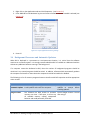
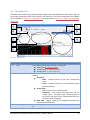
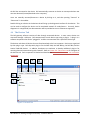
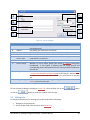
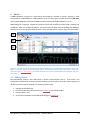
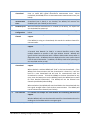
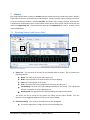
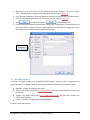
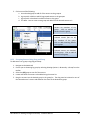
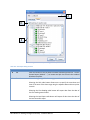
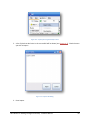
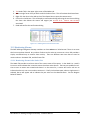
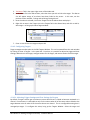
3. THE Nodes Tab) in the upper-right corner of the Nodes tab.
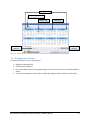
4. Select a single sensor to activate the Alarms Pane.
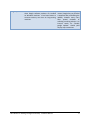
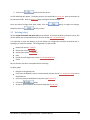
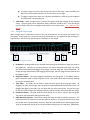
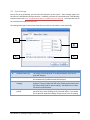
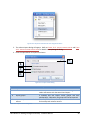
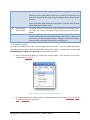
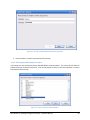
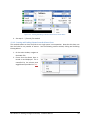
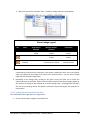
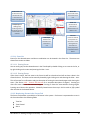
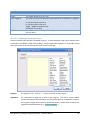
5. Right-click in the Alarms List of the Figure 12-5 - Creating and linking an alarm from the Alarms Pane
Alarms Pane to open the context
menu.
6. Select Link → New alarm… to bring up the Alarm Configuration window.
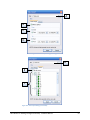
7. See steps 3 – 7 from the first method
12.2 Linking and Unlinking Existing Alarms
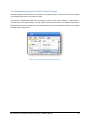
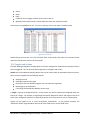
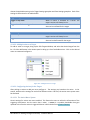
Once an alarm has been created, it can be linked to any number of sensors in the system. Linking an
alarm to a sensor causes the system to monitor the sensor for the alarm’s triggers and generates/closes
events. The alarms can also be unlinked from sensors at any point in time. There are two methods for
linking/unlinking alarms to/from sensors
NOTE: Unlinking alarms from sensors will delete all associated events and targets (see Targets and
Actions for details)
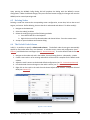
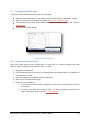
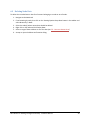
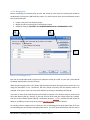
12.2.1 Linking and Unlinking Existing Alarms from the Sensor Context Menu
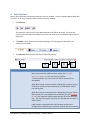
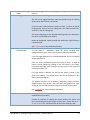
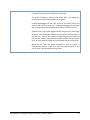
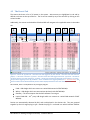
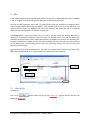
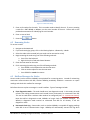
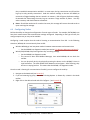
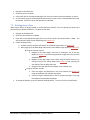
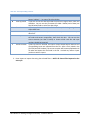
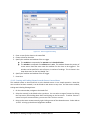
1. On the main window, navigate to the Nodes Tab.
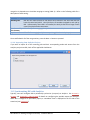
2. Select the sensors you wish to link/unlink. You can select a range of sensors by clicking the first
sensor, then holding down SHIFT and clicking on the last sensor. To add or remove a sensor
from your current selection, you can use CTRL + click on a sensor.
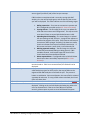
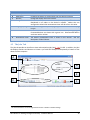
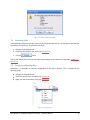
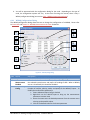
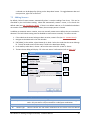
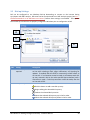
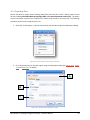
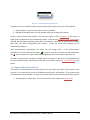
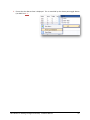
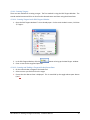
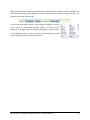
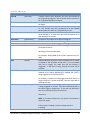
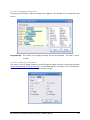
3. Bring up the sensor context menu by right-clicking on one of the selected sensors.
RS-1095 Rev 2: Building Intelligence Gateway - Software Manual
65