1
8 Groups
A group is a customized collection of sensors. Users can organize sensors into groups as they see fit. In
addition, each job can have its own set of groups which are separate from each other. Groups allow the
user to rapidly select a particular set of sensors.
Sensors can belong to multiple groups or no groups at all. BiG has several methods to efficiently
add/remove sensors to/from groups.
8.1 Browsing Groups
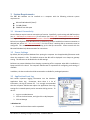
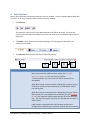
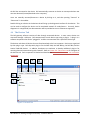
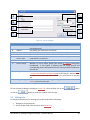
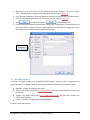
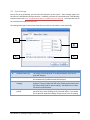
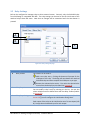
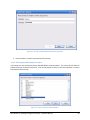
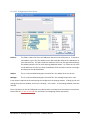
Groups are provided as an organizational system for sensors. To browse sensors by their group,
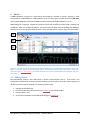
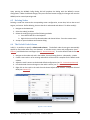
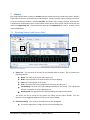
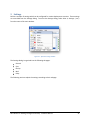
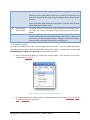
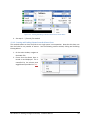
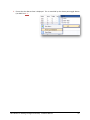
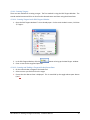
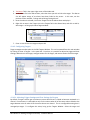
navigate to the Nodes tab, click on the Viewing Options drop-down, and select Browse By → Group (see
FIGURE 8-1).
Figure 8-1 - Browse by group
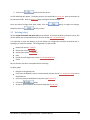
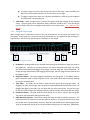
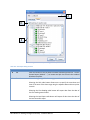
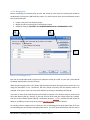
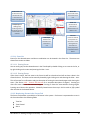
The list on the left will be replaced with a list of groups for the active job. The first item in the list is a
special entry called (All). This group is permanent and contains all sensors for the active job. The
remaining groups are user-created.
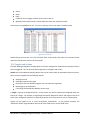
To view the sensors in a group, simply click on the group in the list. The sensors in the group will appear
in the sensor list (see 7.1 - BROWSING SENSORS AND SENSOR D ATA).
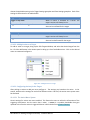
By selecting multiple groups, you will see the sensors which belong in one or more of the selected
groups. To select a sequential range of groups, click on the first group in the range, then hold the SHIFT
key on the keyboard and click on the last group in the range. To toggle adding/removing a single group
from your current selection, hold the CTRL key on the keyboard and click on the group.
8.2 Adding Groups
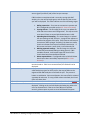
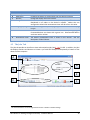
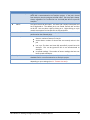
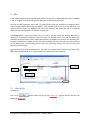
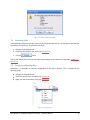
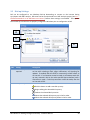
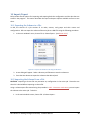
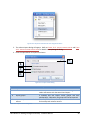
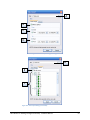
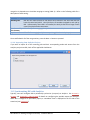
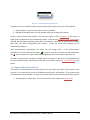
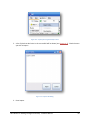
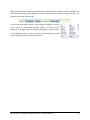
To create new groups, simply choose File → New → Group… from the main window’s menu.
Alternatively, you can also navigate to the Nodes tab and in the toolbar, click New → Group…
RS-1095 Rev 2: Building Intelligence Gateway - Software Manual
38