1
141
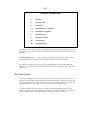
The Watch List
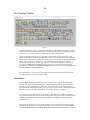
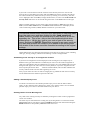
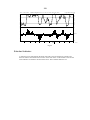
Another file called WATCH.LST is available for adding security codes to whenever you see
a chart that you would like to keep tabs on. Simply hold the Ctrl key down and click the left
mouse button on the chart proper. This will automatically add that code in the window on to
the WATCH list if it is not already there. To remove a code from the WATCH list if it is there
click the left mouse button with the Shift key held down. To remove all previous securities
from the WATCH list and add a new code to a newly initialised WATCH list hold both Ctrl
and Shft keys down while left clicking on the chart of the security to add.
Accessing Reference List files
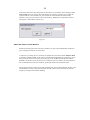
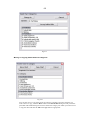
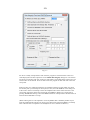
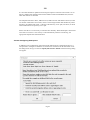
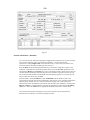
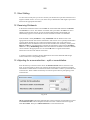
Whenever you need to access a reference list file for autorunning, system filtering, charting
etc you will be presented with a dialog box requesting the name of the file. A drop down list
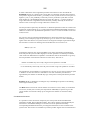
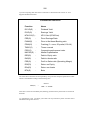
box will offer you the choice of the eight standard scratch files – HILITE, TAG, WATCH,
ALARMSET, SELECTED, ASX100DB, ASX200DB, ASX500DB, ASXSmallOrdsdb,
ASXSubIndicesdb, ASXSectorIndicesdb. Alternatively you can Browse for the file, type it
in, or hit the Generate button if you wish to generate a list from the ASX GICS industry
sectors.
The last three files are only available for Database Manager subscribers where they are
automatically updated each week.
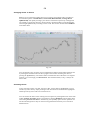
Viewing Reference Lists
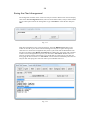
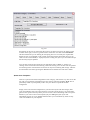
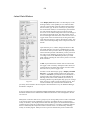
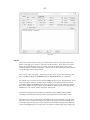
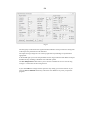
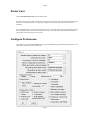
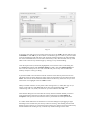
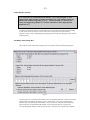
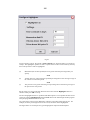
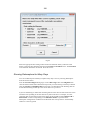
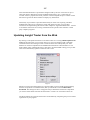
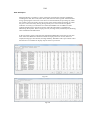
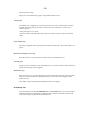
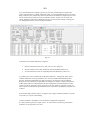
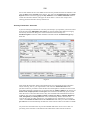
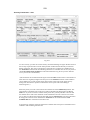
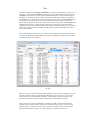
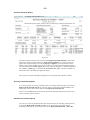
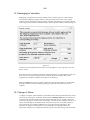
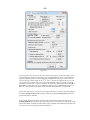
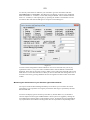
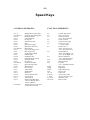
You can view a reference list from File/Highlight list, or by pressing the speedkey Alt J or by
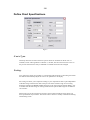
clicking the light bulb on the main toolbar. Enter the highlight or reference list file name in
the box provided and a dialog box will appear listing each security code, name, main activity,
and if it has been generated from system filtering - criteria met, 10 day momentum, percentage
by which the volume is above the 10 day moving average of the volume, percentage by which
the price is above the 10 day moving average of the price.
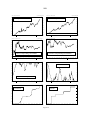
Double clicking any security on the list will chart it. Selecting any security, range of securities
or several individual securities and pressing the Chart button will create a chart of each one
selected.
Immediately pressing the ENTER key or clicking the Chart all button will throw up a chart of
every security on the list on the screen at the same time.
You can resort the list on any column by clicking the column header before printing it or
pressing the Resave list button to resave it to disk.
Attempting to resave a Filter report displaying in a Highlighter dialog will immediately take
you to the Filter report dialog to allow you to sort and resave from there to maintain the
integrity of the filter list.
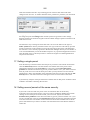
A button "Get data" has been added on the List Highlights dialog to allow you to retrieve
fundamental and other data for the list of securities currently displayed.
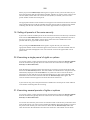
The Close dialog on acceptance check box should be unticked if you do not wish it to close
after charting any selection. Otherwise it will be closed.