1
164
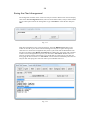
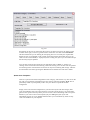
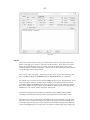
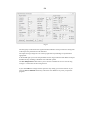
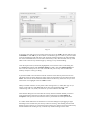
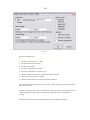
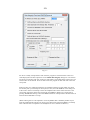
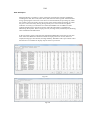
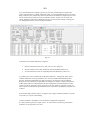
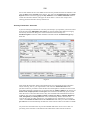
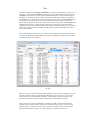
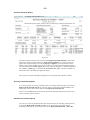
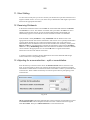
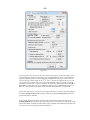
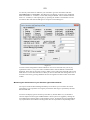
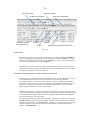
The right hand side of the form contains the controls to change or edit the file in several
ways. By clicking the mouse cursor in the large edit box to the right you can enter or edit
numbers manually. In the Edit record group of buttons you can repeat the line containing the
edit caret on to the line below it, you can accept the record with its changes or you can
abandon the changes for that record and start again or if it is a completely new record you
can skip its date entirely.
As you are appending records to the end of a file by editing in this way, after you accept a
new record a blank one will be presented to you for further input. This new record will be
automatically dated to the next day, week or month depending on the autodate status
indicated in the list box - Daily, Weekly, Monthly. If autodate status is off there will be no
automatic dating of records and you will have to enter the dates manually yourself.
In addition to these facilities you can delete records by placing the number of records (from
and including the current one) that you wish to remove. You can also insert records before
the current record by entering the number of records required to be inserted. They will be
autodated depending on the setting of the autodate status.
When you are satisfied with the changes you have made click Save file to save it to disk.
Since no permanent changes are made to the file until you save it you can abandon your
whole edit session by clicking Exit edit. Should you be using this dialog to view records only
then you should not press the Save file button but use Exit edit to leave the form.
Saving data file
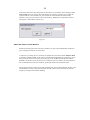
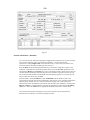
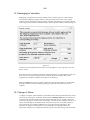
To save the currently resident data file click button 9 Save data file on the main toolbar or
select Save data file from the File menu. The speedkey for this operation is Alt A. You will
be presented with the Save file dialog box where you can leave the filename as it is, edit it to
what you want, or browse your disk to see what already exists.
You are also given the opportunity to permanently convert the file to double precision by
ticking the appropriate check box.
When you have altered the name to what you require then click OK. If the file already exists
on disk you will be asked if you wish to overwrite it.
Loading data file
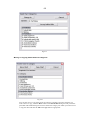
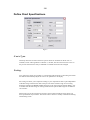
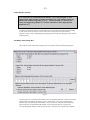
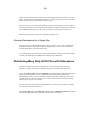
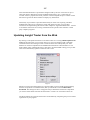
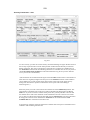
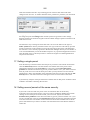
To load an existing data file click button 10 Data management - Load/erase/merge on the
main toolbar or access it from the File menu by selecting the Data file management item or
use the speedkey Alt K and the following dialog box will appear. It is the same dialog as
shown in fig 2.14 except that the Load into memory radio button is selected.