1
EDINGCNC
Manual
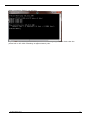
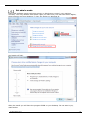
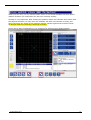
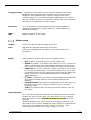
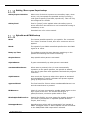
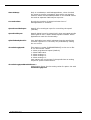
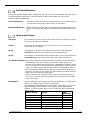
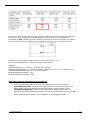
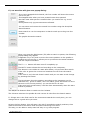
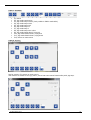
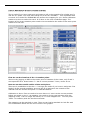
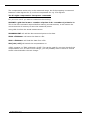
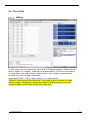
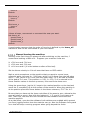
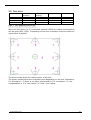
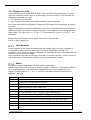
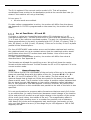
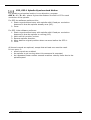
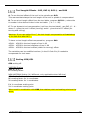
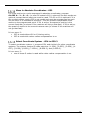
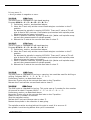
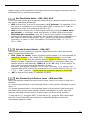
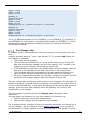
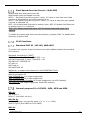
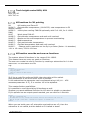
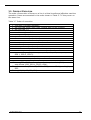
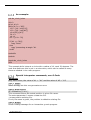
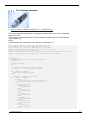
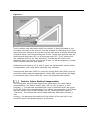
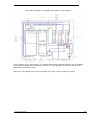
F7, set start line will give next popup dialog:
If you have stopped while Paused, the line number will show the current
line of the job.
This happens also when you have pressed reset when paused.
Not that reset when pause is needed when you need to do e.g. a tool
change.
During Pause only jog movements are allowed.
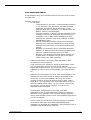
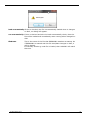
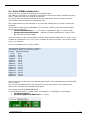
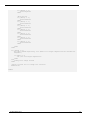
You can store and retrieve the stored line number using the Store/Get
Stored buttons.
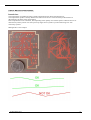
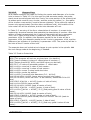
Press search to run the interpreter in Search mode up to the given line
number.
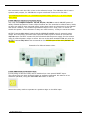
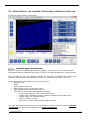
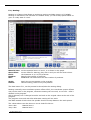
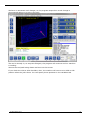
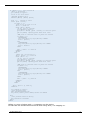
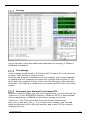
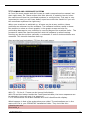
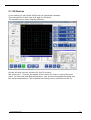
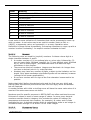
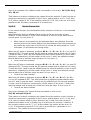
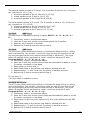
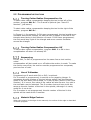
The graphic shows the search.
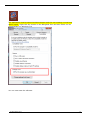
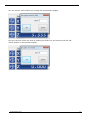
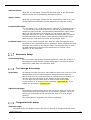
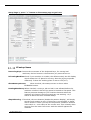
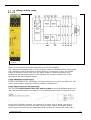
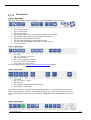
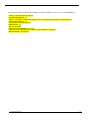
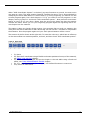
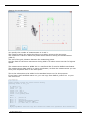
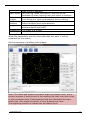
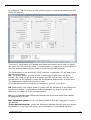
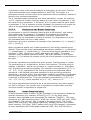
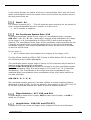
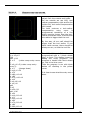
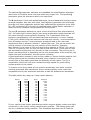
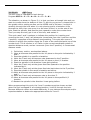
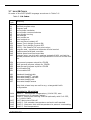
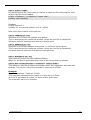
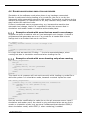
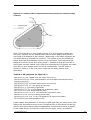
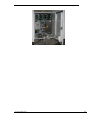
When you press the RUN button (F4) after a search or pause, the following
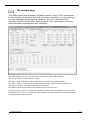
popup dialog may appear.
It appears only if any axis is not at the correct position or the spindle or
coolants are not correct, it allows you to synchronize the actual situation
with the required situation:
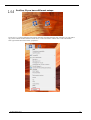
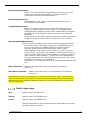
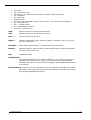
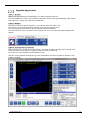
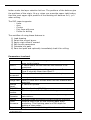
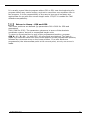
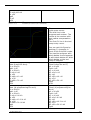
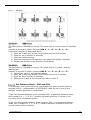
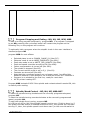
The Z >>> button will start move Z completely up.
The M6 T1 button shows the tool according to the interpreter,
This button is not visible at a start after Pause, only at start after search.
if the color is green the current tool matches the tool from the search
status.
If the color is red, the tool doesn't match and you can start a tool change
by pressing the button.
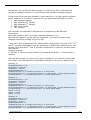
The Axis button show the position according to the interpreter on the
searched line, green is match, red is no match, press the button to move
the axis to the correct position, you can do this for all axes.
If any axis isn't synchronized, it will be done automatically when the start
button is pressed.
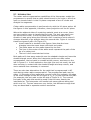
The M8/M7 On buttons allow to switch on the Coolants.
The S button switches the spindle On with correct S value from the Search status.
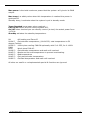
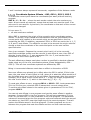
F= Plunge rate is the feed rate for the movement towards the work piece, you can
change this to a good value you want.
As last, the Run button, this will start a G1 with F towards the search positions, then
restore the Feed to the search feed and start machining from there.
This way you are able to easily start half way in a g-code program.
04 December 2015
Release 4.02
57