1
7
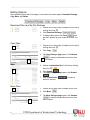
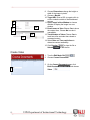
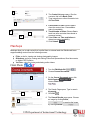
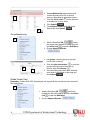
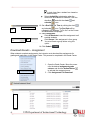
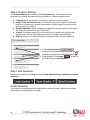
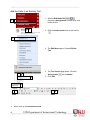
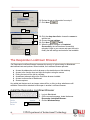
7. A new page opens. DO NOT change any of the
Default settings.
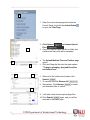
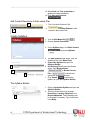
8. At the bottom left of the page, Click to Download
Results.
9. A File Download option appears, click Open
9
or Save.
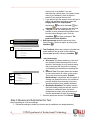
Survey results will
download in Excel format.
10. If a warning pops up, click Yes.
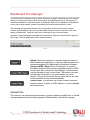
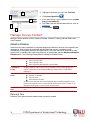
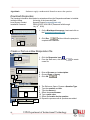
Disable Print Screen and Screen Copy on a Test
As an added tool for test security, you can add a string of HTML code to a Blackboard test to
disable the computer’s screen capture, copy, paste, and print functions to obtain a copy of the
test. When inserted in the instruction field, the code disables these functions as soon as the test
is attempted. The HTML code can be added to new or existing tests.
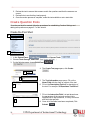
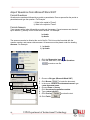
Add the Code to a New Test
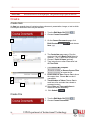
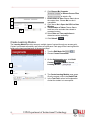
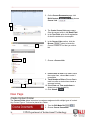
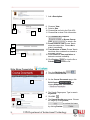
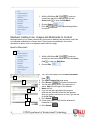
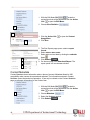
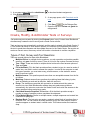
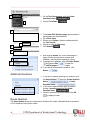
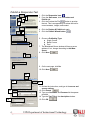
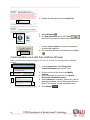
1. With the Edit Mode ON,
choose the
Assignments Content Area.
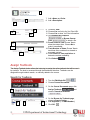
2. The Assignments page opens, click Create
1
Assessment.
3. From the Create Assessment menu, choose Test
4. The Create Test page opens, click Create.
4
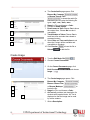
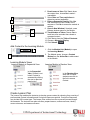
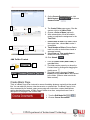
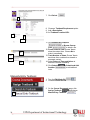
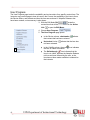
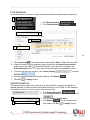
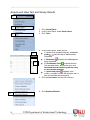
5. The Test Information page opens. Fill out the
Name Field with the name or subject of the test.
6. Fill out the Description Field with a description of
the test. For example “20 Questions True/False”.
5
6
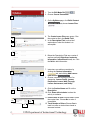
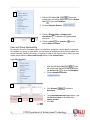
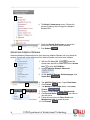
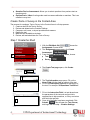
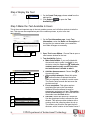
7. In the Instruction Field locate the triangle
on
the left corner of the Instruction Toolbar (just
below the word "Normal" on the font menu). Click
the triangle to expand the toolbar.
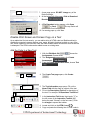
7
8
60
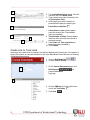
8. Locate and click on the HTML icon.
9. Copy and paste the following line of HTML code in
UIW Department of Instructional Technology